
Getting past the Outlook ‘The name cannot be matched to a name’ error for good comes down to fixing where Outlook looks up recipients, not retyping the same name again and again. The error appears when Check Names cannot resolve what was typed in the To, Cc, or Bcc box. The steps below target the real causes – a stale Auto-Complete entry, a Contacts folder that is not set up as an address book, or a damaged profile – and apply to classic Outlook for Windows.
Key Takeaways
- The error means Outlook cannot find a matching entry in any address list it is set to search.
- Clearing the Auto-Complete list removes broken suggestions that cause repeat failures.
- The Contacts folder must be enabled as an Outlook Address Book, or saved contacts are ignored during name checking.
- Every contact needs a valid email address, and the address list search order must include Contacts.
- If the message keeps returning, repairing the account or creating a new profile usually ends it.
How to Fix the Outlook Name Cannot Be Matched to a Name Error
Work through these steps in order. Most people find that the problem is solved by Step 2 or Step 3, because those two settings control whether saved contacts are searched at all. Close any open message window before starting.
Clear the cache, enable the Contacts folder, and set the search order
- Step 1: Open Outlook, select File, then Options, then Mail. Scroll to the ‘Send messages’ section and select ‘Empty Auto-Complete List’. Confirm with Yes. This wipes old cached suggestions, including ones pointing to deleted or renamed mailboxes. Tip: To remove just one bad suggestion instead of the whole list, start typing the name in a new message and click the small X beside the wrong entry in the dropdown.
- Step 2: Go to the People or Contacts view. Right-click the Contacts folder and select Properties. Open the ‘Outlook Address Book’ tab and tick ‘Show this folder as an e-mail Address Book’. Select OK. Without this box ticked, Outlook behaves like those contacts do not exist, which is the most common reason the error keeps coming back.
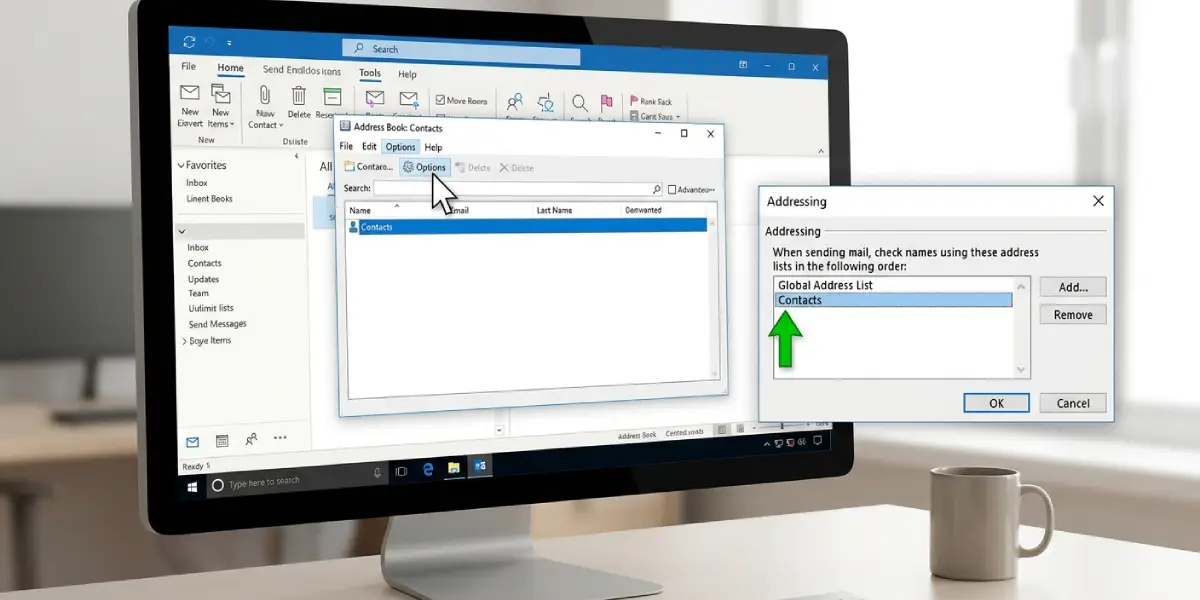
- Step 3: In a new message, select ‘Address Book’ on the ribbon, or press Ctrl+Shift+B from the main window. In the Address Book window, select Tools, then Options. Under ‘When sending mail, check names using these address lists in the following order’, make sure Contacts is listed. Move it to the top with the arrow buttons if the company directory is listed first, and select OK.
- Step 4: Open the contact that triggers the error. Confirm the Email field holds a complete, correctly spelled address, such as name@company.com, and that the Display As name matches what is normally typed. Delete duplicate contacts with the same name, since two near-identical entries often cause a mismatch. Save and close the contact.
- Step 5: For Microsoft 365 or Exchange accounts, go to the Send/Receive tab, select Send/Receive Groups, then ‘Download Address Book’. Keep ‘Download changes since last Send/Receive’ ticked and select OK. This refreshes the company directory so newly added colleagues can be resolved.
- Step 6: Start a new message, type the recipient’s name in the To box, and press Ctrl+K to run Check Names. A resolved name appears underlined. If a box listing several matches opens, pick the right one and select OK.
Common Problems and Fixes
The error returns after a restart
This points to a damaged profile. Select File, then Account Settings, then Account Settings again, choose the email account, and select Repair. Follow the prompts and restart Outlook. If the error persists, create a fresh profile: open Control Panel, select Mail (Microsoft Outlook), choose Show Profiles, select Add, and set up the account again. Choose the new profile under ‘Always use this profile’.
Only one specific name fails
That contact usually has a blank or mistyped email field, or a duplicate entry. Open the contact, correct the address, remove the duplicate, and clear that one Auto-Complete suggestion using the X in the dropdown.
Contacts exist but are not offered in the Address Book
Repeat Step 2 and confirm the Contacts folder is enabled as an address book. Then check the folder is not set to a different data file than the account in use. Restarting Outlook afterward lets the change take effect.
Colleagues in the company directory cannot be found
The offline address book is probably outdated. Repeat Step 5, then wait a few minutes for the download to finish before running Check Names again.
Typing the full email address still fails
Check the address for stray spaces or a trailing semicolon, and retype it manually rather than pasting. A pasted address sometimes carries hidden formatting that Check Names rejects.
Frequently Asked Questions
What does the ‘The name cannot be matched to a name’ error mean in Outlook?
It means Outlook could not match the text typed in the recipient box to any entry in the address lists it is set to search. The entry may be missing, spelled differently, or sitting in a list that Outlook is not checking.
Why does the error appear for a contact that is clearly saved?
The Contacts folder is probably not enabled as an Outlook Address Book. Right-click the folder, select Properties, open the ‘Outlook Address Book’ tab, and tick ‘Show this folder as an e-mail Address Book’.
Will clearing the Auto-Complete list delete my contacts?
No. The Auto-Complete list only stores suggestions based on past messages. Saved contacts, mail, and calendar items are not affected.
Where is the option to empty the Auto-Complete list?
Select File, then Options, then Mail, and scroll to the ‘Send messages’ section. The ‘Empty Auto-Complete List’ button is there.
Does the error mean the recipient’s email address is wrong?
Not always. The address can be perfectly valid while Outlook still fails to match it, usually because of a stale cache entry or a Contacts folder that is not being searched. Typing the complete email address often bypasses the problem.
How do I check which address lists Outlook searches?
Open the Address Book with Ctrl+Shift+B, select Tools, then Options. The order under ‘When sending mail, check names using these address lists in the following order’ shows exactly where Outlook looks.
Can a damaged Outlook profile cause this error?
Yes. When the settings above are correct and the message still appears, a corrupted profile is a likely cause. Repairing the account or creating a new profile through Control Panel and Mail resolves it in most cases.
How do I update the company address list in Outlook?
On the Send/Receive tab, select Send/Receive Groups, then ‘Download Address Book’, and select OK. This applies to Microsoft 365 and Exchange accounts.
