
Knowing how to fix Superfetch/SysMain causing high disk usage can turn a sluggish, constantly grinding Windows PC back into a responsive one. The service is designed to speed up app launches, but on some systems it keeps the drive pinned at or near 100 percent. The fix usually takes only a few minutes and needs no extra software.
Key Takeaways
- Superfetch is the older name for SysMain, a Windows service that preloads frequently used apps into memory.
- High disk usage from SysMain is most common on PCs with a traditional hard drive or limited RAM.
- Waiting 10 to 15 minutes after startup often solves the problem on its own.
- Stopping and disabling the SysMain service in Services is the fastest permanent fix, and it is fully reversible.
- If disk usage stays high afterward, system file errors, other background tasks, malware, or a failing drive are the next things to check.
Common Causes of Superfetch/SysMain High Disk Usage
SysMain studies which apps are used most often and loads their data into RAM ahead of time. That sounds helpful, and on a fast system it is. The trouble starts when the hardware cannot keep up with the constant reading and caching.
- A mechanical hard drive (HDD) that is slow at handling many small read requests at once.
- Low RAM, which forces Windows to shuffle cached data in and out repeatedly.
- Heavy activity right after startup or a Windows update, when the service rebuilds its usage data.
- Corrupted system files that make the service misbehave or loop.
- Other background tasks, such as Windows Search indexing or a malware scan, competing for the same drive.
- A drive that is aging or developing errors, which makes every read slower than it should be.
How to Fix Superfetch/SysMain Causing High Disk Usage
Work through these steps in order. Each one is safe, and most people find the problem is solved by Step 3 or Step 4. Administrator rights are required for the service changes.
Confirm SysMain Is the Real Culprit
- Step 1: Press Ctrl + Shift + Esc to open Task Manager. If it opens in compact view, click More details.
- Step 2: On the Processes tab, click the Disk column header to sort by usage. Look for a Service Host entry near the top, then expand it to see whether SysMain is listed underneath. The Services tab can also confirm that SysMain is running.
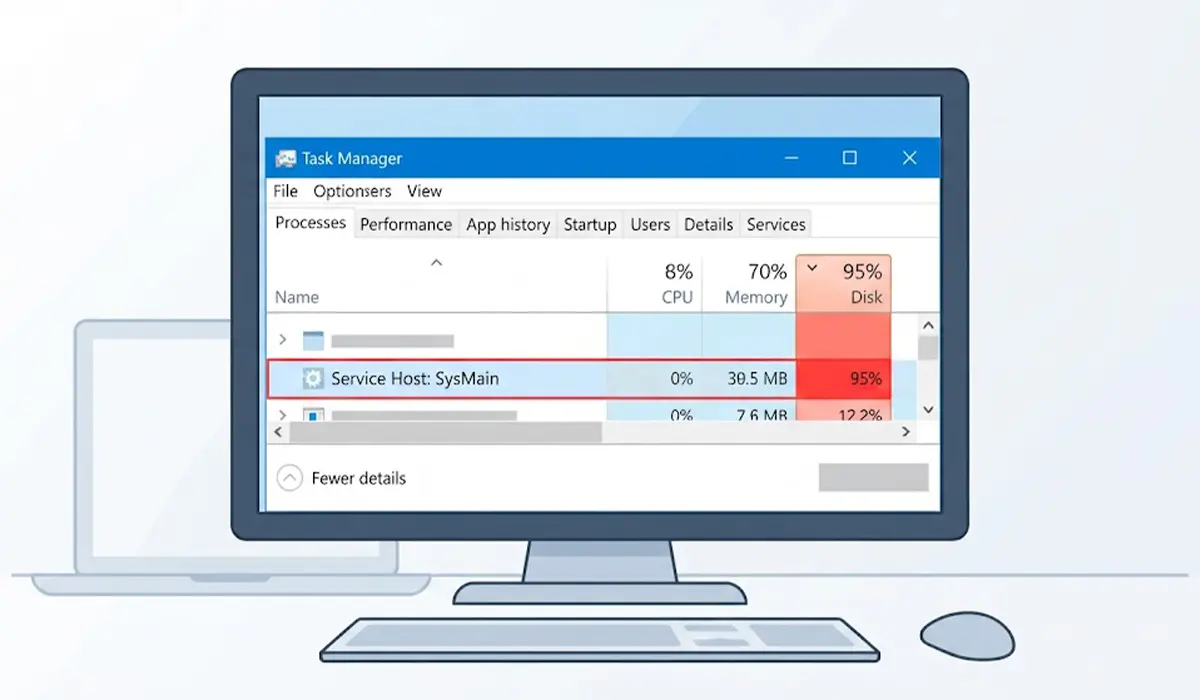
Tip: Give the PC 10 to 15 minutes after startup before judging. Short bursts of disk activity right after logging in are normal. The problem is when the drive stays maxed out long after the desktop has loaded.
Stop and Disable the SysMain Service
- Step 3: Press Windows key + R, type services.msc, and press Enter.
- Step 4: Scroll down the list and double-click SysMain.
- Step 5: Click Stop to end the service immediately.
- Step 6: Open the Startup type drop-down menu and choose Disabled.
- Step 7: Click Apply, then OK, and restart the PC.
Use Command Prompt as an Alternative
If the Services window refuses to cooperate, Command Prompt does the same job. Search for Command Prompt, right-click it, and choose Run as administrator. Then run sc stop SysMain, followed by sc config SysMain start= disabled. Note the space after the equals sign, because the command fails without it. Restart the PC once both commands report success.
Repair Corrupted System Files
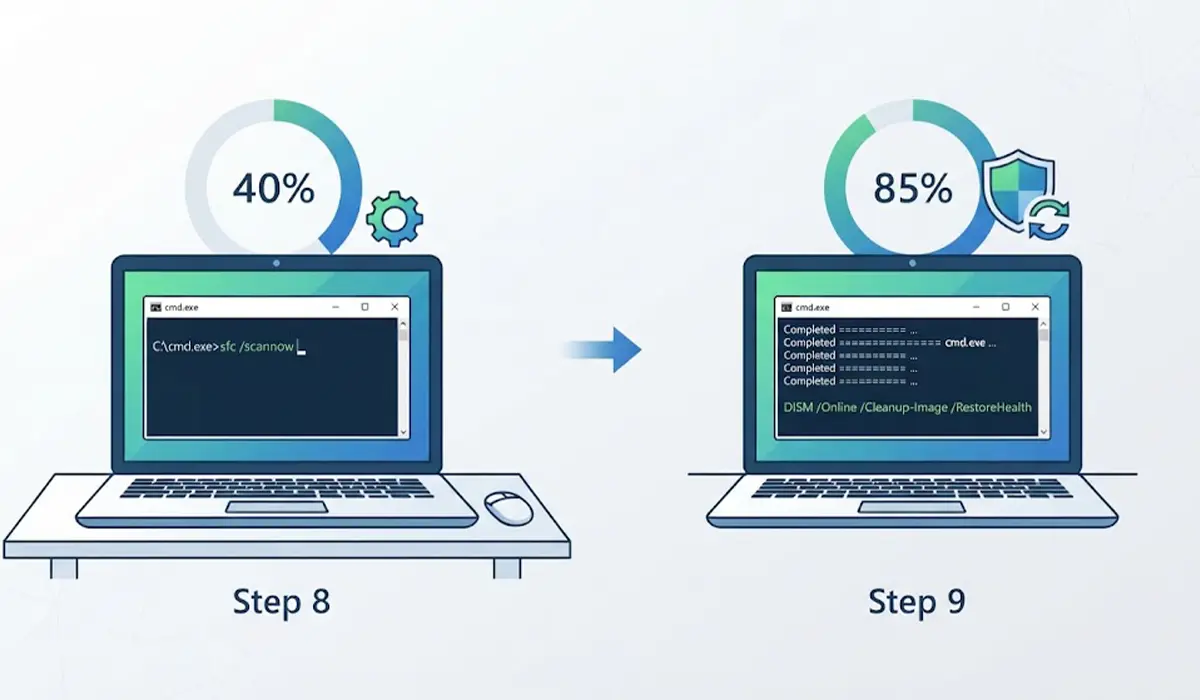
- Step 8: Open Command Prompt as administrator and run sfc /scannow. Let it finish completely, which can take several minutes.
- Step 9: If errors are reported that could not be fixed, run DISM /Online /Cleanup-Image /RestoreHealth, wait for it to complete, and then run sfc /scannow once more.
Update Windows and Storage Drivers
- Step 10: Open Settings, go to Windows Update, and install all pending updates, including optional driver updates for storage controllers where offered.
- Step 11: Restart and check Task Manager again. Outdated or faulty storage drivers can make a drive look overworked even when the load is modest.
Scan for Malware and Check Drive Health
- Step 12: Open Windows Security, choose Virus and threat protection, and run a full scan. Malware can mimic or trigger heavy disk activity.
- Step 13: Check the drive itself. The manufacturer’s diagnostic utility is the most reliable option, and running chkdsk from an administrator Command Prompt can find file system errors. Back up important files first if the drive shows any warning signs such as clicking noises, frequent freezes, or errors.
Tip: If the PC still uses a hard drive, moving to a solid-state drive (SSD) is the single biggest long-term improvement for disk responsiveness. Adding RAM also helps by giving Windows more room to cache data without constant disk reads.
Common Problems and Fixes
The Stop Button Is Greyed Out or Access Is Denied
This almost always means the account lacks administrator rights. Sign in with an administrator account, or use the Command Prompt method while running it as administrator.
SysMain Turns Back On After a Windows Update
Major updates can occasionally reset service settings. Open services.msc again, check the SysMain startup type, and set it to Disabled again if needed.
Disk Usage Is Still High After Disabling SysMain
SysMain was not the only cause. Return to Task Manager and see which process now sits at the top of the Disk column. Windows Search indexing, Windows Update, a security scan, or a failing drive are the usual suspects. Run the system file repair and drive health steps above if nothing obvious stands out.
Apps Feel Slightly Slower to Open the First Time
This is expected on a hard drive, since the preloading is gone. If the delay bothers daily work, set the service back to Automatic and try the other fixes first, especially system file repair, driver updates, and a drive upgrade.
How to Turn SysMain Back On
Open services.msc, double-click SysMain, set Startup type to Automatic, click Start, then Apply and OK. No restart is strictly required, though one is a good idea.
Frequently Asked Questions
What is Superfetch, and why is it called SysMain now?
Superfetch is the original name of a Windows service that learns which apps are used most and preloads them into memory. Later builds of Windows 10 and all of Windows 11 call the same service SysMain.
Is it safe to disable SysMain?
Yes. Windows runs normally without it. The only trade-off is that frequently used apps may take slightly longer to open for the first time, mostly on hard drives.
Why does SysMain use so much disk right after startup?
After a restart or a Windows update, the service reloads and rebuilds its picture of which apps matter most. On a slower drive, that burst of reading can keep usage high for several minutes.
How long should the disk usage be left to settle before taking action?
Give the PC about 10 to 15 minutes after reaching the desktop. If the drive is still at or near 100 percent after that, move on to disabling the service.
Will disabling SysMain help on an SSD?
The benefit is usually small. SSDs handle many small reads far better than hard drives, and Windows already scales back much of this activity on them. If an SSD shows high disk usage, look for another cause as well.
Does SysMain use a lot of RAM?
It fills spare memory with cached app data, which can make memory usage look high in Task Manager. That cached data is released when programs need the space, so it is not the same as wasted memory.
Can disabling SysMain fix 100 percent disk usage completely?
Sometimes, but not always. Other causes include Windows Search indexing, update activity, corrupted system files, malware, outdated storage drivers, or a failing drive. Checking the top entry in the Task Manager Disk column shows what is really responsible.
How can SysMain be re-enabled later?
Open services.msc, double-click SysMain, set Startup type to Automatic, and click Start. Apply the change and restart if needed.
