
Learning how to fix drawing tablet pen not detected problems usually takes less time than expected, because the cause is almost always a dead pen battery, a driver conflict, a weak connection, or a changed setting. The tablet may power on and the light may glow, yet the cursor ignores the pen completely. The steps below start with the quickest checks and move toward deeper fixes.
Key Takeaways
- Most detection failures come from a pen power issue, a bad cable or port, or a driver problem.
- Test the simple things first: pen hover distance, pen battery or charge, cable, and a restart.
- Only one tablet driver should be installed at a time, since leftover drivers from older tablets often block detection.
- A clean driver reinstall from the manufacturer’s website fixes the majority of stubborn cases.
- If the pen fails on a second computer with a known-good cable, the pen or tablet hardware is likely faulty.
Common Causes of a Drawing Tablet Pen Not Being Detected
Knowing the likely culprit saves time. Most cases fall into one of these groups.
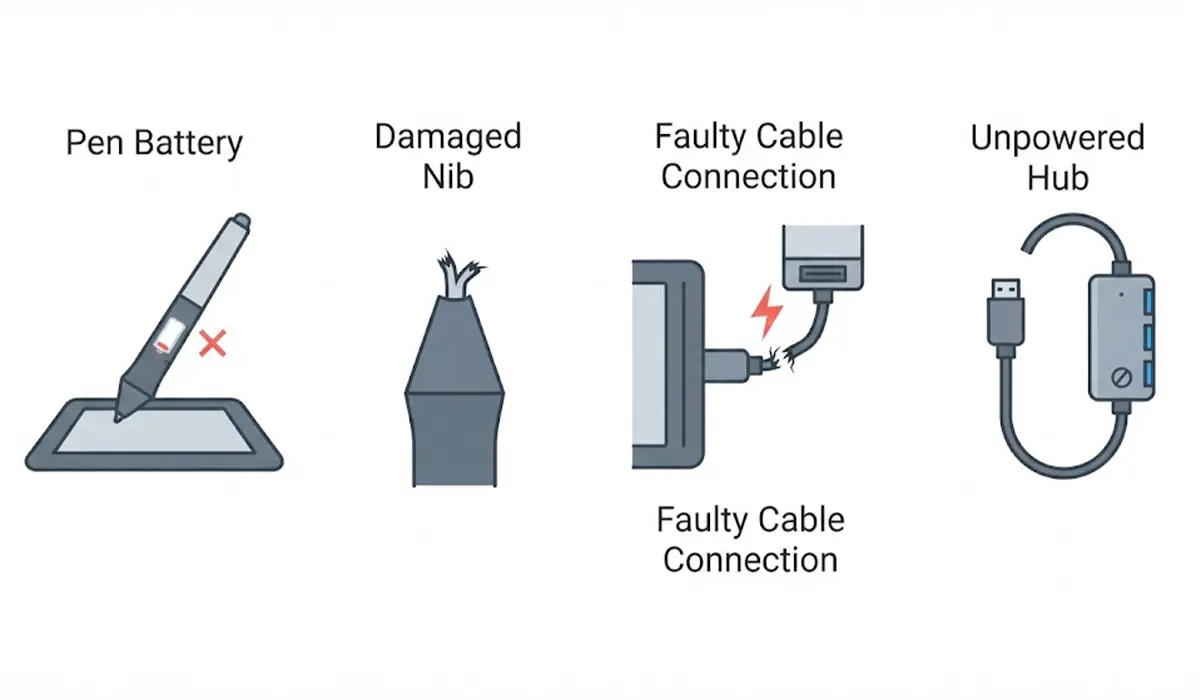
Pen and Tablet Hardware Causes
- A pen with a depleted battery or low charge, on models that use one. Many pens are battery-free, so this applies only to some designs.
- A damaged or badly worn nib that no longer registers properly.
- A loose, damaged, or low-quality USB cable, or a port that is not delivering a stable connection.
- A tablet connected through an unpowered USB hub or a loose adapter.
Software and Settings Causes
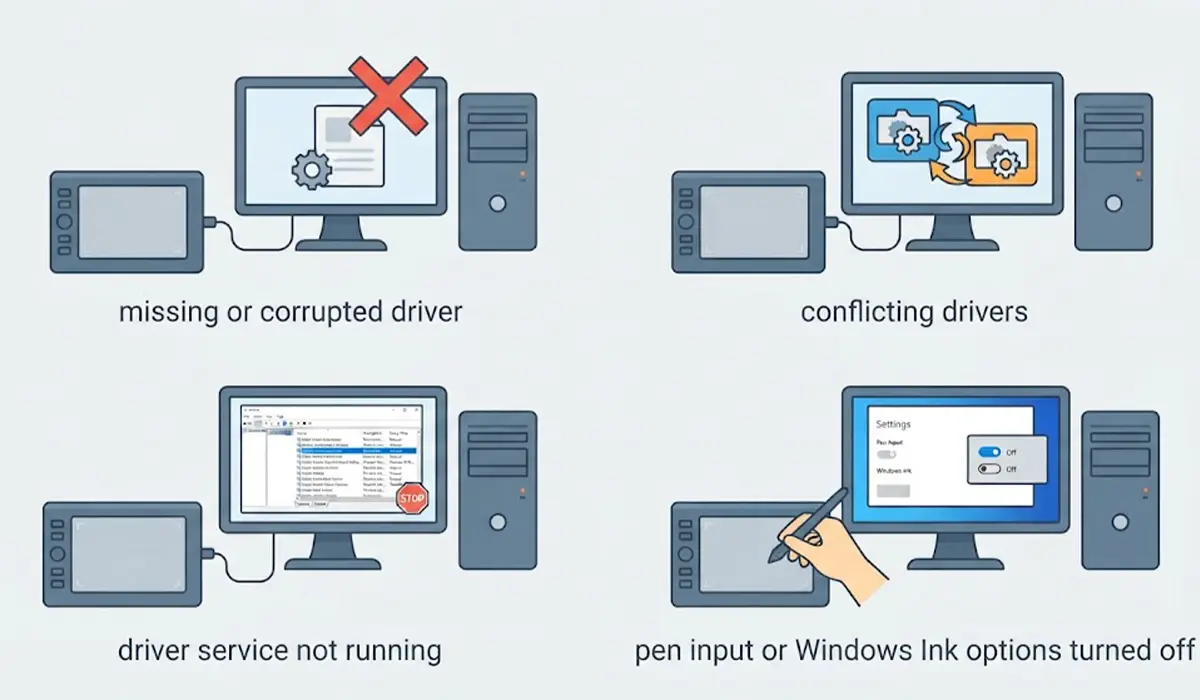
- A missing, outdated, or corrupted tablet driver.
- Conflicting drivers left behind from a previous tablet, for example two different brands installed together.
- The tablet driver service not running in the background.
- Pen input or Windows Ink options turned off, or an app that does not receive pen input correctly.
Before You Start
This is a troubleshooting job, not a repair, so no disassembly is needed. Have these items ready:
- The tablet’s original USB cable, or a known-good data cable
- A fresh or fully charged battery for the pen, if the pen model uses one
- A spare nib, which is usually supplied with the pen or in the box
- The exact model name of the tablet, so the correct driver can be downloaded from the manufacturer’s website
Do not open the tablet or the pen. Doing so can damage delicate parts and may affect the warranty.
Step-by-Step Fixes for a Drawing Tablet Pen Not Detected
- Step 1: Check the basics. Hold the pen just above the active area, about a centimeter over the surface, and look for the cursor to move without touching down. Then press the nib down and check for a click. If the cursor moves while hovering but the pen does not draw, the issue is more likely a nib or pressure setting than detection.
- Step 2: Check pen power. If the pen model uses a battery, replace it or recharge it fully. Battery-free pens skip this step. Pens with a charge indicator often show a light when active, so look for any sign of life.
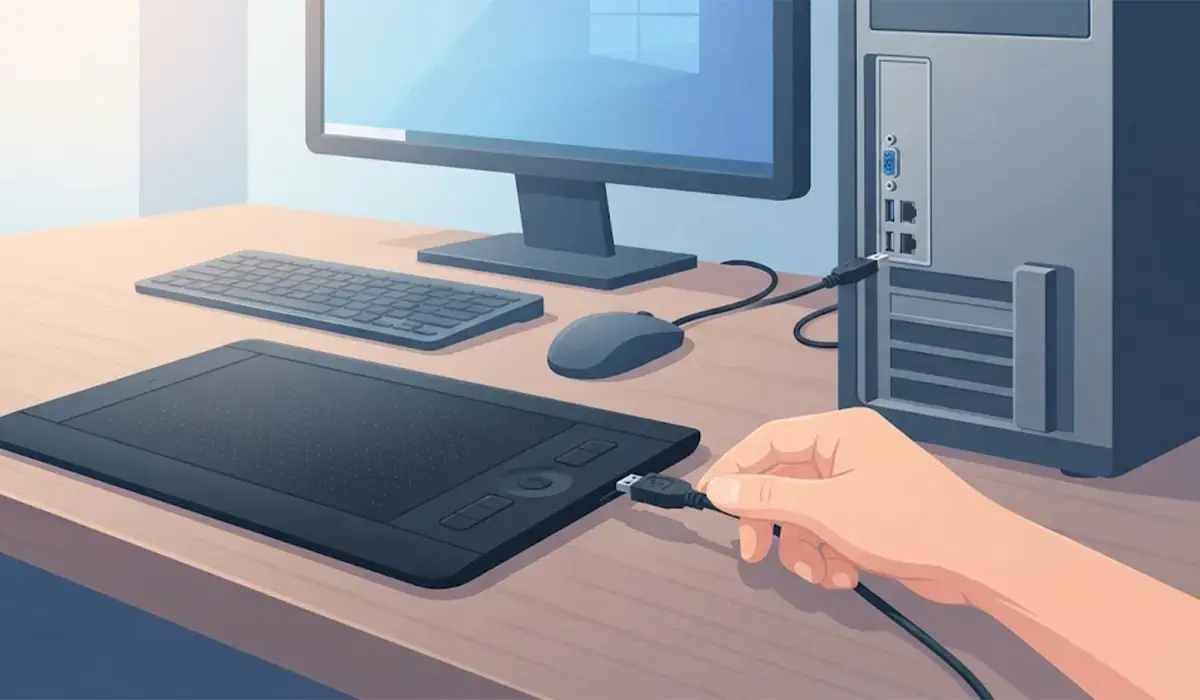
- Step 3: Test the cable and port. Unplug the tablet, plug the cable into a different USB port directly on the computer, and avoid hubs or extension adapters. Try a different data cable if one is available, since some cables only carry power and not data. Tip: Back-panel ports on a desktop are often more stable than front-panel ports.
- Step 4: Restart everything. Unplug the tablet, shut down the computer fully, then power it back on and reconnect the tablet once Windows has loaded. This clears many temporary glitches.
- Step 5: Check Device Manager. Right-click the Start button, open Device Manager, and look for the tablet under Human Interface Devices or the tablet’s own category. A yellow warning icon means the driver is not working correctly. If the tablet does not appear at all, the cable or port is the likely problem.
- Step 6: Remove old and conflicting drivers. Open Settings, go to Apps, and uninstall every tablet driver listed, including drivers from older tablets of any brand. Restart the computer once the removal finishes.
- Step 7: Install the correct driver. Download the latest driver for the exact tablet model from the manufacturer’s official website, run the installer, and restart when prompted. Install only this one driver. Tip: Keep the tablet unplugged during the installation unless the installer asks to connect it.
- Step 8: Restart the driver service. Press the Windows key, type Services, and open it. Find the service named after the tablet manufacturer, right-click it, and choose Restart. If it is stopped, start it and set it to run automatically.
- Step 9: Check pen settings in Windows. Open Settings, go to Bluetooth and devices, then Pen and Windows Ink, and confirm that pen input is available. In the manufacturer’s driver panel, make sure the pen appears and that the tablet is mapped to the correct display.
- Step 10: Test in another app. Open a basic program such as Paint or a browser-based drawing page. If the pen works there but not in a specific art program, check that program’s tablet or pen input settings.
- Step 11: Inspect and replace the nib. Pull the old nib out with the removal tool supplied with the pen, check it for a bent tip or a flat, worn surface, and fit a new one. Push it in until it seats firmly.
- Step 12: Try a second computer. If a different computer detects the pen with the same cable, the problem sits in the first computer’s software. If it fails there too, the pen or tablet itself is probably faulty.
Common Problems and Fixes
The Cursor Moves but the Pen Will Not Draw
This points to a pressure or nib problem rather than detection. Replace the nib, then check the pressure and click settings in the driver panel. Also confirm that the art program is set to receive pen input rather than treating the tablet as a mouse.
The Pen Works Until the Computer Restarts
This often means the driver service is not starting automatically. Open Services, find the tablet service, and set the startup type to Automatic. A clean driver reinstall also helps if the service keeps failing.
The Tablet Is Not Listed in Device Manager
Check the cable first, since a power-only cable will light the tablet but never show it to the computer. Then try another port and, if possible, another computer.
The Pen Is Detected but Jumps or Drifts
Interference from other devices or a worn nib can cause erratic tracking. Move other electronics away from the active area, replace the nib, and recalibrate through the driver panel if the option is available.
The Pen Stopped Working After a Windows Update
Reinstall the latest driver from the manufacturer’s website. Updates can leave an older driver incompatible, and a fresh install usually restores detection.
Frequently Asked Questions
Why is a drawing tablet pen not detected?
The most common reasons are a dead or low pen battery on models that need one, a damaged cable or port, a corrupted or conflicting driver, or the tablet driver service not running. Working through the steps in order usually reveals the cause.
Does every drawing tablet pen need a battery?
No. Many pens are battery-free and draw power from the tablet surface, while others use a replaceable battery or a rechargeable cell. The product manual for the exact model confirms which type applies.
Can a worn nib stop the pen from being detected?
A worn nib mostly affects pressure and contact response, but a badly damaged or loose nib can cause missed strokes that look like detection failure. Replacing it is quick and inexpensive.
Should more than one tablet driver be installed at once?
No. Drivers from different brands or older tablets can conflict and block pen detection. Uninstall all of them, restart, and install only the driver made for the current tablet.
Can a USB hub cause pen detection problems?
Yes. Unpowered hubs and long extension cables can deliver unstable power or data. Plugging the tablet directly into a port on the computer is the safest test.
How can a faulty pen be told apart from a faulty tablet?
Try a second pen of the same model on the tablet, or connect the tablet and pen to another computer. If a second pen works, the first pen is faulty. If nothing works on any computer, the tablet is the likely cause.
Why does the pen work in one program but not another?
Some art programs have their own pen input settings, such as Windows Ink options or tablet API choices. Switching these settings in the program, then restarting it, often restores pen response.
When is it time to contact support or replace the tablet?
If the pen is still not detected on another computer with a verified data cable and a fresh driver install, the hardware is likely at fault. Contact the manufacturer’s support or a professional repair service, and check the warranty status first.
