
A damaged OST file usually shows up at the worst possible time – Outlook freezes mid-send, folders stop syncing, or search results turn up empty. Learning how to repair a damaged OST file does not require reinstalling Outlook or losing mail history, and most cases are fixed with tools already built into Windows.
Key Takeaways
- Outlook includes a free built-in tool called ScanPST.exe that scans and repairs damaged OST files.
- Closing Outlook completely before running any repair tool prevents further file damage.
- An OST file is a local cache of a mailbox, so deleting it and letting Outlook rebuild it is a safe fallback when repair does not work.
- Running the scan more than once catches errors the first pass missed.
- A quick backup of the OST file before repair adds a safety net at almost no extra time cost.
Step-by-Step Guide to Repair a Damaged OST File
This method uses the Inbox Repair Tool that ships with every version of Microsoft Outlook. Follow the steps in order for the cleanest result.
Method 1: Run the Inbox Repair Tool (ScanPST.exe)
- Step 1: Close Outlook fully. Check the system tray and Task Manager to confirm no OUTLOOK.EXE process is still running, since the repair tool cannot touch a file that is still open.
- Step 2: Locate ScanPST.exe. On most 64-bit installs it sits in ‘C:\Program Files\Microsoft Office\root\Office16’, while 32-bit installs typically use ‘C:\Program Files (x86)\Microsoft Office\root\Office16’. Click2Run and MSI installs sometimes vary slightly, so a quick search in Windows Explorer for ‘scanpst’ confirms the exact path.
- Step 3: Double-click ScanPST.exe to open the Inbox Repair Tool window.
- Step 4: Select ‘Browse’ and navigate to the damaged OST file. The default location is ‘C:\Users\[username]\AppData\Local\Microsoft\Outlook’, though a custom profile setup may store it elsewhere.
- Step 5: Click ‘Start’ to begin the scan. Larger mailboxes with several gigabytes of cached data can take a while, so this is a good point to let it run in the background.
- Step 6: Review the scan results. If errors appear, tick the option to back up the scanned file before repair, choose a save location, and click ‘Repair’.
- Step 7: Wait for the repair process to finish, then close the tool once the confirmation message appears.
- Step 8: Reopen Outlook and allow it a few minutes to reconcile the repaired OST file with the mail server. A sync status bar at the bottom of the window shows progress.

Tip: Run ScanPST.exe a second time immediately after the first repair completes. Some corruption is layered, and a second pass often catches errors the first scan could not reach.
Method 2: Rebuild the OST File When Repair Does Not Resolve the Issue
- Step 1: Close Outlook completely.
- Step 2: Open File Explorer and go to ‘C:\Users\[username]\AppData\Local\Microsoft\Outlook’.
- Step 3: Rename the damaged OST file rather than deleting it outright, for example changing ‘Outlook.ost’ to ‘Outlook_old.ost’. This keeps a fallback copy available.
- Step 4: Restart Outlook. Since an OST file is only a local cache of the mailbox, Outlook automatically creates a fresh one and re-downloads mail, calendar, and contacts from the mail server.
- Step 5: Allow the resync to finish fully before closing Outlook again, especially on a large mailbox, since interrupting it can trigger a fresh round of errors.
Tip: Because the OST file mirrors data that already lives on the mail server, rebuilding it does not risk losing any email as long as the account is an Exchange, Microsoft 365, or IMAP account rather than a POP account.
Common Problems and Fixes
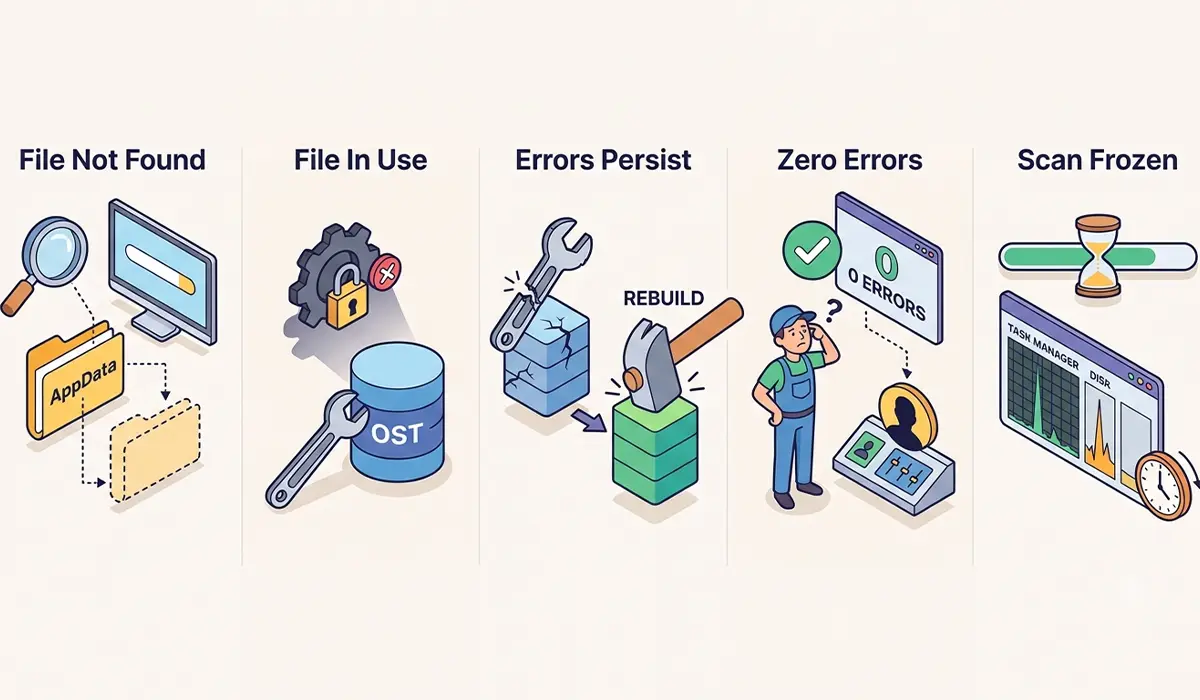
- ScanPST.exe cannot find the OST file: Enable hidden items in File Explorer’s View tab, since the AppData folder is hidden by default on most Windows installs.
- The repair tool reports the file is in use: Check Task Manager for a lingering OUTLOOK.EXE process and end it, since a background sync task can keep the file locked even after the window closes.
- Repair completes but Outlook still shows sync errors: Rebuild the OST file using Method 2 above rather than repeating the scan, since some corruption goes beyond what ScanPST.exe can patch.
- The scan runs but finds zero errors, yet Outlook still misbehaves: The issue may sit with a corrupted Outlook profile instead of the OST file itself. Creating a new profile through Control Panel’s Mail settings and reconnecting the account often resolves this.
- Repair takes an unusually long time or appears frozen: Large OST files, particularly ones over 5GB, can take well over an hour to scan. Checking Task Manager for active disk activity confirms the tool is still working rather than stalled.
Frequently Asked Questions
What causes an OST file to become damaged?
Unexpected shutdowns during sync, antivirus software scanning the file mid-write, disk errors, and abrupt Outlook crashes are the most common causes.
Is it safe to delete a damaged OST file?
Yes, for Exchange, Microsoft 365, and IMAP accounts. The OST file is a cache of server-side data, so Outlook rebuilds it automatically without losing mail.
Where is ScanPST.exe located?
It is typically found under ‘C:\Program Files\Microsoft Office\root\Office16’ on 64-bit installs, with the equivalent Program Files (x86) path used for 32-bit installs.
How long does an OST repair take?
Small mailboxes finish in a few minutes, while multi-gigabyte OST files can take an hour or more depending on disk speed and the amount of corruption found.
Will repairing an OST file delete any emails?
Repair through ScanPST.exe preserves data whenever possible, and choosing the backup option before repair adds an extra safeguard against loss.
Can a damaged OST file be repaired without closing Outlook?
No, Outlook must be fully closed. The Inbox Repair Tool cannot access or modify a file that is still open in another process.
What is the difference between repairing and rebuilding an OST file?
Repairing scans and patches errors within the existing file, while rebuilding removes the damaged file entirely and lets Outlook generate a brand new one from server data.
Does a POP account behave the same way when the OST file is deleted?
No. POP accounts often store mail locally rather than on a server, so deleting the OST file on a POP setup can risk data loss and needs a verified backup first.
Why does the same OST file keep getting corrupted after repair?
Recurring corruption often points to a failing hard drive, an antivirus program scanning Outlook files in real time, or a network interruption during sync. Checking disk health and adding an antivirus exclusion for the Outlook data folder usually stops the pattern.
