
Learning how to limit background app refresh in Windows is one of the easiest ways to stretch battery life and free up memory, processor time, and network bandwidth. Many apps keep working quietly after they are closed, checking for updates, syncing data, and pushing notifications. This guide covers the exact settings to control that activity in Windows 11 and Windows 10.
Key Takeaways
- In Windows 11, background permissions are set one app at a time under Settings, Apps, Installed apps, Advanced options.
- In Windows 10, a single switch under Privacy, Background apps can block all Microsoft Store apps at once.
- These permissions apply to Microsoft Store apps. Classic desktop programs are controlled through startup settings and their own preferences.
- Battery Saver adds an extra layer of limits whenever a laptop runs low on power.
How to Limit Background App Refresh in Windows 11
Windows 11 offers no single master switch for background apps. Each app gets its own permission, which gives precise control over what stays active and what does not.
- Step 1: Press the Windows key + I to open Settings.
- Step 2: Select ‘Apps’ in the left pane, then click ‘Installed apps’.
- Step 3: Find the app that needs limiting, click the three-dot menu on the right side of its row, and choose ‘Advanced options’.
- Step 4: Scroll down to the ‘Background apps permissions’ section and open the ‘Let this app run in the background’ drop-down menu.
- Step 5: Pick ‘Power optimized’ to let Windows decide when the app may run, or choose ‘Never’ to stop it from running in the background completely. The ‘Always’ option allows unrestricted background activity.
- Step 6: Repeat the same steps for every other app that does not need to stay active, then close Settings. Each choice is saved the moment it is selected.
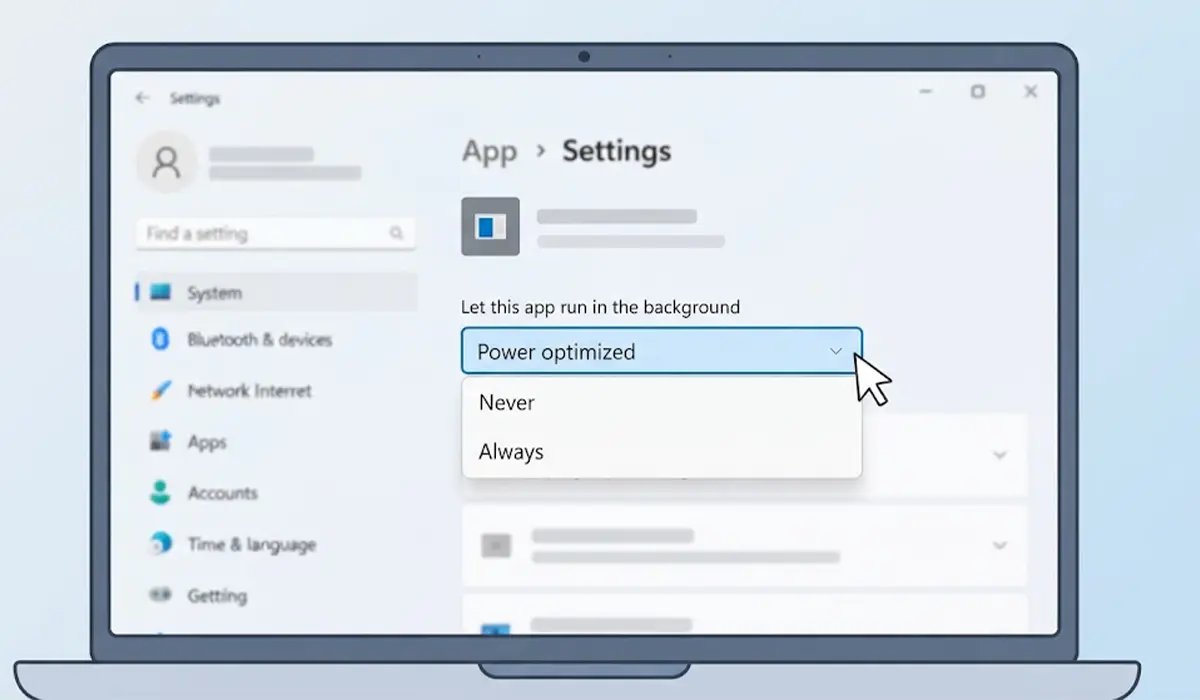
Tip: Start with chat apps, social media apps, games, and news or weather apps. These tend to refresh constantly while offering little value when closed. Mail and calendar apps are usually better left on ‘Power optimized’ so alerts keep arriving.
Find the Apps Worth Limiting First
Guessing wastes time. Open Settings, go to System, then ‘Power and battery’, and look at ‘Battery usage’. The list ranks apps by how much battery they consumed over the last 24 hours or 7 days. Apps near the top that are rarely used on purpose are the best candidates for a stricter background setting.
How to Limit Background Apps in Windows 10
Windows 10 handles this through the Privacy page, and it includes both a global switch and individual controls.
- Step 1: Press the Windows key + I, then select ‘Privacy’.
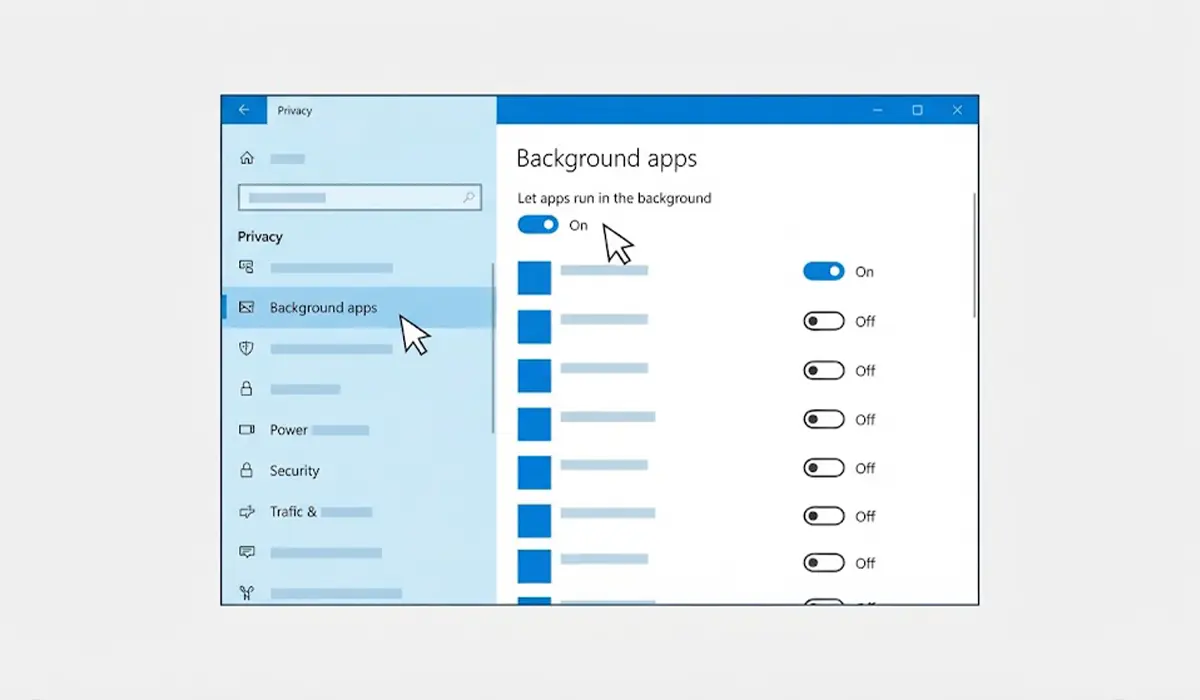
- Step 2: Scroll down the left pane and click ‘Background apps’.
- Step 3: Turn off ‘Let apps run in the background’ to block every Microsoft Store app at once. Alternatively, leave it on and use the switches under ‘Choose which apps can run in the background’ to disable only selected apps.
Control Desktop Programs That Run in the Background
Classic desktop programs such as launchers, cloud storage clients, and updaters do not follow the Store app permission. They start with Windows and stay in the system tray. Two places control them.
Disable Startup Apps
- Step 1: Press Ctrl + Shift + Esc to open Task Manager.
- Step 2: Open the ‘Startup apps’ page in Windows 11, or the ‘Startup’ tab in Windows 10.
- Step 3: Right-click a program that does not need to launch with Windows and select ‘Disable’.
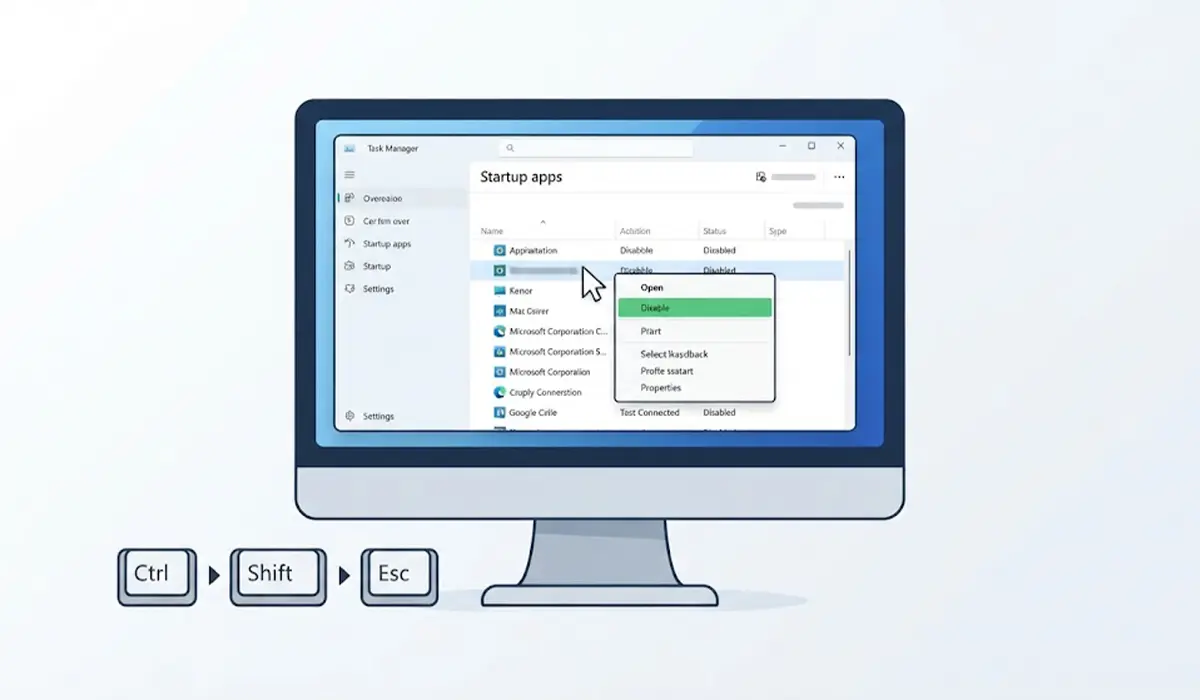
The same list is available under Settings, Apps, Startup, where each program has a simple on or off switch.
Check the App’s Own Settings
Many desktop programs include options such as ‘Run in the background when closed’ or ‘Minimize to the system tray instead of closing’. Turning these off inside the program stops it from lingering after the window is closed.
Use Battery Saver for Extra Limits on Laptops
Battery Saver reduces background activity automatically when power runs low. In Windows 11, open Settings, go to System, then ‘Power and battery’, and expand ‘Battery saver’. From there, it can be turned on immediately or set to switch on automatically at a chosen battery percentage. In Windows 10, the same feature lives under Settings, System, Battery.
Tip: Setting Battery Saver to start automatically at a higher percentage works well for people who are often away from a charger. It acts like a safety net behind the per-app settings.
Optional: Limit Background Apps With Group Policy
Windows Pro, Enterprise, and Education editions include a policy that controls this for all Store apps. It is not available in Windows Home.
- Step 1: Press the Windows key + R, type gpedit.msc, and press Enter.
- Step 2: Go to Computer Configuration, Administrative Templates, Windows Components, then ‘App Privacy’.
- Step 3: Double-click ‘Let Windows apps run in the background’, select ‘Enabled’, and set the default to ‘Force Deny’ to block background activity for all apps.
- Step 4: Click ‘OK’ and restart the PC so the policy applies cleanly.
Common Problems and Fixes
The Background Apps Permissions Section Is Missing
This section only appears for Microsoft Store apps that support the setting. Desktop programs do not show it. Use Task Manager startup controls and the program’s own settings instead.
Notifications or Updates Stopped Arriving
An app set to ‘Never’ cannot refresh or alert in the background. Switch it back to ‘Power optimized’ under its Advanced options, and keep that setting for mail, calendar, messaging, and alarm apps.
The Setting Is Greyed Out or Keeps Changing
A work or school policy, or a Group Policy rule, may be managing the option. Check the ‘Let Windows apps run in the background’ policy on a Pro edition, or contact the administrator on a managed device.
Battery Drain Continues After the Changes
Review the Battery usage list again and check Task Manager for programs still running at startup. Heavy drain after these changes usually points to a desktop program rather than a Store app.
Frequently Asked Questions
Does limiting background app refresh affect notifications?
Yes. An app set to ‘Never’ may stop delivering live notifications and will only update when it is opened. Apps that need to alert quickly should stay on ‘Power optimized’.
What is the difference between Power optimized and Never?
‘Power optimized’ lets Windows decide when an app may run in the background to save power. ‘Never’ blocks all background activity for that app until it is opened manually.
Will limiting background apps save battery life?
It can help, especially on laptops with several chat, social, or news apps installed. The amount saved depends on how active those apps were in the background.
Does this setting work on desktop programs?
No. The background permission applies to Microsoft Store apps. Desktop programs are managed through Task Manager startup controls and their own settings.
Can background activity be turned off for every app at once?
In Windows 10, the ‘Let apps run in the background’ switch under Privacy does this for Store apps. Windows 11 has no single switch in Settings, so each app is set individually, or a Group Policy can be used on Pro and higher editions.
Is it safe to disable background apps in Windows?
Yes. The change is reversible at any time. Core system services and Windows Security are not affected by the per-app permission, though apps that need to alert on time are better left on ‘Power optimized’.
How can the apps running in the background be seen?
Open Task Manager with Ctrl + Shift + Esc and look at the ‘Processes’ tab. Entries under ‘Background processes’ show what is active without an open window.
Is a restart needed after changing the setting?
No. Per-app permissions are saved as soon as they are selected. A restart is only recommended after applying a Group Policy change.
