
Learning how to optimize laptop for video editing can turn a stuttering timeline into a smooth, responsive workspace without buying new hardware. Most slowdowns come from power settings, graphics selection, crowded storage, and heat rather than a weak machine. The steps below cover each one in the order that makes the biggest difference.
Key Takeaways
- Plug in the laptop and use the highest performance power mode before every editing session.
- Make sure the editing software is using the dedicated graphics card and that GPU acceleration is turned on inside the app.
- Keep project files, media, and cache on fast, uncrowded SSD storage.
- Use proxies and lower preview quality to keep playback smooth without hurting final export quality.
- Good airflow prevents thermal throttling, which quietly slows exports and playback.
Before You Start
Connect the charger and use the original power adapter or one with the correct rating. Save and close any open projects, and back up important footage before changing storage or cache locations. The steps here focus on Windows laptops, though the same principles apply to other systems.
How to Optimize Laptop for Video Editing Step by Step
- Step 1: Update Windows, the graphics driver, and the editing software. Outdated drivers are a common cause of laggy previews, crashes, and missing GPU features. Download graphics drivers from the laptop maker or directly from the graphics chip maker. NVIDIA also offers a Studio driver option that is aimed at creative apps.
- Step 2: Set the power mode to maximum performance. Open Settings, go to System, then Power and battery, and set the power mode to ‘Best performance’ while plugged in. Editing on battery power usually triggers power saving limits that slow the processor and graphics card.
- Step 3: Assign the dedicated graphics card to the editing app. Many laptops have both integrated and dedicated graphics, and Windows may pick the weaker one. Open Settings, go to System, then Display, then Graphics. Add the editing program, open its Options, and choose ‘High performance’.
- Step 4: Turn on GPU acceleration inside the editing software. Look in the app’s project or preferences settings for options such as GPU acceleration, hardware decoding, or hardware encoding, and select the laptop’s graphics card. Restart the app afterward so the change takes effect.
- Step 5: Trim startup and background programs. Press Ctrl + Shift + Esc to open Task Manager, check the Startup apps tab, and disable programs that do not need to launch with Windows. Before editing, close web browsers with many tabs, cloud sync tools that are mid-upload, and chat apps.
- Step 6: Move media and cache to fast storage. Work from the internal SSD or a fast external SSD rather than a hard drive or a slow USB flash drive. Set the cache and scratch disk location inside the editing software to an SSD with plenty of free space.
- Step 7: Use proxies and lower the preview resolution. Proxies are lightweight copies of the original clips that play smoothly while editing, and the software swaps the originals back in at export. Lowering the preview quality in the program monitor has the same effect and does not change the final video.
- Step 8: Check memory usage during a real editing session. Open Task Manager, select the Performance tab, and watch Memory while scrubbing the timeline. If memory sits near its limit, close other apps or consider a RAM upgrade.
- Step 9: Keep the laptop cool. Place it on a hard, flat surface, never a bed or couch. Keep the intake and exhaust vents clear, and clean dust from the vents with short bursts of compressed air while the laptop is powered off.
- Step 10: Clear old cache files and finish with a test. Delete the media cache for completed projects, restart the laptop, then play back a few minutes of the timeline and run a short test export to confirm the improvement.
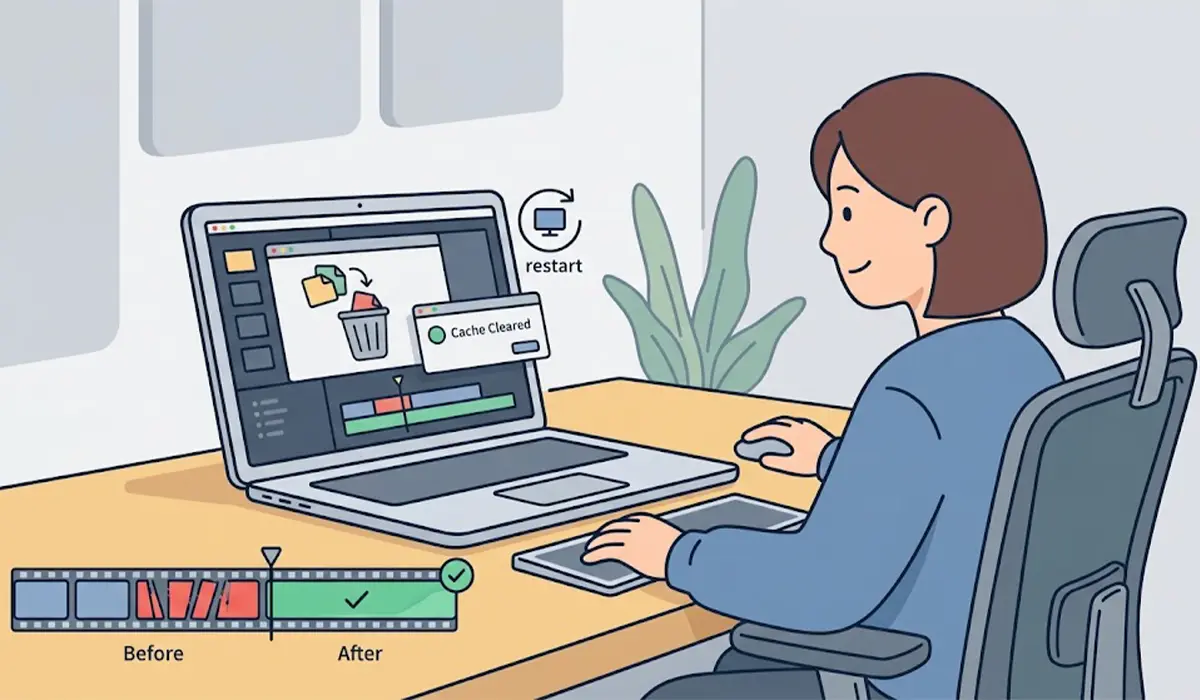
Tip: Make the plugged-in power mode and graphics assignments a habit before opening any project. Skipping them is the most common reason a capable laptop feels slow.
Why Storage Setup Matters So Much
Keep the System Drive Uncrowded
A nearly full drive struggles to handle cache files, temporary renders, and Windows background tasks all at once. Think of it like a workbench buried in clutter: the work is possible, but everything takes longer. Leaving generous free space on the drive that holds the cache keeps editing responsive.

Use a Fast External Drive Wisely
An external SSD is a practical way to hold large footage libraries. It performs best on a fast port such as USB 3.2 or Thunderbolt, with a quality cable. Plugging a fast drive into a slow port wastes its speed.
Cooling and Thermal Throttling
Video editing and exporting push the processor and graphics card for long stretches. When the laptop gets too hot, it lowers clock speeds to protect itself, and exports take noticeably longer. Fans that ramp up loudly and then performance dropping mid-export is the typical sign.
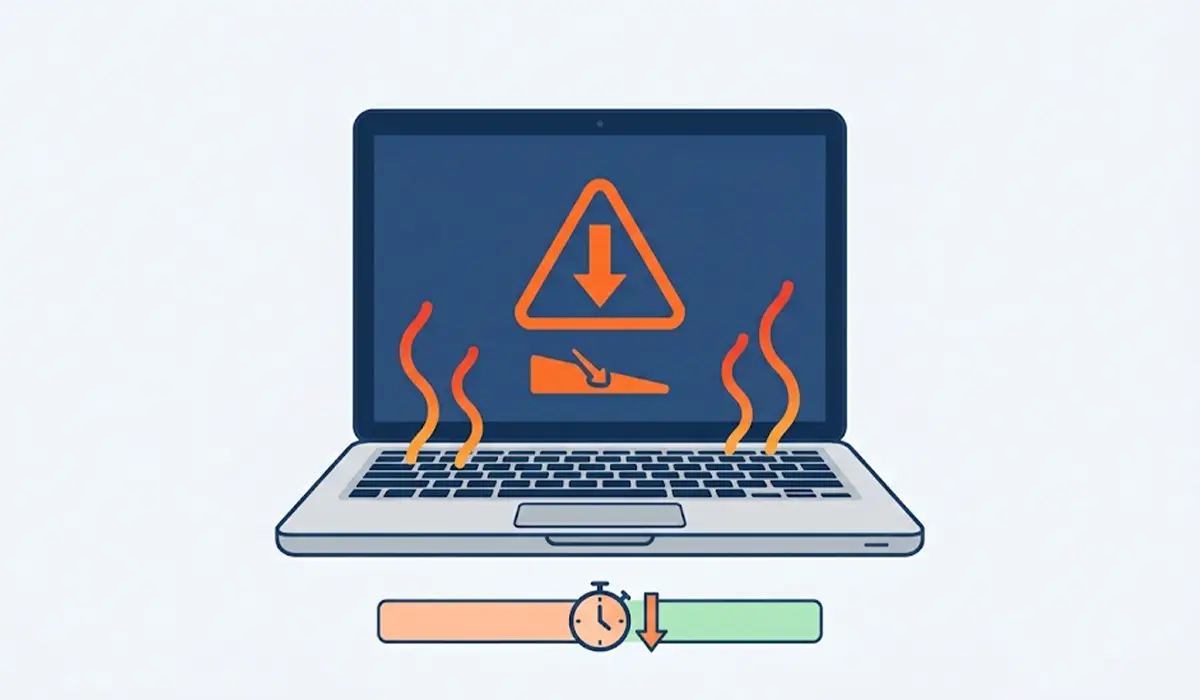
Tip: A raised stand or a cooling pad can improve airflow under the laptop, especially during long exports. Results vary by laptop design, so clear vents and a hard surface matter most.
Opening the laptop to clean fans or upgrade RAM or storage is a job for confident users with the right small screwdrivers and an anti-static strap. Power off, unplug, and let the laptop cool first. Opening the case may affect the warranty, so check the maker’s terms, and hand the job to a professional if anything feels unclear.
Common Problems and Fixes
Timeline Still Stutters After Enabling GPU Acceleration
Confirm the editing app is assigned to the high performance graphics card in Windows Graphics settings, then update the graphics driver and restart. If stuttering continues, switch to proxies or lower the preview resolution.
Exports Start Fast but Slow Down Midway
This usually points to heat. Check that the vents are clear, the laptop is on a hard surface, and the charger is connected. Cleaning dust from the vents often restores steady speeds.
The Editing App Crashes or Freezes on Large Projects
Low memory or a full cache drive is the usual cause. Close other programs, clear the media cache, and make sure the cache drive has ample free space.
Playback Is Smooth on Battery but Not When Plugged In, or the Reverse
Check the power mode in Settings for both plugged-in and battery states. The laptop should be set to ‘Best performance’ when plugged in, and editing is best done on charger power.
External Drive Footage Lags
Test a different port and cable. A slow connection or a hard drive in place of an SSD is the common bottleneck, and copying the active project to the internal SSD often fixes it.
Frequently Asked Questions
How much RAM does a laptop need for video editing?
16 GB is widely considered a practical starting point for HD editing, while 4K footage, heavy effects, and multitasking benefit from more. Checking memory usage in Task Manager during real editing shows whether an upgrade is worthwhile.
Does a dedicated graphics card matter for video editing?
Yes. A dedicated GPU speeds up effects, color grading, playback, and hardware encoding in most editing programs. It must also be selected correctly in Windows and in the editing app to be used.
Should video editing be done on battery power?
It is better to edit while plugged in. Battery mode often limits processor and graphics performance to save power, which causes lag and slower exports.
What are proxies in video editing?
Proxies are lower-resolution copies of the original clips used for smoother playback while editing. The software uses the original files again when the video is exported, so final quality is not reduced.
Is an external SSD good for video editing?
It can work very well when it is connected through a fast port such as USB 3.2 or Thunderbolt. A slow port, cable, or hard drive will limit performance.
Why does a laptop slow down during video exports?
Heat is the most common reason. When temperatures climb, the laptop lowers processor and graphics speeds to protect itself, which stretches export time.
Can a cooling pad help while editing videos?
A cooling pad can help some laptops by improving airflow, particularly during long exports. Clear vents and a hard, flat surface are still the first things to check.
Does lowering preview quality affect the final video?
No. Lowering the preview resolution only changes how the timeline plays while editing. The exported video is rendered from the original footage using the chosen export settings.
How often should the editing cache be cleared?
Clearing it after finishing a project, or whenever the cache drive runs low on space, keeps things tidy. Doing so does not damage the project, since the software rebuilds cache files when needed.
