
Learning how to fix BIOS not detecting SSD problems usually comes down to a short list of checks: physical connections, slot settings, and storage mode. When a drive is missing from the BIOS, the motherboard cannot see it at all, so Windows and installers cannot see it either. Most cases are solved without replacing any hardware.
Key Takeaways
- A loose M.2 drive, a bad SATA cable, or a wrong BIOS storage setting causes most detection failures.
- Reseating the drive and switching to a different cable or slot is the fastest first test.
- Some motherboards disable certain SATA ports when an M.2 slot is in use, so the manual matters.
- Updating the BIOS or clearing CMOS can restore detection on newer drives and older boards.
- If the drive fails in a second computer or an enclosure too, the SSD itself is the likely culprit.
Common Causes of BIOS Not Detecting SSD
Pinpointing the cause first saves time. These are the usual suspects, roughly from most to least common.
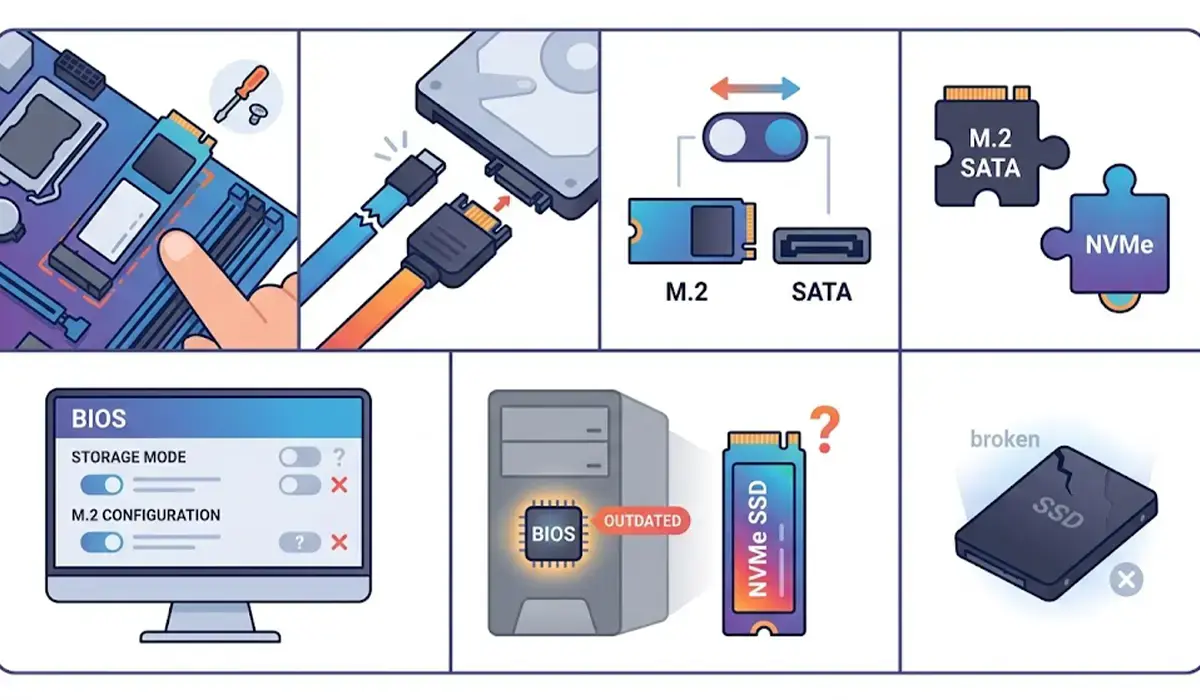
- The drive is not fully seated in the M.2 slot, or the retaining screw is missing.
- A faulty or loose SATA data cable, or a SATA power connector that is not fully pushed in.
- The M.2 slot and a SATA port share bandwidth, so one is switched off when the other is used.
- The M.2 drive type (NVMe or SATA) does not match what the slot supports.
- A BIOS storage setting, such as SATA mode or an M.2 or PCIe storage option, is configured incorrectly.
- Outdated BIOS firmware that does not recognize newer drives.
- A failed or dead SSD, which is less common than the causes above.
Before You Start
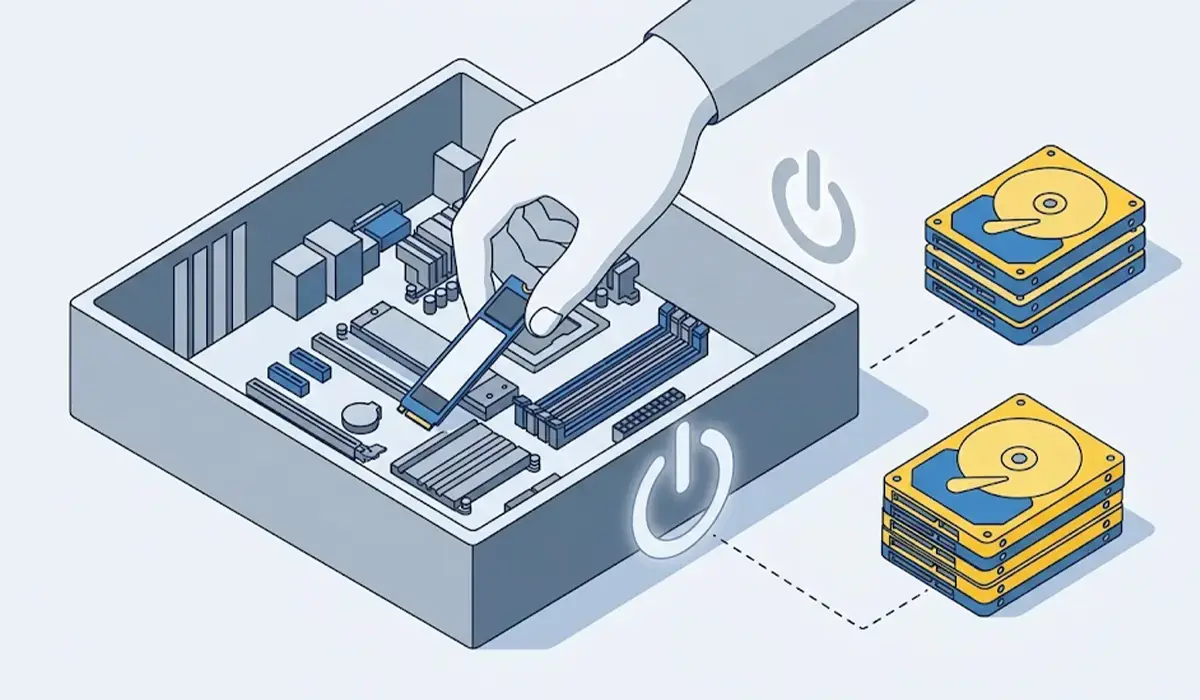
Shut the PC down completely, switch off the power supply, and unplug the power cable. On a laptop, unplug the charger, and disconnect the internal battery only if the service manual shows how. Touch bare metal on the case or wear an anti-static strap before handling any component.
The tools are simple: a Phillips screwdriver (usually a small size for the M.2 screw), a spare SATA cable if a 2.5 inch or desktop SATA drive is involved, and a flashlight to see into the slot. Opening a device may affect its warranty, so check the terms first. If a laptop needs heavy disassembly or the board looks damaged, stop and hand it to a professional.
How to Fix BIOS Not Detecting SSD: Step-by-Step
- Step 1: Power off, unplug the machine, and open the case or the laptop storage panel. Locate the SSD and confirm what type it is: an M.2 stick or a 2.5 inch SATA drive.
- Step 2: Reseat the drive. For M.2, remove the screw, pull the drive out of the slot at a slight angle, then push it firmly back in and secure it with the screw. The drive should sit flat and snug, much like a memory stick clicking home. Remove any heatsink first if one covers the slot, and put it back afterward.
- Step 3: For a SATA SSD, reconnect both the data cable and the power connector. Try a different SATA cable and a different SATA port on the motherboard, since a single bad cable or port is a very common cause.
- Step 4: Check the motherboard manual for shared lanes. Many boards disable certain SATA ports when an M.2 slot is occupied, and the manual shows which ports are affected. Move the SATA drive to a port that stays active.
- Step 5: Confirm the slot supports the drive. M.2 slots can support NVMe, SATA, or both, and a drive placed in a slot that does not support its type will not show up. Try the other M.2 slot if the board has two.
- Step 6: Power on and enter the BIOS (usually with the Delete or F2 key, depending on the board or laptop maker). Look at the storage or boot information page to see whether the drive appears.
- Step 7: Review the storage settings. Set SATA mode to AHCI unless a RAID setup is intended. If the BIOS has an option to enable the M.2 or PCIe storage slot, make sure it is turned on. Save and exit, then check again.
- Step 8: Update the BIOS using the instructions from the motherboard or laptop manufacturer. Newer firmware often improves drive compatibility. Keep the power connected during the update and never interrupt it.
- Step 9: Reset the BIOS to defaults, or clear CMOS using the jumper or button described in the manual. This removes bad settings that may be hiding the drive.
- Step 10: Test the SSD elsewhere. Place it in another computer or a compatible external enclosure. If it still does not appear, the drive has likely failed and should be replaced or sent for warranty service.
Tip: Change only one thing at a time and check the BIOS after each change. That way the exact fix is clear, and nothing gets accidentally undone.
Common Problems and Fixes
The SSD shows in the BIOS but not in Windows
This is a different problem. The drive is detected, but it may be uninitialized or have no partition. Open Disk Management in Windows, initialize the disk, and create a new volume. Only do this on a drive with no data that needs saving, since initializing and formatting erases content.

The SSD disappears after a restart
A loose connection, a weak SATA cable, or a failing drive is the usual reason. Reseat the drive, swap the cable, and update the BIOS. If the drive keeps vanishing, back up the data right away and test the SSD in another system.
The NVMe drive is missing after changing storage mode
Switching between AHCI and RAID or Intel RST modes can hide an NVMe drive from Windows or an installer. Return the setting to AHCI if no RAID array is used. Changing modes on an existing Windows install may stop it from booting, so note the original setting first.
A SATA drive stops working after an M.2 drive is installed
This points to shared lanes on the motherboard. Move the SATA drive to a port that is not disabled by the M.2 slot, as listed in the manual.
The drive is detected but will not boot
Check the boot order and boot mode (UEFI or Legacy) in the BIOS. A drive can be detected without being set as the first boot device, or without a bootable operating system on it.
Frequently Asked Questions
Why is my SSD not showing up in the BIOS?
The most common reasons are a loose M.2 connection, a bad SATA cable, a disabled slot or port, a wrong storage mode, or an outdated BIOS. A failed drive is possible but less common.
How do I make the BIOS detect my SSD?
Reseat the drive, try another cable or port, enable the correct slot in the BIOS, set SATA mode to AHCI, and update the BIOS firmware. Check after each change.
Why does my NVMe SSD not appear in the BIOS?
The drive may not be fully seated, the slot may not support NVMe, or the slot may be disabled by a BIOS setting. Reseating the drive and checking the manual for slot support usually reveals the cause.
Should SATA mode be AHCI or RAID for an SSD?
AHCI is the right choice for a single SSD in most systems. RAID mode is only needed when a RAID array is set up on purpose.
Can a BIOS update fix an undetected SSD?
Yes, in some cases. Manufacturers release updates that improve compatibility with newer drives, so an older board may start detecting the SSD after an update.
Can a bad SATA cable stop an SSD from being detected?
Yes. A damaged or poorly seated SATA data cable is a frequent cause, and swapping in a known good cable is a quick test.
Does clearing CMOS delete data on the SSD?
No. Clearing CMOS only resets BIOS settings to defaults. Data stored on the SSD is not affected.
How can I tell whether the SSD is dead?
If the drive is not detected in the BIOS, in another computer, or in a compatible external enclosure, and the connections are known to be good, the SSD has most likely failed.
Why is my new SSD not detected in the BIOS?
A new drive may need to be seated more firmly, plugged into a supported slot, or have a BIOS setting enabled. A new drive can also be defective out of the box, so testing it in another system is worthwhile.
