
A Windows 11 Start menu not opening is one of those problems that makes a working PC feel completely broken, since almost everything starts from that one button. The good news is that the cause is usually a stuck process, a damaged system file, or a bad update, and each one has a clear fix. This guide walks through the repairs in the order that solves the problem fastest.
Key Takeaways
- Most cases are fixed by restarting Windows Explorer or doing a full restart.
- Damaged system files can be repaired with the DISM and SFC commands.
- Re-registering the Start menu package in PowerShell fixes a corrupted Start component.
- Testing with a new user account shows quickly whether the problem is tied to one profile.
- A repair install keeps files and apps and is the safest last resort.
Common Causes of Windows 11 Start Menu Not Opening
Knowing the likely cause saves time, because it points to the right fix instead of a random guess.
- A frozen or crashed Windows Explorer process, which controls the taskbar and Start button.
- The Start menu host process hanging after sleep, a long uptime, or a display change.
- Corrupted system files or a damaged Start menu app package.
- A recent Windows update that did not install cleanly, or one that is still waiting to finish.
- Third-party customization tools or startup software that interfere with the shell.
- A damaged user profile that affects only one account.
Tip: When the Start button does nothing, these shortcuts still work in most cases: Ctrl + Shift + Esc opens Task Manager, Windows key + X opens the quick link menu, and Windows key + I opens Settings. Keep them in mind, because several steps below depend on them.
How to Fix Windows 11 Start Menu Not Opening Step by Step
Work through the steps in order and test the Start menu after each one. Most people find the problem is solved within the first few.
Quick Fixes
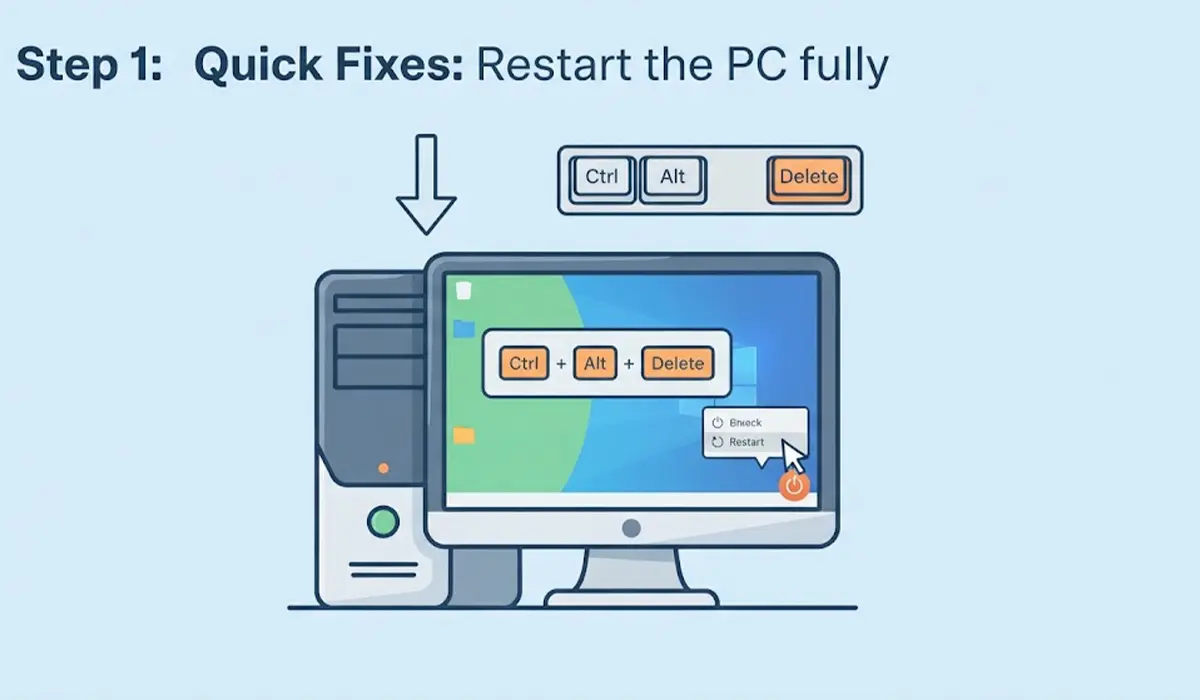
- Step 1: Restart the PC fully. Press Ctrl + Alt + Delete, select the power icon in the lower right corner, and choose Restart. A restart works better than Shut down here, because Fast Startup can keep a faulty session alive across a normal shutdown.
- Step 2: Restart Windows Explorer. Press Ctrl + Shift + Esc to open Task Manager, find Windows Explorer on the Processes tab, right-click it, and select Restart. The taskbar will disappear for a second and come back, which is normal.
- Step 3: Restart the Start menu process. In Task Manager, open the Details tab, find StartMenuExperienceHost.exe, right-click it, and select End task. Windows relaunches it automatically the next time Start is opened.
- Step 4: Install pending Windows updates. Press Windows key + I, open Windows Update, and select Check for updates. Install everything offered, then restart. Microsoft often fixes shell bugs through cumulative updates.
Repair Fixes
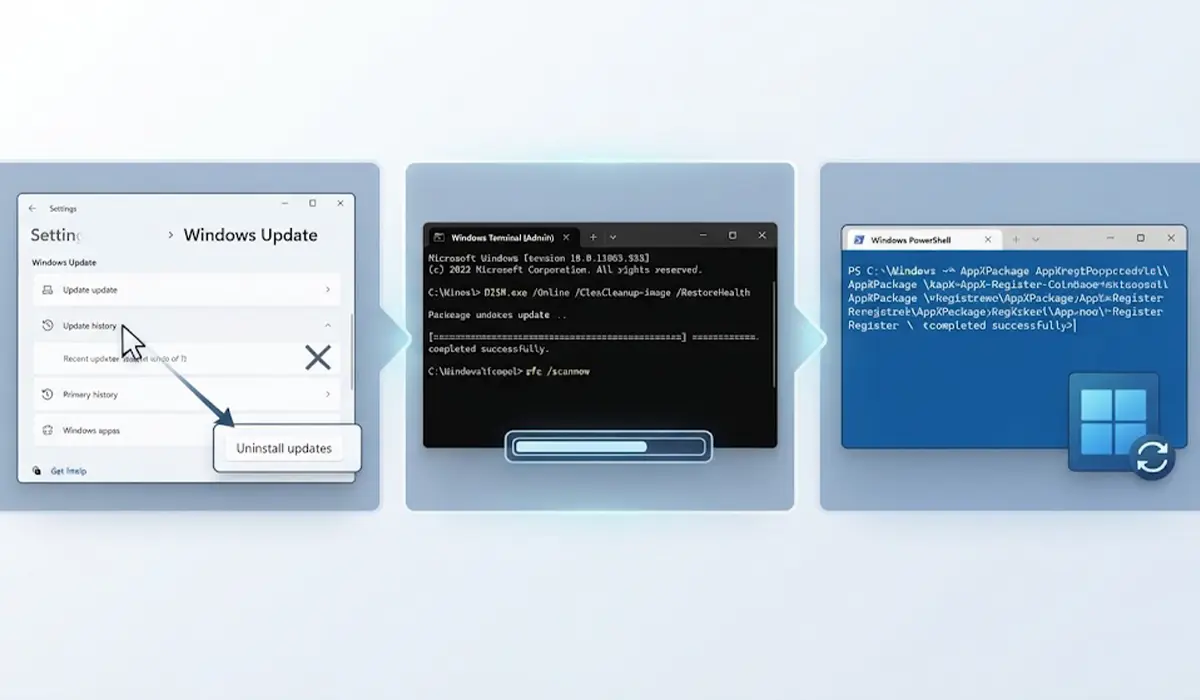
- Step 5: Remove a recent problem update. If the Start menu stopped working right after an update, open Settings, go to Windows Update, select Update history, then Uninstall updates, and remove the most recent one. Restart and test again.
- Step 6: Repair system files with DISM and SFC. Press Windows key + X and choose Terminal (Admin). Run DISM /Online /Cleanup-Image /RestoreHealth first and wait for it to finish. Then run sfc /scannow. The scan can take several minutes, and the percentage may seem to pause. Restart once both commands complete.
- Step 7: Re-register the Start menu package. In the same admin terminal, make sure the window is PowerShell, then run the two lines below one at a time.
$manifest = (Get-AppxPackage Microsoft.Windows.StartMenuExperienceHost).InstallLocation + ‘\AppxManifest.xml’
Add-AppxPackage -DisableDevelopmentMode -Register $manifest
Repeat the same two lines with Microsoft.Windows.ShellExperienceHost in place of Microsoft.Windows.StartMenuExperienceHost, then restart the PC. Red error text for a package that is already in use can usually be ignored if the Start menu works afterward.
Advanced Fixes
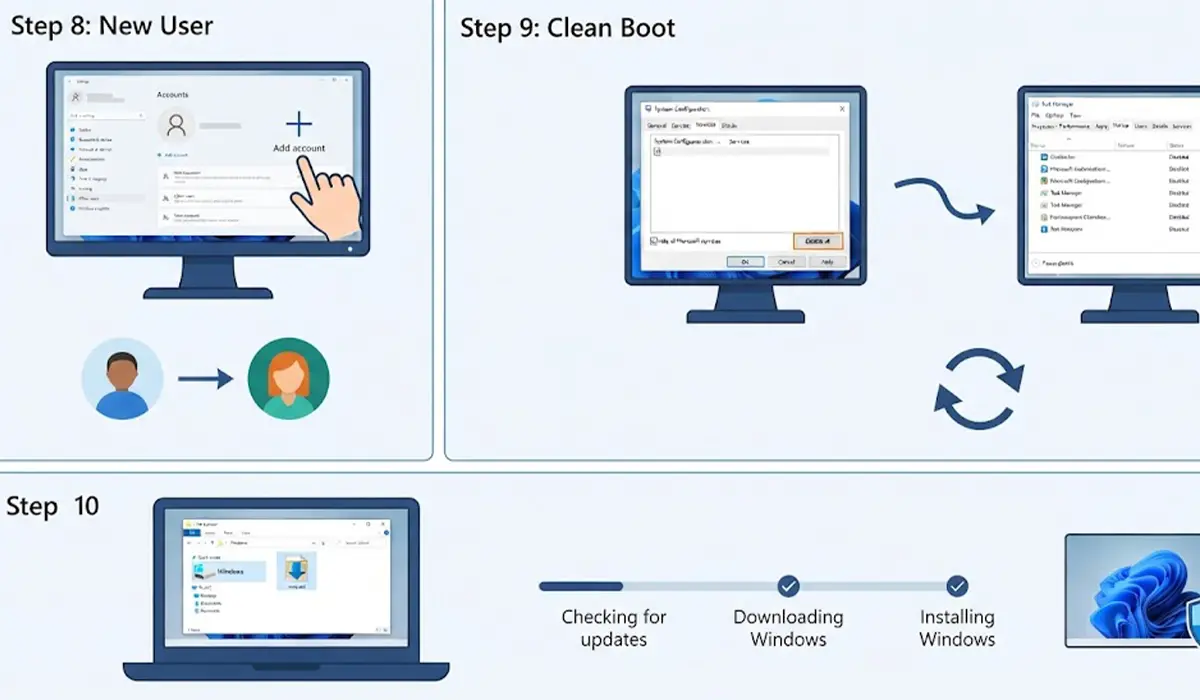
- Step 8: Test with a new user account. Press Windows key + I, open Accounts, select Other users, and add a new local account. Sign in to it and try the Start menu. If it opens there, the original profile is damaged, and moving files to the new account is the cleanest fix.
- Step 9: Run a clean boot. Press Windows key + R, type msconfig, and press Enter. On the Services tab, tick Hide all Microsoft services, then select Disable all. Open Task Manager, go to the Startup apps tab, and disable the listed items. Restart and test. If Start works, re-enable items in small groups until the culprit appears. Customization tools that change the taskbar or Start menu are the usual suspects.
- Step 10: Run a repair install. Download the Windows 11 disk image from Microsoft, open it in File Explorer, run setup.exe, and choose the option to keep personal files and apps. This replaces damaged system files without wiping the PC. As a final option, Settings, System, Recovery, and Reset this PC with Keep my files selected gives a fresh Windows installation.
Tip: Back up important files to an external drive or cloud storage before Step 10. A repair install is safe in most cases, but a backup costs only a few minutes and removes all risk.
Common Problems and Fixes
Start menu opens but the search box or tiles do not respond
Restart Windows Explorer and then repeat the re-register commands from Step 7. A partially working Start menu usually points to the same damaged component.
Windows key + X or Settings will not open either
Press Ctrl + Shift + Esc, select Run new task, type powershell, tick the box to create the task with administrative privileges, and select OK. The DISM, SFC, and re-register commands work from there.
Start menu works for a few minutes after a fix and then stops again
This pattern often means a background program is interfering. Run the clean boot in Step 9, and check for pending updates that need a restart to finish.
DISM or SFC reports errors it could not fix
Restart the PC and run DISM again before running SFC a second time. If errors remain, the repair install in Step 10 replaces the damaged files directly.
The Start menu works only on a new account
The original profile is corrupted. Create the new account, copy documents, pictures, and other personal files across, and sign in with the new one going forward.
Frequently Asked Questions
Why is my Windows 11 Start menu not opening?
The most common reasons are a frozen Windows Explorer process, a hung Start menu host process, corrupted system files, or a faulty update. Third-party customization tools and a damaged user profile can also cause it.
What is the fastest way to fix the Start menu not opening?
Restart Windows Explorer from Task Manager. This takes about ten seconds and solves most cases without changing any settings.
Will fixing the Start menu delete my files?
No. Restarting Explorer, running DISM and SFC, and re-registering the Start menu package do not touch personal files. A repair install and Reset this PC with Keep my files selected are also designed to keep personal data, though a backup is a smart precaution.
How do I open Task Manager if the Start menu is not working?
Press Ctrl + Shift + Esc, or press Ctrl + Alt + Delete and select Task Manager. Right-clicking the taskbar and choosing Task Manager also works when the taskbar responds.
Can a Windows update break the Start menu?
Yes. An update that installs incompletely or contains a bug can stop the Start menu from opening. Installing the next update, or uninstalling the latest one, usually fixes it.
What do the DISM and SFC commands do?
DISM repairs the Windows component store that holds the source files, and SFC uses that store to replace damaged protected system files. Running DISM first gives SFC a healthy source to work from.
Why does the Start menu work on a new user account but not mine?
The Start menu components are fine, but the settings or data in the original profile are damaged. Moving to a new account is the simplest permanent fix.
Is it safe to run the PowerShell commands to re-register the Start menu?
Yes, when the commands are typed exactly as shown in an administrator terminal. They only re-register the built-in Start menu and shell packages that already exist on the system.
When should Windows be reset or repaired instead?
A repair install or reset makes sense only after the quicker fixes fail, such as DISM, SFC, re-registering the package, and testing a new account. A repair install is the better first choice because it keeps apps and files.
