
Knowing how to check chipset drivers and update them keeps a PC stable, helps devices talk to each other correctly, and clears up many strange USB, storage, and power behaviors. The process takes about ten minutes and needs no special tools. This guide covers reading the installed driver version in Windows, finding the right package, and installing it safely.
Key Takeaways
- Device Manager shows the current chipset driver provider, date, and version under System devices.
- Laptops and prebuilt desktops should use the driver package from the PC maker first, since it is tested for that exact model.
- Self-built desktops should use the motherboard maker’s page or the chipset vendor’s official download (Intel or AMD).
- Windows Update optional updates can offer driver updates, but the manufacturer package is usually more complete.
- Create a restore point first and restart after installing so the new driver loads fully.
Before You Start
A few minutes of preparation prevents most driver headaches. The key is to treat a chipset driver like a foundation: a bad install affects everything built on top of it.
- Plug a laptop into AC power so the battery cannot run out mid-install.
- Save open work and close other programs.
- Create a restore point by searching for ‘Create a restore point’ in the Start menu, opening System Protection, and selecting Create.
- Note the exact PC model or motherboard name. It is usually printed on a label, in the original box, or visible in System Information.
Tip: Skip third-party ‘driver updater’ programs. They often pick the wrong package, and chipset drivers are not a place to gamble.
Step-by-Step: How to Check Chipset Drivers and Update Them
- Step 1: Right-click the Start button (or press Windows key + X) and choose Device Manager.
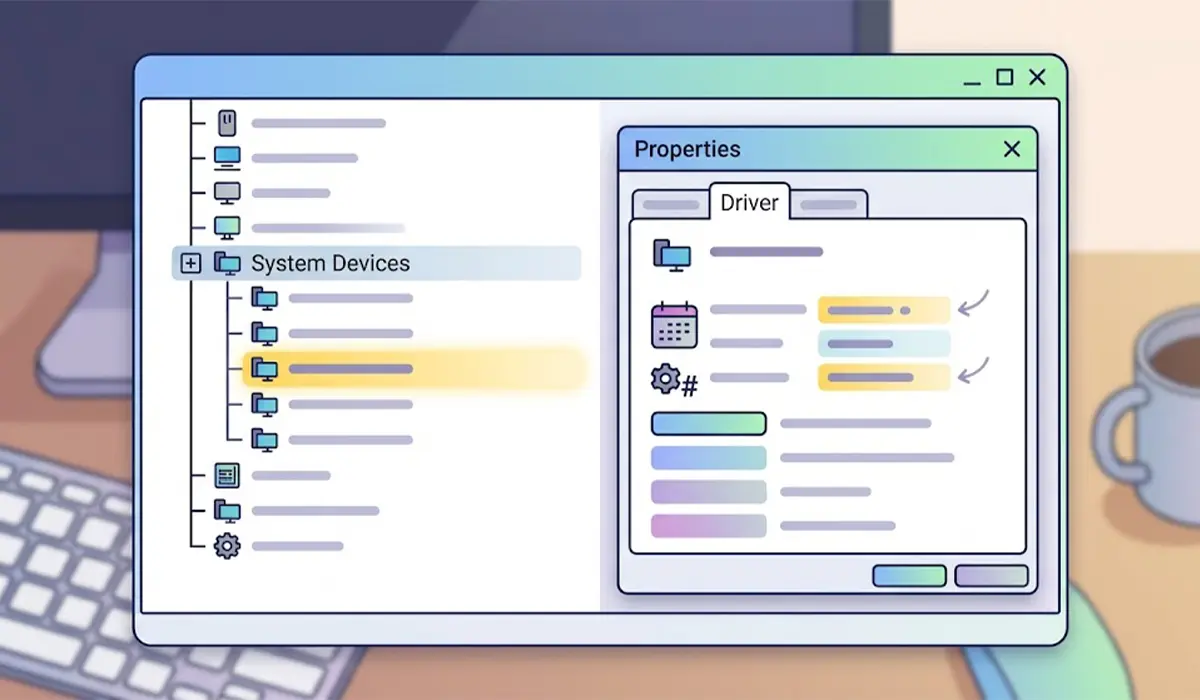
- Step 2: Expand the System devices category. Intel systems typically list entries with Intel and Chipset, Management Engine, or SMBus in the name. AMD systems typically list entries such as AMD PSP, AMD SMBus, or AMD GPIO Controller.
- Step 3: Right-click one of those entries, choose Properties, and open the Driver tab. Note the Driver Provider, Driver Date, and Driver Version. A very old date compared with the latest package on the manufacturer’s site is a sign an update is worth installing.
- Step 4: Identify the exact model. Press Windows key + R, type msinfo32, and press Enter. On a laptop or prebuilt PC, note the System Model. On a self-built desktop, note the BaseBoard Manufacturer and BaseBoard Product.
- Step 5: Check Windows Update. On Windows 11, open Settings, go to Windows Update, then Advanced options, then Optional updates, and look under Driver updates. On Windows 10, open Settings, go to Update and Security, then Windows Update, then View optional updates. Install any chipset-related entry that appears.
- Step 6: Visit the official support page for the device. Laptop and prebuilt owners should search the support page of the PC maker for the exact model, then open the Drivers or Downloads section and find the Chipset category. Self-built desktop owners should use the motherboard maker’s support page for the board, or the official Intel or AMD chipset driver download page.
- Step 7: Download the package that matches the installed version of Windows (Windows 10 or Windows 11, 64-bit), run the installer, and follow the prompts.
- Step 8: Restart the PC when the installer finishes, even if it does not ask. Then repeat Steps 1 to 3 and confirm the Driver Date and Driver Version have changed.
Tip: On a laptop, the PC maker’s chipset package is usually the safer choice over the generic Intel or AMD package, because it is validated with that model’s firmware and power settings.
How to Tell Whether an Update Is Actually Needed
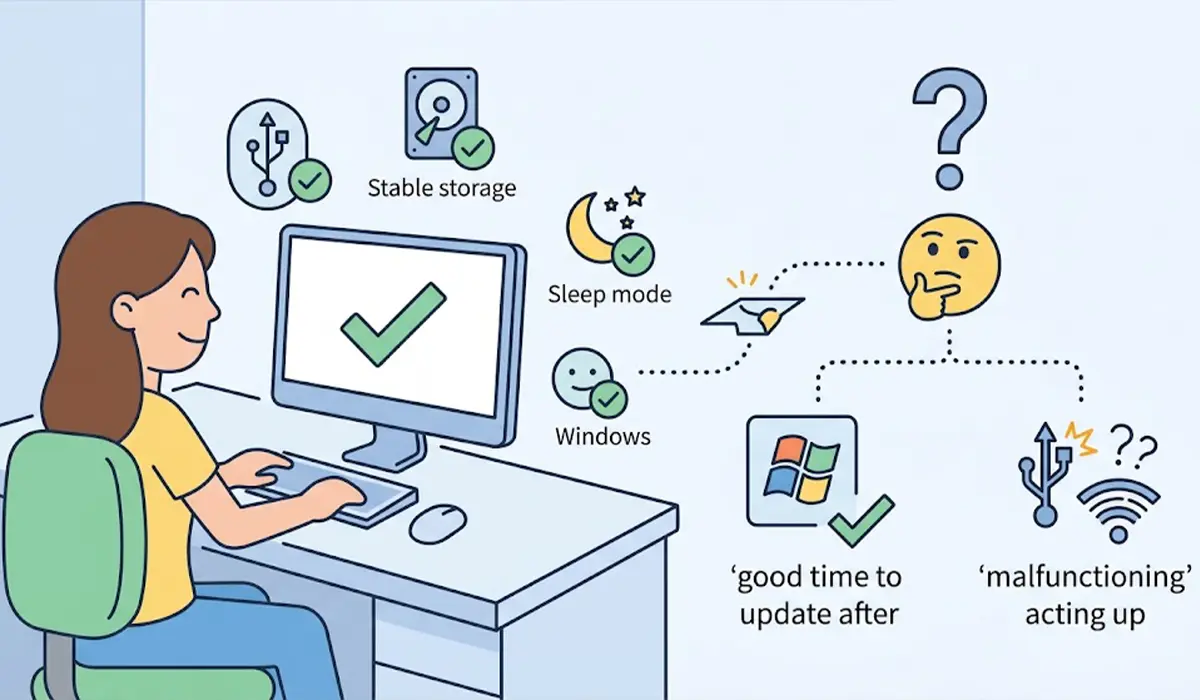
Chipset drivers do not need constant attention. A system that runs smoothly, with USB ports, storage, and sleep working normally, can be checked every few months. An update makes the most sense after a fresh Windows install, after a major Windows feature update, or when devices connected through the motherboard start acting up.
Common Problems and Fixes
The Installer Says a Newer or Equal Version Is Already Installed
This means the driver is current for that package. No action is needed. If a specific problem remains, the cause is likely elsewhere, such as BIOS or UEFI firmware, a different driver, or a hardware fault.
No Chipset Package Is Listed for the Installed Windows Version
Some older models never received a driver for newer Windows versions. In that case, Windows Update’s built-in driver is usually the correct one to keep. Installing a package meant for a different platform is not recommended.
Device Manager Shows a Yellow Warning Icon After the Update
Restart once more, then right-click the device, choose Properties, and read the status message. If the warning persists, use Roll Back Driver on the Driver tab, or restore the system using the restore point created earlier.
The Roll Back Driver Button Is Grayed Out
This button only works when Windows kept a previous driver version. If it is unavailable, use System Restore to return to the restore point created before the update.
USB Ports, Storage, or Sleep Behave Worse After the Update
Restore the previous state through Roll Back Driver or System Restore, then download the package directly from the PC maker’s page for that exact model rather than a generic one. If problems continue, check the PC maker’s site for a BIOS or UEFI update. Opening that process carries real risk, so follow the maker’s instructions exactly and never interrupt it.
Frequently Asked Questions
What is a chipset driver?
A chipset driver is software that lets Windows communicate properly with the core components on the motherboard, such as the USB controllers, storage controllers, and system management hardware.
How often should chipset drivers be updated?
There is no fixed schedule. Checking every few months, after a fresh Windows install, or after a major Windows update is a sensible routine. If everything works normally, frequent updates are not necessary.
Does Windows Update install chipset drivers automatically?
Windows Update can install a basic chipset driver automatically and may list newer versions under optional driver updates. The package from the PC or motherboard maker is often more complete.
How can a PC be checked for an Intel or AMD chipset?
Open Device Manager and expand System devices. Entries naming Intel point to an Intel chipset, while entries such as AMD PSP or AMD SMBus point to an AMD chipset. System Information also lists the processor and motherboard model.
Should a laptop use drivers from the manufacturer or from Intel or AMD?
The laptop manufacturer’s driver page is the best first choice because the package is tested for that exact model. Generic packages can work, but they are not always tailored to the laptop’s firmware and power settings.
Will a chipset driver update make a PC faster?
Not noticeably in most cases. Chipset updates mainly improve stability, device compatibility, and power management rather than raw speed.
Are driver updater programs safe for chipset drivers?
Using the official manufacturer download is the safer route. Third-party tools can select an incorrect package, and a wrong chipset driver can cause instability that is harder to undo.
What should be done if the update causes problems?
Restart first. If problems remain, open Device Manager, go to the device’s Properties, and choose Roll Back Driver on the Driver tab. If that is unavailable, use the restore point created before the update.
