
Knowing how to use a USB Wi-Fi adapter as a fix can rescue a laptop or desktop with a dead, slow, or missing wireless connection. It takes only a few minutes, needs no screwdriver, and works even when the built-in Wi-Fi card has failed. This guide covers choosing the adapter, installing it, switching over from the internal card, and solving the problems that tend to follow.
Key Takeaways
- A USB Wi-Fi adapter replaces a faulty or weak built-in wireless card without opening the device.
- Most adapters work on Windows 10 and Windows 11 automatically, but some need a manufacturer driver downloaded from another device first.
- Plug the adapter straight into a USB port on the PC, not into a hub, for the most stable connection.
- Disabling the internal Wi-Fi card in Device Manager prevents conflicts between the two adapters.
- If the internet is still slow or dropping with the adapter installed, the cause is probably the router or the internet service, not the PC.
Before You Start
This fix does not involve opening the device, so no power-down, battery removal, or static precautions are needed, and the warranty is not affected. A little preparation still saves time, because a PC with broken Wi-Fi cannot download its own drivers.
- A USB Wi-Fi adapter that lists support for the installed version of Windows.
- A free USB port, ideally a USB 3.0 port (often marked blue or labeled SS).
- Another phone or computer with internet access, in case the driver must be downloaded manually.
- A USB flash drive, or a USB cable for tethering, to move the driver file over.
- The Wi-Fi network name and password.
How to Use a USB Wi-Fi Adapter as a Fix: Step-by-Step
- Step 1: Confirm that the built-in Wi-Fi really is the problem. If a phone connects to the same network without trouble, the router is fine. Right-click the Start button, open Device Manager, and expand Network adapters. A missing wireless entry, or one with a warning icon, points to a failed or misconfigured internal card.
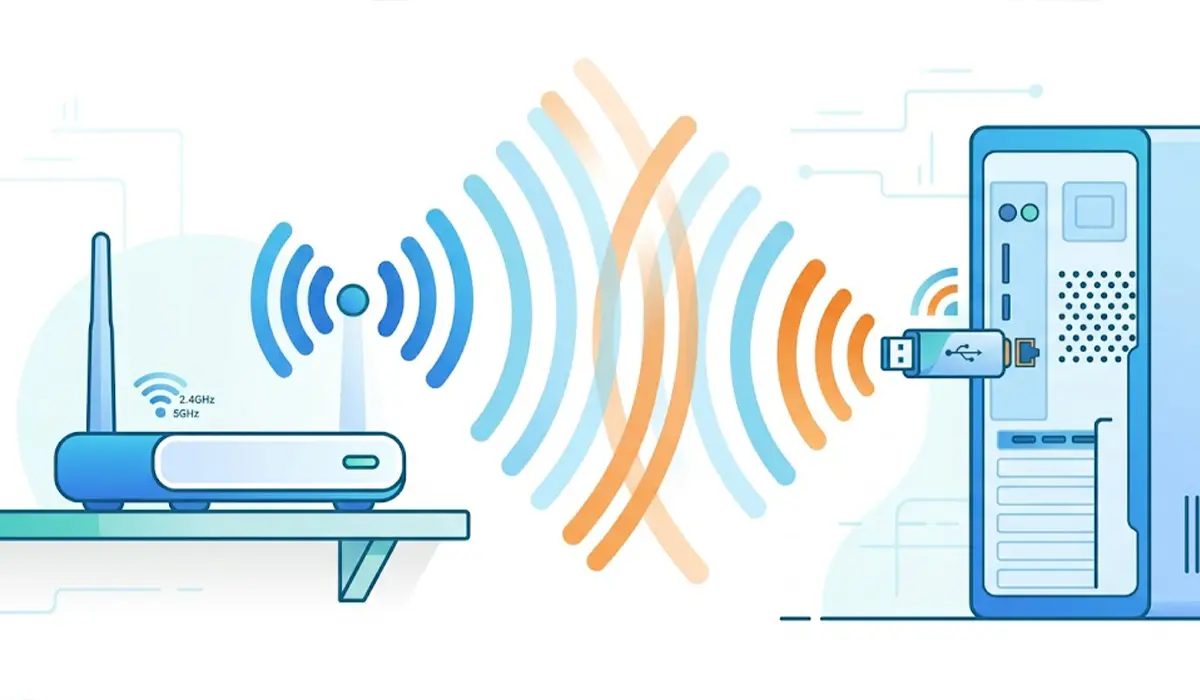
- Step 2: Pick a compatible adapter. Check that the box or product page lists the current version of Windows, and make sure the adapter supports the 5 GHz band as well as 2.4 GHz. Dual-band support gives access to the faster, less crowded 5 GHz channels on most modern routers.
- Step 3: Prepare the driver if needed. Many adapters install automatically through Windows Update, but some ship with a mini CD or an onboard installer. If neither works, download the driver from the manufacturer’s support page on another device and copy it to a flash drive.
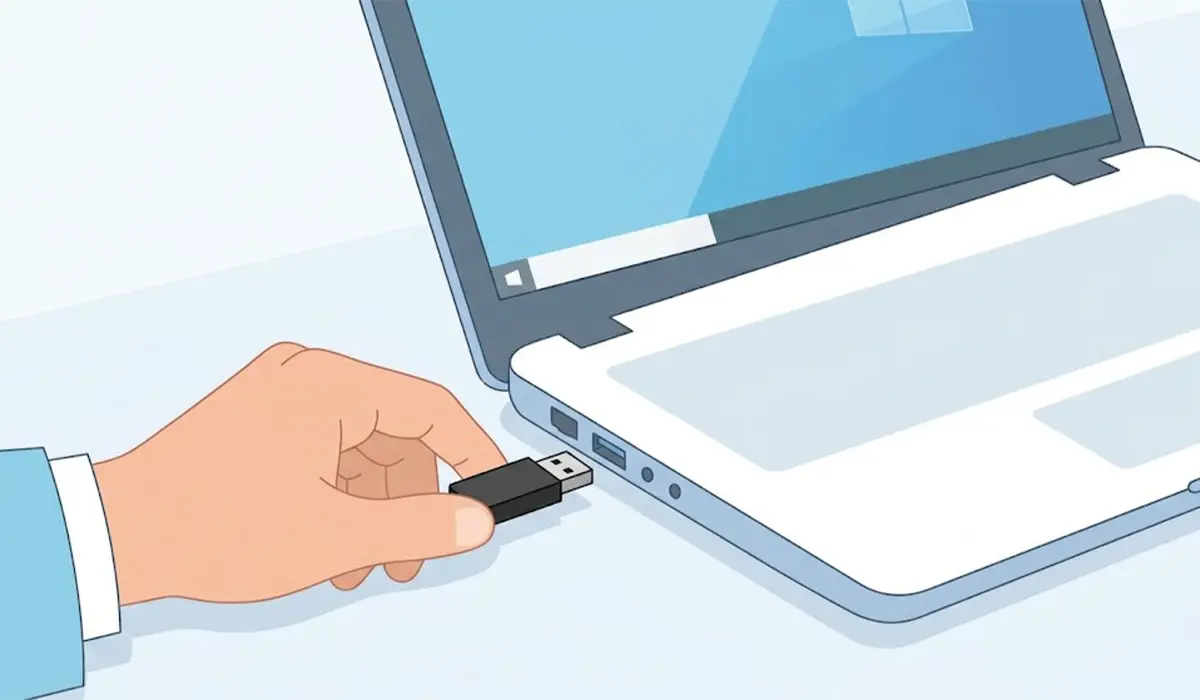
- Step 4: Plug the adapter into a USB port directly on the PC. Avoid unpowered hubs and loose front-panel ports where possible. On a desktop, a rear motherboard port usually gives the most reliable power, and a short USB extension cable or cradle can move the adapter out from behind the case for better signal.
- Step 5: Let Windows detect the adapter. A short notification usually appears, followed by a new wireless entry under Network adapters in Device Manager. If the adapter came with its own installer or a downloaded driver, run it now and restart the PC when prompted.
- Step 6: Disable the internal Wi-Fi card. In Device Manager, right-click the old wireless adapter and choose Disable device. This stops Windows from switching between two adapters and keeps the connection stable. Skip this step if the internal card is already missing from the list.
- Step 7: Connect to the network. Click the Wi-Fi icon in the taskbar, select the network, and enter the password. Choosing the 5 GHz network, when one is available and the PC is in the same room as the router, usually gives better speeds.
- Step 8: Test the connection. Open a website, then check that the adapter shows as connected under Settings, Network and internet, Wi-Fi. A stable connection after a few minutes of browsing or streaming confirms the fix worked.
Tip: Download the driver on another device before the adapter arrives. A PC with no working Wi-Fi and no wired connection cannot fetch it alone, and this one habit avoids the most common stall in the whole process.
What to Look For in a USB Wi-Fi Adapter
Adapters all look similar, but a few features separate a dependable fix from a frustrating one. Think of it like buying a replacement tire: the size has to match the car before anything else matters.
Wi-Fi Standard and Band Support
The adapter should match, or at least come close to, what the router supports. A modern adapter on an older router still works, but it will run at the router’s limit. Dual-band support is the baseline for a useful fix.
USB Version
A USB 3.0 adapter in a USB 3.0 port can carry higher speeds than a USB 2.0 connection allows. On a fast home network, plugging a USB 3.0 adapter into an older USB 2.0 port can create a bottleneck.
Size and Antenna Design
Tiny nano adapters are convenient on laptops because they sit almost flush with the port. Adapters with external antennas generally pick up signal better, which suits a desktop that sits far from the router.
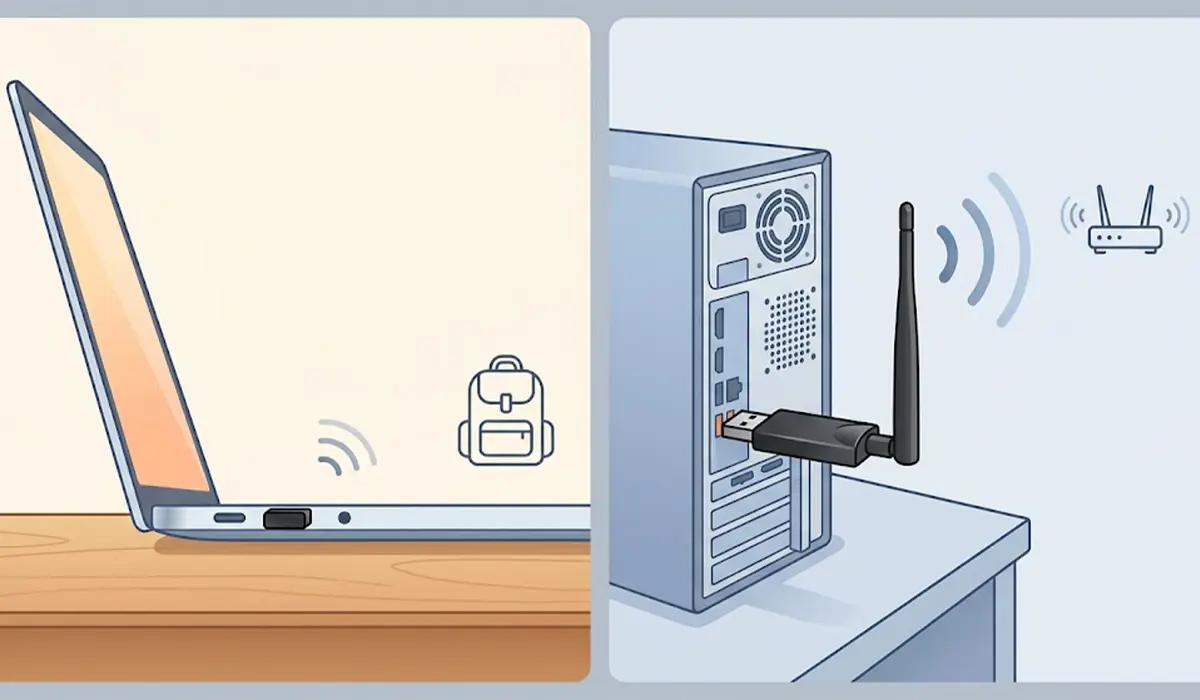
Tip: A small, flush adapter is easy to snap off in a bag. Anyone who moves a laptop often should pick a low-profile model or use a short extension cable.
Common Problems and Fixes
The Adapter Is Not Detected
Try a different USB port first, preferably one directly on the PC. If that fails, plug the adapter into another computer to rule out a faulty unit. Then install the manufacturer’s driver manually and restart the PC.
Connected but No Internet
Forget the network in Wi-Fi settings, reconnect, and re-enter the password. If the problem continues, restart the router. A phone that also has no internet on the same network confirms the problem is the router or the service, not the adapter.
Slow Speeds
Move closer to the router, switch to the 5 GHz network if available, and plug the adapter into a USB 3.0 port. An extension cable can lift the adapter away from the metal case and other cables that block the signal.
The Connection Keeps Dropping
Windows may be switching the adapter off to save power. In Device Manager, double-click the USB Wi-Fi adapter, open the Power Management tab, and untick the option that lets the computer turn off the device to save power. Moving the adapter to a different port can also help.
Two Wi-Fi Adapters Are Competing
If the connection jumps between the internal card and the USB adapter, disable the internal one in Device Manager as described in Step 6. Only one wireless adapter should be active at a time.
The Problem Returns After a Windows Update
A major update can replace the driver. Reinstalling the driver from the manufacturer’s support page usually restores normal behavior. If the built-in card keeps failing and the USB adapter is only a stopgap, a technician can inspect or replace the internal wireless card.
Frequently Asked Questions
Can a USB Wi-Fi adapter fix a laptop with broken Wi-Fi?
Yes. A USB Wi-Fi adapter bypasses the internal wireless card entirely, so it can restore a connection when the built-in card has failed or its antenna is damaged.
Does the internal Wi-Fi card need to be disabled?
It is not strictly required, but disabling it in Device Manager is recommended. This stops Windows from switching between two adapters, which can cause drops and confusing connection behavior.
Will a USB Wi-Fi adapter work without installing drivers?
Many adapters are plug and play on Windows 10 and Windows 11 and install automatically. Some models need a driver from the manufacturer, so it helps to download it on another device beforehand.
Does the adapter need a USB 3.0 port?
No, it will usually work in a USB 2.0 port. A USB 3.0 adapter performs best in a USB 3.0 port, though, because an older port can limit speed on a fast connection.
Can a USB Wi-Fi adapter be faster than the built-in Wi-Fi?
It can be, especially when the internal card is older or has a weak antenna. The router must also support the newer standard, and a good signal matters as much as the adapter itself.
Why does a USB Wi-Fi adapter keep disconnecting?
The most common cause is Windows power management turning the adapter off to save power. Unticking that option in the adapter’s Power Management tab, and using a port directly on the PC instead of a hub, usually stops the drops.
Does a USB Wi-Fi adapter work on a desktop PC with no wireless card?
Yes. A desktop without any built-in wireless can use a USB adapter to join a Wi-Fi network, and an extension cable can improve signal when the PC sits low or behind a desk.
Is it safe to leave a USB Wi-Fi adapter plugged in all the time?
Yes. Adapters are designed for continuous use. They can feel warm under heavy load, so keep them clear of blocked or cramped spaces to allow airflow.
What if the internet is still slow with the adapter installed?
Test another device on the same network. If it is slow too, the router or internet service is the cause, and a different adapter will not change that.
