
Learning how to check which programs are phoning home is one of the fastest ways to spot software that sends data to the internet without any obvious reason. Windows already includes everything needed to see these connections, and a free Microsoft tool adds a live view. The steps below work on both Windows 10 and Windows 11.
Key Takeaways
- Resource Monitor shows which programs are connected to the internet right now, and which remote addresses they talk to.
- The netstat command in Command Prompt matches every connection to a process ID, so each one can be traced back to a program.
- Many connections are normal. Windows Update, browsers, and cloud sync apps all connect constantly.
- A suspicious program can be blocked with an outbound rule in Windows Defender Firewall.
What You Need
- A Windows 10 or Windows 11 PC with an administrator account
- An active internet connection, so live connections actually appear
- Optional: the free TCPView tool from Microsoft Sysinternals for a live, color-coded view
Nothing here changes system files or opens the hardware, so there is no disassembly risk. The only change that can cause trouble is blocking a program in the firewall, and the steps below explain how to do that safely.
How to Check Which Programs Are Phoning Home Step by Step
The most reliable approach combines two built-in tools. Resource Monitor gives a clear visual overview, while netstat gives exact, copyable details. Most people find that using both together removes the guesswork.
Method 1: Resource Monitor
- Step 1: Close browsers, chat apps, and anything else that is not needed. A quieter PC makes unexpected connections far easier to spot.
- Step 2: Press the Windows key plus R, type resmon, and press Enter. Resource Monitor can also be opened from the Performance tab in Task Manager.
- Step 3: Click the Network tab. Four sections appear: Processes with Network Activity, Network Activity, TCP Connections, and Listening Ports.
- Step 4: In Processes with Network Activity, look at the Send and Receive columns. Programs sending data while nobody is using them deserve a closer look.
- Step 5: Tick the checkbox next to a single program. The Network Activity and TCP Connections sections below now filter to that program only.
- Step 6: Read the Remote Address and Remote Port columns in TCP Connections. These show the server the program is talking to. Port 443 is standard secure web traffic, and port 80 is standard unencrypted web traffic.
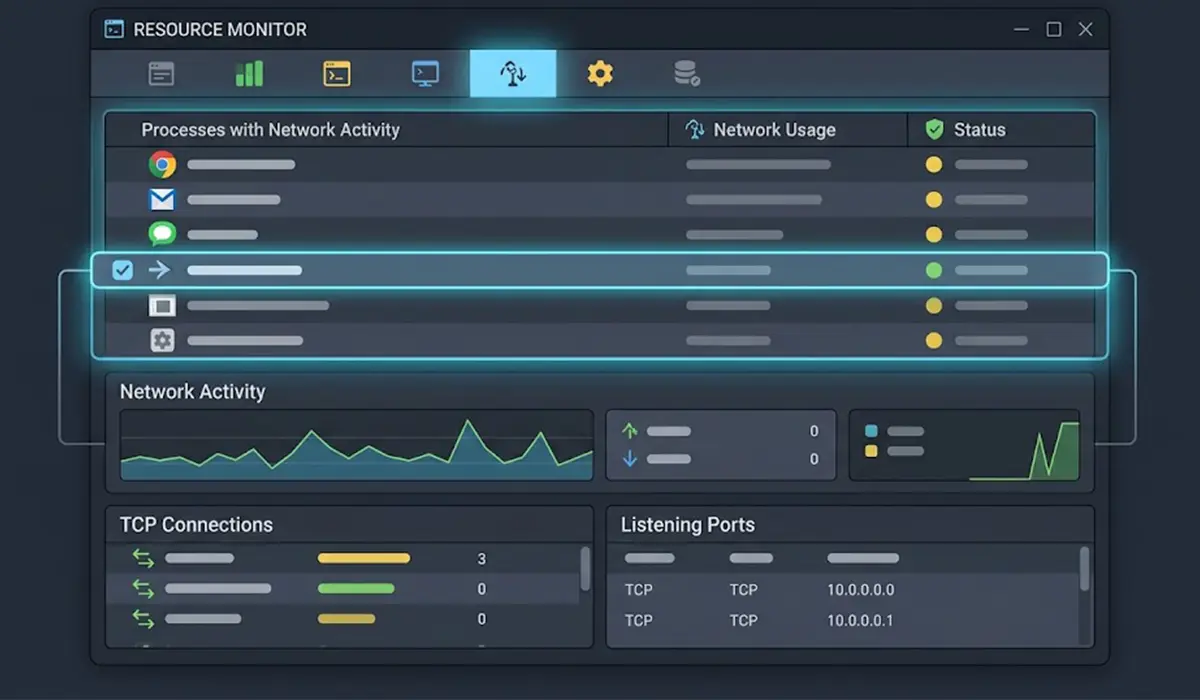
Tip: Sort the Processes with Network Activity list by the Send column. Programs uploading steady data in the background rise to the top immediately.
Method 2: Command Prompt with netstat
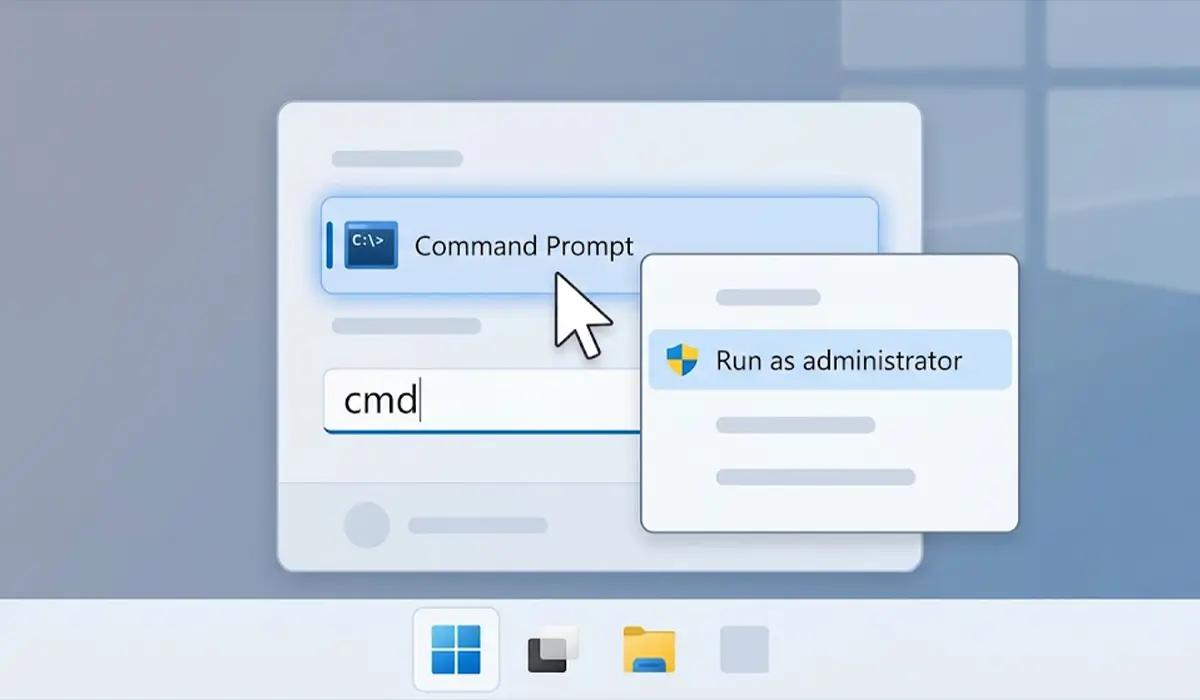
- Step 1: Click Start, type cmd, right-click Command Prompt, and choose Run as administrator.
- Step 2: Type netstat -ano and press Enter. The list shows each connection with its protocol, local address, remote address, state, and PID (process ID).
- Step 3: Focus on lines marked ESTABLISHED. These are connections that are open and active right now.
- Step 4: Open Task Manager, go to the Details tab, and sort by PID. Match the PID from netstat to the program name.
- Step 5: For program names directly in the results, run netstat -b instead. This option needs the administrator window from Step 1 and takes a few seconds to finish.
- Step 6: Run netstat -f to display fully qualified domain names rather than raw IP addresses. A name such as a recognizable company domain is much easier to judge than a string of numbers.
Method 3: TCPView for a Live View
TCPView is a free Sysinternals tool from Microsoft that lists every connection in real time. New connections are highlighted as they appear and closed ones fade out, which makes short-lived connections far easier to catch than with netstat.
- Step 1: Download TCPView from the official Microsoft Sysinternals page and extract the archive.
- Step 2: Run the program as administrator so every process is visible.
- Step 3: Watch the Process Name, Remote Address, and State columns while using the PC normally for a few minutes.
- Step 4: Pause the list when something interesting appears, then note the process name and remote address for further checking.

Check Total Data Used by Each App
Connections only show who is talking. Data usage shows how much is being sent. On Windows 11, open Settings, go to Network and internet, then Advanced network settings, then Data usage. On Windows 10, open Settings, go to Network and Internet, choose Status, then Data usage, then View usage per app. An app with large usage and no clear reason is worth investigating.
How to Tell Normal Connections from Suspicious Ones
A busy connection list does not mean something is wrong. Windows itself, browsers, antivirus tools, and cloud storage apps all connect regularly. The trick is to ask whether each program has a believable reason to be online.
- A familiar program connecting to its own company servers is usually fine.
- A tiny offline tool, such as a calculator or a PDF reader, sending data constantly is worth questioning.
- A process with a random or misspelled name, or one running from a Temp or Downloads folder, deserves a malware scan.
- To check a file location, right-click the process in Task Manager and choose Open file location.
Tip: Do not judge by remote IP address alone. Large companies use huge address ranges, so a domain name from netstat -f or a quick search of the program name gives a far clearer answer.
How to Block a Program That Is Phoning Home
If a program has no good reason to be online, blocking its outbound traffic stops it from sending data. Only block programs that are clearly understood. Blocking core Windows processes can break updates, sign-in, or networking.
- Step 1: Click Start, type Windows Defender Firewall with Advanced Security, and open it.
- Step 2: Select Outbound Rules in the left pane, then click New Rule in the right pane.
- Step 3: Choose Program and click Next, then browse to the program’s .exe file.
- Step 4: Select Block the connection and click Next.
- Step 5: Leave Domain, Private, and Public ticked, name the rule clearly, and click Finish.
If the program is unwanted altogether, uninstalling it and running a full scan with Windows Security is the cleaner fix. When a PC shows signs of serious infection, such as disabled security tools or constant pop-ups, a professional cleanup is the safer choice.
Optional: Turn On Firewall Logging
For a longer record rather than a snapshot, Windows Firewall can log connections to a file. In Windows Defender Firewall with Advanced Security, open Properties, choose a profile tab, click Customize under Logging, and set Log successful connections to Yes. The log is saved as a text file called pfirewall.log in the Windows firewall log folder. The file grows quickly, so logging is best switched off again after the investigation.
Common Problems and Fixes
Many connections show as svchost.exe
The svchost.exe process hosts many Windows services at once, so one name can cover several tasks. In Task Manager, right-click the matching svchost.exe entry and choose Go to services to see exactly which service owns the connection.
Only IP addresses appear, with no names
Run netstat -f from an administrator Command Prompt to show domain names. Without it, the output uses raw IP addresses.
netstat -b says the requested operation requires elevation
Command Prompt was not opened as administrator. Close it, search for cmd, right-click Command Prompt, and choose Run as administrator.
Connections disappear before they can be read
Short-lived connections close within seconds. TCPView or firewall logging catches these far better than a single netstat run.
The program still connects after a firewall rule was added
The rule may point to the wrong .exe, since some apps use several executables or helper processes. Check the process in Task Manager, open its file location, and confirm that the rule matches that exact file.
Resource Monitor shows no network activity
Confirm the PC is online and that Resource Monitor was opened with administrator rights. Refresh the view by closing and reopening it.
Frequently Asked Questions
What does it mean when a program is phoning home?
It means the program connects to an outside server on its own, usually to send data, check for updates, or confirm a license. Some of this is normal, while unexplained or excessive connections are worth investigating.
Is every program that connects to the internet a privacy risk?
No. Browsers, update services, and sync tools must connect to function. The concern is a program that sends data without a clear purpose, especially one that works fine offline.
What is the easiest built-in way to see which programs are connecting to the internet?
Resource Monitor. Open it with resmon, click the Network tab, and review Processes with Network Activity and TCP Connections.
What does ESTABLISHED mean in netstat?
ESTABLISHED means a connection is open and active between the PC and a remote address. Lines marked LISTENING or TIME_WAIT describe waiting or closing connections.
Can netstat tell which program owns a connection?
Yes. The -o option adds the PID, which can be matched in the Task Manager Details tab. The -b option shows the program name directly but requires an administrator window.
Is TCPView safe to use?
TCPView is part of the Sysinternals suite published by Microsoft. It should be downloaded only from the official Microsoft page to avoid fake copies.
Will blocking a program in Windows Firewall break it?
Blocking outbound traffic stops the program from reaching the internet, so features that need a connection, such as updates or sign-in, will stop working. The rule can be disabled or deleted at any time to reverse the change.
Does Windows send data to Microsoft on its own?
Yes. Windows connects for updates, security definitions, and optional diagnostic data. The amount of diagnostic data can be adjusted in Settings under Privacy and security, then Diagnostics and feedback.
How often should connections be checked?
A check after installing new software, or whenever the PC or internet seems unusually slow, is usually enough. Constant monitoring is not necessary for normal home use.
