
Closing the lid at night and finding a nearly empty laptop in the morning is frustrating. Learning how to fix battery draining while sleeping comes down to finding what keeps the system awake or active in the background, then switching that behavior off. Most cases trace back to a handful of power settings, wake sources, or an aging battery.
Key Takeaways
- A small drop overnight is normal, but a large loss means something is waking the laptop or keeping it active during sleep.
- The built-in powercfg tools show which sleep mode is in use and what last woke the system.
- Wake timers, network adapters, and USB devices are the most common hidden triggers.
- Hibernate stops battery drain almost completely, which makes it the most reliable fix for long gaps between uses.
- A worn battery loses charge faster, so a battery report is worth checking before blaming software.
Common Causes of Battery Draining While Sleeping
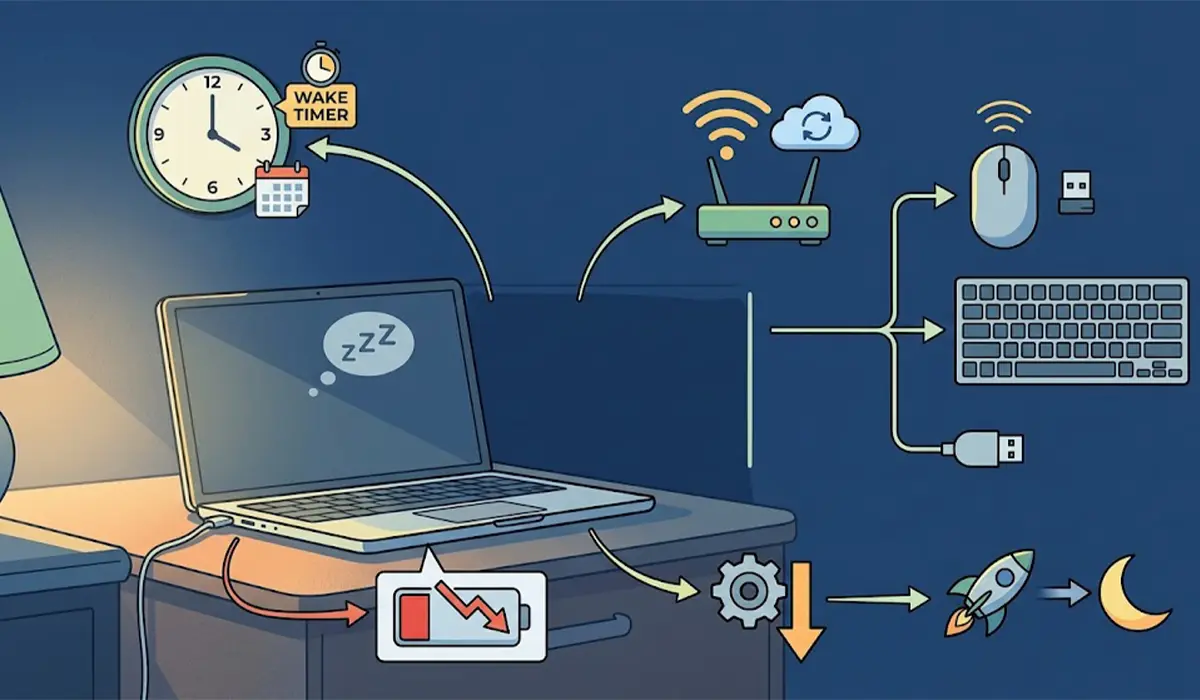
Sleep is not one single state. Older and many desktop-class systems use traditional S3 sleep, which cuts power to nearly everything except memory. Many newer laptops use Modern Standby (also called S0 Low Power Idle), which behaves more like a phone: the screen is off, but the system can still wake briefly to sync, download, or run tasks. That flexibility is convenient, and it is also where most overnight drain comes from.
- Wake timers set by Windows Update, scheduled tasks, or installed apps that bring the laptop out of sleep.
- Network activity in standby, such as Wi-Fi staying connected and apps syncing in the background.
- Peripherals like wireless mouse receivers, keyboards, or USB devices that are allowed to wake the computer.
- Outdated BIOS, chipset, or network drivers that prevent the hardware from reaching its lowest power state.
- A worn battery that holds much less charge than it did when new, so even normal sleep drain looks severe.
- Fast Startup and hybrid behavior that leave the system in a state different from what most people expect.
Step-by-Step Ways to Fix Battery Draining While Sleeping
The fixes below work best in order. Start by finding the cause, then apply the changes that match what was found. All commands are run in Command Prompt or Windows Terminal opened as administrator.
Find the Source of the Drain
- Step 1: Check the sleep mode in use. Type powercfg /a and press Enter. The result lists the available sleep states, such as Standby (S3) or Standby (S0 Low Power Idle). This shows whether the laptop uses Modern Standby, which changes which fixes matter most.
- Step 2: Generate a sleep report. On Modern Standby systems, type powercfg /sleepstudy and press Enter. Windows creates an HTML report in the current folder. Open it in a browser and look for sessions with high drain and the apps or devices listed as top offenders. If the command reports that the feature is not supported, the laptop uses traditional S3 sleep and this step can be skipped.
- Step 3: Identify what wakes the system. Run powercfg /lastwake to see what caused the most recent wake. Then run powercfg /waketimers to list active wake timers and powercfg /devicequery wake_armed to list every device allowed to wake the laptop. These three results usually point straight at the culprit.

Tip: Run these checks right after a bad night rather than days later. The lastwake result only reflects the most recent wake event, so it is most useful when the problem just happened.
Apply the Fixes
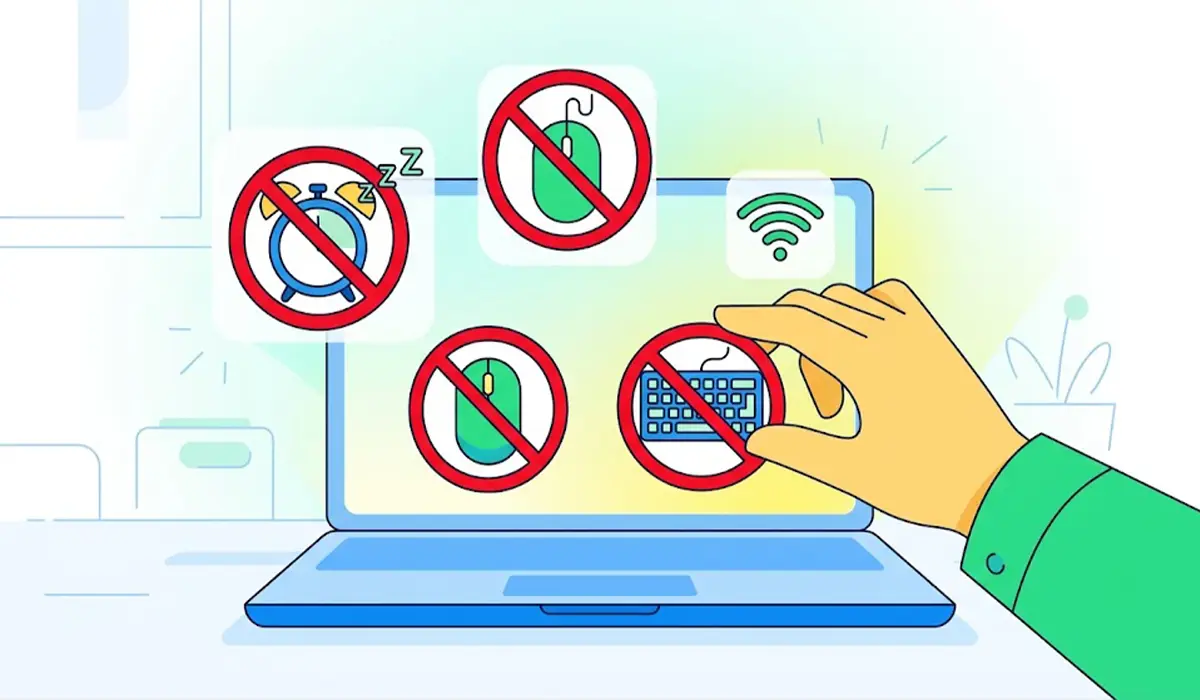
- Step 4: Disable wake timers. Open Control Panel, go to Power Options, choose Change plan settings, then Change advanced power settings. Expand Sleep, then Allow wake timers, and set both On battery and Plugged in to Disable. This stops scheduled tasks and updates from pulling the laptop out of sleep.
- Step 5: Stop unneeded devices from waking the laptop. Open Device Manager, expand Network adapters, Mice and other pointing devices, and Keyboards, then open the properties of each device listed by the wake_armed command. On the Power Management tab, untick Allow this device to wake the computer. Keep the keyboard allowed if waking by key press is wanted.
- Step 6: Switch to hibernate after a set time. Hibernate saves the session to disk and powers the laptop off, so there is almost no battery use afterward. If the option is missing, run powercfg /hibernate on first. Then, in Advanced power settings, expand Sleep, then Hibernate after, and set a time that suits the usual routine. Setting the lid close action to Hibernate also works well for laptops carried in bags.
- Step 7: Update firmware and drivers. Visit the laptop manufacturer’s support page and install the latest BIOS or UEFI update, chipset drivers, and Wi-Fi and Bluetooth drivers for the exact model. Power management bugs are a common reason a laptop never reaches its lowest sleep state, and manufacturers fix them through these updates.
- Step 8: Check battery health. Run powercfg /batteryreport and open the generated HTML file. Compare Design Capacity with Full Charge Capacity. A large gap means the battery has worn down, and the next sleep drain will look worse than it really is. In that case, a battery replacement is the real fix.
Tip: Change one setting at a time and test overnight. Changing everything at once fixes the problem but hides which change actually mattered, which makes it harder to troubleshoot if the drain returns.
If the case looks swollen, the trackpad is lifting, or the battery gets unusually hot in sleep, stop using the laptop and have a qualified technician inspect it. A damaged lithium battery is a safety risk and not a settings problem.
Common Problems and Fixes
The Laptop Still Wakes by Itself After Disabling Wake Timers
Run powercfg /lastwake again after the next unexpected wake. If the cause is a network adapter or a USB device, return to Device Manager and remove its permission to wake the computer. Also check the lid and power button actions in Power Options, since a loose lid sensor or a bag pressing on the keyboard can trigger a wake.
The Sleep Study Command Says It Is Not Supported
This message appears on laptops that use traditional S3 sleep instead of Modern Standby. It is not an error. Rely on the lastwake, waketimers, and batteryreport results instead.
The Hibernate Option Is Missing
Run powercfg /hibernate on in an administrator prompt, then open Choose what the power buttons do and tick Hibernate under shutdown settings. The Hibernate after setting then appears in Advanced power settings.
Battery Still Drains Quickly After Every Setting Is Fixed
Check the battery report. When Full Charge Capacity is far below Design Capacity, the battery itself is the limit. Replacing it, or having it replaced by a technician, restores normal standby time.
The Laptop Is Hot After Being Closed in a Bag
The system is likely waking and running tasks while enclosed. Set the lid close action to Hibernate, disable wake timers, and avoid packing the laptop while it is still active.
Frequently Asked Questions
How much battery drain during sleep is normal?
A small percentage loss overnight is normal, especially on Modern Standby laptops. Losing a large portion of the charge, or finding the laptop completely empty, points to a wake source, a background task, or a worn battery.
Why does my laptop battery drain faster in sleep than when it is shut down?
Sleep keeps memory powered and, on Modern Standby systems, allows brief background activity. A full shutdown or hibernate turns the system off, so battery use drops to nearly nothing.
Is hibernate better than sleep for saving battery?
Yes, for longer gaps. Hibernate writes the session to disk and powers the laptop off, so no charge is used while it waits. Sleep resumes faster but draws a small amount of power continuously.
Does Fast Startup cause battery drain in sleep?
Fast Startup affects how the system shuts down and starts up, not how sleep works. It is rarely the direct cause of sleep drain, although turning it off can help rule out odd power state behavior.
How do I find out what is waking my laptop from sleep?
Run powercfg /lastwake in an administrator Command Prompt to see the most recent wake source. Powercfg /waketimers and powercfg /devicequery wake_armed list timers and devices that are allowed to wake the system.
Should I disable network connectivity during sleep?
If the drain continues after the other fixes, reducing network activity in standby can help. Some laptops offer a network connectivity in standby option in advanced power settings. Where it is not shown, disabling the adapter’s permission to wake the computer is the closer alternative.
Can a failing battery cause drain while the laptop is asleep?
Yes. A worn battery holds less energy, so the same sleep drain empties it much faster. The battery report shows the gap between design capacity and full charge capacity.
Will updating the BIOS fix battery draining while sleeping?
It can, when the cause is a firmware bug that stops the hardware from reaching its lowest power state. Install only the update released for the exact laptop model, and keep the charger connected during the update.
