
Knowing how to fix USB device causing system crash starts with pinning down which device, port, or driver triggers the freeze or blue screen. A single faulty flash drive, worn cable, or buggy controller driver can take down an otherwise healthy PC. The steps below move from the quickest checks to the deeper fixes, so the culprit gets found without guesswork.
Key Takeaways
- Most USB-related crashes trace back to one faulty device, cable, port, or driver, so isolating the culprit comes first.
- Testing devices one at a time and checking Reliability Monitor shows what is really triggering the crash.
- Updating USB and chipset drivers and turning off USB power saving settings solves a large share of repeat crashes.
- Repairing system files with DISM and SFC rules out Windows corruption.
- If one specific device still crashes the PC on a second computer, the device itself is the problem and should be replaced.
Common Causes of a USB Device Crashing the System
USB devices talk to Windows through drivers that run at a very low level. When something goes wrong at that level, Windows has no safe way to carry on, so the result is a sudden restart or a blue screen instead of a polite error message. Think of it like a loose wire in a fuse box: the fault is small, but the shutdown is total.
- A failing USB device, such as a worn flash drive, a faulty printer, or a cheap webcam.
- A damaged or low-quality USB cable that causes intermittent connections or unstable power.
- Outdated, corrupted, or mismatched USB controller and chipset drivers.
- USB power saving features, like selective suspend, that put a port to sleep and fail to wake it cleanly.
- An overloaded port or unpowered hub trying to feed too many power-hungry devices.
- A loose, dirty, or physically damaged USB port or front-panel connection.
- Corrupted Windows system files or a BIOS with known USB stability issues.
Before You Start
Most of this guide happens inside Windows, so little hardware risk is involved. A few preparations still save trouble later.
- Save open work and create a restore point before changing drivers or settings.
- Gather a known-good USB cable, a powered USB hub if one is available, and a second computer for testing the suspect device.
- Do not open the PC case or laptop body unless a port inspection is truly needed, and note that opening a device can affect its warranty.
- If a USB port is loose, visibly bent, burnt, or smells of burning, stop and hand the device to a professional repair technician.
How to Fix USB Device Causing System Crash Step by Step
Isolate the Faulty Device
- Step 1: Shut down the PC and unplug every USB device that is not essential. Keep only the keyboard and mouse, or use the laptop’s built-in ones.
- Step 2: Start Windows and use the PC normally for a while. If the crashes stop, a removed device or its cable is responsible.
- Step 3: Reconnect the removed devices one at a time, using each for a few minutes. The device that brings the crash back is the prime suspect.
- Step 4: Swap the cable for a known-good one and try a different USB port. Rear motherboard ports on a desktop are usually the most stable, because front-panel ports rely on extra internal cabling.
- Step 5: Plug the suspect device into a second computer. If that computer also freezes or crashes, the device is faulty and should be replaced rather than repaired.
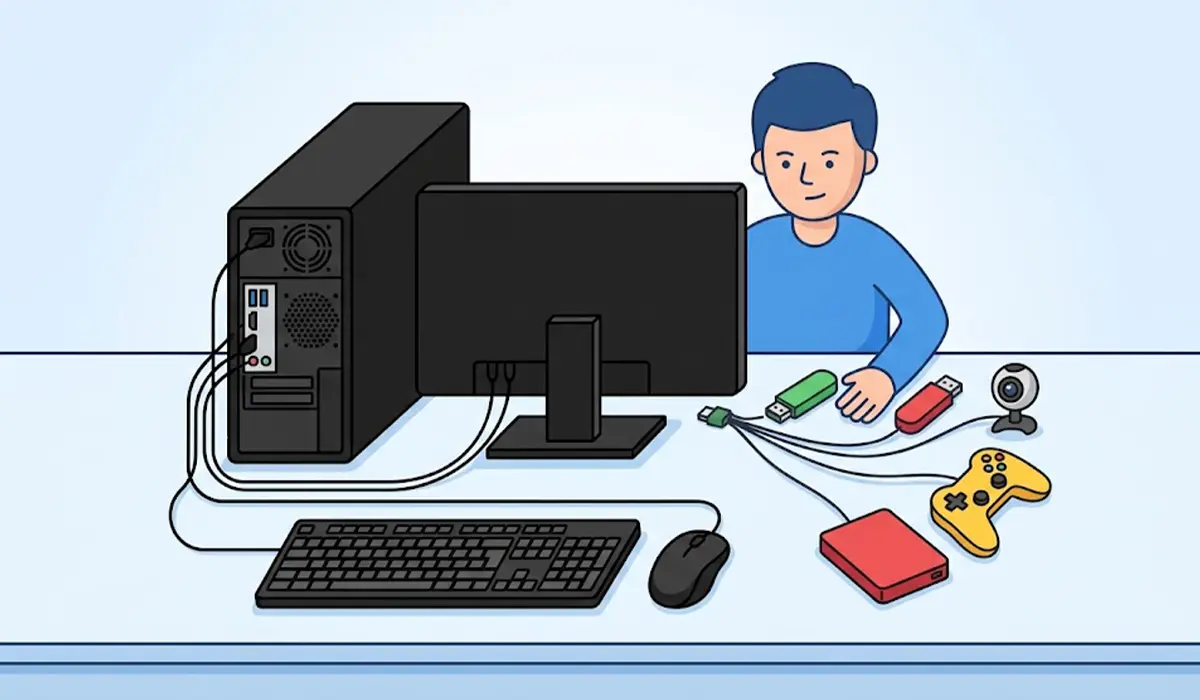
Tip: Avoid unpowered hubs during testing. A hub adds another point of failure, and connecting the device straight to the PC removes it from the equation.
Check What Windows Recorded
- Step 6: Open the Start menu, search for View reliability history, and open Reliability Monitor. Look for red critical events near the crash times and note the device or driver named in the details.
- Step 7: If a blue screen appeared, note the stop code on screen. Codes or file names that mention USBXHCI.sys, USBHUB3.sys, or BUGCODE_USB_DRIVER point directly at the USB driver stack.
- Step 8: Open Event Viewer, go to Windows Logs, then System, and look for Error or Critical entries around the crash time that mention USB or the device name.

Update or Reinstall the Drivers
- Step 9: Run Windows Update and install all pending updates, including optional driver updates that relate to USB or the problem device.
- Step 10: Visit the PC or motherboard manufacturer’s support page and install the latest chipset driver for the exact model. The chipset driver controls the USB controllers.
- Step 11: Open Device Manager and expand Universal Serial Bus controllers. Right-click the suspect device, or an entry marked with a yellow warning icon, and choose Uninstall device. Restart the PC so Windows reinstalls a fresh driver automatically.
- Step 12: If the crashes began right after a driver update, open the device’s Properties, switch to the Driver tab, and choose Roll Back Driver if the button is available.
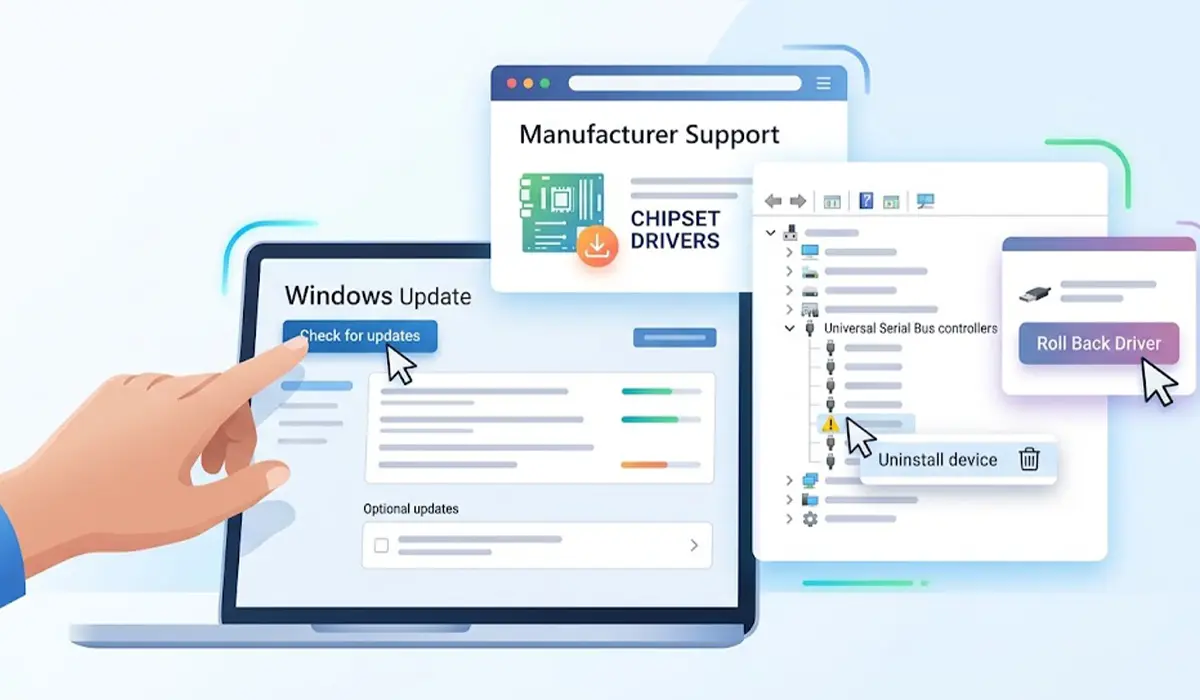
Tip: A USB keyboard or mouse may stop responding for a moment while controller drivers reinstall. Keep a laptop’s built-in keyboard handy, or simply wait for the restart to finish.
Turn Off USB Power Saving
- Step 13: Open Control Panel, go to Power Options, click Change plan settings on the active plan, then Change advanced power settings.
- Step 14: Expand USB settings, then USB selective suspend setting, and set it to Disabled for both On battery and Plugged in. Click Apply.
- Step 15: In Device Manager, expand Universal Serial Bus controllers, double-click each USB Root Hub entry, open the Power Management tab, and uncheck Allow the computer to turn off this device to save power.
Repair Windows System Files
- Step 16: Right-click the Start button and open Terminal (Admin) or Command Prompt (Admin).
- Step 17: Run DISM /Online /Cleanup-Image /RestoreHealth and wait for it to finish.
- Step 18: Run sfc /scannow and let the scan complete. Restart the PC afterward and test again.
Check Power Load and the BIOS
- Step 19: Move power-hungry devices, such as external hard drives and charging phones, to a powered USB hub or a separate port group so one controller is not overloaded.
- Step 20: Check the manufacturer’s support page for a BIOS update. Install it only if the release notes mention USB stability or compatibility fixes, keep a laptop plugged in during the update, and never interrupt it.
Common Problems and Fixes
The Crash Returns After Reinstalling the Driver
This usually means the device or the cable is the real cause, not the software. Test the device on another computer and swap the cable. If the crash follows the device, replace it.
The PC Crashes During Startup With the Device Plugged In
Shut the PC down, unplug the device, and boot normally. Once Windows loads, update the drivers and then reconnect the device after the system has fully started. If the PC still crashes at startup with the device attached, the device should stay unplugged until it is replaced.
USB Ports Stop Working After Uninstalling Controller Drivers
Restart the PC first, since Windows reinstalls USB controller drivers during boot. If a port is still dead, open Device Manager, choose Action, then Scan for hardware changes. Installing the manufacturer’s chipset driver usually restores everything.
The Crash Only Happens With One USB Port
A single misbehaving port often points to a loose connector or a damaged front-panel cable. Avoid that port, and if the port is needed, have a technician inspect it.
Crashes Continue With Every USB Device Removed
The cause may not be USB at all. Check Reliability Monitor for other drivers or components named near the crash and move on to a separate diagnosis, such as memory or storage testing, rather than continuing with USB fixes.
Frequently Asked Questions
Can a USB device really crash Windows?
Yes. USB devices rely on drivers that run with deep system access, so a faulty device or driver can trigger a freeze, a sudden restart, or a blue screen.
How do I find which USB device is causing the crash?
Unplug every non-essential USB device, then reconnect them one at a time while using the PC. Reliability Monitor and Event Viewer can also name the device or driver involved near the crash time.
Which blue screen errors point to a USB problem?
Stop codes or file names that mention USBXHCI.sys, USBHUB3.sys, or BUGCODE_USB_DRIVER point to the USB driver stack. Generic driver errors can also be triggered by a USB device, so the timing of the crash matters.
Can a USB hub cause a system crash?
Yes. A faulty hub, or an unpowered hub overloaded with several power-hungry devices, can cause unstable connections and crashes. Connecting the device directly to the PC is a quick way to test this.
Is it safe to disable USB selective suspend?
Yes. The setting only controls USB power saving, and turning it off is safe. On a laptop running on battery, the effect on battery life is typically small.
Can a bad USB cable crash my PC?
A damaged cable can cause repeated disconnects and unstable power delivery, which sometimes leads to a crash. Swapping in a known-good cable is a fast and inexpensive test.
Why does my PC crash only when a flash drive is plugged in?
The flash drive may be failing, or its file system may be corrupted. Back up the data if it still opens, test the drive on another computer, and replace it if the same problem appears there.
Should a BIOS update be installed to fix USB crashes?
Only if the manufacturer’s release notes mention USB stability or compatibility fixes. A BIOS update carries some risk, so keep the PC on stable power and never interrupt the process.
Will reinstalling Windows fix a USB device causing crashes?
It is a last resort. If the device is faulty, the crashes will return after a clean install, so test the device on another computer and complete the driver and system file steps first.
