
Knowing how to fix Fn lock always on saves a lot of frustration when the function keys keep doing the opposite of what is expected. Pressing F5 might lower the volume, or reaching for brightness might trigger a plain F-key instead. The cause is usually a simple toggle, a BIOS setting, or a hotkey driver, and each one takes only a few minutes to check.
Key Takeaways
- Fn lock is a toggle that flips the function row between media or system controls and standard F1-F12 keys.
- The quickest fix on most laptops is pressing Fn + Esc, or the key marked with a small padlock icon.
- If the toggle does not stick, the Function Key Behavior or Action Keys Mode setting in the BIOS or UEFI controls the default.
- Outdated or corrupted keyboard and hotkey drivers can cause the lock to reset or ignore the toggle.
Common Causes of Fn Lock Staying On
Before changing anything, it helps to know what usually sits behind the problem. Most cases trace back to one of these.
- The Fn lock was toggled by accident, often while reaching for Esc or Caps Lock.
- The BIOS or UEFI default for the function row was changed or reset to the opposite behavior.
- The manufacturer’s hotkey utility or keyboard driver is outdated, missing, or damaged.
- An external keyboard has its own Fn lock that is separate from the laptop’s built-in keyboard.
- An old BIOS version has a known quirk that makes the setting revert after a restart.
How to Fix Fn Lock Always On Step by Step
Work through these in order. The first two fixes solve the majority of cases, and the later ones cover stubborn situations.
Start With the Fn Lock Toggle
- Step 1: Look at the Esc key and the function row for a small padlock icon with the letters Fn. On many laptops, Esc doubles as the Fn lock key.
- Step 2: Press and hold Fn, then tap the key with the padlock icon (commonly Esc). Release both keys.
- Step 3: Test the function row. If F1-F12 now behave the way a laptop normally does with a single press, the lock is off. If nothing changed, press the same combination once more, since some models need a second press.
- Step 4: Watch for a small indicator light on the Fn key or the Esc key. On models that have one, the light shows whether the lock is active.
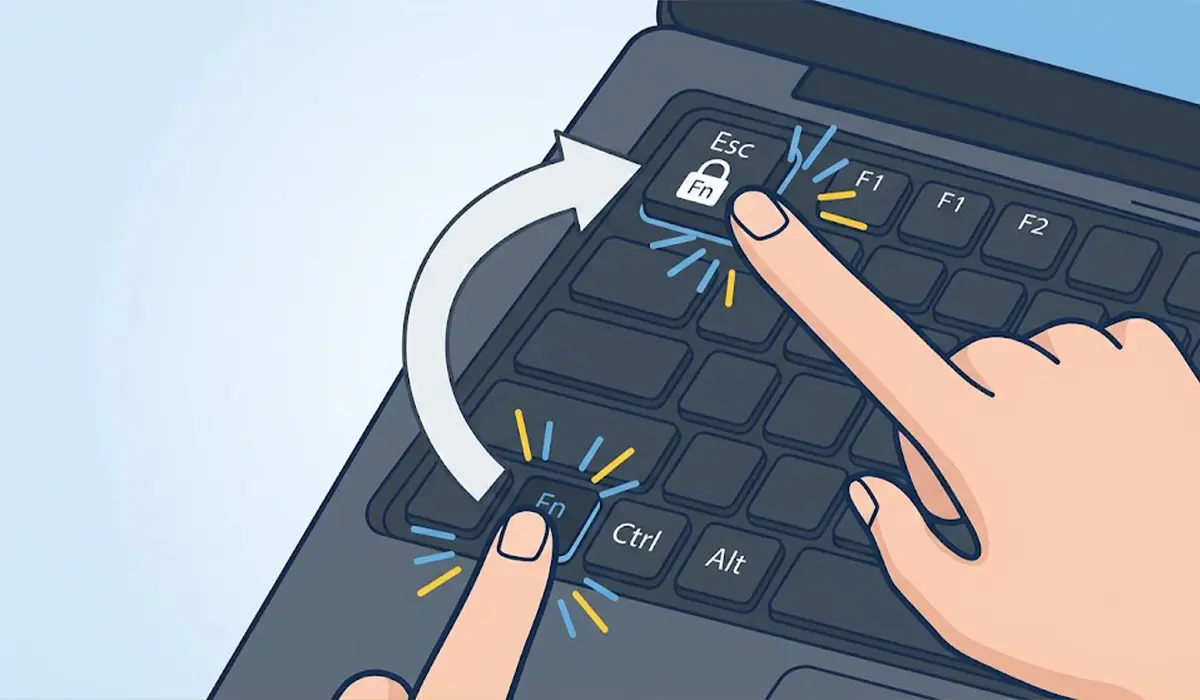
Tip: On some laptops the padlock icon sits on a different key, such as Caps Lock, Num Lock, or an F-key. Check the printed icons on the keyboard before trying random combinations.
Change the Default in the BIOS or UEFI
- Step 5: Save any open work, then restart the laptop.
- Step 6: As the manufacturer logo appears, press the key that opens setup. Common choices are F2, F10, Del, or Esc, depending on the brand.
- Step 7: Look for a setting named Function Key Behavior, Action Keys Mode, Hotkey Mode, or something similar. It is often found under System Configuration, Advanced, or POST Behavior.
- Step 8: Switch the option so the function row defaults to the behavior wanted, either multimedia keys first or standard function keys first.
- Step 9: Save changes and exit, usually with F10, then let Windows start normally and test the keys again.

Tip: Setting the BIOS default does not remove the Fn toggle. The shortcut still flips the behavior temporarily, which is handy when a single program needs the opposite mode.
Check the Manufacturer Utility or Windows Mobility Center
- Step 10: Press Windows + X and open Mobility Center if it is listed. Some laptops, including many Dell models, show a Function Key Row option there with a drop-down for Function Key or Multimedia Key.
- Step 11: If the laptop brand provides its own utility, such as Lenovo Vantage or a similar hotkey app, open it and look in the keyboard or input settings for an Fn lock or hotkey mode option.
- Step 12: Choose the preferred mode, then test the function row.
Update or Reinstall the Keyboard and Hotkey Drivers
- Step 13: Visit the laptop manufacturer’s support page and enter the exact model name or serial number.
- Step 14: Download the latest hotkey, keyboard, or system interface drivers listed for the installed version of Windows, then run the installers.
- Step 15: If the problem continues, press Windows + X, open Device Manager, expand Keyboards, right-click the standard keyboard entry, and choose Uninstall device.
- Step 16: Restart the laptop. Windows reinstalls the basic keyboard driver automatically on startup.

Reset the BIOS Defaults or Update the BIOS
- Step 17: Enter the BIOS or UEFI again and choose Load Setup Defaults or Restore Defaults, then save and exit. This clears a corrupted function key setting.
- Step 18: If the setting still reverts after restarts, check the manufacturer’s support page for a newer BIOS version that lists keyboard or hotkey fixes in its notes.
- Step 19: Plug the laptop into mains power and follow the manufacturer’s instructions exactly during a BIOS update. Never switch the laptop off while the update is running.
A failed BIOS update can leave a laptop unable to start, so this step is best skipped unless the earlier fixes did not work. When in doubt, a repair technician can handle it safely.
Common Problems and Fixes
Fn + Esc Does Nothing
Not every laptop uses Esc for the lock. Look for the padlock icon on another key, and check the BIOS or manufacturer utility instead. Some models do not have a dedicated toggle at all and rely entirely on the BIOS setting.
The Setting Resets After Every Restart
This usually points to a weak CMOS battery, a corrupted BIOS setting, or an older BIOS version. Reset the BIOS to defaults first, then check for a BIOS update. If the clock and date also reset, the CMOS battery is likely failing.
Function Keys Work Differently in Certain Programs
Some games, remote desktop apps, and virtual machines capture the function keys themselves. Test the keys on the desktop or in Notepad before assuming the lock is stuck.
The Fn Key Is Not Responding at All
Restart the laptop, then reinstall the hotkey driver from the manufacturer. If the Fn key still has no effect even in the BIOS, the keyboard itself may need servicing, which is best left to a professional.
An External Keyboard Behaves Differently
External keyboards store their own Fn lock state. Check for a padlock icon or an Fn lock combination in the keyboard’s manual, since the laptop settings do not control it.
Frequently Asked Questions
What does Fn lock do on a laptop?
Fn lock switches the function row between two modes. In one mode, F1-F12 act as standard function keys. In the other, they control features such as volume, brightness, and wireless. The lock saves the need to hold Fn each time.
How do I turn off Fn lock quickly?
Hold Fn and press the key with the padlock icon, which is commonly Esc. The function row should switch modes immediately. Press the same combination again to switch back.
Why is my Fn lock always on after restarting?
The BIOS or UEFI default is usually set to the opposite behavior, or the hotkey driver is not applying the saved choice. Change the Function Key Behavior setting in the BIOS and update the keyboard drivers.
Where is the Fn lock setting in the BIOS?
The name and location differ by brand. Look for Function Key Behavior, Action Keys Mode, or Hotkey Mode under System Configuration, Advanced, or POST Behavior.
Can Windows update cause Fn lock to stay on?
A Windows update can replace or reset keyboard and hotkey drivers, which may change how the function row behaves. Reinstalling the manufacturer’s hotkey driver usually restores the expected behavior.
Does every laptop have an Fn lock key?
No. Many laptops have a dedicated toggle, often on Esc, but some rely only on the BIOS or a manufacturer utility to set the function row behavior.
Is it safe to reset the BIOS to fix Fn lock?
Yes, loading the default settings is a normal, safe step. It restores factory options, so any custom BIOS changes, such as boot order, may need to be set again afterward.
Why does the Fn lock work differently on my external keyboard?
External keyboards manage their own function row mode, separate from the laptop. Check the printed icons on the keyboard or the manual for the correct Fn lock combination.
When should a repair technician be consulted?
If the Fn key does not respond even in the BIOS, or if the setting will not hold after a BIOS reset and update, the keyboard or its connection may be faulty and should be inspected professionally.
