
Learning how to fix PC shutting off under heavy load starts with one idea: a computer that powers off during gaming, rendering, or a stress test is usually protecting itself or running short of clean power. The cause almost always comes down to heat, an overworked power supply, or an unstable setting. This guide works through each one in a sensible order, from free software checks to hands-on inspection.
Key Takeaways
- A sudden shutdown with no blue screen usually points to overheating protection or a power delivery problem.
- Windows Event Viewer and a temperature monitor give the first clues without opening the case.
- Dust, a weak or overloaded power supply, loose power cables, and unstable overclock or memory profile settings cause most cases.
- Test one change at a time so the real culprit is easy to identify.
Common Causes of a PC Shutting Off Under Load
Heavy load pushes the processor and graphics card to draw more power and produce more heat. Anything weak in that chain shows up at exactly that moment. The most common causes are:
- Overheating, where the CPU or GPU hits its thermal limit and the system cuts power to protect the hardware.
- A power supply that cannot deliver enough stable power for the graphics card and processor, or one that has aged.
- Loose, damaged, or incorrectly connected power cables, especially the PCIe cables feeding the graphics card.
- Overclocking, undervolting, or a memory profile (XMP or EXPO) that is not stable at full load.
- Faulty RAM or a failing graphics card.
- Outdated BIOS or graphics drivers, which is less common but worth ruling out.
Before You Start
Several steps below involve opening the case. Shut the PC down, switch off the power supply, and unplug the power cable. Press the power button once to drain leftover charge, then touch bare metal on the case or wear an anti-static strap before handling parts. Let hot components cool first.
Helpful tools and materials include a Phillips screwdriver, compressed air, a soft brush, 90 percent or higher isopropyl alcohol with lint-free cloths, and a free monitoring tool such as HWiNFO. Opening a prebuilt PC may affect its warranty. If a step involves a swollen component, a burning smell, or a power supply that needs opening, stop and let a professional handle it.
Step-by-Step Ways to Fix PC Shutting Off Under Heavy Load
- Step 1: Check Event Viewer. Open Event Viewer, go to Windows Logs, then System, and look for a Kernel-Power entry with Event ID 41 around the time of the shutdown. This entry confirms the PC lost power or shut down without a clean exit, which fits a thermal or power problem rather than a software crash.
- Step 2: Watch temperatures under load. Open HWiNFO in sensors mode, start the game or task that triggers the shutdown, and watch CPU and GPU temperatures climb. If a reading shoots up right before the shutdown, heat is the cause. Check the maximum temperature for the exact processor or graphics card on the manufacturer’s website rather than guessing.
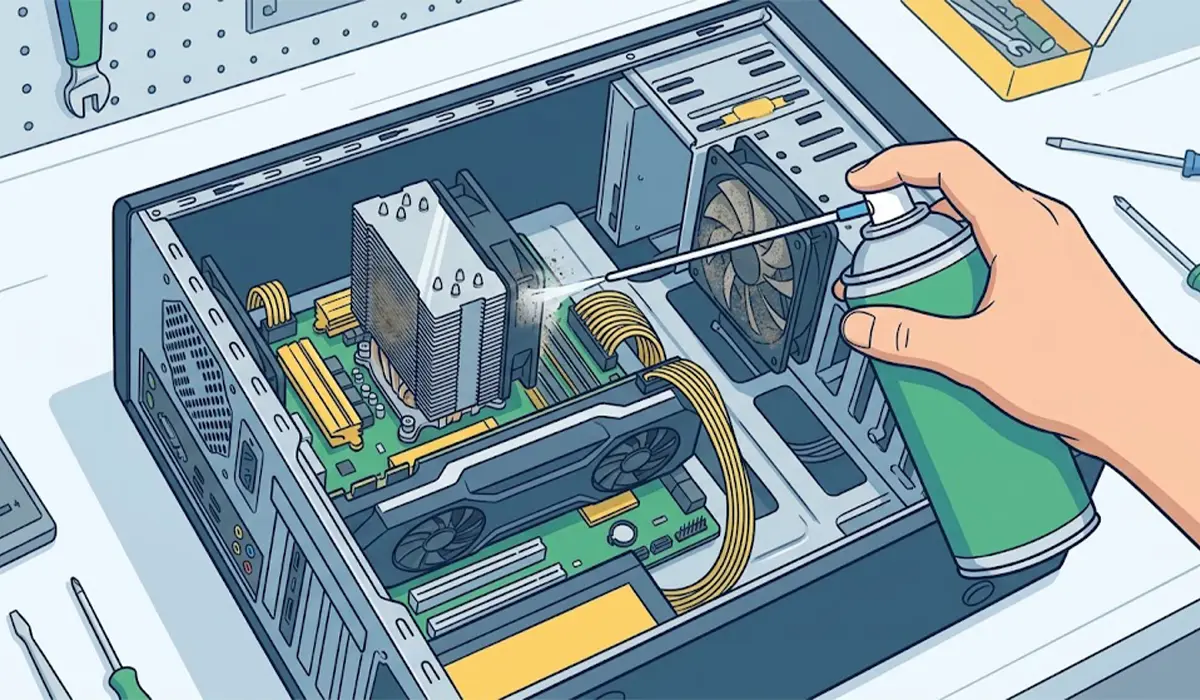
- Step 3: Clean out dust. With the PC off and unplugged, use short bursts of compressed air on the heatsink fins, case fans, graphics card fans, and filters, holding each fan still with a finger or a soft brush so it does not overspin. Dust that clogs a heatsink acts like a blanket over the cooler.
- Step 4: Confirm every fan and pump works. Power the PC on with the case open and check that the CPU cooler fan, case fans, and graphics card fans spin. On a liquid cooler, check that the pump is running and the radiator is not blocked. A dead fan or pump leads straight to thermal shutdowns.
- Step 5: Reseat the cooler and refresh thermal paste if needed. If the CPU temperature jumps almost instantly under load, the cooler may be seated poorly or the paste may have dried out. Remove the cooler, clean the old paste off the chip and cooler plate with isopropyl alcohol, apply a fresh small amount of quality thermal paste, and remount the cooler with even pressure.
- Step 6: Inspect the power connections. Make sure the 24-pin motherboard cable, the CPU power cable, and every PCIe power cable on the graphics card are fully clicked in. Use a separate cable for each PCIe power connector on the card where the power supply provides them, instead of relying on a single daisy-chained cable.
- Step 7: Check the wall outlet and power strip. Plug the PC directly into a wall outlet and avoid cheap extension cords. A worn power strip can drop power briefly when demand spikes.
- Step 8: Compare the power supply to the hardware. Check the wattage printed on the power supply label against the graphics card manufacturer’s recommended power supply rating. A unit that is too small, or an older unit that has lost capacity over years of use, can trip its protection when the graphics card and processor peak together.
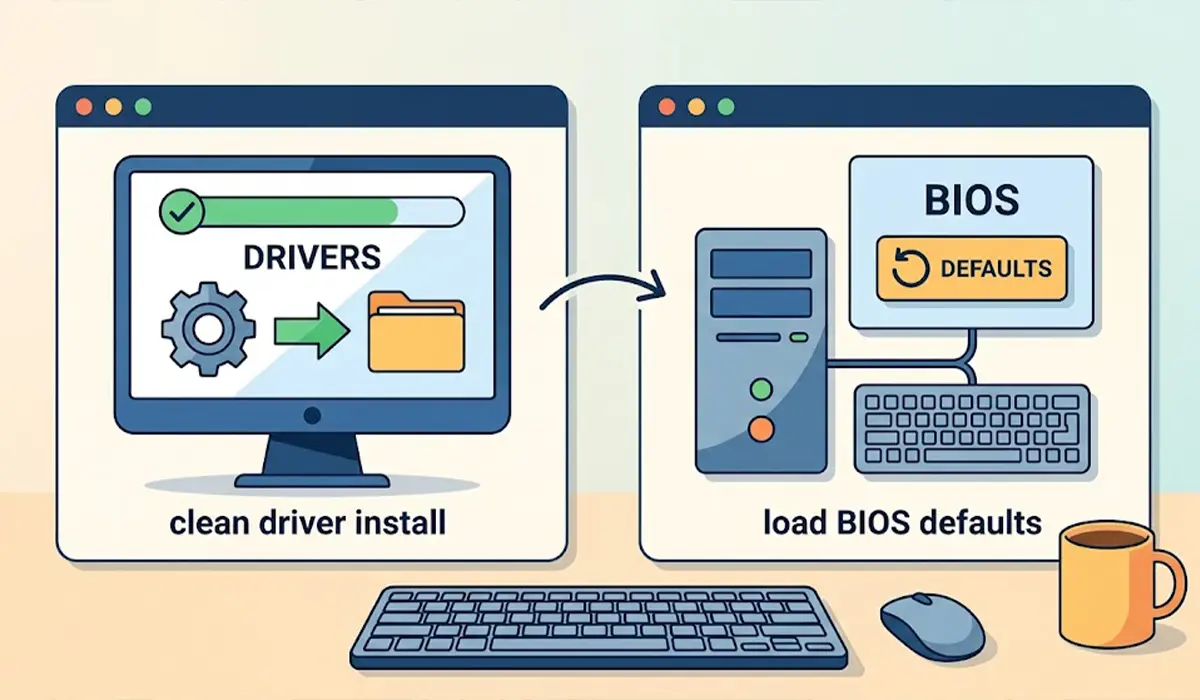
- Step 9: Remove overclocks and memory profiles. Enter the BIOS and load the default settings, which clears manual overclocks and undervolts. Then retest. If the shutdowns stop, turn settings back on one at a time to find the unstable one. Tip: a memory profile that passes light use can still fail under sustained load, so test it separately.
- Step 10: Update the BIOS and graphics driver. Install the latest stable graphics driver from the manufacturer and check the motherboard maker’s support page for a BIOS update. Follow the maker’s instructions exactly and do not interrupt a BIOS update.
- Step 11: Test the RAM. Run the built-in Windows Memory Diagnostic or a bootable tool such as MemTest86. If errors appear, test one stick at a time to find the faulty module.
- Step 12: Run a controlled stress test. Use a tool such as OCCT to load the CPU and GPU separately while watching temperatures. If only the graphics test causes the shutdown, the graphics card or its power supply connection is the likely cause. If only the CPU test does, focus on the cooler and processor power.
Common Problems and Fixes
The PC still shuts off after cleaning and fresh thermal paste
Temperatures may not be the issue. Move on to the power supply checks in Steps 6 to 8 and test with a known good power supply if one is available. Borrowing a unit with enough wattage is the fastest way to confirm a failing power supply.
Shutdowns happen only in one game or application
That pattern often points to a graphics driver issue or an unstable overclock rather than failing hardware. Do a clean driver reinstall and load the BIOS defaults, then retest the same game.
The PC restarts instead of shutting off
An automatic restart often means a software crash or memory error, not a thermal cutoff. Check Event Viewer for a bug check entry, then run the memory tests in Step 11.
The PC will not turn back on right away after a shutdown
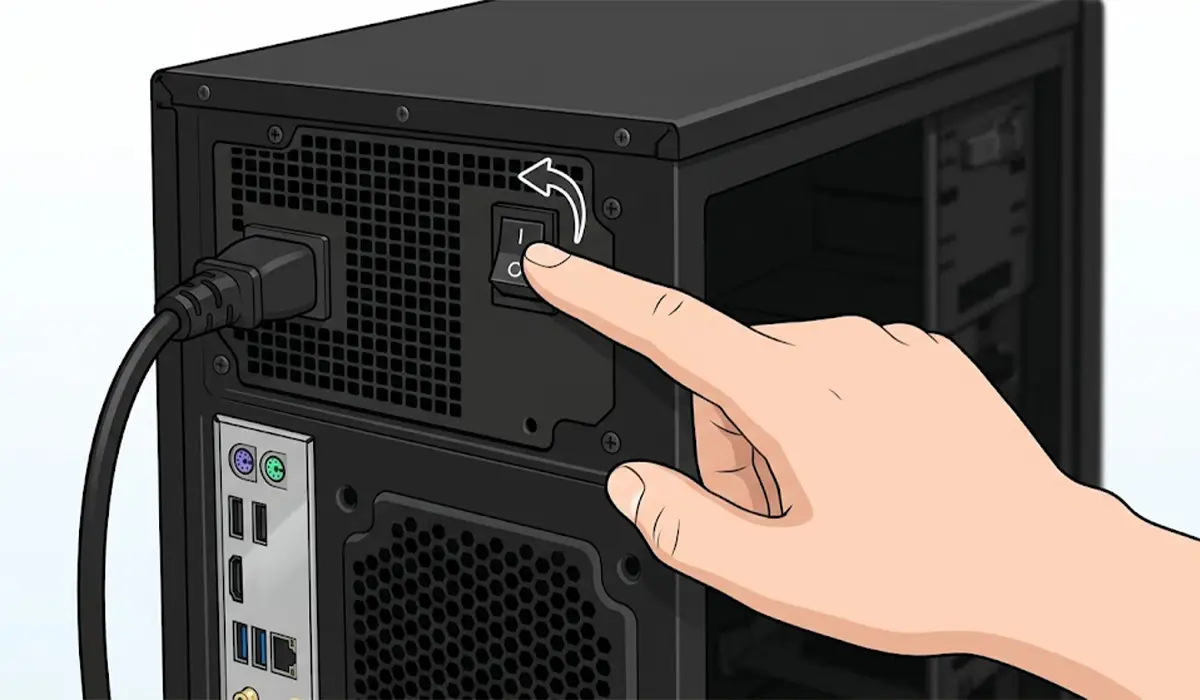
The power supply or motherboard protection may have latched. Switch off the power supply, wait a minute, then switch it back on. If the PC repeatedly refuses to start after a shutdown, that is a sign to stop and have the power supply tested.
Temperatures look normal but shutdowns continue
Software sensors can miss brief spikes. Power supply problems and graphics card faults often show no temperature warning at all, so concentrate on the power connections, the power supply, and the graphics card.
Frequently Asked Questions
Why does my PC shut off suddenly under heavy load?
The most common reasons are overheating, a power supply that cannot keep up, loose power cables, or unstable overclock and memory settings. Heavy load simply exposes whichever of these is weakest.
How can I tell if the power supply is causing the shutdowns?
If temperatures stay reasonable and the PC cuts off instantly with no warning, the power supply becomes a prime suspect. Testing with a known good unit of adequate wattage is the clearest way to confirm it.
Can overheating make a PC shut down without warning?
Yes. When the CPU or GPU reaches its thermal limit, the system can cut power to prevent damage, which looks like a sudden shutdown.
Can bad RAM cause a PC to turn off during games?
Faulty or unstable RAM more often causes crashes, blue screens, or restarts, but it can also cause abrupt shutdowns. A memory test shows whether the modules are healthy.
Will a new graphics driver fix random shutdowns?
Sometimes. Driver problems can cause crashes, but a hard shutdown is more often hardware or power related, so check temperatures and power before relying on a driver update.
Does dust really cause a PC to shut down?
Yes. Dust clogs heatsinks and filters, which reduces cooling and raises temperatures until the system shuts down to protect itself.
Is it safe to keep using a PC that shuts off under load?
It is best to avoid heavy tasks until the cause is found. Repeated shutdowns can corrupt files and may indicate a failing component or a power supply fault.
When should a PC be taken to a professional?
Seek professional help if the problem continues after the checks above, if there is a burning smell, or if the fix involves opening a power supply or working on a device under warranty.
