
Knowing how to run Windows Defender offline scan is one of the most useful skills when a PC acts infected but regular scans find nothing. The offline scan restarts the computer and checks the system before Windows fully loads, so malware has no chance to hide or defend itself. The whole process takes a few clicks and about fifteen minutes.
Key Takeaways
- The offline scan runs outside the normal Windows environment, which makes it effective against rootkits and malware that resists removal.
- It is started from Windows Security under Virus and threat protection, then Scan options.
- The PC restarts automatically, so all open work must be saved first.
- Results are found afterward in Protection history inside Windows Security.
- It works best as a second-line tool when a quick or full scan fails to clear a suspected infection.
What the Windows Defender Offline Scan Does
Some malware is clever enough to run in the background and block a scanner that is working inside Windows. Think of it like trying to catch a thief who hides whenever the lights come on. The offline scan switches the lights off on the thief’s home turf: the PC reboots into a trusted environment, and the scan runs before the infected parts of the system have a chance to start.
Microsoft now calls the feature Microsoft Defender Antivirus (offline scan) in Windows Security. Older guides and some Windows 10 builds still refer to it as Windows Defender Offline, and both names describe the same tool.
Before You Start
- Save and close every open file and program, because the PC restarts automatically once the scan begins.
- Connect to the internet and install pending Windows updates first, so the latest security definitions are in place.
- Sign in with an administrator account.
- Plug in a laptop or make sure the battery is well charged, since a scan interrupted by a power loss has to start over.
Tip: Microsoft Defender must be the active antivirus for this option to work as expected. If another security suite is installed and running, the offline scan option may be unavailable or greyed out.
How to Run Windows Defender Offline Scan Step by Step
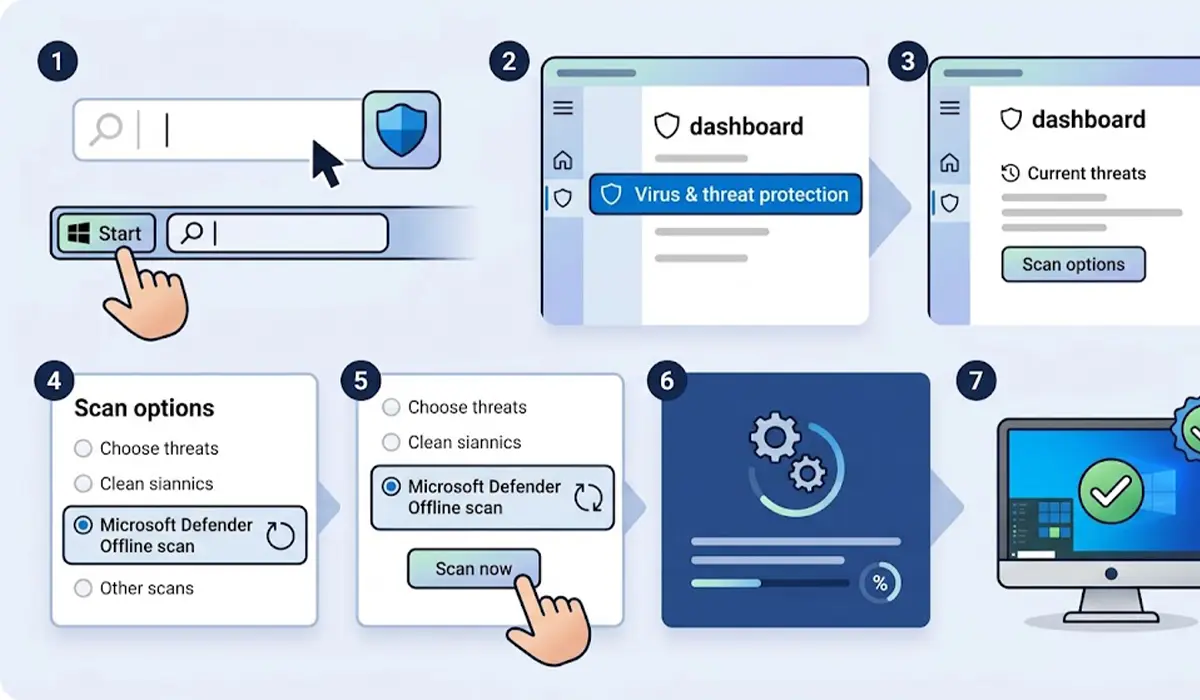
- Step 1: Click the Start button, type Windows Security, and open the app from the results.
- Step 2: Select Virus and threat protection from the left-hand menu or the main dashboard.
- Step 3: Under the Current threats section, click Scan options.
- Step 4: Choose Microsoft Defender Antivirus (offline scan) from the list of scan types.
- Step 5: Click Scan now. Windows shows a warning that the PC will restart.
- Step 6: Confirm the prompt and let the computer restart. A blue screen appears while the scan runs, and progress is shown on it.
- Step 7: Wait for the scan to finish. It usually takes around fifteen minutes, and the PC then boots back into Windows on its own.
Tip: Avoid pressing keys or powering the machine off while the scan screen is showing. Slower drives and large installations simply take longer, and that is normal.
Alternative Method Using PowerShell
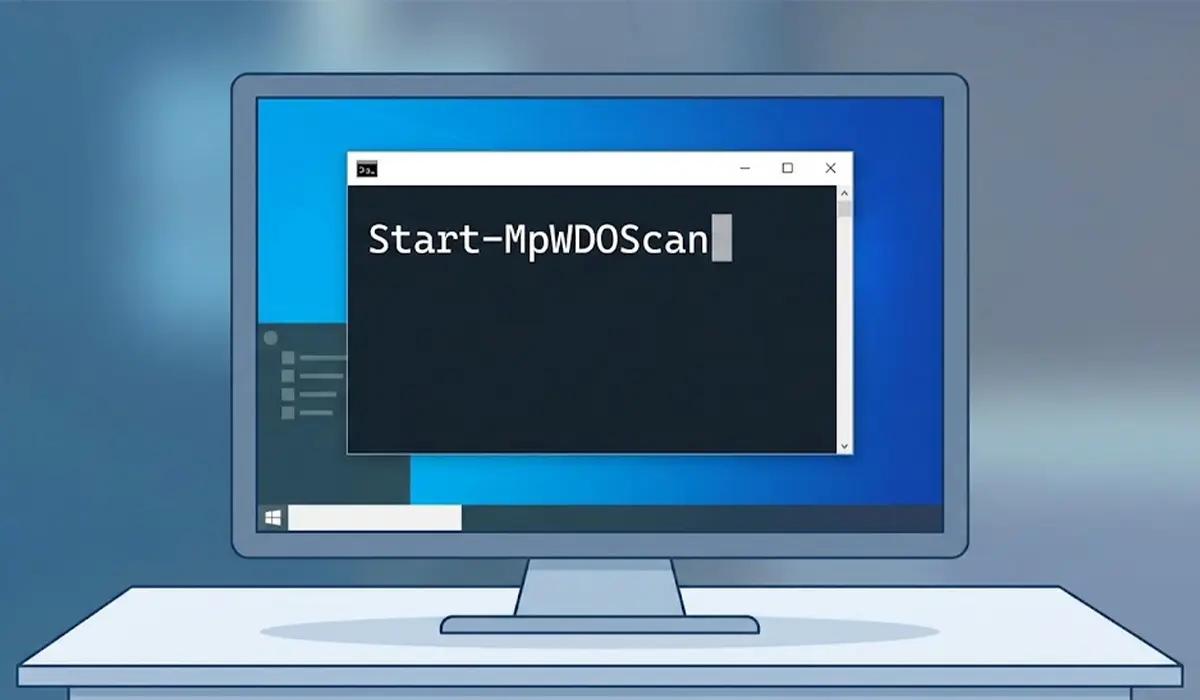
The scan can also be started from the command line. Right-click the Start button, choose Terminal (Admin) or Windows PowerShell (Admin), type Start-MpWDOScan, and press Enter. The PC restarts almost immediately and begins the same offline scan, so save all work before running the command.
How to Check the Scan Results
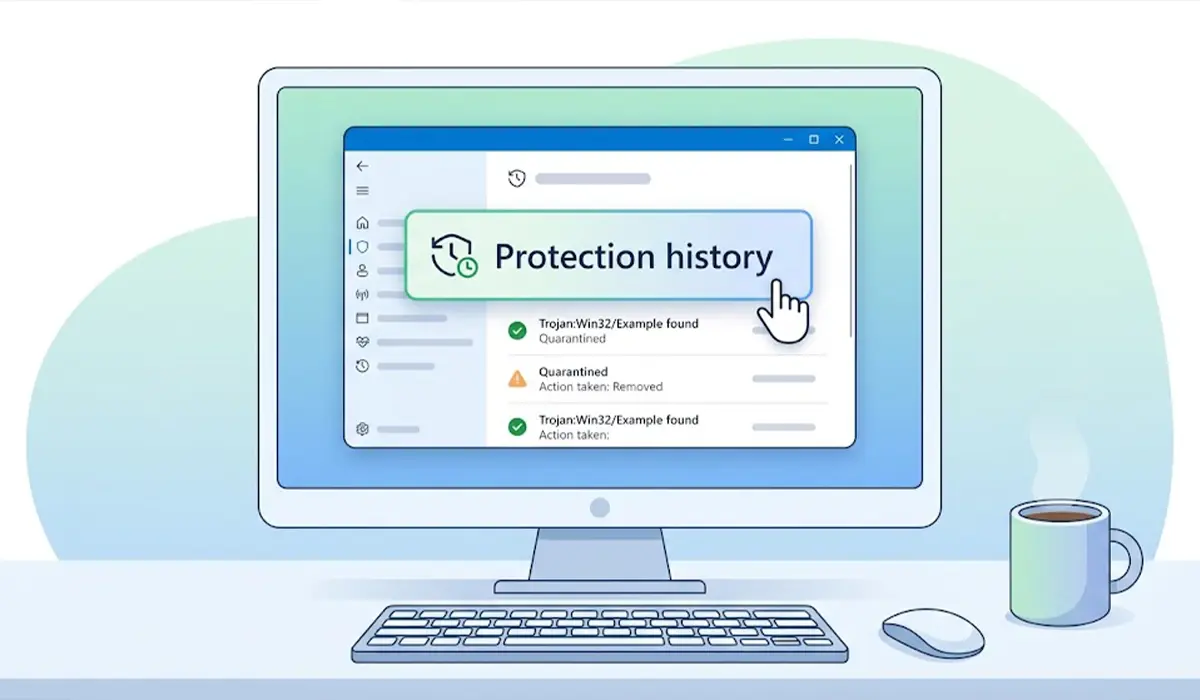
After the PC boots back into Windows, open Windows Security and go to Virus and threat protection. Click Protection history to see what the offline scan found and what action was taken. Detected threats are normally quarantined or removed automatically, and anything needing a decision is flagged there for review.
Common Problems and Fixes
The Offline Scan Option Is Missing or Greyed Out
This usually means another antivirus program is controlling protection, or the device is managed by an organization that restricts Windows Security. Remove or disable the third-party antivirus, restart, and check Scan options again. On a work or school PC, the administrator may have blocked the option.
The PC Does Not Restart After Clicking Scan Now
Restart the computer manually, open Windows Security again, and start the scan once more. If the button still has no effect, try the Start-MpWDOScan command from an administrator PowerShell window.
The PC Returns to Windows and No Result Appears
Open Protection history in Windows Security and look for the most recent entry. A scan that finds nothing may leave little or no visible trace, which generally means the system came back clean.
Malware Is Still Suspected After the Scan
Update Windows and the security definitions, then run the offline scan a second time. If symptoms continue, such as browser hijacking, unexplained pop-ups, or programs that will not open, a professional technician or a full reset of Windows may be the safest next step.
The Scan Takes Much Longer Than Fifteen Minutes
Large drives, many files, and older hard disks can stretch the scan time. As long as the progress screen is still updating, it is best to let it finish without interruption.
Frequently Asked Questions
What is a Windows Defender offline scan?
It is a special scan that restarts the PC and checks for malware before Windows fully loads, which helps detect and remove threats that hide while the operating system is running.
How long does a Windows Defender offline scan take?
The scan usually takes around fifteen minutes. Larger drives or systems with many files can take longer.
Will the offline scan delete my personal files?
No. The scan targets malicious files and quarantines or removes only the threats it detects. Saving all open work beforehand is still wise because the PC restarts automatically.
Does the offline scan work on both Windows 10 and Windows 11?
Yes. The option is available in Windows Security on both versions, under Virus and threat protection and then Scan options.
Does the offline scan need an internet connection?
The scan itself runs outside Windows, but it relies on the latest security definitions. Connecting to the internet and updating Windows beforehand ensures the scan uses current protection data.
How is the offline scan different from a full scan?
A full scan runs inside Windows, where active malware may block or evade it. The offline scan runs before Windows loads, so persistent threats such as rootkits have a much harder time hiding.
How often should the offline scan be run?
It is not meant for routine use. Run it when a PC shows signs of infection, or when regular scans cannot detect or remove a suspected threat.
Where can the offline scan results be found?
Open Windows Security, go to Virus and threat protection, and select Protection history to see the results and any actions taken.
Can the offline scan be started from the command line?
Yes. Running Start-MpWDOScan in an administrator PowerShell window restarts the PC and begins the offline scan.
