
Tired of retyping the same font choice every time a new email opens? You can change the default compose font in Outlook once and have every new message, reply, and forward use the typeface, size, and color you prefer. The steps differ slightly between classic Outlook for Windows and the new Outlook or Outlook on the web, so both are covered below.
Key Takeaways
- In classic Outlook for Windows, the setting lives under File, Options, Mail, Stationery and Fonts.
- New messages, replies and forwards, and plain text each have their own font setting in classic Outlook.
- In the new Outlook and Outlook on the web, one Message format setting under Compose and reply covers the default font.
- A theme or stationery can override the chosen font, so it should be set to none if the change does not stick.
- Changes apply to messages composed after saving, not to emails already open or drafted.
Step-by-Step Guide to Change the Default Compose Font in Outlook
Classic Outlook for Windows
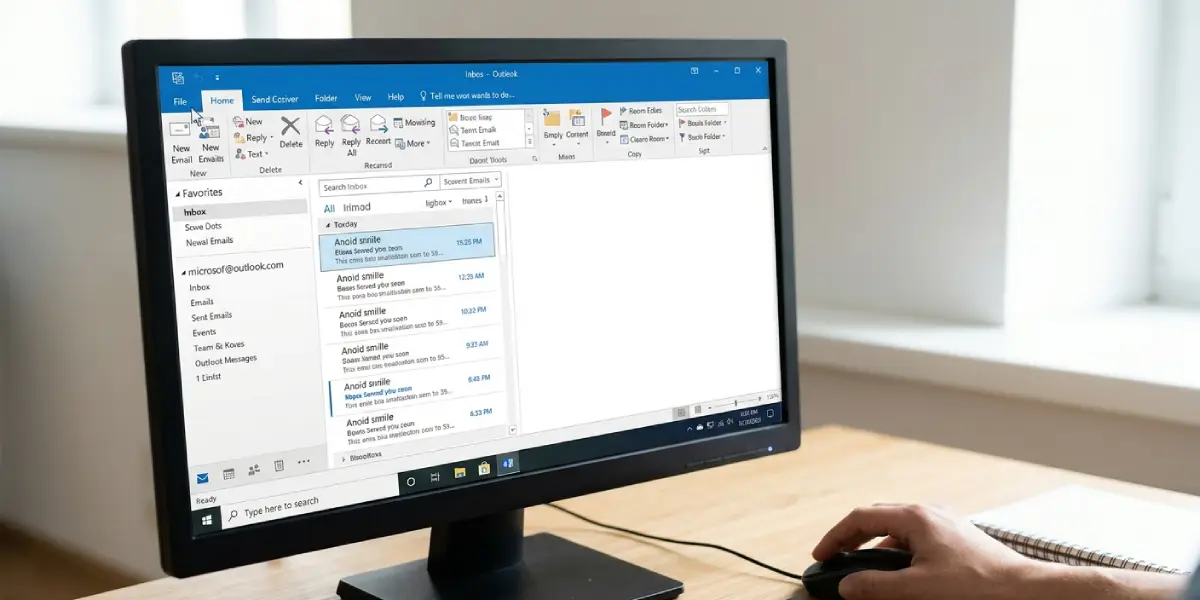
- Step 1: Open Outlook and select ‘File’ in the top-left corner of the ribbon.
- Step 2: Choose ‘Options’ at the bottom of the left-hand menu to open the Outlook Options window.
- Step 3: Select ‘Mail’ in the left pane.
- Step 4: Under the ‘Compose messages’ section, click the ‘Stationery and Fonts’ button.
- Step 5: On the ‘Personal Stationery’ tab, find ‘New mail messages’ and click its ‘Font’ button.
- Step 6: Pick the font, font style, size, and color from the list. The preview box at the bottom shows how the text will look. Click ‘OK’ when the choice looks right.
- Step 7: Repeat the process for ‘Replying or forwarding messages’ by clicking its ‘Font’ button, so replies match the style of new emails.
- Step 8: Click ‘OK’ in the Signatures and Stationery window, then ‘OK’ again in the Outlook Options window to save everything.
- Step 9: Select ‘New Email’ and start typing. The body should now appear in the chosen font.
Tip: Pick a font that nearly every device has, such as Calibri, Arial, or Verdana. If the recipient’s device lacks the chosen font, their email app swaps in a substitute, and the carefully chosen look disappears.
Change the Plain Text Font
Messages composed in plain text have a separate font setting. In the same ‘Stationery and Fonts’ window, the ‘Composing and reading plain text messages’ area has its own ‘Font’ button. Plain text carries no formatting to the recipient, so this setting only changes how the message looks on screen while typing and reading.
New Outlook and Outlook on the Web
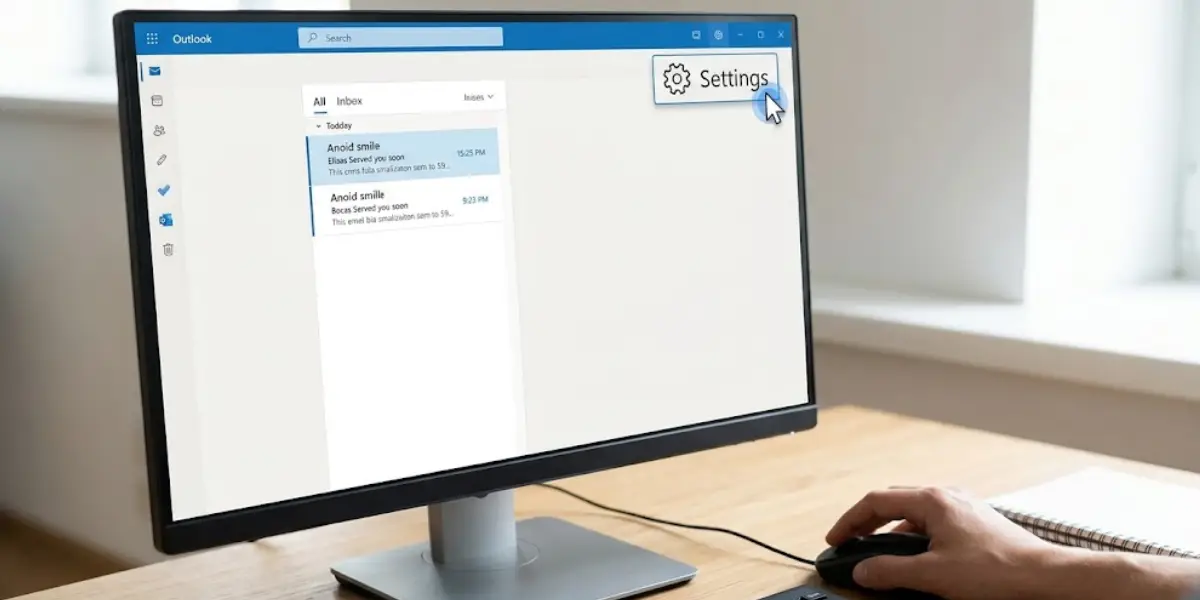
- Step 1: Select the gear icon labeled ‘Settings’ in the top-right corner.
- Step 2: Choose ‘Mail’, then ‘Compose and reply’.
- Step 3: Under ‘Message format’, use the font drop-down to select the typeface, then set the size, bold, italic, underline, and color as needed.
- Step 4: Check the sample text to confirm the look, then select ‘Save’.
- Step 5: Start a new message to confirm the new default is in place.
Tip: Set the font before building a signature. A signature keeps its own formatting, so a mismatch between the body text and the signature is a common giveaway of a half-finished setup.
Common Problems and Fixes
The Font Does Not Change in New Messages
A theme or stationery may be taking priority. In classic Outlook, return to ‘Stationery and Fonts’, then on the ‘Personal Stationery’ tab click ‘Theme’. Select ‘<No Theme>’ in the list and confirm. Fonts chosen on the Personal Stationery tab should then apply.
Replies Still Use the Old Font
Classic Outlook stores replies and forwards separately from new messages. Open ‘Stationery and Fonts’ again and set the font under ‘Replying or forwarding messages’. Replies to emails that arrived in a different format may still follow the sender’s formatting in some cases.
The Font Looks Different to the Recipient
This happens when the recipient’s device does not have the chosen font installed. Switching to a widely available typeface solves it.
The Compose Window Is in Plain Text
When the message format is plain text, rich font choices have no effect. In a new message, open the ‘Format Text’ tab and select ‘HTML’ to enable the font settings. In classic Outlook, the default format can be changed under File, Options, Mail, ‘Compose messages in this format’.
The Change Does Not Appear in an Open Draft
Drafts and messages that were already open keep their original formatting. Only messages created after saving the new setting use the new default font.
Frequently Asked Questions
Where is the default compose font setting in classic Outlook?
It is under File, Options, Mail, then the ‘Stationery and Fonts’ button in the ‘Compose messages’ section. The ‘Personal Stationery’ tab holds the font buttons for new messages, replies and forwards, and plain text.
Does changing the default font affect emails that were already sent?
No. The new default applies only to messages composed after the change is saved. Sent messages and existing drafts keep their original formatting.
Why do replies use a different font than new emails?
Classic Outlook has a separate font setting for ‘Replying or forwarding messages’. Setting it to match the ‘New mail messages’ font keeps the style consistent across all outgoing mail.
How do I change the default font in the new Outlook?
Select Settings, then Mail, then Compose and reply. Under Message format, choose the font, size, and color, then select Save. The same path works in Outlook on the web.
Why is the Font button grayed out or having no effect?
The message may be in plain text format, which does not support font styling. Switch the message to HTML from the Format Text tab, or change the default compose format in Outlook Options.
Can the font color be changed as the default too?
Yes. The Font dialog in classic Outlook and the Message format area in the new Outlook and Outlook on the web both include a color option that becomes part of the default.
Will the chosen font appear the same on the recipient’s device?
Only if the recipient has that font installed. Otherwise their email app substitutes another font, so common typefaces such as Arial, Calibri, or Verdana are the safest choices.
What should be done if a theme keeps overriding the default font?
Open Stationery and Fonts in classic Outlook, click Theme on the Personal Stationery tab, and select No Theme. Fonts set on the tab will then take effect for new messages.
