
Learning how to fix fan always running at max in BIOS usually comes down to a wrong fan profile, a blocked cooler, or a bad temperature reading. A fan stuck at full speed is loud, wastes power, and wears the bearings faster. The good news is that most cases are solved with a few BIOS changes and a quick cleaning.
Key Takeaways
- A fan at full speed is often caused by a BIOS fan mode set to Full Speed, Performance, or a similar maximum profile.
- The BIOS hardware monitor shows real temperatures and fan RPM, so check it before changing anything.
- Loading optimized defaults, matching the header mode to the fan type, and updating the BIOS fix most stubborn cases.
- Dust and poor airflow can make a healthy fan run flat out, so cleaning is part of the fix.
Common Causes of a Fan Running at Max in BIOS
Before changing settings, it helps to know what usually drives a fan to full speed. Most cases trace back to one of these.
- The fan mode in BIOS is set to Full Speed, Performance, Turbo, or a custom curve that ramps too early.
- The fan header mode (Auto, DC, or PWM) does not match the connected fan, so the board cannot control its speed.
- Dust, clogged heatsink fins, or blocked vents are pushing temperatures high, so the fan reacts correctly by spinning fast.
- A temperature sensor is misreporting, or the thermal paste has dried out, which makes the system think the CPU is much hotter than it is.
- An outdated BIOS has a known fan control bug, or a changed setting has left the fan profile corrupted.
- The fan is plugged into the wrong header or has a loose connector, so the board sees no speed signal and drives it at maximum.

Before You Start
Changing BIOS settings is safe, but cleaning and reseating parts needs basic care. Power off the PC or laptop, unplug the charger, and let hot parts cool. On a laptop, disconnect the battery only if the service manual for that model describes how to do it. Touch bare metal on the case, or use an anti-static strap, to discharge static before touching internal parts.
The tools needed are a small screwdriver set, a soft brush, compressed air, and a lint-free or microfiber cloth. Hold the fan blades still with a finger or a soft tool while spraying air, because a fan that spins freely can be damaged by the airflow. Opening a device may affect its warranty, and a sealed laptop or a repair that feels risky is best left to a professional.
How to Fix Fan Always Running at Max in BIOS Step by Step
- Step 1: Restart the PC and enter BIOS by tapping the key shown on the startup screen. Delete and F2 are the most common, though F10, F12, or Esc are used on some models.
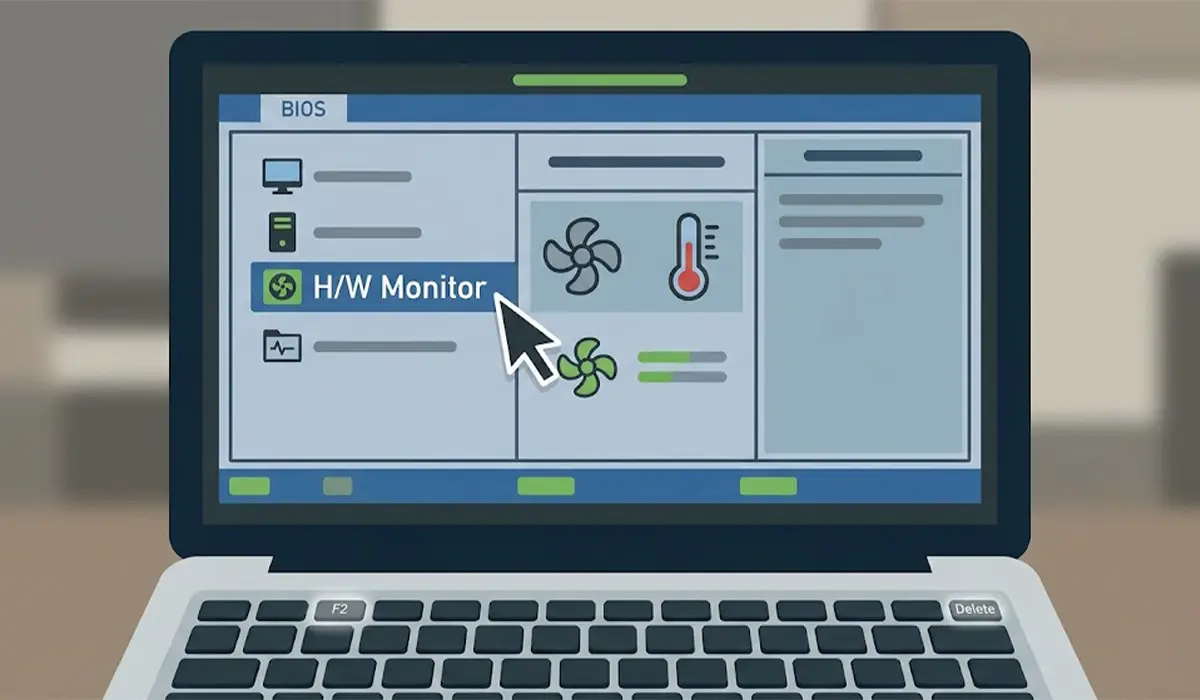
- Step 2: Open the hardware monitor page, often named PC Health Status, H/W Monitor, or Hardware Monitor. Note the CPU temperature and fan RPM. If the CPU is idling at a normal temperature while the fan is at its top speed, the fan setting is the problem. If the temperature is very high, jump to the cleaning step.
- Step 3: Find the fan control section, which may be called Fan Control, Smart Fan, Q-Fan, or Thermal Configuration. Change the mode from Full Speed, Performance, or Turbo to Auto, Standard, Normal, Silent, or Balanced. Laptops that offer a thermal mode usually list options such as Quiet, Balanced, and Performance.
- Step 4: On a desktop, check the header control mode for the CPU fan and case fans. A 4-pin fan normally works best in PWM or Auto mode, while a 3-pin fan needs DC mode. Setting the wrong mode can leave the fan at full speed with no way to slow down.
- Step 5: If a custom fan curve is active, reset it to the default profile. A curve that hits 100 percent at a low temperature is a very common cause of constant noise.
- Step 6: Use the option labeled Load Optimized Defaults or Load Setup Defaults, then save and exit. This clears any settings that were changed by mistake or corrupted.
- Step 7: Power off, unplug, and clean the cooling path. Brush dust from the fan blades and heatsink fins, then use short bursts of compressed air while holding the fan still. Make sure vents are not blocked by fabric, dust mats, or walls.
- Step 8: On a desktop, check that the CPU fan connector is firmly seated on the header labeled CPU_FAN. A loose or misplaced connector can hide the speed signal and force full speed.
- Step 9: Update the BIOS from the manufacturer’s support page for the exact board or laptop model, and follow the official instructions. Keep the device on stable power during the update, because an interrupted update can leave it unable to boot.
Tip: Change only one setting at a time and check the fan RPM in the hardware monitor after each change. This makes it clear which adjustment actually solved the problem.
Common Problems and Fixes
The fan still runs at max after changing the BIOS profile
Check the hardware monitor for a high temperature. If the CPU is hot, the fan is reacting correctly, so the cooler needs cleaning, and old thermal paste may need replacing if the heat stays high after dusting.
The fan speed shows as zero or N/A in BIOS
This usually means the board is not getting a speed signal. Reseat the fan connector, confirm it sits on the correct header, and try the other control mode (DC or PWM) for that fan.
The fan is loud only for a short time at startup
Many systems spin fans at full speed briefly during power on. This is normal and should settle once the operating system loads. If it never settles, work through the steps above.
There is no fan option in the BIOS at all
Some laptops and prebuilt PCs hide fan controls. In that case, load optimized defaults, clean the vents, and update the BIOS, since the manufacturer may offer a thermal mode in its own utility instead.
The fan is still at max after a BIOS update
Load optimized defaults once more, then recheck the fan mode. If the noise continues, the fan itself may be worn or failing, and a replacement fan for the exact model is the next step.
Frequently Asked Questions
Why is my fan always at full speed even when the PC is idle?
The most common reasons are a Full Speed or Performance fan mode in BIOS, a mismatched header mode, or a high temperature caused by dust. Checking the hardware monitor shows which one applies.
Is it bad if the fan runs at max all the time?
It is not immediately dangerous, but constant full speed increases noise, power use, and wear on the fan bearings. The cause is worth fixing rather than ignoring.
Where is the fan setting in BIOS?
It is usually under a page called Hardware Monitor, PC Health Status, Smart Fan, or Fan Control. The name differs by manufacturer, and some laptops hide it completely.
Should the fan header be set to PWM or DC mode?
A 4-pin fan generally works best in PWM or Auto mode, and a 3-pin fan needs DC mode. Using the wrong mode can leave the fan stuck at maximum speed.
Will resetting the BIOS to defaults fix the fan problem?
Often yes, especially when a custom fan curve or an incorrect setting caused the problem. Choose Load Optimized Defaults, then save and exit.
Can dust make the fan run at max?
Yes. Dust blocks airflow and traps heat, so the temperature rises and the fan spins faster to compensate. Cleaning the fan and heatsink often brings the speed back down.
Can a BIOS update fix fan speed problems?
It can, particularly when the manufacturer has released a fix for fan control or temperature reporting. Always use the official update for the exact model and keep power stable during the update.
When does a fan need to be replaced?
If the fan stays at max or shows no speed after the connector is reseated, the settings are reset, and the BIOS is updated, the fan or its sensor is likely faulty. A replacement matching the original connector type is the usual fix.
