
Learning how to fix RAM causing random freezes on Windows starts with telling a genuine memory fault apart from an ordinary software slowdown. Unstable or poorly seated memory can lock up a PC with no warning, no error message, and no pattern. A handful of focused tests and adjustments usually expose the culprit, and most fixes cost nothing.
Key Takeaways
- Random freezes, sudden restarts, and blue screens that show up together often point to unstable or faulty memory.
- Windows Memory Diagnostic gives a quick first check, while MemTest86 run from a USB drive gives a far more thorough verdict.
- Turning off XMP, EXPO, or DOCP in the BIOS is one of the fastest ways to find out whether a memory profile is the cause.
- Reseating the modules and testing them one at a time isolates a bad stick or a bad slot.
- A module that still shows errors at default settings in a known good slot needs to be replaced.
Common Causes of RAM-Related Freezes
Memory problems rarely announce themselves clearly. Think of RAM as a workbench where Windows lays out everything it is actively using. If a few spots on that bench are cracked or wobbly, things slip off at random moments, and the PC stalls. These are the most common reasons it happens:
- A module that is not fully seated in its slot, or contacts covered in dust.
- A failing memory chip on one stick, which is the classic cause of errors that appear only now and then.
- An XMP, EXPO, or DOCP profile, or a manual overclock, that the motherboard and processor cannot run reliably.
- Mixed modules with different speeds, timings, or capacities that were never sold as a matched kit.
- Outdated BIOS firmware that handles memory compatibility poorly.
- Modules placed in the wrong slots, which prevents proper dual-channel operation.
- Running out of free memory because of a leaking program or too little installed RAM, which makes Windows crawl and look frozen.
Before You Start
Most of the fixes below are software checks, but reseating and swapping modules involves opening the PC. Power the system off completely, unplug the power cable, and on a laptop disconnect or remove the battery where the design allows it. Touch bare metal on the case or wear an anti-static strap to discharge static before handling memory, and let hot components cool first.
Gather a lint-free or microfiber cloth, a Phillips screwdriver for case or laptop panels, a USB flash drive for the memory test, and the motherboard or laptop manual for slot layout. Many thin laptops have RAM soldered to the board, and that type cannot be reseated or replaced. Opening a device may affect its warranty, so check the terms first. If a module will not release or seat without force, stop and let a professional take over.
How to Fix RAM Causing Random Freezes on Windows
Confirm Memory Is the Problem
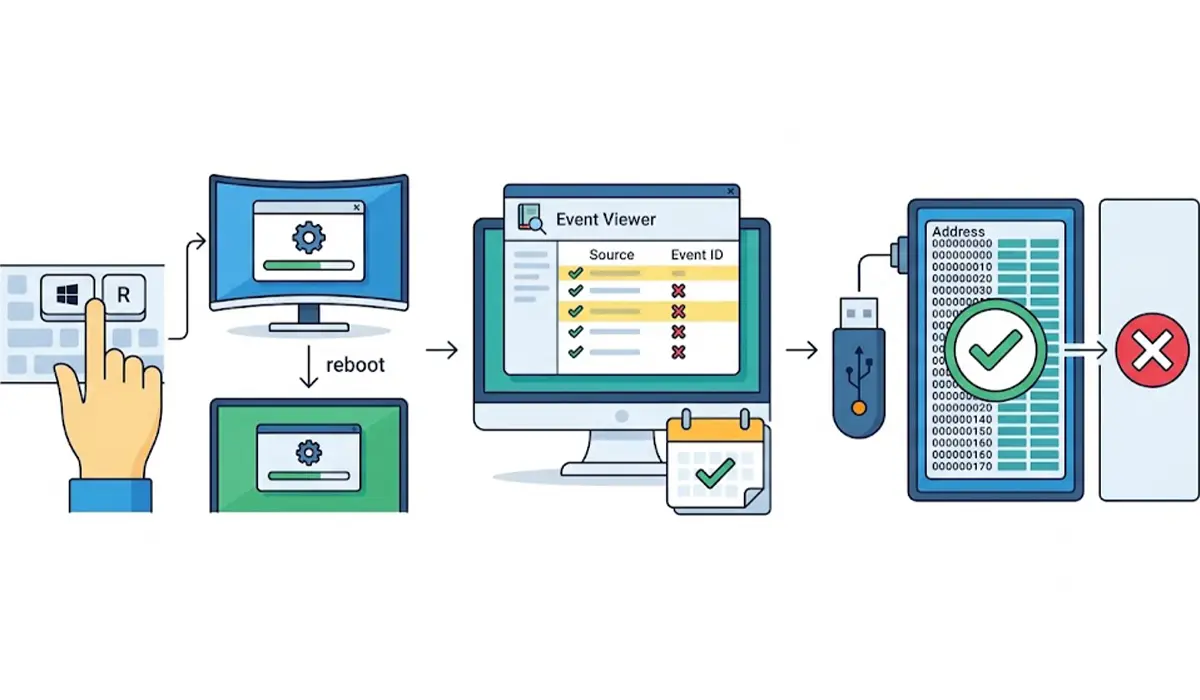
- Step 1: Press the Windows key and R together, type mdsched.exe, and press Enter. Choose the option to restart now and check for problems. Windows reboots into the Memory Diagnostic and runs the Standard test by default. Pressing F1 on the test screen opens options that include the more thorough Extended test.
- Step 2: After Windows loads again, open Event Viewer, go to Windows Logs, then System, and look for entries from the source MemoryDiagnostics-Results. The entry states whether any memory errors were detected.
- Step 3: Run MemTest86 from a USB drive for a more reliable verdict. It runs outside Windows, so nothing else interferes with the result. Let it complete several full passes. A single error is enough to confirm that something in the memory setup is faulty or unstable.
Tip: Run the memory tests when the PC is idle and has been on for a while. Warm memory tends to reveal instability that a cold start can hide.
Rule Out Settings and Software
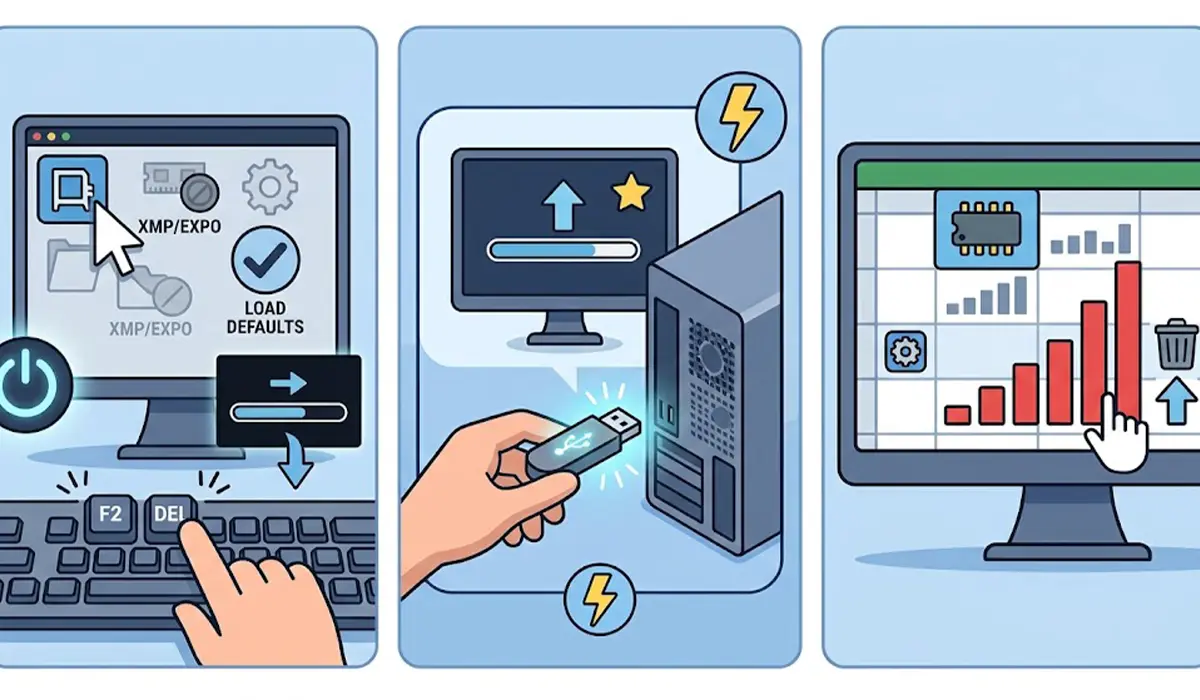
- Step 4: Restart the PC and enter the BIOS or UEFI setup, usually by tapping Delete or F2 during startup. Disable XMP, EXPO, or DOCP, or load the optimized default settings, then save and exit. If the freezes stop, the memory profile was too demanding for that combination of RAM, motherboard, and processor.
- Step 5: If a memory profile is needed for performance, update the BIOS using the motherboard or laptop maker’s official instructions, then try the profile again. Keep the power stable during the update and never interrupt it.
- Step 6: Open Task Manager with Ctrl, Shift, and Esc, and watch the Memory column on the Processes tab. A program that keeps climbing in memory use until the PC stalls is a software leak rather than a hardware fault. Update or remove that program.
Check the Hardware Itself
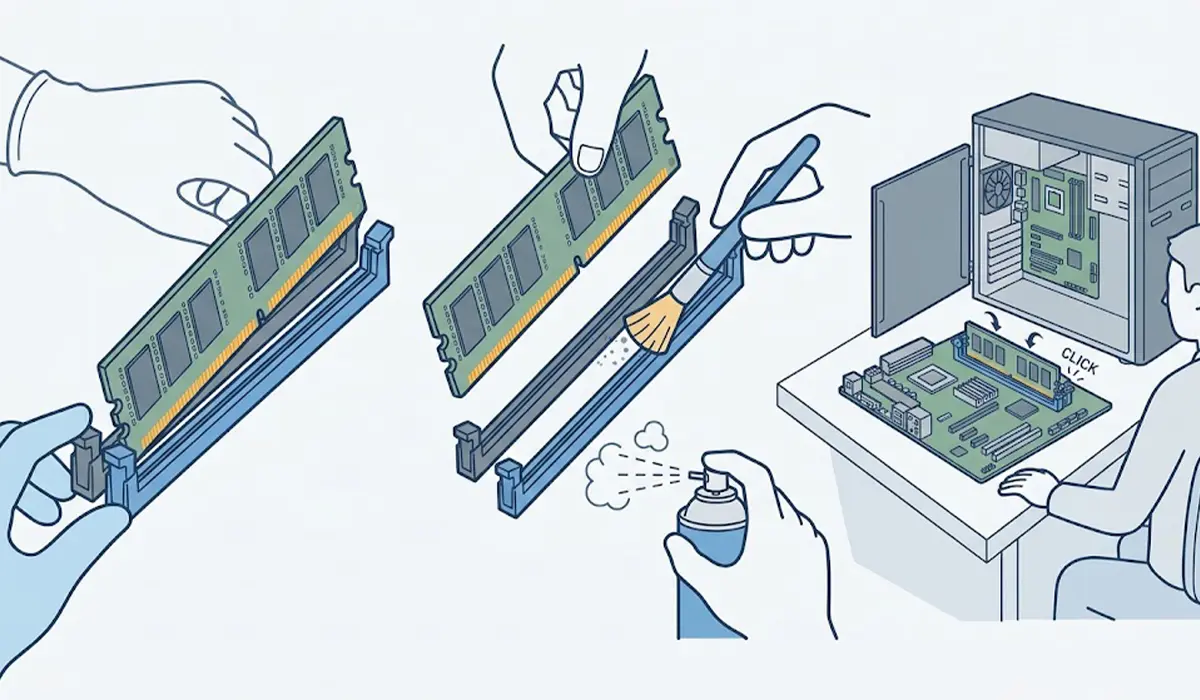
- Step 7: Power down, unplug, and discharge static. Open the case or the laptop memory panel, push the retention clips outward, and lift each module straight out by its edges without touching the gold contacts.
- Step 8: Wipe the contacts gently with a dry lint-free cloth and clear any dust from the slots with a soft brush or short bursts of compressed air. Then reinsert each module with firm, even pressure until the clips click into place.
- Step 9: Test one module at a time. Install a single stick in the slot recommended by the manual, boot, and run the memory test again. Repeat with each stick, then try the same stick in another slot. A stick that fails in every slot is bad, while a slot that fails with every stick is the problem.
- Step 10: Confirm that the modules are a matched kit and are installed in the slots the manual recommends for dual-channel operation. If a mixed set keeps freezing, replacing it with a single matched kit is the cleanest fix.
- Step 11: Replace any module that still reports errors at default settings in a known good slot. Choose a replacement that appears on the motherboard or laptop manufacturer’s compatibility list.
Tip: Label each stick with a small piece of tape before testing them separately. It prevents confusion about which one passed and which one failed.
Common Problems and Fixes
Freezes Continue After Memory Tests Pass
Passing tests means the memory is probably healthy, so the freezes likely come from another source. Check storage health, graphics drivers, and cooling next. Testing memory only rules RAM in or out, and clearing it from the list narrows the search.
The PC Will Not Boot After Reseating
This usually means a module is not fully seated or sits in the wrong slot. Power down, reseat a single stick in the recommended slot until both clips click, and try again. If the screen stays blank, clear the CMOS using the method in the motherboard manual.
Errors Appear Only With XMP, EXPO, or DOCP Enabled
The memory itself is probably fine, but the rated speed is too much for that system. Keep the profile off, or try a lower manual speed after a BIOS update. Running at default speed is far better than living with freezes.
Windows Shows Less Memory Than Installed
A module that is not fully seated is the most common reason. Reseat it and check the total again in Task Manager under the Performance tab. If the amount is still wrong, test the module and the slot separately.
Freezes Come With Blue Screens
Stop codes that mention memory management point strongly toward RAM or its settings. Repeat the memory test, disable the memory profile, and isolate each module as described above.
Frequently Asked Questions
Can bad RAM really cause random freezes on Windows?
Yes. Faulty or unstable memory can corrupt the data Windows is working with, which leads to freezes, application crashes, blue screens, or unexpected restarts.
How can you tell if freezes are caused by RAM or something else?
Run Windows Memory Diagnostic and then MemTest86. Errors in either test point to memory. If both pass cleanly, look at storage health, graphics drivers, and cooling.
Is Windows Memory Diagnostic enough to find a bad stick?
It is a useful first check, but MemTest86 is more thorough because it runs outside Windows. Use both when the freezes keep returning.
Does turning off XMP fix freezes?
Often it does, when the freezes are caused by a memory profile that the motherboard and processor cannot run reliably. If they stop with the profile off, the profile is the cause.
Can mixing RAM sticks cause freezes?
Yes. Modules with different speeds, timings, or capacities can be unstable together. A single matched kit is the safest choice.
Should RAM be tested one stick at a time?
Yes. Testing each module alone, and in different slots, shows whether the fault is in a specific stick or in a specific slot.
Can too little RAM make Windows freeze?
It can. When memory runs out, Windows leans heavily on the page file and the PC may become unresponsive. Closing heavy programs helps, and adding more RAM is the lasting fix.
Is it safe to update the BIOS to fix memory problems?
It is generally safe when done exactly as the manufacturer describes and with stable power, and it should never be interrupted. Try the simpler steps first, since a stable system does not need an update.
When should a RAM module be replaced?
Replace it when it keeps showing errors at default settings, on its own, in a known good slot. That result confirms the module itself is faulty.
