
Learning how to turn on mouse pointer trails in Windows 11 takes less than a minute, and it can make a small cursor much easier to follow on a large or busy screen. The setting is not in the main Settings list, but it is only a couple of clicks away once the right panel is open. This guide covers the fastest route, a backup route, and how to fine-tune the effect.
Key Takeaways
- Pointer trails are switched on from the classic Mouse Properties window, on the ‘Pointer Options’ tab.
- The quickest way to reach that window is Win + R, then typing main.cpl.
- A slider controls the trail length, from short to long.
- The effect can be turned off at any time by unchecking the same box.
How to Turn On Mouse Pointer Trails in Windows 11 Using Settings
Windows 11 keeps the pointer trails option inside the older Mouse Properties dialog, and the Settings app links straight to it. This route works best for anyone who prefers clicking through menus instead of typing commands.
- Step 1: Right-click the Start button and choose ‘Settings’, or press Win + I.
- Step 2: Select ‘Bluetooth & devices’ in the left sidebar, then click ‘Mouse’.
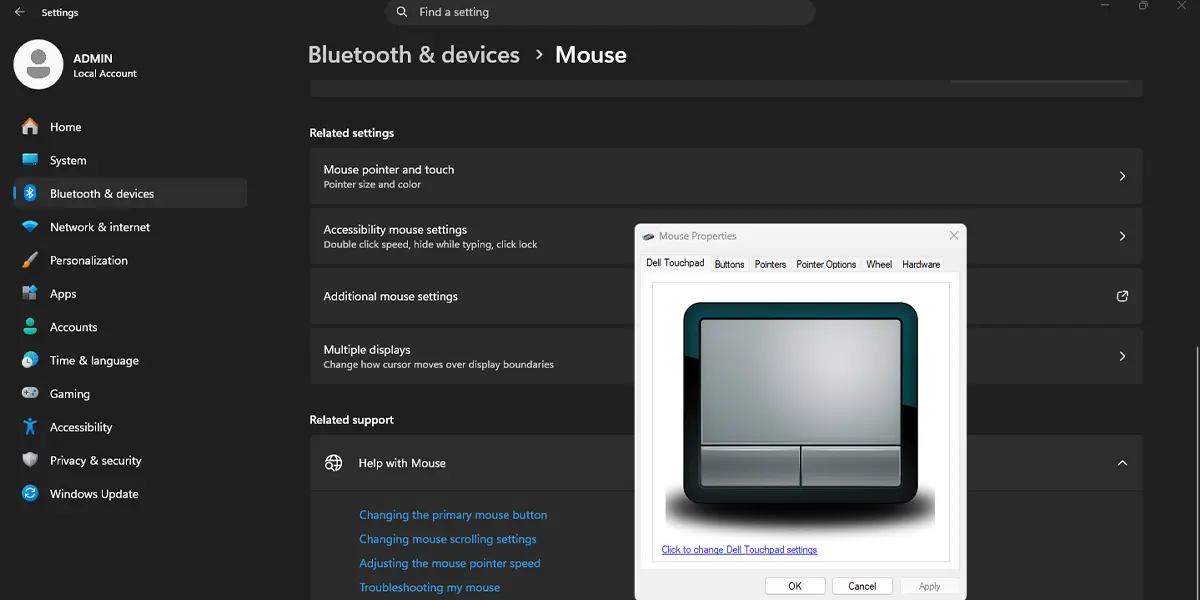
- Step 3: Scroll down to the ‘Related settings’ area and click ‘Additional mouse settings’. The ‘Mouse Properties’ window opens.
- Step 4: Open the ‘Pointer Options’ tab.
- Step 5: Under the ‘Visibility’ group, tick the box labeled ‘Display pointer trails’.
- Step 6: Drag the slider beside it toward ‘Short’ or ‘Long’ to set how many ghost copies of the cursor follow the pointer.
- Step 7: Click ‘Apply’, then ‘OK’. Move the mouse around to see the trail right away.
Tip: Start with the slider near the middle. A very long trail looks impressive at first, but it can turn into visual clutter during everyday work.
Opening Mouse Properties the Faster Way
Anyone who changes this setting often, or who cannot find the link in Settings, can skip the menus entirely. The shortcut below opens the same window in seconds.
- Step 1: Press Win + R to open the Run box.
- Step 2: Type main.cpl and press Enter. The ‘Mouse Properties’ window appears.
- Step 3: Switch to the ‘Pointer Options’ tab, tick ‘Display pointer trails’, adjust the slider, and click ‘Apply’ and then ‘OK’.
Using Control Panel Instead
The same window is also reachable from Control Panel. Open Control Panel, choose ‘Hardware and Sound’, click ‘Mouse’, and continue from the ‘Pointer Options’ tab. The result is identical, since all three routes lead to the same dialog.
How to Adjust or Turn Off Pointer Trails
Pointer trails are not permanent. Reopen Mouse Properties using any method above, go back to the ‘Pointer Options’ tab, and move the slider to change the length. To switch the effect off, untick ‘Display pointer trails’ and click ‘Apply’ and then ‘OK’. The cursor returns to normal immediately.
Making the Cursor Easier to See Overall
Trails work well alongside other visibility tools. Under ‘Accessibility’, then ‘Mouse pointer and touch’, the pointer style and size can be changed. Used together, a larger cursor with a short trail is a comfortable setup for high-resolution monitors, presentations, and screen recordings.
Tip: On a screen recording or tutorial video, a short trail helps viewers follow where the cursor travels between clicks.
Common Problems and Fixes
The ‘Additional mouse settings’ link cannot be found
The link sits under ‘Related settings’ at the bottom of the ‘Mouse’ page, so it can be hidden below the fold. Scroll all the way down. If it still is not visible, press Win + R, type main.cpl, and press Enter to open the same window directly.
The trail does not appear after ticking the box
The change only takes effect after clicking ‘Apply’ or ‘OK’. Closing the window with the X button discards it. Reopen Mouse Properties, confirm the box is ticked, and apply the change again.
The trail is missing inside a game or full-screen program
Some games and full-screen applications draw their own cursor and ignore the Windows trail setting. The trail should return on the desktop and in regular windowed apps.
The trail looks too long or too short
The length is controlled by the slider next to the checkbox. Drag it a notch at a time, click ‘Apply’, and test by moving the mouse. Small adjustments make a noticeable difference.
The setting is greyed out or cannot be changed
Mouse Properties may be opened from an account without permission to change system settings, or the PC may be managed by an organization. In that case, sign in with an administrator account or ask the person who manages the device.
Frequently Asked Questions
What are mouse pointer trails in Windows 11?
Pointer trails are a visual effect that leaves a short string of fading cursor copies behind the pointer as it moves. The effect makes the cursor path easier to follow on screen.
Where is the pointer trails setting in Windows 11?
The setting is in Mouse Properties, on the ‘Pointer Options’ tab, under ‘Visibility’. It can be reached from Settings, then ‘Bluetooth & devices’, then ‘Mouse’, then ‘Additional mouse settings’.
Is there a keyboard shortcut to turn pointer trails on or off?
Windows 11 has no dedicated shortcut for toggling pointer trails. Pressing Win + R and typing main.cpl is the quickest way to open the right window.
How can pointer trails be turned off again?
Open Mouse Properties, go to the ‘Pointer Options’ tab, untick ‘Display pointer trails’, and click ‘Apply’ and then ‘OK’.
Can the length of the mouse trail be changed?
Yes. The slider beside ‘Display pointer trails’ sets the length from short to long. Changes take effect after clicking ‘Apply’.
Do pointer trails slow down a Windows 11 PC?
Pointer trails are a simple visual effect, and on modern PCs the performance impact is generally not noticeable during normal use.
Why do pointer trails not show up in some games?
Some games and full-screen programs draw their own cursor and ignore the Windows trail setting. The trail still works on the desktop and in most windowed apps.
Do pointer trails help people who have trouble seeing the cursor?
Many people find that a trail makes cursor movement easier to track, especially on large or high-resolution displays. Pairing it with a larger pointer size under the Accessibility settings can help even more.
