
Losing the blinking line in a long document or a busy form field is frustrating, and it is one of the most common visibility complaints on modern screens. The good news is that it is easy to change text cursor thickness in Windows 11 using a built-in slider. The whole process takes less than a minute and applies to the current user account right away.
Key Takeaways
- The setting lives in Settings > Accessibility > Text cursor, under Text cursor thickness.
- A slider controls the thickness, and a live preview shows the result before leaving the page.
- Changes apply instantly in most apps, with no restart needed.
- A registry value called CaretWidth offers a backup method when the slider is unavailable.
- Some apps draw their own cursor and may ignore the system setting.
How to Change Text Cursor Thickness in Windows 11 Using Settings
This is the fastest and safest method. It works on any current Windows 11 installation and does not require administrator rights.
- Step 1: Press the Windows key + I to open Settings. The Start menu works too: open it and select Settings.
- Step 2: Select Accessibility from the left-hand menu. The Windows key + U shortcut jumps straight to this page.
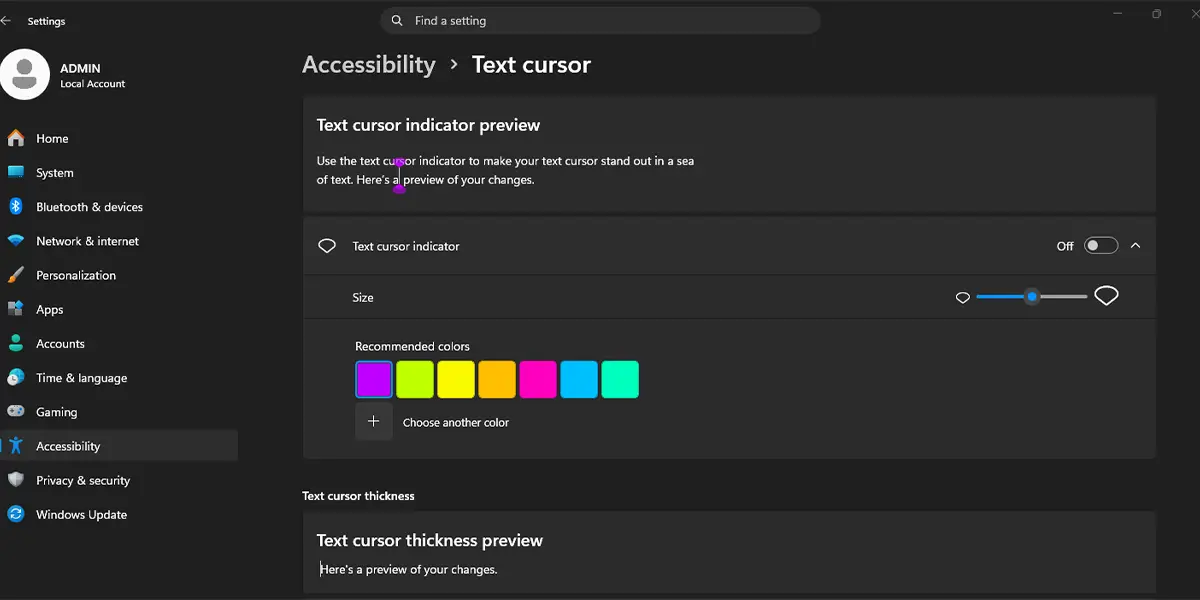
- Step 3: Scroll down to the Vision group and select Text cursor.
- Step 4: Find the Text cursor thickness section. A preview of the cursor sits next to a slider.
- Step 5: Drag the slider to the right to make the cursor thicker, or to the left to make it thinner. The preview updates as the slider moves.
- Step 6: Click into Notepad, a browser address bar, or any text box to confirm the new thickness looks right. Adjust again if needed.
Tip: Start with a small increase and test it in a real document. A cursor that is too thick can hide the letter next to it, which defeats the purpose.
Choosing a Comfortable Thickness
Most people find that a modest bump from the default is enough. Users with high-resolution displays, where a one-pixel line looks tiny, often prefer a slightly thicker setting. People with low vision may go thicker still. The key is to pick a width that is easy to spot at a glance without covering characters.
Making the Cursor Even Easier to Spot
The same Text cursor page includes a Text cursor indicator toggle. Turning it on adds a colored shape above and below the cursor, with its own size and color options. Combined with a thicker line, it makes the cursor very hard to lose. The indicator is separate from thickness, so each can be adjusted on its own.
Changing Text Cursor Thickness in Windows 11 With the Registry
This option suits situations where the slider is missing or when the setting needs to be applied through a script or a support routine. Editing the registry carries some risk, so follow the steps exactly and stop if anything looks unfamiliar.
- Step 1: Press the Windows key + R, type regedit, and press Enter. Approve the User Account Control prompt if it appears.
- Step 2: Go to HKEY_CURRENT_USER\Control Panel\Desktop in the left pane.
- Step 3: Look for a value named CaretWidth in the right pane. If it is missing, right-click an empty area, choose New, then DWORD (32-bit) Value, and name it CaretWidth.
- Step 4: Double-click CaretWidth, set the Base to Decimal, and enter a number from 1 to 20. Larger numbers mean a thicker cursor.
- Step 5: Click OK, close Registry Editor, then sign out and sign back in so the change takes effect.
Tip: Before editing the registry, right-click the Desktop key and choose Export to save a backup file. Double-clicking that file later restores the original values.
Common Problems and Fixes
The Slider Is Missing From Settings
An outdated Windows 11 build is the usual cause. Open Settings, go to Windows Update, install any pending updates, and restart. If the Text cursor page still lacks the thickness option, the CaretWidth registry method above is the workaround.
The Cursor Looks the Same in One App
Some programs draw their own cursor instead of using the system one. Code editors, terminal apps, and certain remote desktop or browser-based editors often fall into this group. In those cases, look for a cursor width option in that program’s own settings.
The Registry Change Has No Effect
Registry changes to the desktop settings are read at sign-in. Sign out and back in, or restart the PC. Also confirm that the value is a DWORD entered in decimal, not hexadecimal, and that it sits under the current user key rather than the local machine key.
The Cursor Hides the Letters Next to It
That means the thickness is set too high. Return to Settings > Accessibility > Text cursor and move the slider back a few steps. Pairing a medium thickness with the text cursor indicator often gives better visibility than a very thick line alone.
The Mouse Pointer Did Not Change
The text cursor and the mouse pointer are separate things. Pointer size and color are changed under Settings > Accessibility > Mouse pointer and touch.
Frequently Asked Questions
Where is the text cursor thickness setting in Windows 11?
Open Settings, select Accessibility, then choose Text cursor. The Text cursor thickness slider appears on that page along with a preview.
What is the text cursor in Windows 11?
The text cursor, also called the caret, is the blinking vertical line that shows where typed characters will appear in a document, search box, or form field.
How thick can the text cursor be made?
The slider offers a range of thickness levels, and the CaretWidth registry value accepts numbers from 1 to 20. A value of 1 is the thinnest and matches the default look.
Does changing the text cursor thickness require a restart?
No. The Settings slider applies right away in most apps. Only the registry method needs a sign-out and sign-in before the change shows.
Does this setting change the mouse pointer too?
No. The mouse pointer has its own size and color options under Accessibility > Mouse pointer and touch. The text cursor setting only affects the blinking line in text fields.
Why does the new thickness not show in some apps?
Certain apps, such as code editors and terminal programs, draw a custom cursor and ignore the system value. Their own settings menus usually include a cursor width option.
Can the text cursor color be changed as well?
Thickness does not affect color, but turning on Text cursor indicator in the same settings page allows a custom color and size for the indicator shape around the cursor.
How can the default text cursor thickness be restored?
Drag the Text cursor thickness slider back to its lowest position. If the registry was used, set CaretWidth back to 1, or delete the value, and then sign out and back in.
Does the setting apply to every user account on the PC?
No. The setting is stored for the current user account only. Each person who signs in to the PC can choose a different thickness.
