
The #NULL! error in Excel appears when a formula refers to the intersection of two ranges that do not actually overlap, or when a range is written with a missing separator. The fix is usually a single character: a colon, a comma, or a corrected cell reference. This guide shows exactly how to find the problem and clear the error.
Key Takeaways
- The #NULL! error in Excel means a space between two references is acting as an intersection operator, and the ranges do not share any cells.
- The most common cause is a missing colon in a range, such as A1 A10 instead of A1:A10.
- The second most common cause is a missing comma between function arguments, such as =SUM(A1:A5 C1:C5).
- Use Formula Auditing tools such as Evaluate Formula and Error Checking to locate the faulty part quickly.
- After the formula is corrected, press Enter and the error disappears right away.
How to Fix the #NULL! Error in Excel Step by Step
Think of the space character in a formula as a pair of overlapping circles in a Venn diagram. Excel looks for the cells where both ranges meet. When nothing sits in the overlap, the result is #NULL!. The steps below track down the offending space and replace it with the right operator.
- Step 1: Click the cell that shows #NULL! and look at the formula in the formula bar at the top of the window.
- Step 2: Scan the formula for a space between two cell references or ranges, for example =SUM(A1:A5 C1:C5) or =A1 A10.
- Step 3: Decide what the formula was meant to do. If the goal is to cover one continuous range, a colon belongs between the first and last cell. If the goal is to combine two separate ranges, a comma belongs between them.
- Step 4: Edit the formula in the formula bar. Replace the space with a colon for a single range (A1:A10) or with a comma to list separate ranges (=SUM(A1:A5,C1:C5)).
- Step 5: Press Enter. The #NULL! error is replaced by the calculated result.
- Step 6: Select the cell again and confirm that the formula bar shows the corrected formula with no stray spaces.
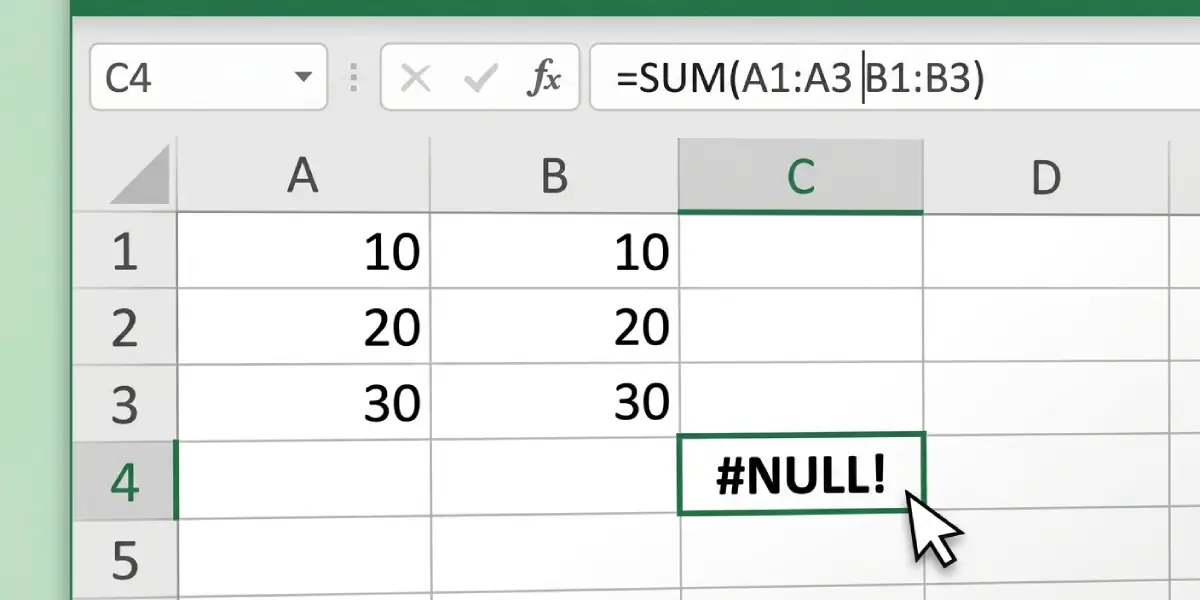
Tip: Click inside the formula bar and Excel highlights each referenced range with a colored border on the sheet. Two colored boxes that never touch are a quick visual sign that a space is being read as an intersection.
Fix a Missing Colon in a Range
A typical real-world case is a monthly budget sheet where someone types =SUM(B2 B13) to total a column. Excel reads the space as an intersection of B2 and B13, which share no cells, so #NULL! is returned.
- Step 1: Select the cell with the error and click in the formula bar.
- Step 2: Delete the space between B2 and B13.
- Step 3: Type a colon in its place so the formula reads =SUM(B2:B13).
- Step 4: Press Enter to apply the change.
Fix a Missing Comma Between Arguments
When a function needs two or more separate ranges, each one must be divided by a comma. Writing =SUM(A1:A5 C1:C5) asks Excel to find cells shared by both ranges, and since columns A and C never overlap, the result is #NULL!.
- Step 1: Select the cell that shows the error.
- Step 2: In the formula bar, replace the space between the ranges with a comma.
- Step 3: Check that the formula now reads =SUM(A1:A5,C1:C5).
- Step 4: Press Enter.
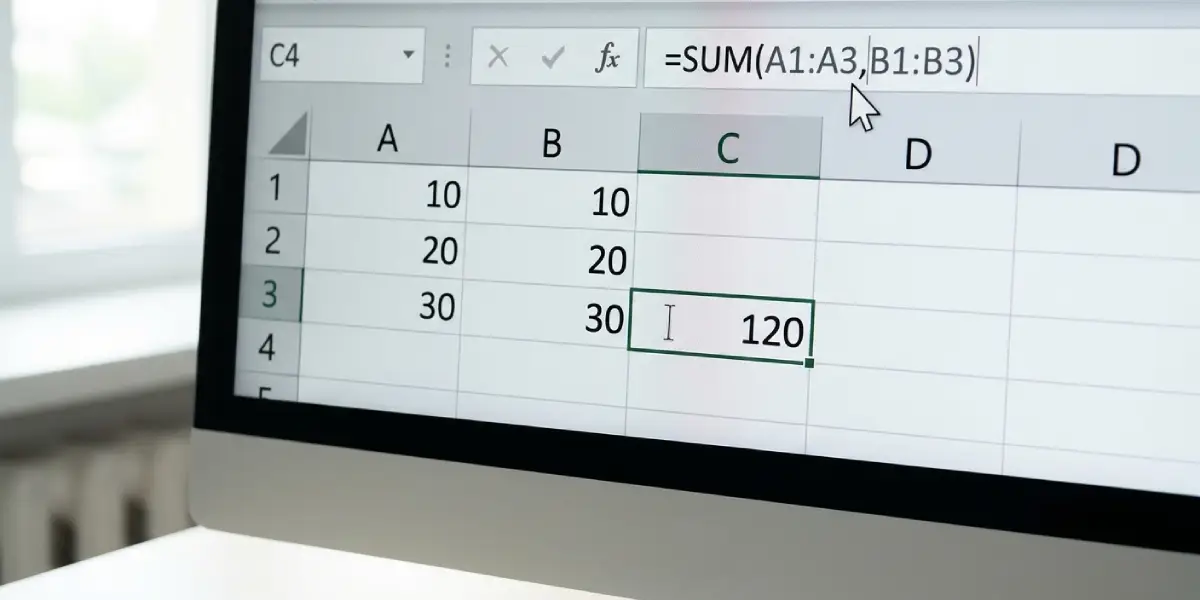
Tip: Some regional settings use a semicolon instead of a comma as the argument separator. If a comma is rejected, try a semicolon, since Excel follows the list separator defined in the Windows regional settings.
Use Evaluate Formula to Find the Problem Part
Long formulas can hide the faulty section. Evaluate Formula walks through the calculation one piece at a time so the exact point of failure becomes obvious.
- Step 1: Select the cell that returns #NULL!.
- Step 2: Go to the Formulas tab on the ribbon.
- Step 3: In the Formula Auditing group, click Evaluate Formula.
- Step 4: Click Evaluate repeatedly to step through the formula until #NULL! appears. The underlined part just before that result is the section to correct.
- Step 5: Click Close, then fix that section in the formula bar and press Enter.
Common Problems and Fixes
The Error Remains After Adding a Comma
If #NULL! stays after the edit, another space may be hiding elsewhere in the formula. Check every pair of references and make sure each one is separated by a comma, colon, or operator. Retyping the whole formula often clears a stubborn extra space.
A Formula Copied From a Website or Document Shows #NULL!
Pasted formulas sometimes carry non-breaking spaces or odd spacing. Delete the spaces between references manually and retype the separators directly in the formula bar instead of pasting them in.
Excel Rejects the Comma Separator
Depending on the system region, the argument separator may be a semicolon. Replace the comma with a semicolon and press Enter, or check the list separator in the Windows regional settings.
The Formula Intentionally Uses an Intersection but Returns #NULL!
An intersection formula such as =SUM(B1:B10 A5:C5) only works when the two ranges really cross. Here the ranges meet at B5, so the result is valid. If #NULL! appears, adjust one range so that it overlaps the other, or switch to a comma if the goal is to add both ranges.
The Error Appears After Inserting or Deleting Rows or Columns
Structural changes can shift references so that two ranges no longer overlap. Open the formula, review each range with the colored highlight boxes, and update the references so they point at the correct cells.
Frequently Asked Questions
What does the #NULL! error mean in Excel?
It means a formula uses the intersection operator (a space) between two ranges that have no cells in common, or a range separator is missing so Excel cannot evaluate the reference.
What is the most common cause of the #NULL! error in Excel?
The most common cause is a missing colon in a range, such as typing A1 A10 instead of A1:A10.
How do I fix #NULL! when using the SUM function?
Open the formula and check for a space between ranges. Use a colon for one continuous range or a comma to separate multiple ranges, for example =SUM(A1:A5,C1:C5).
Does a space in an Excel formula cause #NULL!?
Yes. In a formula, a space between two references acts as the intersection operator. If the referenced ranges do not overlap, Excel returns #NULL!.
Why does Excel use a space as an operator?
The space is the intersection operator. It returns only the cells that two ranges share, which is why non-overlapping ranges produce #NULL!.
Can Evaluate Formula help find the #NULL! error?
Yes. On the Formulas tab, Evaluate Formula steps through the calculation piece by piece and shows the exact point where #NULL! is produced.
Should a comma or a semicolon separate ranges in a function?
It depends on the regional list separator. Many English-language setups use a comma, while others use a semicolon. Use whichever one Excel accepts on the system.
Can inserting or deleting rows trigger the #NULL! error?
It can. If a change shifts references so that two intersecting ranges no longer overlap, the formula returns #NULL! until the references are corrected.
How can I hide #NULL! once the formula is correct?
Correcting the formula removes the error entirely. Wrapping a formula in IFERROR only masks the message, so the cause should be fixed first.
