
Learn how to turn on the text cursor indicator in Windows 11 and stop hunting for a thin blinking line on a busy screen. The feature adds a colored marker to the text cursor, so it is far easier to spot in documents, browsers, and forms. The whole process takes under a minute and needs nothing more than the Settings app.
Key Takeaways
- The setting lives in Settings, under Accessibility, on the Text cursor page.
- One toggle called ‘Text cursor indicator’ turns the feature on.
- Size and color can be adjusted so the indicator stands out against any background.
- Text cursor thickness is a separate slider on the same page.
Before You Start
No tools or disassembly are involved, since this is a software setting. The only requirement is a PC running Windows 11 with access to the Settings app. Save any open work first if the plan is to restart the PC later for troubleshooting.
How to Turn On the Text Cursor Indicator in Windows 11
The steps below work on a standard Windows 11 install, whether on a desktop or a laptop. Most people find that the indicator is easiest to judge once it is tested in a real text box, so keep Notepad or a browser search bar handy.
- Step 1: Press the Windows key and the I key together to open the Settings app. Right-clicking the Start button and choosing Settings works too.
- Step 2: Select Accessibility in the left sidebar.
- Step 3: Scroll down to the Vision section and click Text cursor.
- Step 4: Switch the ‘Text cursor indicator’ toggle to On. A colored marker now appears on the text cursor wherever text can be typed.
- Step 5: Drag the size slider to make the indicator larger or smaller. A larger size is easier to follow on high-resolution or big displays.
- Step 6: Pick a color from the suggested options, or choose a custom color. Bright colors that contrast with the usual page background, such as a vivid purple or green against white, tend to work best.
- Step 7: Open Notepad, a browser address bar, or any text field and click inside it to confirm that the indicator appears and looks right.
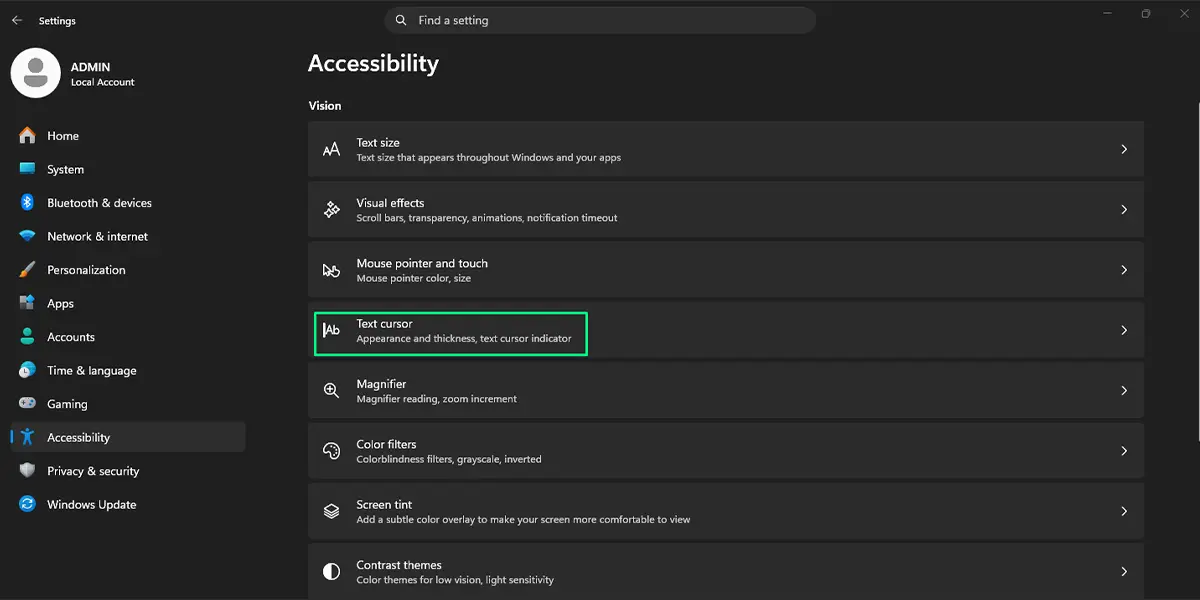
Tip: Use the Windows search box and type ‘text cursor’ to jump straight to this page without clicking through Accessibility.
Adjusting Text Cursor Thickness
The same page includes a ‘Text cursor thickness’ slider. Increasing it makes the blinking line itself wider, which pairs nicely with the indicator. A preview on the page shows the result instantly, so the slider can be moved until the cursor looks comfortable.
How to Turn the Indicator Off Again
Return to Settings, then Accessibility, then Text cursor, and switch the ‘Text cursor indicator’ toggle to Off. The size and color choices are kept, so turning it back on later restores the previous look.
Common Problems and Fixes
The Indicator Does Not Show in One Specific App
Some programs draw their own text boxes instead of using the standard Windows text input, and the indicator may not appear there. Test it in Notepad or a browser to confirm that the setting itself works. If it shows up there, the limitation belongs to the other app.
The Indicator Is Hard to See
Increase the size slider and switch to a color that contrasts with the page background. Dark themes and light themes call for different colors, so adjust the color whenever the app theme changes.
The Text Cursor Page Is Missing
Open Settings, go to Windows Update, and install any pending updates. Updates bring the Settings app and its accessibility pages to the latest version, and the Text cursor page then appears under Accessibility.
The Setting Does Not Seem to Apply
Close and reopen the app being used, then click into a text field again. If nothing changes, restart the PC so Windows reloads its accessibility settings.
Frequently Asked Questions
What is the text cursor indicator in Windows 11?
It is an accessibility feature that adds a colored marker to the text cursor, which makes the cursor easier to find while typing.
Where is the text cursor indicator setting in Windows 11?
Open Settings, select Accessibility, and click Text cursor. The ‘Text cursor indicator’ toggle is at the top of that page.
Is there a keyboard shortcut to turn on the text cursor indicator?
There is no dedicated shortcut for the toggle. Pressing the Windows key and I opens Settings quickly, and searching for ‘text cursor’ reaches the page in seconds.
Can the color of the text cursor indicator be changed?
Yes. The Text cursor page offers suggested colors and a custom color option, so the indicator can match personal preference or improve contrast.
Can the size of the text cursor indicator be changed?
Yes. A size slider on the same page makes the indicator larger or smaller, with a preview shown as it is adjusted.
What is the difference between the indicator and text cursor thickness?
The indicator is a colored marker added to the cursor, while thickness changes the width of the blinking line itself. Both can be used together.
Does the text cursor indicator change the blink rate?
No. Blink rate is a separate setting found in the Keyboard properties window in Control Panel, on the Speed tab.
Why is the text cursor indicator not showing in some programs?
Applications that draw their own custom text fields may not display the indicator. Standard apps such as Notepad and most browsers show it normally.
Does turning on the text cursor indicator slow down the PC?
No noticeable effect on performance is expected, since it is a simple visual accessibility feature built into Windows.
