
Learning how to find your pointer by pressing the Ctrl key in Windows 11 takes less than a minute, and it solves one of the most common screen annoyances. On large monitors, dual-display setups, or a bright screen with a thin white cursor, the pointer can vanish in plain sight. One keypress can make it announce itself with a quick animation.
Key Takeaways
- Windows 11 includes a built-in option that highlights the pointer location when Ctrl is pressed.
- The option lives in Mouse Properties on the Pointer Options tab, reached through Settings.
- Either Ctrl key triggers the effect once the checkbox is enabled and applied.
- Pointer size and color can be changed in Accessibility settings to make the cursor easier to spot all the time.
- If the effect does not appear, the cause is usually an unapplied setting, a mouse driver override, or a faulty Ctrl key.
How to Find Your Pointer by Pressing the Ctrl Key in Windows 11 Step by Step
This feature is not switched on in many Windows 11 installations, so it needs to be enabled once. After that, it works everywhere in Windows, whether the pointer is controlled by a mouse, a touchpad, or a trackball.
- Step 1: Press the Windows key and I together to open Settings.
- Step 2: Select Bluetooth & devices in the left sidebar, then select Mouse.
- Step 3: Scroll to the Related settings area and select Additional mouse settings. The classic Mouse Properties window opens.
- Step 4: Click the Pointer Options tab at the top of the window.
- Step 5: In the Visibility section, check the box labeled ‘Show location of pointer when I press the CTRL key’.
- Step 6: Click Apply, then click OK to close the window.
- Step 7: Move the pointer somewhere on the screen and press either Ctrl key. A set of shrinking circles appears around the pointer and points straight to it.
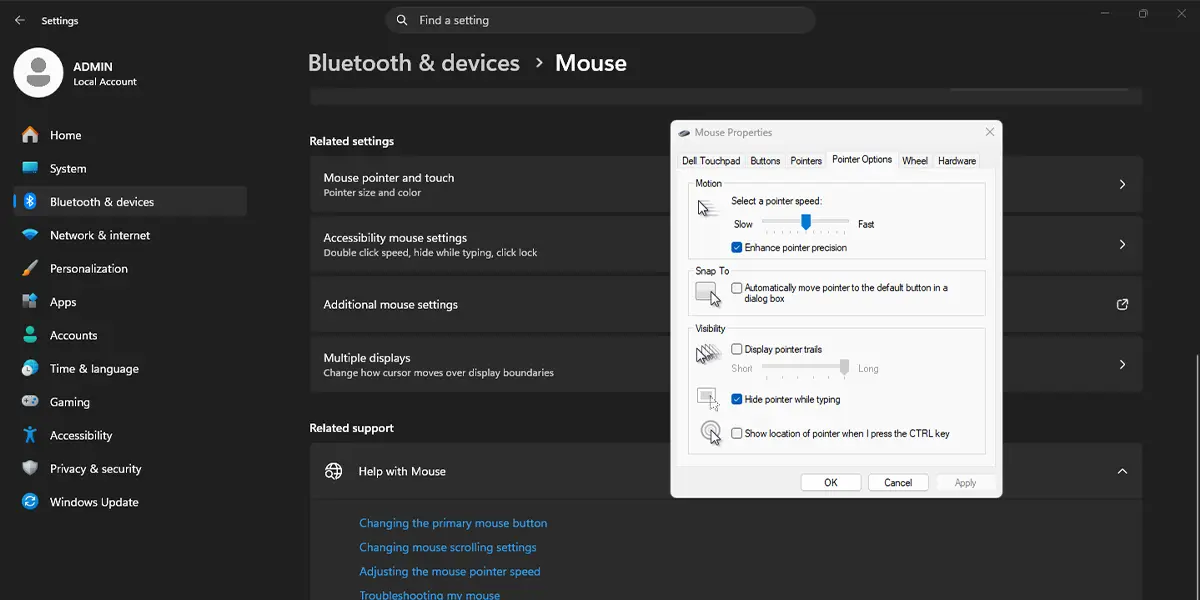
Tip: The Mouse Properties window can also be opened faster by pressing the Windows key and R, typing main.cpl, and pressing Enter. This skips the first three steps.
What the Effect Looks Like
Think of it like a sonar ping. When Ctrl is pressed, concentric circles close in on the pointer and then fade out. The animation is brief, so pressing Ctrl again is the way to repeat it if the pointer is still hard to spot.
Make the Pointer Easier to See All the Time
The Ctrl shortcut is ideal for the occasional lost cursor. For people who lose the pointer often, a larger or higher-contrast cursor helps between keypresses. Open Settings, select Accessibility, then select Mouse pointer and touch. There, the pointer style, size, and color can be adjusted. A larger black or bright-colored pointer stands out far better on a busy desktop than the default.
Tip: The Ctrl shortcut and a bigger pointer work well together. Use the larger pointer for everyday visibility and keep the Ctrl highlight as a quick backup when working across multiple monitors.
Common Problems and Fixes
Nothing Happens When Ctrl Is Pressed
The most frequent cause is a missed Apply button. Reopen Mouse Properties, confirm the checkbox is still ticked on the Pointer Options tab, then click Apply and OK again.
The Checkbox Keeps Unticking
Some mouse manufacturers install their own control software, which can overwrite pointer settings. Check the mouse brand’s utility for a pointer or cursor section, and make sure no profile there resets the option. Re-enable the checkbox in Windows afterward.
Only One Ctrl Key Seems to Work
Both Ctrl keys are meant to trigger the effect. If one does nothing, the key itself may be worn or blocked by debris. Test it in another program, such as pressing Ctrl and A in a text field to select all. If the key does not respond there either, the keyboard needs cleaning or replacing.
The Pointer Is Missing Entirely
The Ctrl highlight only helps when the pointer is on the screen. If no pointer shows at all, check that the mouse or its wireless receiver is connected, make sure a laptop touchpad has not been switched off with a function key, and restart the PC if the cursor still does not appear.
The Setting Is Missing After a Windows Update
Major updates occasionally reset personalization options. Repeat the steps above to turn the feature back on, and install pending Windows updates if the Additional mouse settings link does not open the Mouse Properties window.
Frequently Asked Questions
What does pressing the Ctrl key do to the pointer in Windows 11?
When the option is enabled, pressing Ctrl displays a brief animation of circles that shrink toward the pointer, making its location obvious on the screen.
Where is the Ctrl pointer setting in Windows 11?
Open Settings, select Bluetooth & devices, select Mouse, then choose Additional mouse settings. The checkbox is on the Pointer Options tab in the Visibility section.
Is the find pointer feature turned on by default?
It is usually off by default, so it has to be enabled manually in Mouse Properties before pressing Ctrl will have any visible effect.
Does the left Ctrl key and the right Ctrl key both work?
Yes. Once the setting is enabled and applied, pressing either Ctrl key triggers the pointer highlight.
Does it work with a laptop touchpad as well as a mouse?
Yes. The feature highlights the on-screen pointer, so it works the same way whether the cursor is moved by a mouse, a touchpad, or another pointing device.
Can the animation be changed or made larger?
The animation itself cannot be customized in Windows 11 settings. A larger or more colorful pointer can be chosen under Accessibility, then Mouse pointer and touch, to improve visibility.
Why is nothing happening when Ctrl is pressed?
The checkbox may not have been applied, a mouse manufacturer utility may be resetting the setting, or the Ctrl key may be faulty. Re-enable the option, click Apply, and test the key in another program.
Is there another way to locate the cursor besides this setting?
Microsoft PowerToys includes a tool called Find My Mouse, which highlights the cursor with a spotlight effect. It is a separate free download and has its own activation shortcut, which can be changed in its settings.
