
Want to enable ClickLock for dragging without holding the button in Windows 11? It takes one checkbox. ClickLock lets a short press ‘lock’ the mouse button so a drag keeps going while the finger rests. It works on every edition of Windows 11, and no administrator rights are needed.
Key Takeaways
- ClickLock is turned on from Mouse Properties, which opens from Settings > Bluetooth & devices > Mouse > Additional mouse settings.
- The checkbox is called Turn on ClickLock and sits on the Buttons tab.
- Press and hold briefly to lock the button, move the pointer, then click once more to let go.
- The hold time can be shortened or lengthened with the Settings button next to the checkbox.
- Control Panel and the main.cpl command reach the same window if the Settings route is not convenient.
How to Enable ClickLock for Dragging Without Holding the Button in Windows 11
Windows 11 does not show a ClickLock toggle directly in the Settings app. The Settings app opens the classic Mouse Properties window, and the switch lives there. All three methods below end in the same place.
Method 1: Use the Settings App
- Press Windows + I to open Settings.
- Click Bluetooth & devices in the left sidebar.
- Click Mouse.
- Scroll down to the Related settings area and click Additional mouse settings. The Mouse Properties window opens.
- Click the Buttons tab.
- Under the ClickLock heading, tick the box named Turn on ClickLock.
- Click Apply, then click OK.
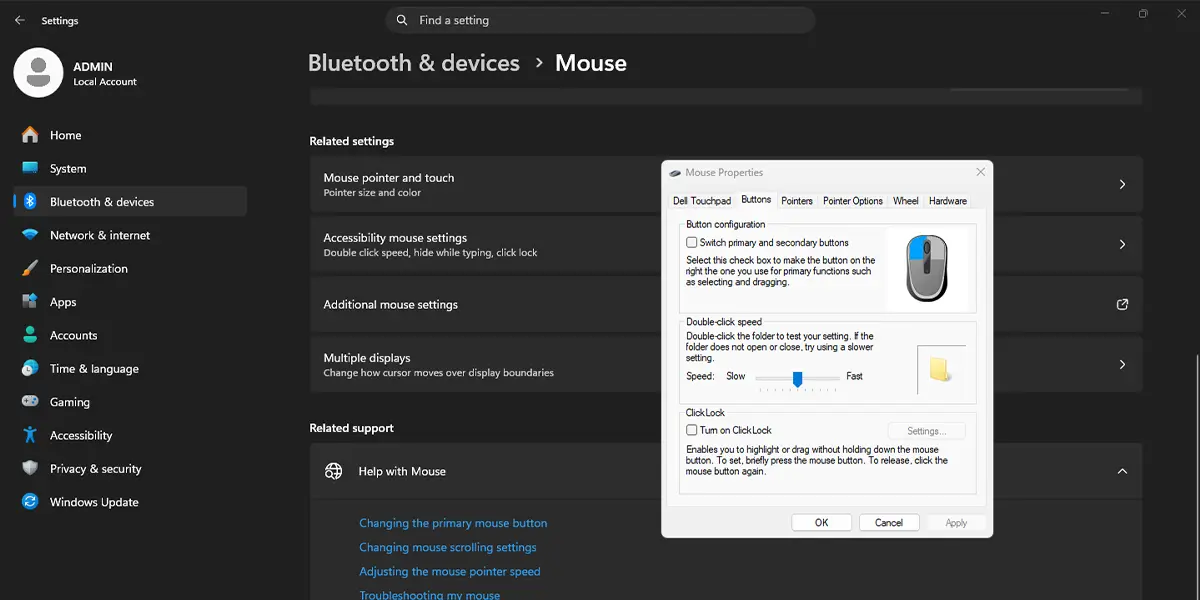
Tip: The Settings… button beside the checkbox is only clickable after the box is ticked. It opens a small slider that controls how long the button must be held before it locks.
Method 2: Use Control Panel
- Click the Start button, type Control Panel, and open the Control Panel result.
- Set View by to Large icons or Small icons in the top-right corner.
- Click Mouse. The Mouse Properties window opens.
- Click the Buttons tab.
- Tick Turn on ClickLock under the ClickLock heading.
- Click Apply, then OK.
Method 3: Use the Run Command
This is the fastest route for anyone who likes the keyboard, and it works well on a shared or work PC where menus take time to navigate.
- Press Windows + R to open the Run dialog.
- Type the following command and press Enter. It does not need to be elevated.
main.cpl
- In Mouse Properties, click the Buttons tab.
- Tick Turn on ClickLock.
- Click Apply, then OK.
How to Use ClickLock After Turning It On
The change takes effect right away, with no restart. Most people find that the first try feels odd, so a quick test on a desktop icon or a text selection helps.
- Point at the item or the start of the text to select.
- Press and hold the primary mouse button (the left button by default) for a moment, then release it. The item or selection stays ‘grabbed’.
- Move the pointer to the destination. The drag continues even though the button is up.
- Click once to drop the item or finish the selection.
Tip: This is a real relief when dragging a file across a large second monitor, or when a finger gets tired during a long text selection in a document.
Adjust How Long the Hold Takes
- Open Mouse Properties using any method above.
- On the Buttons tab, click Settings… under ClickLock.
- Drag the slider toward Short for a quicker lock or toward Long to avoid accidental locks.
- Click OK, then click Apply and OK in the main window.
How to Undo or Reverse This Change
Open Mouse Properties again through Settings > Bluetooth & devices > Mouse > Additional mouse settings, go to the Buttons tab, clear the Turn on ClickLock checkbox, and click Apply and then OK. Normal click-and-hold dragging returns immediately.
Common Problems and Fixes
The ClickLock Option Cannot Be Found in the Settings App
The Mouse page in Settings has no ClickLock toggle. Click Additional mouse settings under Related settings, then open the Buttons tab. Method 3 with main.cpl skips the search entirely.
The Settings Button Is Greyed Out
The Settings… button stays unavailable until Turn on ClickLock is ticked. Tick the box first, and the button becomes clickable.
The Drag Does Not Lock
The button may be released too early. Hold it a little longer, or move the slider in Settings… toward Short so the lock triggers sooner.
Items Lock by Accident During Normal Clicking
The hold time is probably too short for the way the mouse is used. Open Settings… and move the slider toward Long.
The Setting Does Not Stay After Clicking OK
Make sure Apply is clicked before OK, then reopen Mouse Properties to confirm the box is still ticked. On a work or school PC, a policy set by the organization may reset mouse settings, so the IT department would need to allow the change.
Frequently Asked Questions
Does ClickLock work on Windows 11 Home?
Yes. ClickLock is part of the built-in mouse settings and is available on Windows 11 Home, Pro, and Enterprise. No administrator rights are needed to turn it on.
Do I need to restart the computer after enabling ClickLock?
No. The setting applies as soon as Apply or OK is clicked in Mouse Properties.
How do I release an item that ClickLock is holding?
Click the mouse button once more. The item drops at the pointer position, or the text selection ends.
Is there a keyboard shortcut to turn on ClickLock?
There is no dedicated shortcut that toggles ClickLock. The quickest route is to press Windows + R, type main.cpl, press Enter, and then tick the checkbox on the Buttons tab.
Can the hold time before the button locks be changed?
Yes. After ticking Turn on ClickLock, click Settings… and move the slider between Short and Long, then confirm with OK.
Why is ClickLock missing from the Settings app Mouse page?
The Mouse page does not list it as a toggle. It is reached through Settings > Bluetooth & devices > Mouse > Additional mouse settings, on the Buttons tab of Mouse Properties.
Does ClickLock slow down the PC or drain the battery?
No noticeable effect. It only changes how the mouse button press is interpreted, so a laptop on battery behaves the same as before.
Can ClickLock be used to select text as well as drag files?
Yes. It works for highlighting text and for dragging items, so a long selection in a document can be made without holding the button down.
Will ClickLock stay on after the PC restarts?
Yes. Once applied, the setting is saved for the user account and remains on until the checkbox is cleared.
