
Knowing how to turn on Sticky Keys in Windows 11 makes shortcuts like Ctrl + C easy to use one key at a time, instead of pressing everything together. The feature is built into every edition of Windows 11, and no administrator rights are needed. The whole job takes less than a minute.
Key Takeaways
- The easiest route is Settings > Accessibility > Keyboard > Sticky keys.
- Pressing the Shift key five times in a row also switches Sticky Keys on from anywhere in Windows 11.
- Control Panel offers a third built-in method through the Ease of Access Center.
- The change applies instantly, with no restart needed.
- Extra options on the same page control the taskbar icon, key locking, and the Shift shortcut.
How to Turn On Sticky Keys in Windows 11
Any of the three methods below gives the same result. Most people find that the Settings app is the clearest place to start, since every related option sits on one page.
Method 1: Use the Settings App
- Press Windows + I to open Settings.
- Click Accessibility in the left sidebar.
- Scroll down to the Interaction section and click Keyboard.
- Find the Sticky keys row and switch the toggle to On.
- Click the Sticky keys row itself to expand it and see the extra options.
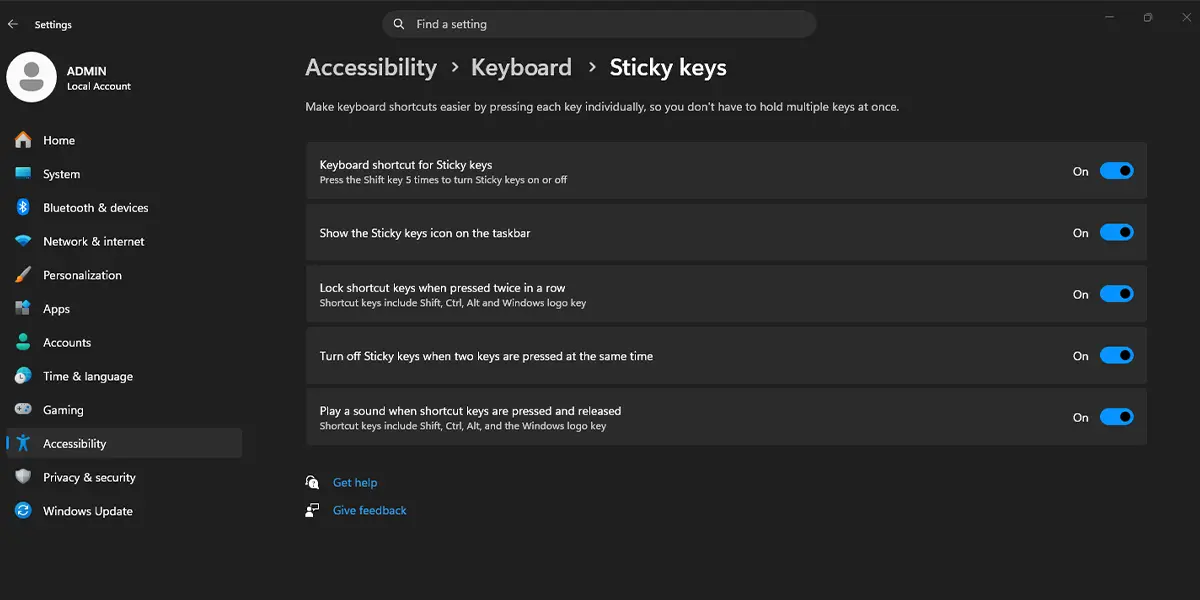
The toggle changes to On straight away. If the taskbar icon option is enabled, a small Sticky Keys icon also appears in the system tray near the clock.
Tip: Press Windows + U to jump straight to the Accessibility page, which saves two clicks.
Method 2: Press the Shift Key Five Times
- Click anywhere on the desktop or inside any open app.
- Press the Shift key five times in a row, at a steady pace.
- When the Sticky Keys prompt appears, click Yes.
A short sound plays and the prompt closes, which confirms that Sticky Keys is active. This method works best on a shared family computer or a laptop that belongs to someone else, because no menus need to be opened. It only works when the keyboard shortcut option is switched on, which is the usual default.
Method 3: Use Control Panel
- Click the Start button, type Control Panel, and press Enter.
- Go to Control Panel > Ease of Access > Ease of Access Center.
- Click Make the keyboard easier to use.
- Under Make it easier to type, tick the box named Turn on Sticky Keys.
- Click Apply, then click OK.
This route suits anyone who prefers the classic Control Panel layout. The result is identical to the Settings app method.
Check That Sticky Keys Is Working
A quick test removes any doubt. Open Notepad, press and release the Shift key once, then press a letter key. The letter appears in capitals even though Shift is no longer held down. Pressing Ctrl, then C, then V works the same way for copy and paste, one key at a time.
Sticky Keys Options Worth Adjusting
After the toggle is on, the expanded Sticky keys row in Settings > Accessibility > Keyboard shows several options. These are the ones most people care about:
- Keyboard shortcut for Sticky keys – allows or blocks the five-time Shift shortcut.
- Show the Sticky keys icon on the taskbar – displays a tray icon so the state of each modifier key is visible.
- Lock modifier keys when pressed twice in a row – keeps a key such as Shift active until it is pressed a third time.
- Turn off Sticky keys when two keys are pressed at once – switches the feature off automatically when two keys are pressed together.
Tip: On a work PC where several people type, switching off the five-time Shift shortcut stops the prompt from popping up by accident during fast typing or gaming.
How to Undo or Reverse This Change
Go back to Settings > Accessibility > Keyboard and switch the Sticky keys toggle to Off. If Control Panel was used, open Control Panel > Ease of Access > Ease of Access Center > Make the keyboard easier to use, clear the Turn on Sticky Keys box, and click Apply. To stop the Shift prompt from appearing again, also switch off Keyboard shortcut for Sticky keys.
Common Problems and Fixes
The Sticky Keys Prompt Does Not Appear After Pressing Shift Five Times
The shortcut option is probably switched off. Open Settings > Accessibility > Keyboard, expand the Sticky keys row, and turn on Keyboard shortcut for Sticky keys. Then press Shift five times again, a little faster this time, since slow presses are not counted as a sequence.
The Sticky Keys Toggle Is Greyed Out or Switches Itself Back Off
A greyed-out toggle usually means the PC is managed by a work or school account, and an administrator controls accessibility settings. In that case, only the organization’s IT team can allow the change. On a personal computer, a toggle that keeps turning off may be caused by the Turn off Sticky keys when two keys are pressed at once option. Switch that option off to keep the feature running.
The Sticky Keys Icon Is Missing from the Taskbar
The icon only shows when its option is enabled. Turn on Show the Sticky keys icon on the taskbar on the same Settings page. If the icon is still not visible, click the arrow in the system tray to check the hidden icons.
Frequently Asked Questions
Does Sticky Keys work on Windows 11 Home?
Yes. Sticky Keys is part of the accessibility tools in every Windows 11 edition, including Home, Pro, and Enterprise.
Does turning on Sticky Keys need a restart?
No. The feature starts working the moment the toggle is switched on or the prompt is accepted.
What is the keyboard shortcut to turn on Sticky Keys in Windows 11?
Press the Shift key five times in a row. A prompt appears, and clicking Yes switches the feature on. The shortcut must be enabled under Settings > Accessibility > Keyboard.
Does Sticky Keys slow down a laptop or drain the battery?
No noticeable effect on speed or battery life is expected. The feature only changes how modifier keys are registered while typing.
Which keys does Sticky Keys affect?
It covers the modifier keys: Shift, Ctrl, Alt, and the Windows key. Each one stays active after a single press until the next key is typed.
Will Sticky Keys stay on after the PC is restarted?
Yes, the setting is saved. It stays on until the toggle is switched off in Settings or the box is cleared in Control Panel.
Why is the Sticky keys option greyed out?
The device is most likely managed by a work or school account. An administrator may have locked the setting, so the change has to come from the organization’s IT team.
Can Sticky Keys be turned on without using a mouse?
Yes. Pressing the Shift key five times and then confirming the prompt needs only the keyboard. Windows + U also opens the Accessibility page, where the Tab and arrow keys can be used to reach the toggle.
