
Here is how to turn off Sticky Keys and its pop-up in Windows 11 without digging through menus. The prompt usually appears after the Shift key is tapped five times in a row, which happens easily during a game or a fast typing session. These steps work on every edition of Windows 11 and need no administrator rights.
Key Takeaways
- Open Settings > Accessibility > Keyboard and switch the Sticky keys toggle to Off.
- Turn off Keyboard shortcut for Sticky keys on the same page to stop the pop-up from returning.
- The pop-up is triggered by pressing the Shift key five times, so disabling the shortcut is what removes it.
- Control Panel and the pop-up window itself offer two other ways to reach the same result.
- The change applies right away and does not need a restart.
Step-by-Step Guide to Turn Off Sticky Keys and Its Pop-Up in Windows 11
Method 1: Use the Settings App
This is the easiest route for most people, and it handles both the feature and the shortcut that triggers the pop-up.
- Press Windows + I to open Settings.
- Click Accessibility in the left sidebar.
- Scroll down to the Interaction section and click Keyboard.
- Find the Sticky keys row and switch its toggle to Off.
- Click the Sticky keys row to expand it.
- Switch Keyboard shortcut for Sticky keys to Off.
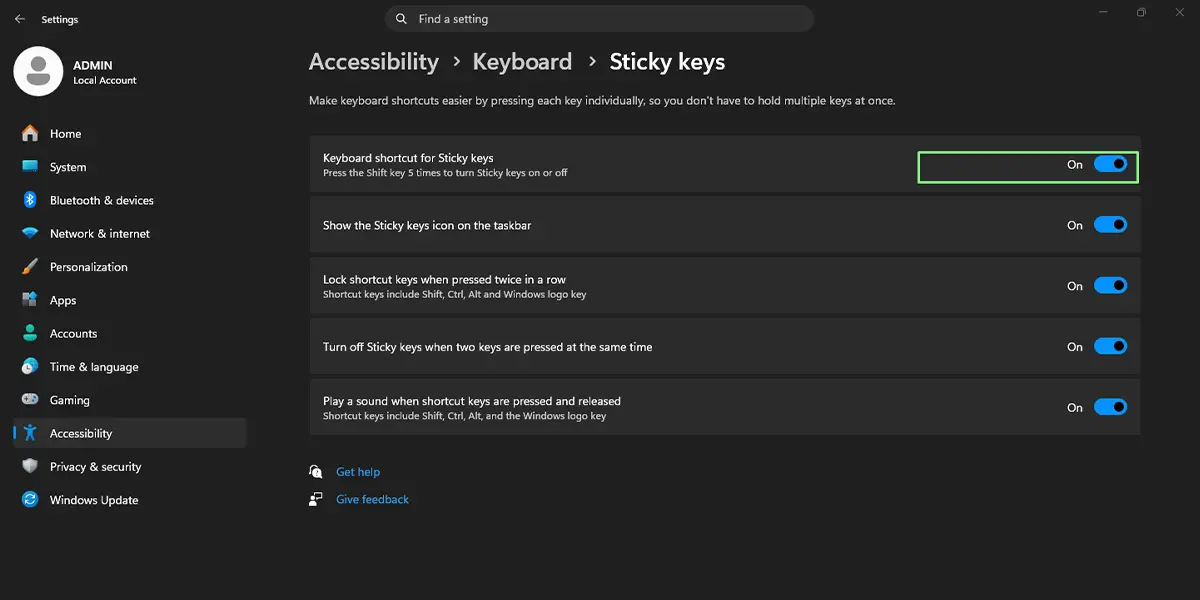
After the last step, pressing Shift five times does nothing. The pop-up no longer appears, and keys behave normally again.
Tip: While the Sticky keys row is expanded, take a quick look at the other options inside it. A laptop shared with family members is a good example, since turning off the shortcut stops anyone from triggering it by accident.
Method 2: Use the Pop-Up Window Itself
When the prompt is on screen right now, it can be dealt with on the spot. This is handy in the middle of a game, when the pop-up has just interrupted the action.
- Press the Shift key five times to bring up the Sticky Keys pop-up if it is not already showing.
- Click the Disable this keyboard shortcut in Keyboard Settings link at the bottom of the window.
- When the Keyboard page opens, switch Keyboard shortcut for Sticky keys to Off.
- Switch the Sticky keys toggle to Off if it is still on.
The pop-up closes and stays gone from this point on.
Method 3: Use the Control Panel
The older Control Panel still carries the same setting, and some people find its checkboxes easier to read.
- Press Windows + R, type control, and press Enter.
- Click Ease of Access, then click Ease of Access Center.
- Click Make the keyboard easier to use.
- Click Set up Sticky Keys.
- Clear the Turn on Sticky Keys checkbox.
- Clear the Turn on Sticky Keys when SHIFT is pressed five times checkbox.
- Click Apply, then click OK.
Both checkboxes need to be clear. Clearing only the first one turns the feature off for now, but the five-press shortcut can still bring the pop-up back.
How to Undo or Reverse This Change
To bring Sticky Keys back, press Windows + I, go to Settings > Accessibility > Keyboard, and switch Sticky keys to On. Turn Keyboard shortcut for Sticky keys back on as well if the Shift five-press shortcut is wanted again. Anyone who needs the feature for one-finger typing will find this faster than it sounds.
Common Problems and Fixes
The Pop-Up Still Appears After Turning Sticky Keys Off
This happens when only the main Sticky keys toggle was switched off. The shortcut is a separate setting. Open Settings > Accessibility > Keyboard, expand the Sticky keys row, and switch Keyboard shortcut for Sticky keys to Off.
A Different Pop-Up Appears When Holding Shift
Holding the right Shift key for several seconds can bring up a Filter Keys prompt instead. That is a separate feature with its own switch on the Keyboard page under Settings > Accessibility > Keyboard. Turn off Filter keys and its shortcut there if that prompt shows up.
The Toggle Is Greyed Out or the Setting Keeps Changing Back
A work or school PC may be managed by an organization that controls accessibility settings. In that case, the setting cannot be changed from the PC, and the IT administrator is the person to ask.
Frequently Asked Questions
Does this work on Windows 11 Home?
Yes. Every method in this guide works on Windows 11 Home, Pro, and Enterprise.
Do I need a restart after turning off Sticky Keys?
No. The change takes effect immediately, and the Shift key stops triggering the pop-up as soon as the shortcut is switched off.
Why does the Sticky Keys pop-up keep appearing?
The prompt appears when the Shift key is pressed five times in a row while the shortcut is enabled. Switching off Keyboard shortcut for Sticky keys stops it.
Is there a keyboard shortcut to turn off Sticky Keys?
Pressing the Shift key five times toggles the feature when the shortcut is enabled. Pressing Windows + I opens Settings quickly, so the Keyboard page is only a few clicks away.
Does turning off Sticky Keys affect battery life or performance?
No. Sticky Keys is a small accessibility feature, so switching it off has no noticeable effect on battery life or speed.
Can Sticky Keys turn on again by itself?
It can only come back through the five-press shortcut, so it will not return once Keyboard shortcut for Sticky keys is off. A feature update or a reset of the PC can restore default settings.
Will turning off Sticky Keys also turn off Filter Keys and Toggle Keys?
No. Filter keys and Toggle keys are separate features with their own switches on the Keyboard page under Settings > Accessibility > Keyboard.
Why is the Sticky keys option greyed out?
The most common cause is a work or school PC managed by an organization. Settings controlled by an administrator cannot be changed from the device.
