
Scrolling and dragging across a long worksheet wastes time and often ends with a missed row. There is a faster way to select data to the last cell instantly, and it takes a single keyboard shortcut. This guide walks through the exact keys, what gets highlighted, and what to do when the selection looks wrong.
Key Takeaways
- Click the first cell of the range, then press Ctrl + Shift + End to highlight everything down to the last used cell.
- The selection forms a rectangle from the active cell to the last used row and column.
- Press Ctrl + Home first to start from cell A1 every time.
- Stray formatting or leftover content can push the last cell further than expected, and it can be cleaned up in a minute.
Step-by-Step: Select Data to the Last Cell Instantly
- Step 1: Open the worksheet that holds the data.
- Step 2: Click the cell where the selection should begin. For a full-sheet selection, press Ctrl + Home to jump straight to cell A1.
- Step 3: Hold down Ctrl and Shift together, then press the End key.
- Step 4: Release the keys. Excel highlights every cell from the starting cell to the last used cell in the bottom-right corner of the data.
- Step 5: Check the highlighted area by looking at the Name Box or scrolling to the bottom-right corner, then copy, format, or delete the selection as needed.
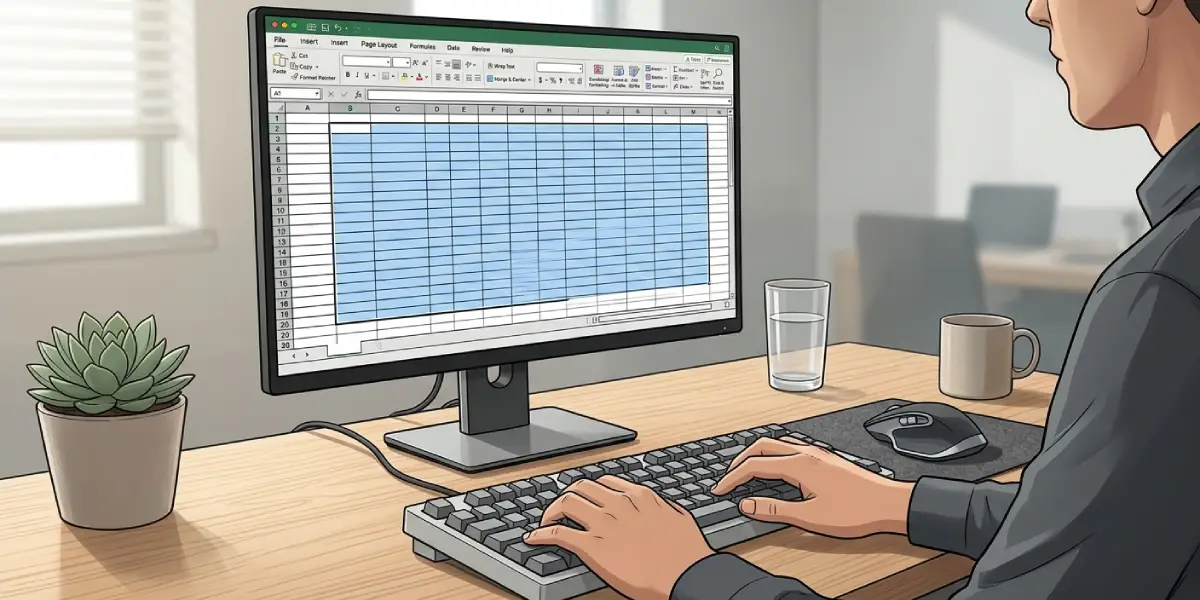
Tip: The starting cell decides everything. Clicking A1 selects the whole used range, while clicking the header row of a column on row 2 leaves out the rows above it.
What Counts as the Last Cell
The last cell is the intersection of the last row and the last column that contain data or formatting. Picture a rectangle drawn around everything ever touched on the sheet. The bottom-right corner of that rectangle is where Ctrl + Shift + End stops.
Select Only Down to the End of a Column or Row
Sometimes the goal is not the whole rectangle but just one column or one row of data. In that case, click the first cell and press Ctrl + Shift + Down Arrow to reach the bottom of the column, or Ctrl + Shift + Right Arrow to reach the end of the row. These shortcuts stop at the first blank cell, so they work best on continuous data with no gaps.
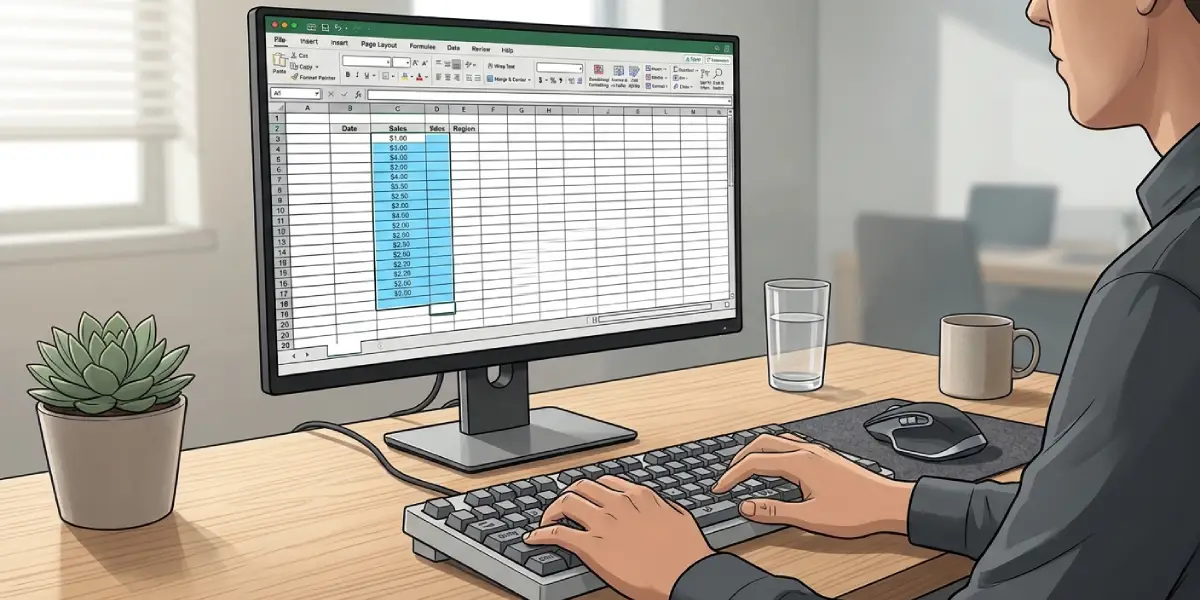
Tip: To grab a block in two moves, press Ctrl + Shift + Right Arrow first, then keep holding Ctrl + Shift and press Down Arrow.
Common Problems and Fixes
The Selection Goes Far Past the Visible Data
This usually happens when old formatting, spaces, or deleted content still sit in cells below or to the right of the real data. Select the extra empty rows and columns, right-click, choose Delete, and then save the workbook. Excel resets the used range on save, and the shortcut will stop at the true last cell.
Only the Last Cell Gets Selected or the Cursor Just Moves
Pressing Ctrl + End alone jumps to the last cell without selecting anything. Add the Shift key to the combination to highlight the whole range.
The Shortcut Does Nothing While Typing in a Cell
When a cell is in edit mode, the same keys act on the text inside the cell instead. Press Enter or Esc to leave edit mode, then try the shortcut again.
The End Key Is Missing on a Laptop
Many compact keyboards combine End with the Right Arrow key. Hold the Fn key together with Ctrl, Shift, and the Right Arrow key to get the same result.
Hidden or Filtered Rows Are Included
The selection covers every cell in the rectangle, including hidden rows. If only the visible cells should be copied, press Alt + ; after making the selection to limit it to visible cells.
Frequently Asked Questions
What is the shortcut to select data to the last cell in Excel?
Press Ctrl + Shift + End. It selects everything from the active cell to the last used cell on the worksheet.
What is the difference between Ctrl + End and Ctrl + Shift + End?
Ctrl + End only moves the cursor to the last used cell. Ctrl + Shift + End also highlights every cell between the starting cell and that last cell.
How can the selection start from cell A1?
Press Ctrl + Home to move to cell A1, then press Ctrl + Shift + End. The entire used range is selected in two quick actions.
Does this shortcut select blank cells inside the data?
Yes. The selection is a solid rectangle, so empty cells between the starting cell and the last cell are included in the highlight.
Why does Ctrl + Shift + End select more cells than the data I can see?
Excel treats cells with leftover formatting or stray spaces as used. Delete the extra rows and columns, then save the file so the used range updates.
How can only the last cell be selected?
Press Ctrl + End. The cursor jumps to the bottom-right cell of the used range and selects just that one cell.
How can the selection be cancelled after using the shortcut?
Click any single cell or press an arrow key. The highlight disappears and the data stays unchanged.
Does Ctrl + Shift + Down Arrow do the same thing?
Not exactly. It selects only down to the end of the current block of data in one column and stops at the first blank cell, while Ctrl + Shift + End goes all the way to the last used cell on the sheet.
