
Quick Answer: To update printer drivers in Windows 11, press Windows + I to open Settings, then go to Windows Update > Advanced options > Optional updates. Expand Driver updates, check the box next to your printer, and click Download & install. Restart your PC if asked. No printer driver listed? Remove the printer and add it back, or download the driver from the printer brand’s official support site.
Printer says “Driver is unavailable”? Stopped printing after an update? A fresh driver usually fixes it. Here are 6 ways to update printer drivers in Windows 11, from easiest to most hands-on:
- Windows Update (easiest, try this first)
- Remove and Re-Add the Printer
- Install the Printer Brand’s App from Microsoft Store
- Download the Driver from the Manufacturer’s Website
- Update the Driver in Device Manager
- Roll Back the Driver (if an update broke printing)
Why Printer Drivers Need Updating in Windows 11
A printer driver is the small piece of software that lets Windows talk to your printer. When it’s outdated, damaged, or swapped out by an update, printing breaks. The printer itself is usually fine.
Here’s the thing: Windows 11 is changing how printer drivers work. Since January 15, 2026, Microsoft stopped the normal release of new third-party printer drivers through Windows Update. Since July 1, 2026, Windows prefers its own built-in driver, the Microsoft IPP Class Driver, for printers that support it.
Your current driver won’t suddenly stop working. But it does mean that for many printers, Windows can now handle the driver on its own. Most people find that Methods 1 and 2 fix the problem without downloading anything.
Method 1: Update Printer Drivers Through Windows Update
This is the simplest and safest option. Windows finds the right driver for you.
- Press Windows + I to open Settings.
- Click Windows Update, then click Check for updates.
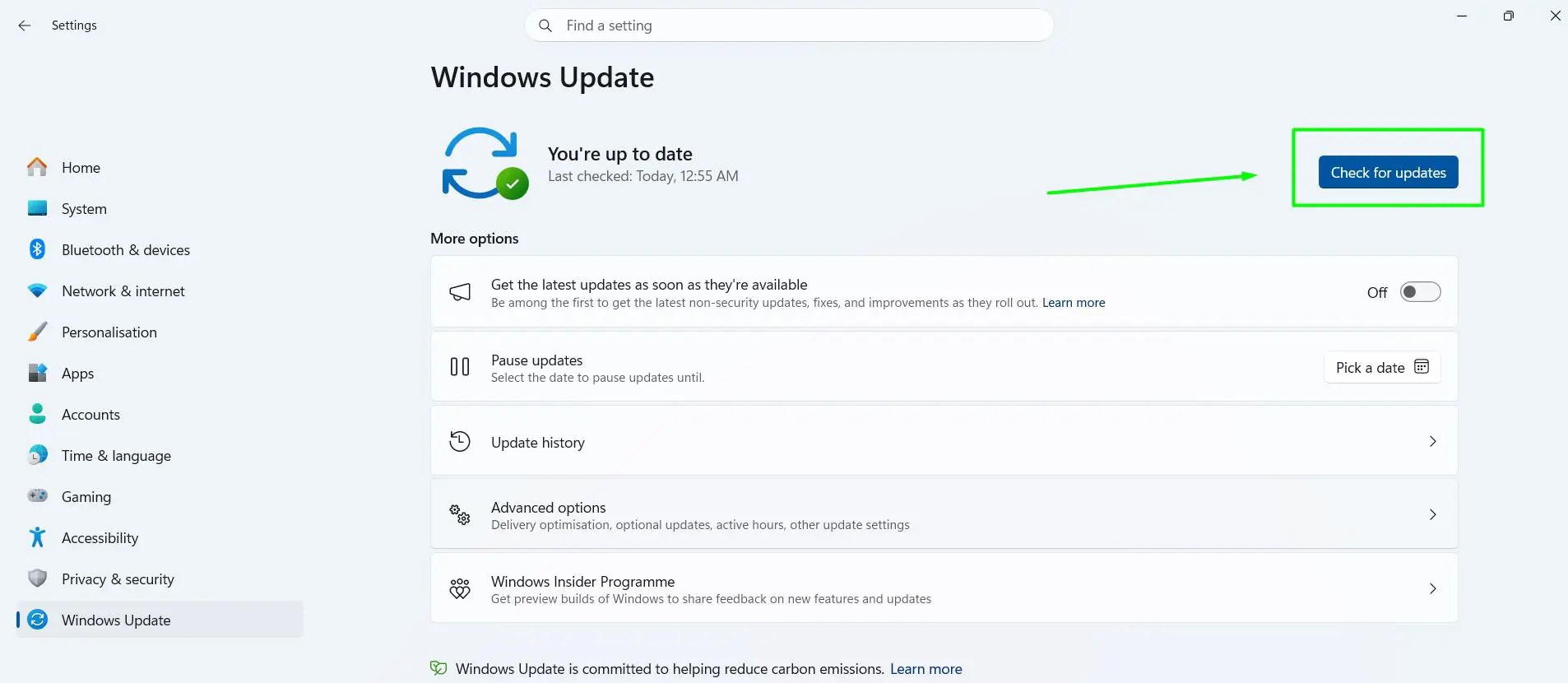
- Install anything that shows up.
- Next, click Advanced options.
- Scroll down and click Optional updates.
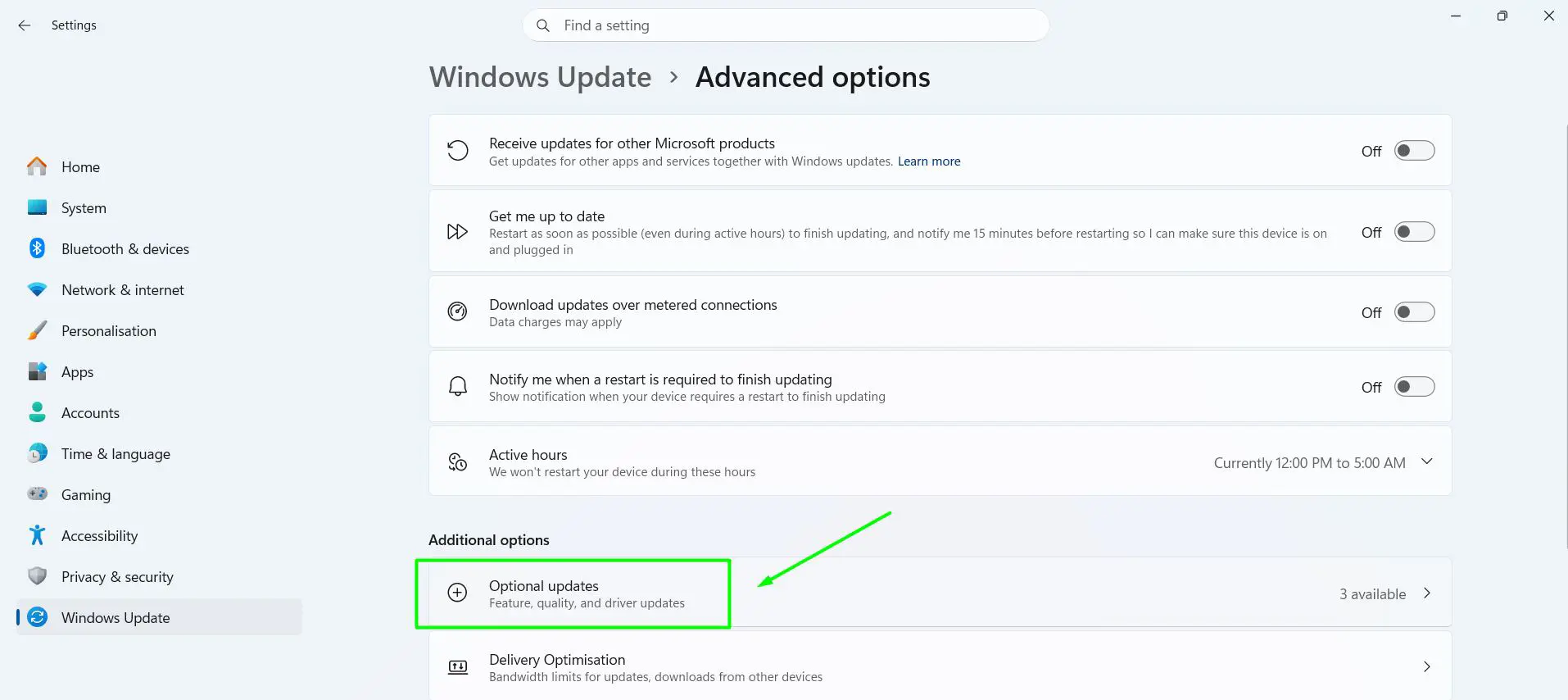
- Expand Driver updates.
- Check the box next to your printer.
- Click Download & install.
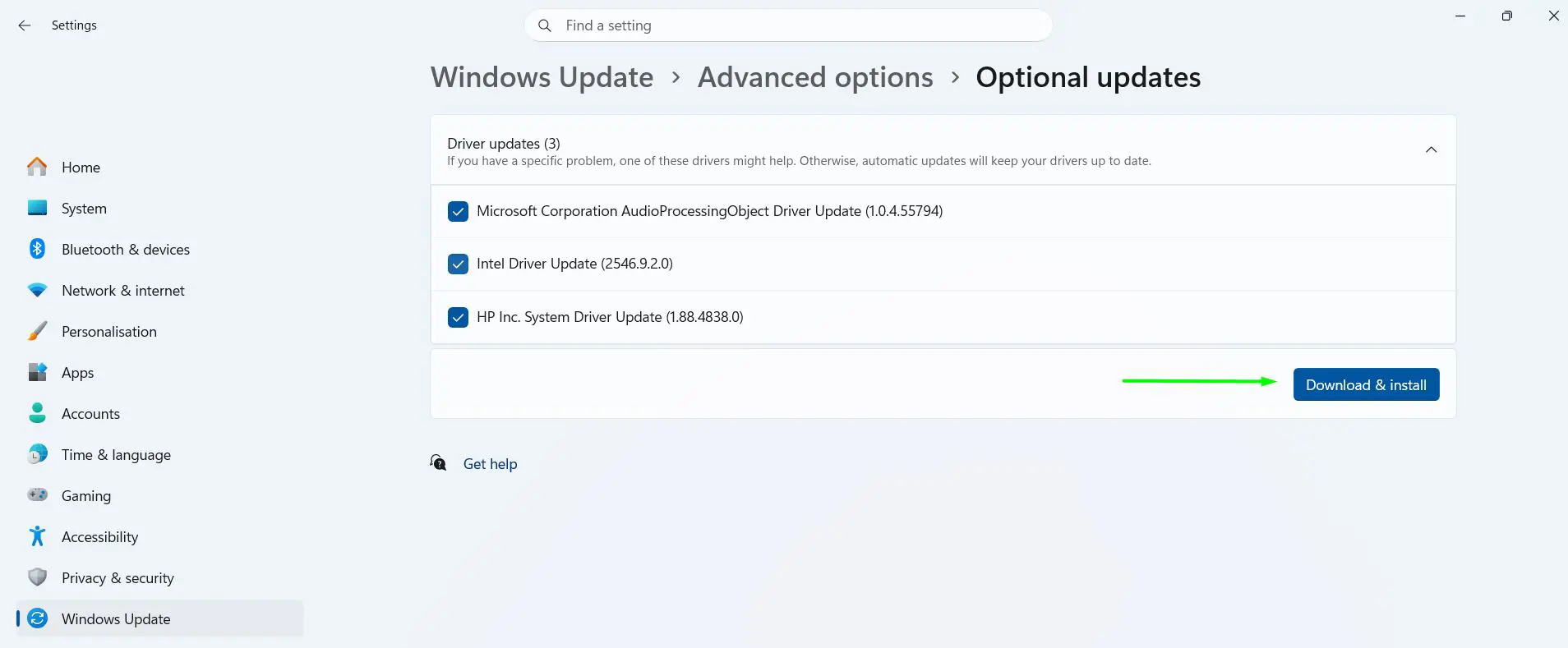
- Restart your PC if asked.
Nothing listed under Driver updates? That’s normal. It just means Windows Update has nothing new for your printer. Move to Method 2.
Method 2: Remove and Re-Add the Printer
This sounds drastic, but it’s quick. Removing the printer clears out a broken setup, and adding it back lets Windows pick a working driver on its own, often the built-in IPP Class Driver.
- Press Windows + I.
- Go to Bluetooth & devices > Printers & scanners.
- Click your printer, then click Remove. Confirm with Yes.
- Make sure the printer is turned on and connected (USB cable or same Wi-Fi network).
- Click Add device and wait a few seconds.
- When your printer appears, click Add device next to it.
- Wait for Windows to finish setting it up.
- Click the printer and select Print test page.
Method 3: Install the Printer Brand’s App from Microsoft Store
If basic printing works but scanning, ink levels, or other extras are missing, the printer brand’s official app fills that gap. These apps (called Print Support Apps) work with the built-in Windows driver.
- Open Microsoft Store from the Start menu.
- Search for your printer brand, such as “HP Smart,” “Epson,” or “Canon.”
- Check that the publisher is the actual printer company.
- Click Get or Install.
- Open the app and follow the setup prompts.
Method 4: Download the Driver from the Manufacturer’s Website
When Windows can’t find a driver, go straight to the printer company. The key is to use only the official site. Third-party “driver download” sites often bundle junk software or the wrong driver.
Find Your Printer Model
Look for the model name on the front, top, or a sticker on the back or bottom of the printer. Write it down exactly, including letters and numbers.
Official Driver Download Pages
- HP: support.hp.com
- Canon: usa.canon.com
- Epson: epson.com
- Brother: brother-usa.com
- Lexmark: support.lexmark.com
- Xerox: xerox.com
- Samsung: support.hp.com (HP now handles Samsung printer drivers)
Install the Driver
- Open your brand’s support page from the list above.
- Type in your exact printer model.
- Select Windows 11 if asked.
- Download the recommended driver or full software package.
- Open your Downloads folder and double-click the file.
- Follow the on-screen steps.
- Restart your PC when it’s done.
Method 5: Update the Driver in Device Manager
Device Manager is a bit more technical, but it’s handy when you’ve downloaded a driver file that doesn’t have an installer.
- Right-click the Start button and select Device Manager.
- Expand Print queues (or Printers).
- Right-click your printer and select Update driver.
- Click Search automatically for drivers.
- If Windows finds one, follow the prompts to install it.
Got a .zip file from the manufacturer instead of an installer? Right-click it, choose Extract All, then in the steps above choose Browse my computer for drivers and point it to the extracted folder.
Method 6: Roll Back the Printer Driver
If the printer worked fine until a recent driver update, going back to the old driver is often the fastest fix.
- Right-click Start and open Device Manager.
- Expand Print queues (or Printers).
- Right-click your printer and select Properties.
- Open the Driver tab.
- Click Roll Back Driver.
- Pick a reason, click Yes, and restart your PC.
Button grayed out? Windows doesn’t have an older driver saved. Use Method 4 to get a working version from the manufacturer.
Tips for Updating Printer Drivers in Windows 11
- Restart both devices first. Turn off the printer and PC, then turn them back on. It’s surprising how often this alone fixes a “Driver is unavailable” error.
- Check which driver you’re using. In Device Manager, open the printer’s Properties > Driver tab. If it says Microsoft IPP Class Driver and printing works, leave it alone.
- Skip “driver updater” programs. Windows Update and the printer brand’s own website are all you need.
- Clear stuck print jobs. A jammed job can make a good driver look broken. Here’s how to check and clear current print jobs in the queue in Windows.
- Check your default printer after reinstalling. Removing and re-adding a printer can change which one Windows prints to. See how to set or change the default printer in Windows.
- Know about Windows protected print mode. If it’s turned on (Settings > Bluetooth & devices > Printers & scanners), Windows blocks third-party printer drivers. Only turn it off if a printer you rely on truly needs the manufacturer’s driver.
- Wi-Fi printer keeps dropping? Reserve a fixed IP address for it in your router settings so Windows doesn’t lose track of it.
- Don’t update for no reason. If the printer works, there’s no need to chase newer drivers. Update when something breaks or Windows offers one.
Frequently Asked Questions
How to update a printer driver in Windows 11?
Open Settings > Windows Update > Advanced options > Optional updates, expand Driver updates, select your printer, and click Download & install. If nothing shows up, remove and re-add the printer or download the driver from the manufacturer’s official site.
How to fix “Driver is unavailable” on a printer in Windows 11?
Restart the printer and PC first. Then check Windows Update and Optional updates. If that doesn’t help, remove the printer in Printers & scanners and add it back so Windows installs a fresh driver. As a last step, install the driver from the printer brand’s official website.
Why does a printer stop working after a Windows 11 update?
An update may have replaced or damaged the printer driver. Restart both devices, then check Optional updates for a new driver. If a driver update caused it, use Roll Back Driver in Device Manager to return to the previous version.
How to check the printer driver version in Windows 11?
Right-click Start, open Device Manager, expand Print queues, right-click your printer, and select Properties. The Driver tab shows the driver version, date, and provider.
Does Windows 11 install printer drivers automatically?
Yes, for most printers. When you add a printer through Add device, Windows 11 picks a driver on its own, often the built-in Microsoft IPP Class Driver. You only need a manufacturer driver if Windows can’t find one or you want extra features like scanning.
What is the Microsoft IPP Class Driver?
It’s a built-in Windows driver that works with most modern printers without extra downloads. Since July 2026, Windows 11 uses it first when a printer supports it. If your printer prints fine with it, there’s no need to replace it.
How to update an HP, Canon, Epson, or Brother printer driver?
Check Windows Update and Optional updates first. If no driver appears, go to the brand’s official support website, enter your exact printer model, choose Windows 11, and download the recommended driver or software. The brand’s app in Microsoft Store can also add scanning and ink-level features.
Will older printers still work with Windows 11 26H2?
Most likely, yes. Existing printer drivers keep working on 26H2, and Microsoft’s 2026 changes only affect how new drivers are released. Very old printers may lose some extra features, but basic printing usually works through the built-in Windows driver.
Is it safe to use free driver updater software?
It’s best to avoid it. Many of these tools install the wrong driver or add unwanted programs. Windows Update and the printer manufacturer’s official website are safer and free.
How often should printer drivers be updated?
There’s no set schedule. Update the driver when printing breaks, when Windows Update offers one, or when the manufacturer releases a fix for your model. If everything works, leave it as is.
