
Learning how to turn on Voice Clarity in Windows 11 takes less than a minute, and it can make calls and recordings sound much cleaner. The option only appears when the microphone and its audio driver support it, so some PCs and external microphones will not show it. No administrator rights are needed.
Key Takeaways
- Voice Clarity is switched on from Settings > System > Sound, inside the properties of the active microphone.
- The choice sits in the Audio enhancements drop-down, so it is set per microphone.
- If Voice Clarity is not in the list, the microphone or driver usually does not support it yet.
- The change applies right away and does not need a restart.
Step-by-Step Guide to Turn On Voice Clarity in Windows 11
This works best when the microphone you actually use for calls is plugged in or built into the laptop before you begin.
- Press Windows + I to open the Settings app.
- Click System in the left sidebar.
- Click Sound on the right side of the window.
- Scroll down to the Input section and click the name of the microphone you use, such as the built-in microphone array or a headset.
- On the microphone’s properties page, find the Audio enhancements drop-down.
- Open the drop-down and select Voice Clarity.
- Speak normally and watch the level bar under Test your microphone.
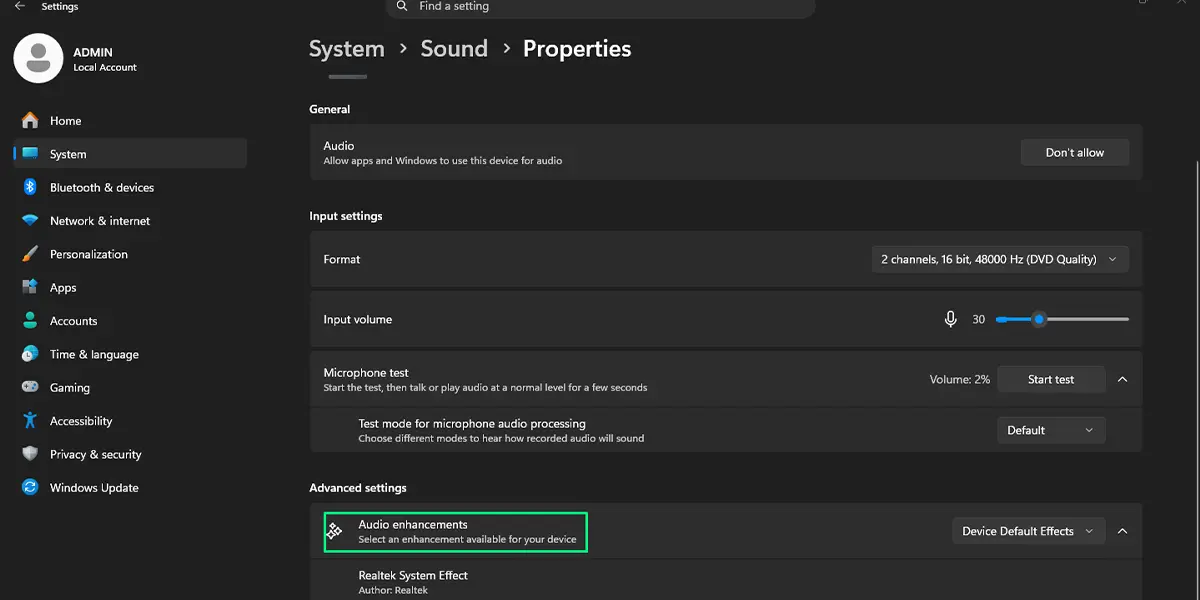
The selection is saved the moment it is chosen, and the level bar should keep moving as you talk. Tip: Windows + I jumps straight to Settings from anywhere, which saves hunting through the Start menu each time.
Check That Voice Clarity Is Working
A quick test call is the easiest proof. Steady background sounds such as a laptop fan, an air conditioner, or street noise through an open window should be softer than before, while the voice stays clear.
Tip: Make sure the microphone you changed is the one the calling app uses. Settings are saved per device, so a headset and a built-in microphone each need their own choice.
How to Undo or Reverse This Change
Go back to Settings > System > Sound, click the same microphone, and open the Audio enhancements drop-down. Choose Device default effects or Off. The microphone returns to its previous behavior immediately.
Common Problems and Fixes
Voice Clarity is not in the Audio enhancements list
The most common cause is a microphone or audio driver that does not offer the feature. Open Settings > Windows Update, click Check for updates, install anything pending, and restart the PC. It is also worth trying the built-in laptop microphone, since some external USB microphones do not offer this option.
The Audio enhancements drop-down is missing or greyed out
A device managed by work or school can lock audio settings, and a missing audio driver can hide them. If the PC belongs to an organization, the IT team controls this setting. On a personal PC, installing pending updates usually brings the option back.
The voice sounds muffled or distant afterward
Voice Clarity can overcorrect on some microphones and make speech sound thin. Open the same Audio enhancements drop-down and pick Device default effects or Off, then run a short test again.
The setting has no effect in a calling app
Some apps take full control of the microphone and skip Windows processing. Open Control Panel > Sound, click the Recording tab, double-click the microphone, open the Advanced tab, and clear the box that lets applications take exclusive control of the device. Then reopen the app.
Frequently Asked Questions
Does Voice Clarity work on Windows 11 Home?
Windows 11 Home and Pro share the same Sound settings page. Whether Voice Clarity appears depends mainly on the microphone and its audio driver, not the edition.
Does turning on Voice Clarity need a restart?
No restart is usually needed. The change applies as soon as the new option is selected under Audio enhancements. A restart only helps if the option is missing right after a driver or Windows update.
Why is Voice Clarity missing from the Audio enhancements list?
The most common reasons are an unsupported microphone, a missing or outdated audio driver, or a PC managed by work or school. Checking Settings > Windows Update for pending updates is the quickest first fix.
Is there a keyboard shortcut to turn on Voice Clarity?
There is no dedicated shortcut for this setting. Pressing Windows + I opens Settings, and from there the path is System > Sound > your microphone > Audio enhancements.
Does Voice Clarity work with an external USB microphone?
Support varies by device. The built-in laptop microphone is the best one to try first, since some external microphones do not offer the option.
Will Voice Clarity slow down a PC or drain the battery?
Microphone processing runs mainly while the microphone is in use, and most people notice no difference. On a laptop that feels sluggish during long calls, setting Audio enhancements back to Off or Device default effects is an easy test.
Can Voice Clarity be used with the noise suppression built into a calling app?
It can, but stacking two filters sometimes makes a voice sound thin or distant. If that happens, keep Voice Clarity on and switch off the app’s own noise suppression, or the other way around.
How can you tell that Voice Clarity is working?
Speak while watching the level bar under Test your microphone, then run a short test call. Steady background sounds such as a fan or air conditioner should sound quieter than before.
