
Knowing how to fix Office install error 1058-13 takes only a few minutes once the cause is clear. The message says Office is unable to start and asks whether the system has disabled it. In most cases, the Microsoft Office Click-to-Run Service is switched off in Windows. Turning it back on usually clears the error right away.
Key Takeaways
- Error 1058-13 almost always points to a disabled Microsoft Office Click-to-Run Service.
- Setting that service to Automatic and starting it is the fastest fix.
- A Quick Repair or Online Repair covers cases where the service is already running.
- A clean uninstall and reinstall is the last resort and does not touch saved documents.
How to Fix Office Install Error 1058-13 Step by Step
The fix below works on Windows 10 and Windows 11. Sign in with an administrator account before starting, because changing a service needs elevated rights.
Turn On the Microsoft Office Click-to-Run Service
- Step 1: Press the Windows key and R together to open the Run box, type services.msc, and press Enter.
- Step 2: Scroll down the Services list until ‘Microsoft Office Click-to-Run Service’ appears. The list is alphabetical, so look under the letter M.
- Step 3: Double-click the service to open its Properties window.
- Step 4: On the General tab, open the Startup type drop-down and choose Automatic.
- Step 5: Click the Start button under Service status. If the service already says Running, click Stop and then Start again to refresh it.
- Step 6: Click Apply, then OK, and close the Services window.
- Step 7: Restart the computer, then launch the Office installer or the Office app again.
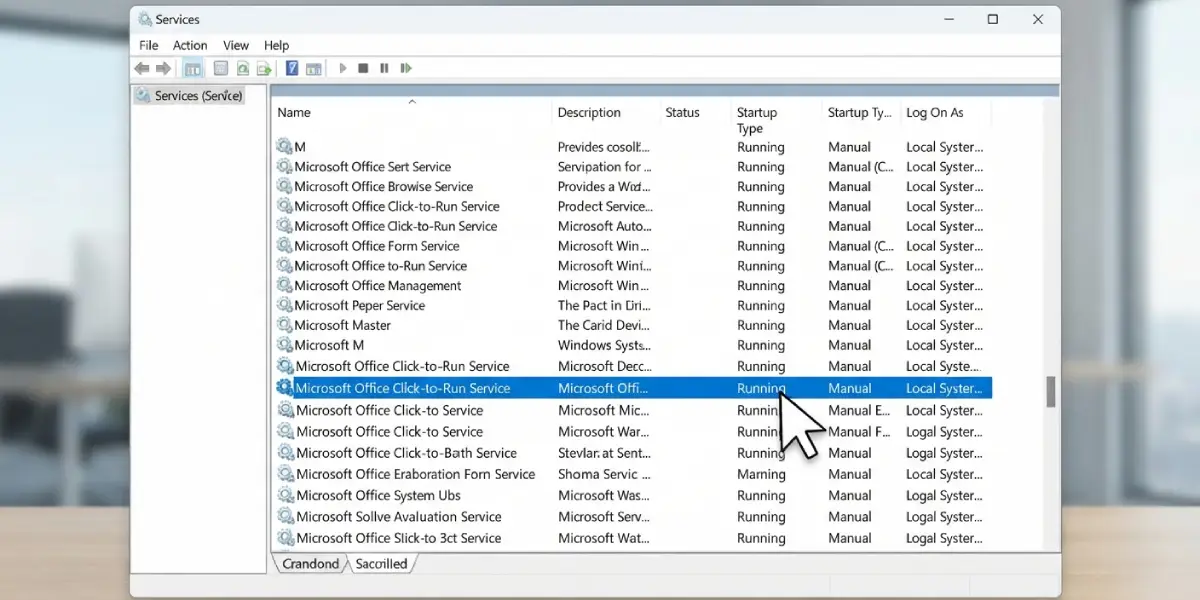
Tip: A service stuck on Disabled is the classic sign of this error. Once Startup type reads Automatic, Windows will start it by itself every time the computer boots, so the problem should not return.
Run a Repair if the Service Was Already Running
Sometimes the service is healthy and the error still appears. That usually means some Office files are damaged, and a repair is the next step.
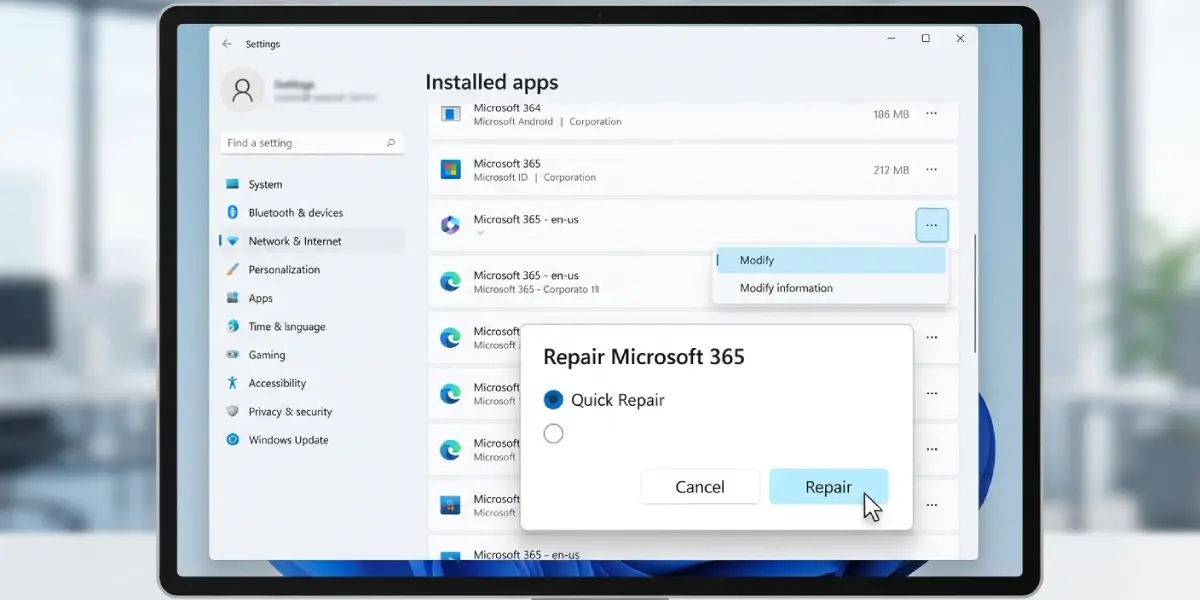
- Step 1: Open Settings, go to Apps, and then select Installed apps (on Windows 10, choose Apps and then Apps and features).
- Step 2: Find Microsoft 365 or Microsoft Office in the list. On Windows 11, click the three dots next to it and select Modify. On Windows 10, click the entry and then select Modify.
- Step 3: Choose Quick Repair and click Repair. Quick Repair runs without an internet connection and finishes fast.
- Step 4: Try Office again. If the error remains, repeat the process and pick Online Repair instead, which reinstalls the Office files and needs an internet connection.
Uninstall and Reinstall Office as a Last Resort
- Step 1: Remove Office completely using Microsoft Support and Recovery Assistant, or uninstall it from Settings under Apps.
- Step 2: Restart the computer so leftover components are cleared out.
- Step 3: Sign in to the Microsoft account that owns the Office license at account.microsoft.com, open Services and subscriptions, and select Install.
- Step 4: Run the downloaded installer and wait for it to finish.
Tip: Documents saved in Word, Excel, and PowerPoint files are stored separately from the Office program, so uninstalling does not delete them. Copying important folders to a backup drive first is still a cheap safeguard.
Common Problems and Fixes
The Startup Type Menu Is Greyed Out
This happens when the account lacks administrator rights. Sign in with an administrator account and repeat the steps. Alternatively, open Command Prompt as administrator and run sc config ClickToRunSvc start= auto, then run sc start ClickToRunSvc.
The Click-to-Run Service Is Not in the List
A missing service means the Office installation is incomplete or badly damaged. Skip straight to the uninstall and reinstall method, since there is nothing to enable.
The Service Is Disabled Again After a Restart
Some PC cleanup or optimization tools switch off background services to save memory. Open that tool’s startup or services settings and exclude the Office Click-to-Run Service, or turn the tool off while installing Office.
The Service Refuses to Start
If Windows shows an error when clicking Start, restart the computer once and try again. Pending Windows updates can also block services, so install any waiting updates, restart, and then repeat the service steps.
Error 1058-13 Appears Even After Repairing Office
Check the service one more time, because a repair does not change its startup type. Confirm it reads Automatic and Running, then move on to a full reinstall if the message still shows.
Frequently Asked Questions
What does Office error code 1058-13 mean?
It means Office could not start because a required Windows service is disabled. The service involved is the Microsoft Office Click-to-Run Service, which handles installing, updating, and launching Click-to-Run versions of Office.
Which service has to be running to fix error 1058-13?
The Microsoft Office Click-to-Run Service must be set to Automatic and be running. It is listed in the Windows Services window, which opens by typing services.msc in the Run box.
Do administrator rights matter for this fix?
Yes. Changing a service’s startup type requires an administrator account. A standard user account often shows a greyed-out Startup type menu or an access denied message.
Will fixing error 1058-13 delete my Word or Excel files?
No. Starting the service, repairing Office, or reinstalling Office leaves saved documents untouched, because files are stored separately from the Office program.
Can error 1058-13 be fixed from Command Prompt?
Yes. Open Command Prompt as administrator, run sc config ClickToRunSvc start= auto, and then run sc start ClickToRunSvc. This does the same thing as the Services window.
Is Quick Repair or Online Repair better for this error?
Quick Repair is the faster option and works offline, so try it first. Online Repair takes longer but replaces the Office files entirely, which makes it the stronger choice if Quick Repair does not help.
Why does the error keep coming back after a restart?
A third-party optimization or security tool is the usual reason, since these programs sometimes disable background services. Excluding the Click-to-Run service in that tool, or turning the tool off, stops the service from being switched off again.
When is a full uninstall and reinstall necessary?
A reinstall is needed when the Click-to-Run service is missing from the Services list or when both Quick Repair and Online Repair fail to clear the error.
