
Want to show all system tray icons in Windows 11 instead of digging through the hidden icons arrow every time? It takes less than a minute, and no administrator rights are needed. The steps below work on Windows 11 Home, Pro, and Enterprise, unless a work or school policy locks the taskbar.
Key Takeaways
- The main path is Settings > Personalization > Taskbar > Other system tray icons.
- Each app has its own toggle, so switch on every icon that should stay visible.
- A classic Notification Area Icons window can show everything with a single checkbox.
- Icons can also be dragged from the hidden icons flyout straight onto the taskbar.
- Switching an icon back off at any time returns it to the hidden icons flyout.
Step-by-Step Guide to Show All System Tray Icons in Windows 11
Method 1: Use the Settings App
This is the easiest route for most people, and it gives control over each app individually. Windows 11 Settings does not offer one master switch for every icon, so each toggle is turned on one by one.
- Press Windows + I to open Settings.
- Click Personalization in the left sidebar.
- Click Taskbar on the right side.
- Click Other system tray icons to expand the list.
- Turn on the toggle next to each app whose icon should always be visible.
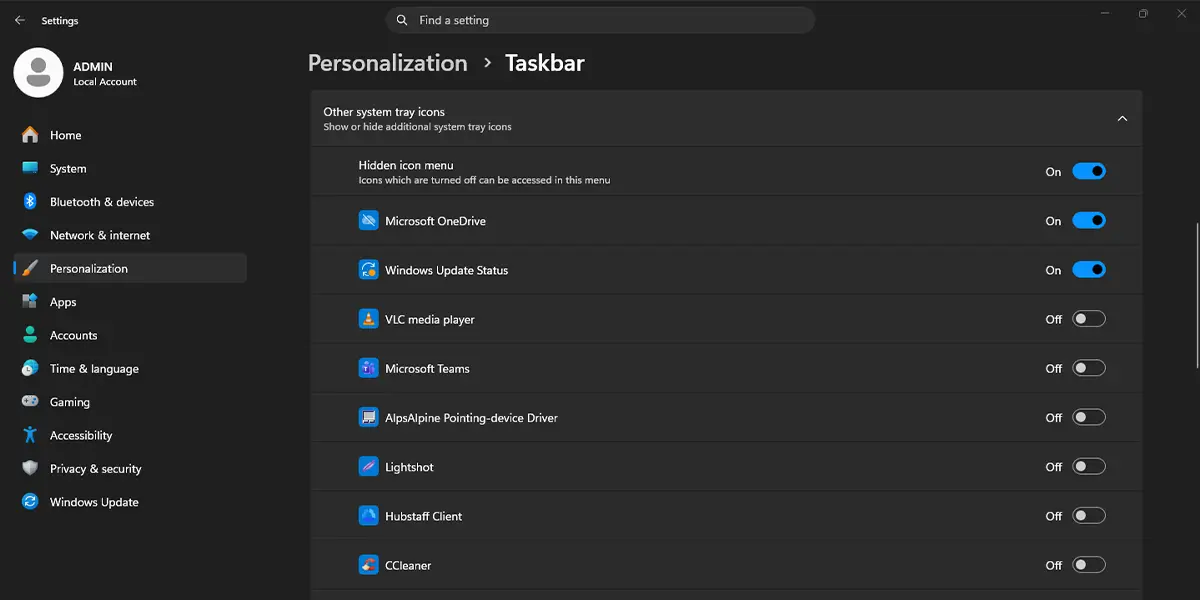
The icon appears next to the clock almost instantly, and it disappears from the hidden icons flyout because it now has a permanent spot.
Tip: Right-click an empty area of the taskbar and choose Taskbar settings to jump straight to the same page.
Method 2: Use the Classic Notification Area Icons Window
Anyone with a long list of apps will appreciate this one, because a single checkbox does the work of dozens of toggles.
- Press Windows + R to open the Run dialog.
- Type the command below and press Enter. Running it in a normal (non-elevated) window is fine.
explorer shell:::{05d7b0f4-2121-4eff-bf6b-ed3f69b894d9}
- In the window that opens, tick Always show all icons and notifications on the taskbar.
- Click OK.
Every running app with a tray icon now shows up on the taskbar at once. On a small laptop screen the row can get crowded, so a few icons may need to be switched back off later.
Method 3: Drag Icons Out of the Hidden Icons Flyout
This is the quickest fix when only one or two icons are tucked away, such as a cloud storage app or a printer utility.
- Click the Show hidden icons arrow (the small upward-pointing chevron) near the clock.
- Click and hold the icon that should stay visible.
- Drag it onto the taskbar, just left of the clock area, and release the mouse button.
The icon snaps into place on the taskbar and stays there after a restart.
How to Undo or Reverse This Change
To hide an icon again, go to Settings > Personalization > Taskbar > Other system tray icons and switch its toggle to off. If the classic window was used, open it again with the Run command, clear the Always show all icons and notifications on the taskbar checkbox, and click OK. An icon can also be dragged from the taskbar back into the hidden icons flyout.
Common Problems and Fixes
An app is missing from the Other system tray icons list
Windows only lists apps that have placed an icon in the tray at least once. Open the app and let it run for a moment, then check the list again. Some apps also have their own setting to show a tray icon, so look in the app’s preferences if it still does not appear.
The toggles are greyed out or reset after a restart
On a work or school PC, taskbar behavior can be controlled by the organization, which locks these options or reverts them. In that case, the IT administrator is the person to ask. On a personal PC, restart the computer once and try Method 1 again.
The Run command does not open the Notification Area Icons window
Check that the command was typed exactly as shown, including the curly braces and the three colons. If the window still refuses to open, use Method 1 or Method 3 instead, since both reach the same result.
The icon returns to the hidden flyout after the app updates
Some apps are treated as new after a major update. Open Settings > Personalization > Taskbar > Other system tray icons and turn the toggle on again.
Frequently Asked Questions
Does this work on Windows 11 Home?
Yes. All three methods work on Home, Pro, and Enterprise editions. No administrator rights are required unless the PC is managed by work or school.
Is there one switch that shows every tray icon in Settings?
No. The Settings app has a separate toggle for each app under Other system tray icons. The classic Notification Area Icons window is the one place with a single checkbox that shows everything.
Do I need to restart the computer after changing these settings?
No. Icons appear or disappear immediately after a toggle is switched, or the checkbox is ticked and confirmed.
Will showing every icon slow down my PC?
No. The setting only changes where an icon is displayed. The apps run the same way whether their icons are hidden or visible, so battery life and performance are unaffected.
Why is an icon not showing even after the toggle is on?
The app may not be running. Tray icons only appear while the app is active, so launch it first. If the app is running and the icon is still missing, check the app’s own settings for a tray icon option.
Can I show only a few icons instead of all of them?
Yes. Method 1 is built for that. Turn on the toggles for the apps that matter and leave the rest off, and the others stay in the hidden icons flyout.
Does the setting carry over to a second monitor?
The system tray icons are shown on the main taskbar. A taskbar on a second display shows the clock and date but not the full tray, so the settings above apply to the main display.
How can the Taskbar settings page be opened quickly?
Right-click an empty spot on the taskbar and choose Taskbar settings. This opens Settings > Personalization > Taskbar directly, where the Other system tray icons list is found.
