
Learning how to show seconds in the taskbar clock on Windows 11 takes less than a minute, and it is handy for timing tasks, syncing a call, or just checking that the clock is ticking. The option works on Home, Pro, and Enterprise, but it needs a recent Windows 11 update, which includes versions 24H2 and 25H2. No administrator rights are required.
Key Takeaways
- The quickest route is Settings > Personalization > Taskbar > Taskbar behaviors.
- Tick the Show seconds in system tray clock box and the clock updates right away.
- A single Command Prompt command can do the same job if the checkbox is missing.
- Clearing the checkbox turns the seconds off again at any time.
Step-by-Step Guide to Show Seconds in the Taskbar Clock
Method 1: Use the Settings App
This is the easiest way for most people, and nothing needs to be restarted.
- Press Windows + I to open Settings.
- Click Personalization in the left sidebar.
- Scroll down and click Taskbar.
- Click Taskbar behaviors to expand the section.
- Tick the box next to Show seconds in system tray clock.
- Look at the bottom-right corner of the screen. The clock now counts the seconds, for example 10:42:15 AM, and the numbers change every second.
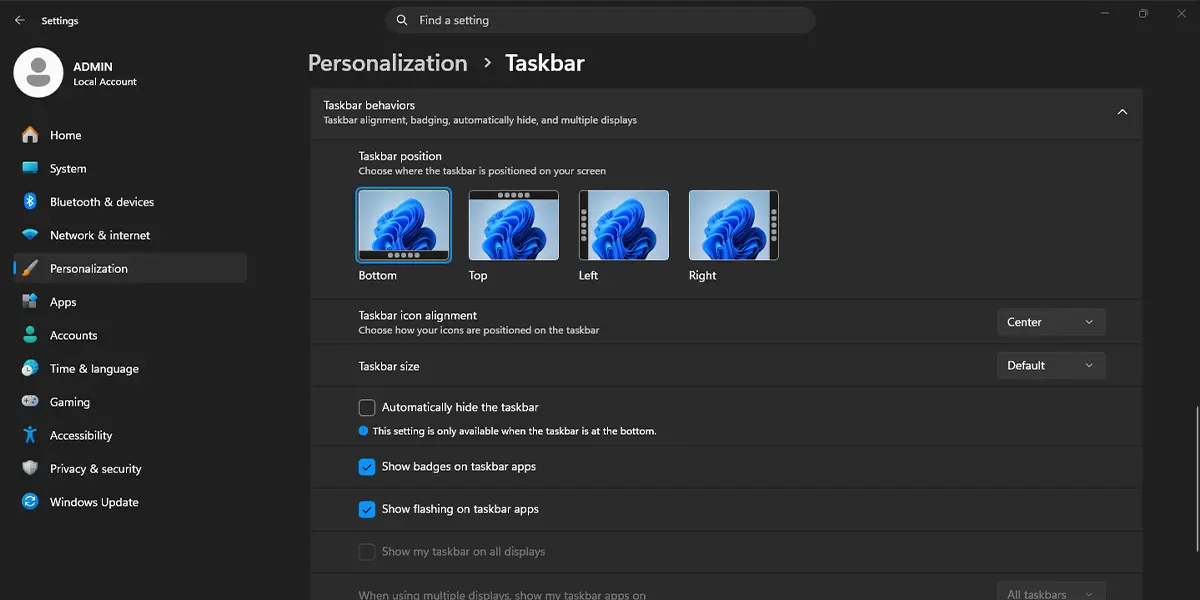
Tip: Right-click an empty area of the taskbar and choose Taskbar settings to jump straight to the Taskbar page without opening Settings first.
Method 2: Use Command Prompt
This method suits a PC where the checkbox is missing, or anyone who prefers typing one command. The command changes a value for the current user only, so an elevated (administrator) window is not needed. It edits the registry, so creating a restore point first is a sensible precaution, even though the change is small and easy to reverse.
- Press Windows + R, type cmd, and press Enter to open a standard Command Prompt window.
- Type or paste the following command, then press Enter:
reg add HKCU\Software\Microsoft\Windows\CurrentVersion\Explorer\Advanced /v ShowSecondsInSystemClock /t REG_DWORD /d 1 /f
- Wait for the message saying the operation completed successfully.
- Restart File Explorer so the taskbar picks up the change. Type the following command and press Enter:
taskkill /f /im explorer.exe & start explorer.exe
- Wait a moment while the taskbar disappears and returns. The clock now shows seconds.
Tip: Signing out and back in also reloads the taskbar, which is a gentler option than restarting File Explorer on a PC with several windows open.
How to Undo or Reverse This Change
To turn the seconds off, go to Settings > Personalization > Taskbar > Taskbar behaviors and clear the Show seconds in system tray clock box. The clock goes back to hours and minutes straight away.
If the seconds were switched on with Command Prompt, run the command below in a standard window, then restart File Explorer or sign out and back in.
reg add HKCU\Software\Microsoft\Windows\CurrentVersion\Explorer\Advanced /v ShowSecondsInSystemClock /t REG_DWORD /d 0 /f
Common Problems and Fixes
The Show seconds checkbox is missing
This usually means the PC has not received the update that added the option. Open Settings > Windows Update, click Check for updates, and install anything offered. After restarting, look for the checkbox again. Until then, Method 2 can be used as a workaround.
The command ran but the clock still shows no seconds
The taskbar only reads the value when File Explorer starts. Run the restart command from Method 2, or sign out and sign back in, and the seconds should appear.
The taskbar is gone after restarting File Explorer
This can happen if the second command did not run. Press Ctrl + Shift + Esc to open Task Manager, click Run new task, type explorer.exe, and press Enter. The taskbar returns within a few seconds.
Frequently Asked Questions
Does showing seconds in the taskbar clock work on Windows 11 Home?
Yes. The setting is available on Home, Pro, and Enterprise, as long as the PC has a recent Windows 11 update installed.
Do I need administrator rights to show seconds on the Windows 11 clock?
No. Both the Settings method and the Command Prompt method change a setting for the current user account only, so a standard account works.
Does the PC need a restart after turning on the seconds?
Not when the Settings method is used, because the change shows up immediately. The Command Prompt method needs File Explorer to be restarted, or a sign out and sign in, before the seconds appear.
Will showing seconds drain the battery on a laptop?
The clock redraws once a second instead of once a minute, which uses slightly more power. On most laptops the difference is too small to notice, but the checkbox can be cleared at any time.
Is there a keyboard shortcut to show seconds in the taskbar clock?
There is no dedicated shortcut for this setting. Pressing Windows + I opens Settings, and from there Personalization > Taskbar > Taskbar behaviors leads to the checkbox.
Why is the Show seconds in system tray clock option missing?
The most common reason is an out-of-date Windows 11 installation. Install the latest updates from Settings > Windows Update, restart the PC, and check the Taskbar behaviors section again.
How can the seconds be turned off again?
Clear the Show seconds in system tray clock box under Settings > Personalization > Taskbar > Taskbar behaviors. The clock returns to showing only hours and minutes.
Does this work on Windows 11 versions 24H2 and 25H2?
Yes. Both versions include the checkbox under Taskbar behaviors, and the Command Prompt method works on them as well.
