
Learning how to never combine taskbar buttons in Windows 11 takes less than a minute and gives every open window its own labeled button. The option is built into Windows 11 version 23H2 and later, including 24H2 and 25H2, and works on Home, Pro, and Enterprise. No administrator rights are needed for the Settings method.
Key Takeaways
- The setting lives at Settings > Personalization > Taskbar > Taskbar behaviors.
- Set Combine taskbar buttons and hide labels to Never to keep every window on its own button with a visible label.
- A second option covers extra monitors, so the change can apply to every screen.
- Right-clicking an empty part of the taskbar is the fastest way to reach the same page.
- Switching the option back to Always restores the default grouped look.
Step-by-Step Guide to Never Combine Taskbar Buttons in Windows 11
Method 1: Use the Settings App
- Press Windows + I to open Settings.
- Click Personalization in the left sidebar.
- Scroll down and click Taskbar.
- Click Taskbar behaviors to expand the section.
- Find Combine taskbar buttons and hide labels and open its drop-down menu.
- Select Never.
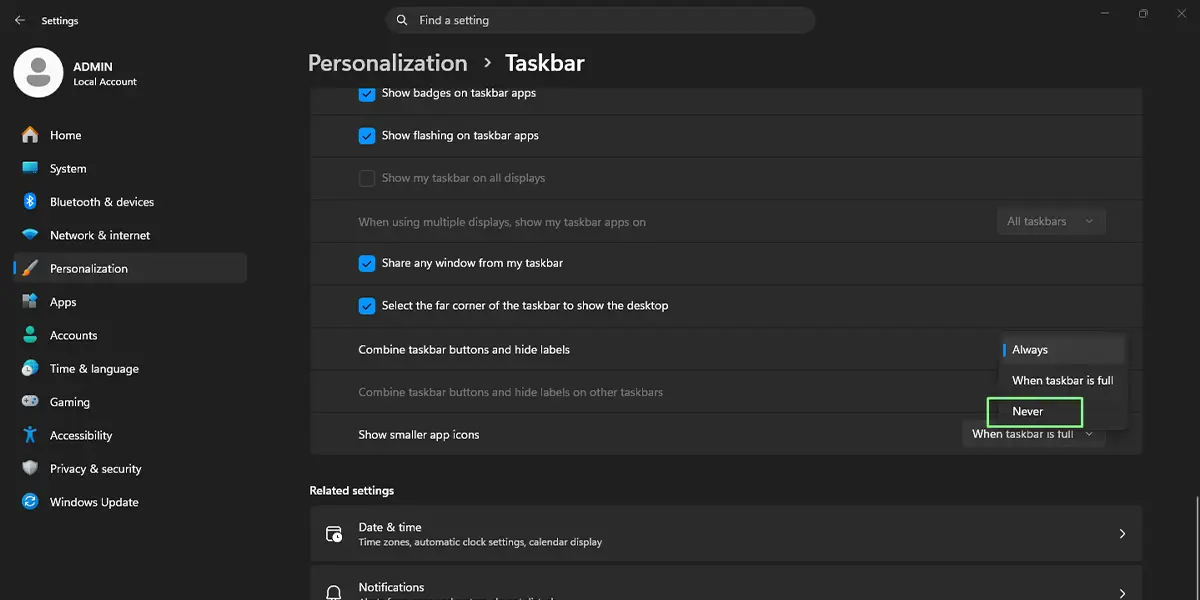
The change applies instantly. Windows that were stacked under a single icon now spread out into separate buttons, each showing the app name and window title.
Tip: Press Windows + I, then open Personalization > Taskbar straight away to skip hunting through the sidebar. The whole path takes about five seconds once it becomes a habit.
Method 2: Use the Taskbar Right-Click Shortcut
- Right-click an empty area of the taskbar.
- Click Taskbar settings.
- Expand Taskbar behaviors.
- Set Combine taskbar buttons and hide labels to Never.
This opens the same page as Method 1 and saves a few clicks. It works well on a shared family computer where the Settings sidebar is not already open.
Method 3: Use a Registry Command
This method edits the registry. Create a restore point first, since a wrong value in the registry can cause unexpected behavior. An administrator window is not required, because the value sits under the current user.
- Press Windows + S, type cmd, and open Command Prompt.
- Run the following command:
reg add HKCU\Software\Microsoft\Windows\CurrentVersion\Explorer\Advanced /v TaskbarGlomLevel /t REG_DWORD /d 2 /f
- Restart Windows Explorer by running this command:
taskkill /f /im explorer.exe & start explorer.exe
The taskbar disappears for a moment and returns with separate, labeled buttons. A value of 2 means never combine, which matches the Never option in Settings.
Apply Never Combine on Multiple Monitors
Windows 11 treats a second screen separately. On a desk with two or three monitors, the main taskbar can show labeled buttons while the others still group windows, which feels inconsistent.
- Open Settings > Personalization > Taskbar > Taskbar behaviors.
- Make sure Show my taskbar on all displays is turned on.
- Set Combine taskbar buttons and hide labels on other taskbars to Never.
Each extra monitor now shows full labels too. Tip: The second drop-down only appears when more than one display is connected and the taskbar is shown on all displays.
How to Undo or Reverse This Change
Open Settings > Personalization > Taskbar > Taskbar behaviors, then set Combine taskbar buttons and hide labels back to Always. Choose When taskbar is full for a middle ground, where labels stay visible until space runs out and Windows starts grouping windows automatically. Anyone who used the registry command can run it again with /d 0 at the end instead of /d 2, then restart Windows Explorer.
Common Problems and Fixes
The Never Option Is Missing
Older Windows 11 releases only offered Always and When taskbar is full. Open Settings > Windows Update, install the available updates, restart the PC, and check the drop-down again.
The Setting Is Greyed Out or Reverts
A work or school PC can have this setting locked by an organization policy. In that case, only the administrator who manages the device can change it.
Labels Do Not Appear After the Change
Restart Windows Explorer to refresh the taskbar. Press Ctrl + Shift + Esc to open Task Manager, right-click Windows Explorer, and click Restart. The taskbar flickers briefly and then reloads with the new layout.
Buttons Become Too Narrow
With many windows open, labeled buttons shrink and the text gets cut off. Closing unused windows frees up space, and setting the option to When taskbar is full keeps labels on until the bar runs out of room.
The Second Monitor Still Groups Windows
The other displays use their own setting. Set Combine taskbar buttons and hide labels on other taskbars to Never as shown in the multiple monitors section above.
Frequently Asked Questions
Does the never combine option work on Windows 11 Home?
Yes. The setting is part of the standard Taskbar page and is available on Home, Pro, and Enterprise editions running version 23H2 or later.
Do I need to restart my PC after changing the setting?
No. The change applies immediately. A restart of Windows Explorer is only needed if the taskbar does not refresh on its own.
Will showing every window on its own button slow down my computer?
No. The setting changes only how taskbar buttons are displayed, so battery life and performance stay the same.
Why is the Never option missing on my laptop?
The PC is most likely running an older Windows 11 build. Installing the latest updates from Settings > Windows Update adds the option.
Can the setting be changed with a keyboard shortcut?
There is no direct shortcut for this toggle. Pressing Windows + I opens Settings, and the Taskbar page is only a couple of clicks away.
Does this change apply to all user accounts on the PC?
No. The setting is saved for the current user profile, so each person who signs in keeps their own taskbar layout.
What is the difference between Never and When taskbar is full?
Never always keeps each window on its own button, even when space is tight. When taskbar is full shows labels until the bar runs out of room, then groups windows of the same app.
Can only one app be excluded from grouping?
No. The option applies to every app on the taskbar. Windows 11 has no built-in way to choose grouping behavior for individual apps.
