
Want to show the taskbar on all displays on Windows 11 so the Start button, app icons, and clock appear on every monitor? It takes one toggle in Settings. This works on Windows 11 Home, Pro, and Enterprise, but the option only appears when two or more displays are connected and set to extend the desktop. No administrator rights are needed for the Settings method.
Key Takeaways
- The main path is Settings > Personalization > Taskbar > Taskbar behaviors > Show my taskbar on all displays.
- Right-clicking the taskbar and choosing Taskbar settings opens the same page in one step.
- A second option controls which taskbar shows each running app, so windows do not get duplicated everywhere.
- The display mode must be set to Extend, otherwise the extra monitor mirrors the main one and the toggle has no effect.
Step-by-Step Guide to Show the Taskbar on All Displays on Windows 11
Method 1: Use the Settings App
- Press Windows + I to open Settings.
- Click Personalization in the left sidebar.
- Scroll down and click Taskbar.
- Scroll to the bottom of the page and expand Taskbar behaviors by clicking its heading.
- Tick the box next to Show my taskbar on all displays.
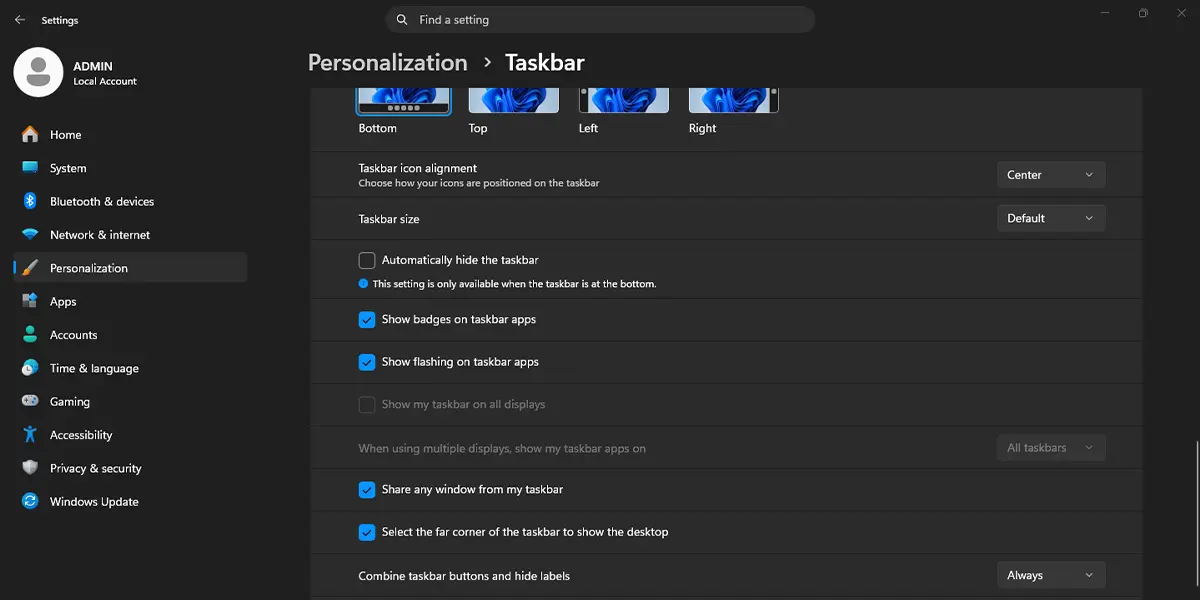
The taskbar appears on the second monitor right away, with no restart needed. On a laptop connected to an external screen, the extra taskbar usually shows up within a second or two.
Tip: Right below that checkbox, the When using multiple displays, show my taskbar apps on dropdown decides where app icons appear. Choosing Taskbar where window is open keeps each monitor tidy, because it only lists the apps running on that screen.
Method 2: Use the Taskbar Right-Click Menu
- Right-click an empty area of the taskbar.
- Click Taskbar settings.
- Scroll down and expand Taskbar behaviors.
- Tick the box next to Show my taskbar on all displays.
This lands directly on the Taskbar page, which saves a few clicks when Settings is not already open. The result is identical to Method 1.
Method 3: Use a Command in Command Prompt or PowerShell
This method edits the registry. Create a restore point first, since a wrong registry change can cause problems. The command below only changes the current user’s taskbar setting, so it can run in a normal (non-elevated) window.
- Right-click the Start button and select Terminal.
- Paste the following command and press Enter.
reg add HKCU\Software\Microsoft\Windows\CurrentVersion\Explorer\Advanced /v MMTaskbarEnabled /t REG_DWORD /d 1 /f
- Press Ctrl + Shift + Esc to open Task Manager.
- Under Processes, right-click Windows Explorer and click Restart.
The screen flickers for a moment while the taskbar reloads. After that, the taskbar shows on every connected display.
Make Sure Windows 11 Is Set to Extend Your Displays
The taskbar can only spread across screens when the desktop is extended. In Duplicate mode, both monitors show the same picture, so there is nothing extra to display.
- Press Windows + P to open the projection menu.
- Click Extend.
Most people run into this with a TV or projector, because Windows often defaults to duplicating when a new screen is plugged in. Once the mode is Extend, return to the Taskbar page and the toggle behaves normally.
Tip: To confirm Windows sees every screen, open Settings > System > Display and look for each monitor in the layout diagram at the top.
How to Undo or Reverse This Change
Go back to Settings > Personalization > Taskbar > Taskbar behaviors and clear the checkbox next to Show my taskbar on all displays. The taskbar then stays only on the main display. If the registry command was used, running the same command with /d 0 at the end instead of /d 1 and restarting Windows Explorer restores the default behavior.
Common Problems and Fixes
The Show My Taskbar on All Displays Option Is Missing
The option typically appears only when Windows detects more than one display. Check that the second monitor is powered on, the cable is firmly connected, and the display mode is set to Extend with Windows + P. If the monitor still is not detected, open Settings > System > Display and click Detect under the multiple displays section.
The Taskbar Appears on Only One Screen After Ticking the Box
Restart Windows Explorer from Task Manager, or sign out and back in. This refreshes the taskbar and usually clears a stuck state. Also confirm the display mode is Extend and not Duplicate.
The Setting Does Not Stick After a Restart
On a work or school PC, an organization policy can reset taskbar settings at sign-in. In that case the setting reverts each time, and the IT administrator controls the behavior. On a personal PC, installing pending Windows updates and graphics driver updates often fixes the issue.
Every App Shows Up on Every Taskbar
That happens when the apps dropdown is set to All taskbars. Open Settings > Personalization > Taskbar > Taskbar behaviors and change When using multiple displays, show my taskbar apps on to Taskbar where window is open or Main taskbar and taskbar where window is open.
Frequently Asked Questions
Does this work on Windows 11 Home?
Yes. The multiple-display taskbar option is available in Home, Pro, and Enterprise editions of Windows 11.
Do I need to restart the PC after turning this on?
No. Using the Settings app, the taskbar appears on the extra monitors immediately. Only the registry method needs Windows Explorer to be restarted.
Why is the option missing from Taskbar behaviors?
Windows usually shows it only when more than one display is detected. Check the cable and power on the second monitor, then use Windows + P to select Extend.
Is there a keyboard shortcut to show the taskbar on all displays?
No dedicated shortcut exists for this toggle. Windows + I opens Settings quickly, and Windows + P switches the display mode to Extend.
Will showing the taskbar on every display affect battery life or performance?
The impact is negligible. An extra taskbar is a lightweight interface element, so battery life and speed stay practically the same on a laptop or desktop.
Can app icons be shown only on the monitor where the app is open?
Yes. In Settings > Personalization > Taskbar > Taskbar behaviors, set When using multiple displays, show my taskbar apps on to Taskbar where window is open.
Does this work with three or more monitors?
Yes. Once the toggle is on, the taskbar appears on every connected display that is set to extend the desktop.
Why did the taskbar disappear from the second monitor after reconnecting it?
Disconnecting a display or waking the PC from sleep can sometimes reset the layout. Confirm the display mode is still Extend, then check that the checkbox under Taskbar behaviors is still ticked.
