
Knowing how to use compressed air on a laptop safely can mean the difference between a cooler, quieter machine and a costly repair bill. Compressed air is one of the simplest tools for clearing dust from vents and fans, but used carelessly it can spin fan blades too fast or push debris deeper into the chassis. This guide walks through the correct technique from start to finish.
Key Takeaways
- Always hold fan blades still with a toothpick or cotton swab before spraying, so the air doesn’t spin them past their rated speed.
- Keep the can upright and spray in short bursts to avoid discharging cold propellant onto internal components.
- Work outdoors or over a trash bin, since dust clouds get pushed out fast and settle everywhere nearby.
- Never shake the can before use, and never use compressed air on a laptop that is powered on.
- Compressed air is for exterior vents and visible dust, not a substitute for a full internal cleaning or repaste.
Before You Start
A few minutes of prep protects both the laptop and the person cleaning it. This step matters more with laptops than desktops, since the fans sit closer to sensitive components and have less room to spin freely.
- Power off the laptop completely and unplug the charger. Do not just close the lid or let it sleep.
- If the battery is user-removable, take it out. Most modern laptops have internal batteries, so this step will not apply to every model.
- Let the laptop cool down fully if it was just running, especially before touching the exhaust vents.
- Touch a bare metal surface, like a doorknob or an unpainted radiator, to discharge any static buildup before handling the machine.
- Move to a well-ventilated area or work outside. Dust from a few months of buildup travels further than most people expect.
Tools and materials needed: a can of compressed air (or a battery-powered air duster, which avoids moisture risk entirely), a toothpick or wooden skewer, cotton swabs, and a microfiber cloth for wiping down surfaces afterward.
Steps to Use Compressed Air on a Laptop Safely
- Step 1: Identify the vents. Flip the laptop over and locate the intake vents on the bottom panel and the exhaust vents, usually found along a side or the rear edge near the hinge.
- Step 2: Hold the can upright at all times. Tilting or inverting a compressed air can lets liquid propellant escape instead of gas, which can leave a cold, damp residue on internal parts.
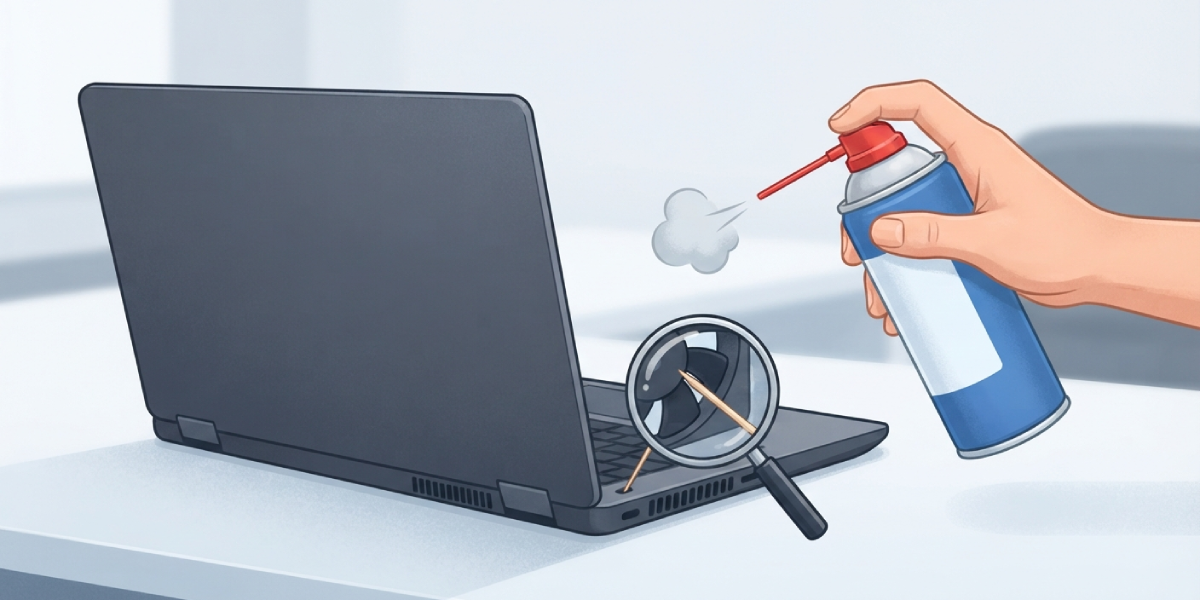
- Step 3: Brace the fan blades. Through the exhaust vent, gently press a toothpick or cotton swab against the fan to keep it from spinning while spraying. This is the step most people skip, and it is the one that prevents bearing damage.
- Step 4: Spray in short, one to two second bursts rather than one long stream. Short bursts control airflow better and reduce the chance of moisture buildup from a can that is getting cold.
- Step 5: Angle the nozzle at the vent opening, not straight into the gap. Aiming at a slight angle pushes dust out and away instead of driving it further inside.
- Step 6: Repeat on each vent, pausing between bursts to let the can return to room temperature if it feels cold to the touch.
- Step 7: Wipe the exterior vents and surrounding surfaces with a dry microfiber cloth to pick up any loosened dust that settled nearby.
- Step 8: Wait a couple of minutes before powering the laptop back on, giving any residual air or moisture time to clear.
Tip: If a can feels cold or starts sputtering, set it down and let it warm back up before continuing. A sputtering can is more likely to release liquid propellant instead of clean gas.
How Often to Repeat This
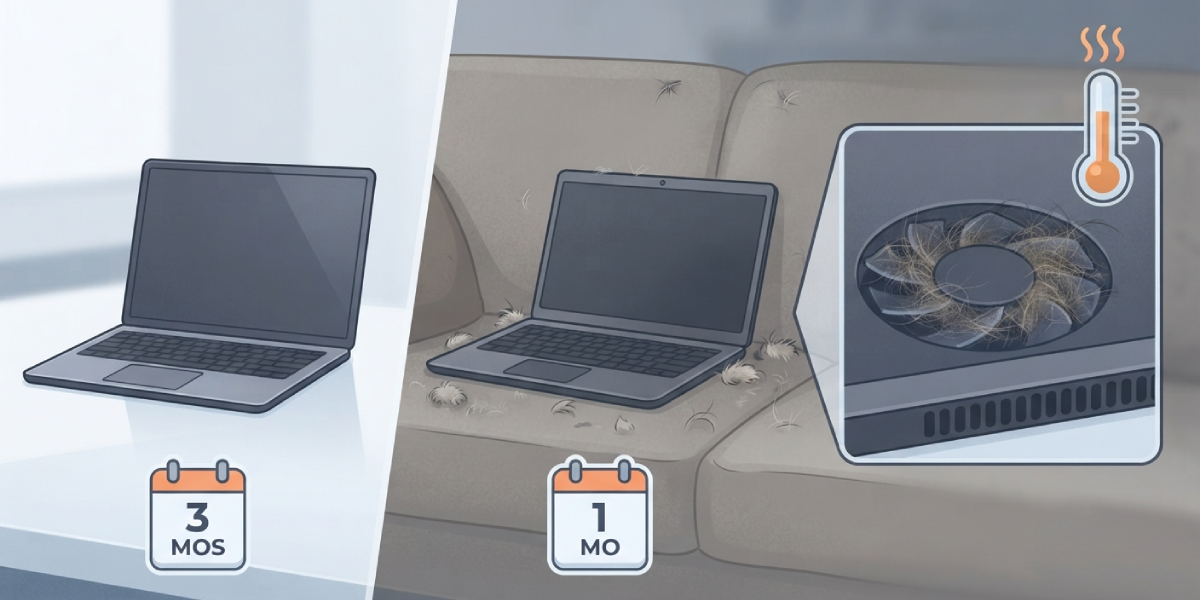
A laptop used on a desk in a clean room might only need this every few months. One used on a couch, carpet, or in a dusty workspace collects lint and pet hair much faster and benefits from more frequent attention. A rise in fan noise or warmer than usual surface temperatures is usually the clearest sign it is due.
Common Problems and Fixes
- Fan spins loudly during and after spraying. This usually means the blades were not braced. Stop, let the fan settle, and redo the vent with a toothpick or swab holding the blades steady.
- Laptop won’t turn on after cleaning. Give it more time to dry, since trace moisture from a tilted can may still be evaporating. If it still will not power on after a few hours, it is worth having a technician check for internal moisture damage.
- Fan noise doesn’t improve after cleaning. Surface vents can look clear while the heatsink fins underneath stay clogged. This deeper buildup usually needs a full teardown and is best handled by someone comfortable opening the chassis, or a professional.
- Dust seems to reappear within days. This points to the environment more than the cleaning method. Elevating the laptop off soft surfaces and cleaning nearby fabric or carpet helps reduce how much dust gets pulled back in.
- A whining or rattling sound starts after using compressed air. This can indicate the fan was spun too fast without bracing, straining the bearing. If the sound persists, the fan itself may need replacement.
Frequently Asked Questions
Is it safe to use compressed air on a laptop while it’s on?
No. Always power the laptop off and unplug it first. Spraying air into a running laptop can spin the fan far past its normal speed and risks pushing debris onto components that are actively drawing power.
Can compressed air damage a laptop fan?
Yes, if the blades are left free to spin. Air from the can can push a fan well beyond its designed rotational speed, which can wear down or damage the bearing over time. Bracing the blades with a toothpick prevents this.
How far should the can be held from the vents?
A few inches away is usually enough. Holding the nozzle too close concentrates the air into a narrow, forceful stream that is more likely to drive dust deeper rather than out.
Is canned air or a battery-powered air duster better for laptops?
Both work well when used correctly. A battery-powered duster removes the risk of liquid propellant discharge entirely, which makes it a convenient option for anyone who cleans electronics regularly.
Can compressed air be used on the keyboard too?
Yes, short bursts across and underneath the keys can dislodge crumbs and dust. Angling the laptop so debris falls away from the keyboard, rather than deeper into it, makes this more effective.
Why does the can feel cold during use?
The propellant inside cools rapidly as it’s released, which is normal for short bursts. If the can gets cold enough to sputter or feels like it’s spitting liquid, stop and let it rest before continuing.
Does using compressed air replace a full internal cleaning?
No. It clears surface dust from external vents but doesn’t reach the heatsink fins or fan housing directly. A laptop with heavy internal buildup still needs a deeper cleaning, which may involve opening the case.
Will using compressed air void a laptop’s warranty?
Simply spraying air into external vents typically does not affect a warranty, since no disassembly is involved. Opening the chassis to clean internal components is a separate matter and may affect coverage depending on the manufacturer.
What’s the biggest mistake people make with compressed air on laptops?
Tilting or shaking the can and letting the fan spin freely are the two most common mistakes. Both are easy to avoid with a steady hand and a toothpick to brace the blades.
Can moisture from compressed air damage a laptop?
It’s possible if the can is tilted or overused in short succession, since this releases liquid propellant instead of gas. Keeping the can upright and using short bursts keeps this risk very low.
