
Learning how to clean motherboard dust the right way keeps a PC running cool and stable without risking a scratched trace or a fried component. Dust buildup traps heat, muffles fans, and over time can even cause short circuits if it mixes with moisture. This guide walks through the safest method, from prep to final inspection, using tools that will not harm sensitive electronics.
Key Takeaways
- Compressed air and a soft anti-static brush are the safest core tools for motherboard dust removal.
- Isopropyl alcohol at 90 percent or higher is the only liquid safe to use, and only on specific spots, never sprayed broadly.
- Static discharge protection matters more on a motherboard than almost any other component.
- Short, controlled bursts of air prevent fan bearings and capacitors from spinning or shifting the wrong way.
- A clean motherboard should be fully dry before power is restored.
Before You Start
A few minutes of prep prevents most of the damage that happens during motherboard cleaning. Skipping this step is where most avoidable mistakes happen.
- Power off the system completely and unplug it from the wall outlet.
- Press and hold the power button for a few seconds after unplugging to drain any residual charge from the capacitors.
- Disconnect the battery if working on a laptop motherboard, since this removes the risk of live current reaching the board.
- Ground yourself before touching anything inside the case. Touching a bare metal part of the case works, or use an anti-static wrist strap for longer sessions.
- Work on a hard, flat, non-carpeted surface to reduce static buildup in the room itself.
- Let the system cool down fully if it was just running, since some components stay warm well after shutdown.
Tip: Static electricity that a person cannot even feel is often enough to damage a motherboard’s circuitry, so grounding is not optional, even for a quick cleaning job.
Tools and Materials Needed
- Compressed air canister or a battery-powered air duster
- Soft anti-static brush, such as one designed for camera sensors or electronics
- Lint-free or microfiber cloths
- 90 percent or higher isopropyl alcohol, used sparingly on cotton swabs
- Plastic pry tools for removing panels or brackets, never metal screwdrivers near the board itself
- Anti-static wrist strap, optional but recommended for frequent maintenance
How to Clean Motherboard Dust: Step-by-Step
Once the system is powered down, grounded, and open, the actual cleaning follows a simple sequence. Going slowly here matters more than going thoroughly in one pass, since a second light pass is always safer than one aggressive one.
- Step 1: Remove the motherboard from the case if access is difficult with it installed, or simply open the case wide enough to reach every surface comfortably. Removing large obstructions like the GPU or drive cages first often makes the job much easier.
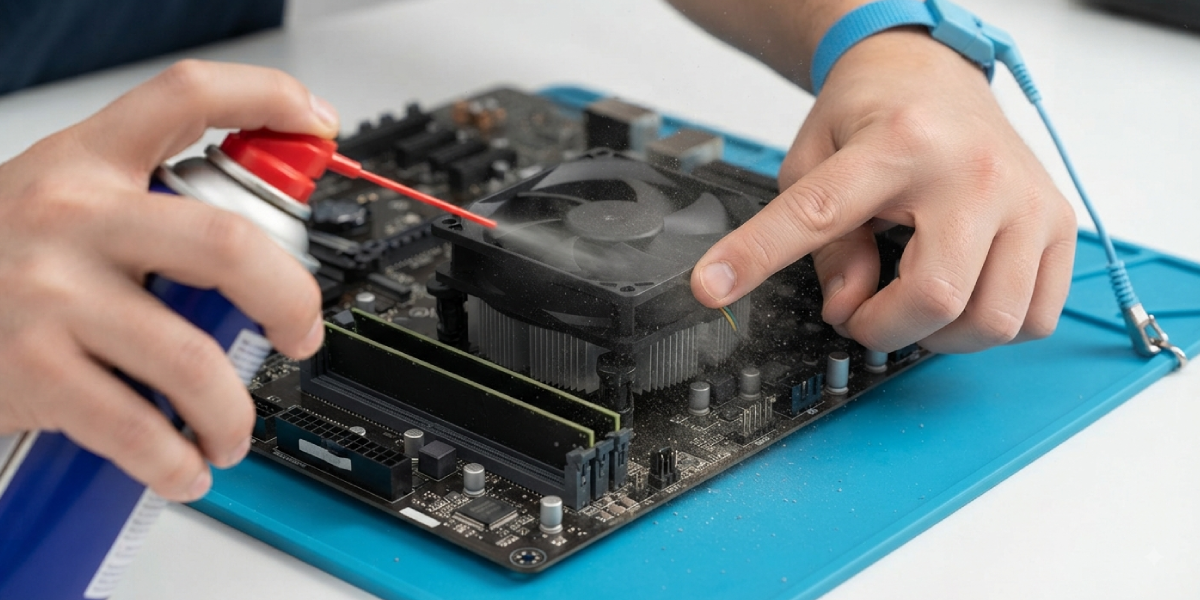
- Step 2: Hold the compressed air canister upright and use short, controlled bursts rather than one long spray. Holding it at an angle can release liquid propellant onto the board, which is exactly what needs to be avoided.
- Step 3: Direct air across the board at an angle, blowing dust out and away rather than deeper into connectors or slots. Pay close attention to the spaces around the CPU socket, RAM slots, and PCIe lanes, where dust tends to settle thickest.
- Step 4: Hold any fans steady with a finger while blowing air on them. Letting a fan spin freely from compressed air can generate a small electrical current that has the potential to damage the motherboard header it is connected to.
- Step 5: Use the soft anti-static brush to loosen stubborn dust clumps that air alone will not dislodge, especially around heatsink fins and capacitor clusters. Light, sweeping motions work better than pressing down.
- Step 6: Follow up with another round of compressed air to clear away the dust the brush just loosened.
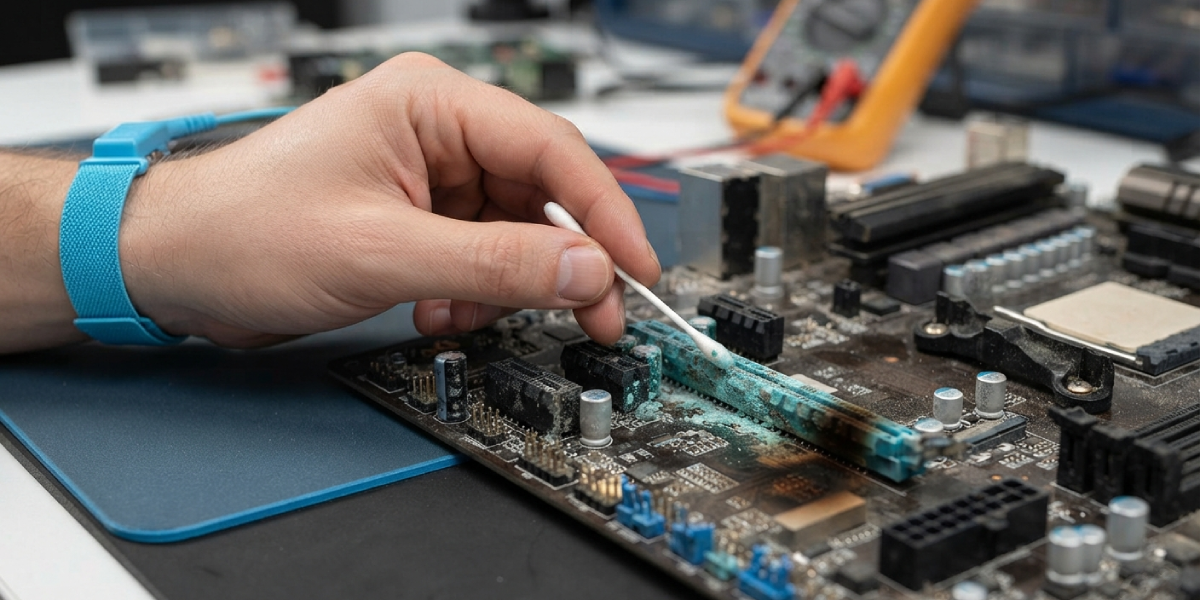
- Step 7: For any visible residue, grime, or sticky buildup near connectors or slot contacts, dip a cotton swab lightly in isopropyl alcohol and dab the spot gently. Avoid soaking the swab, and never let liquid pool anywhere on the board.
- Step 8: Let the board air dry for several minutes before reassembling anything. Alcohol evaporates quickly, but giving it time removes any risk of moisture reaching a connector while still damp.
- Step 9: Reinstall the motherboard or close the case, reconnect all cables, and power the system back on to confirm everything boots normally.
Tip: A soft, natural-bristle paintbrush works nearly as well as a dedicated anti-static brush in a pinch, as long as it is completely dry and free of loose bristles.
When to Stop and Call a Professional
Heavy corrosion, a burnt smell, visible liquid damage, or a board that will not boot after a routine cleaning are signs that go beyond basic dust removal. A qualified repair technician has the diagnostic tools to check for deeper issues that a home cleaning cannot fix. Opening a laptop or prebuilt desktop may also affect the manufacturer’s warranty, so checking that status first is worth the extra minute.
Common Problems and Fixes
- System will not power on after cleaning: This usually points to a cable that got knocked loose during the process. Reopen the case and check that every power connector, including the small front panel headers, is fully seated.
- Fans making a new noise after air cleaning: Spinning a fan too fast with compressed air can occasionally throw off its balance. Confirm the fan spins freely by hand, and replace it if the noise continues once the system is running.
- Visible dust still trapped in tight components: Heatsink fins and VRM areas often need a second, more focused pass with the brush and air combination, since a single pass rarely reaches every gap.
- White residue left behind near a cleaned spot: This is typically dried mineral content from alcohol that was not high enough proof. Switching to 90 percent or higher isopropyl alcohol prevents this from happening again.
- System feels warmer than before despite cleaning: Reseated components, such as a GPU or RAM stick that was bumped during the process, may not be fully seated. Recheck every connection point before assuming the cleaning caused the issue.
Frequently Asked Questions
How often should a motherboard be cleaned of dust?
Most desktop systems benefit from a dust cleaning every three to six months, though this varies based on the environment. A dusty room, pet hair, or a carpeted floor near the PC all speed up buildup and may call for more frequent attention.
Can a vacuum cleaner be used to clean motherboard dust?
Household vacuums are not recommended, since they can generate static electricity strong enough to damage sensitive components. Compressed air paired with a soft brush is the safer and more effective option.
Is it safe to clean a motherboard while it is still installed in the case?
Yes, in most cases the board can be cleaned in place as long as there is enough clearance to reach every surface with the brush and air canister. Removing large components like the GPU first often makes tight spots easier to access.
What happens if compressed air is used at the wrong angle?
Tilting a canister too far can cause liquid propellant to spray out instead of gas, which can leave a residue on the board. Keeping the can upright avoids this entirely.
Can isopropyl alcohol damage a motherboard?
Isopropyl alcohol at 90 percent or higher is safe when used sparingly and allowed to fully evaporate before power is restored. Lower concentrations contain more water, which increases the risk of residue and slower drying.
Why does dust buildup matter for motherboard performance?
Dust acts as an insulating layer that traps heat around chips and connectors, which can lead to higher operating temperatures over time. It also restricts airflow from case and CPU fans, making the whole cooling system work harder than it needs to.
Is it necessary to remove the CPU cooler when cleaning motherboard dust?
Not usually, unless dust has built up heavily underneath the cooler itself. A standard cleaning with air and a brush around the cooler’s edges is typically enough to keep it clear.
Can static electricity really damage a motherboard during cleaning?
Yes, and this is one of the most common ways a motherboard gets damaged during routine maintenance. Grounding with a wrist strap or by touching bare metal on the case before starting eliminates this risk.
What is the safest brush to use on a motherboard?
A soft, dry, anti-static brush is ideal, though a clean, dry natural-bristle paintbrush also works well. Stiff or synthetic bristles that generate static should be avoided.
Should thermal paste be reapplied after cleaning motherboard dust?
Not unless the CPU cooler was removed during the process. If the cooler stayed in place throughout the cleaning, the existing thermal paste does not need to be disturbed.
