
Outlook Sent Items not syncing between devices is a common headache when emails sent from a phone or a second computer never show up in the Sent folder elsewhere. This usually comes down to a mismatched account setup or a sync setting that got turned off somewhere along the way. The fix is quick once the right setting is located.
Key Takeaways
- Most Sent Items sync failures happen because the account is set up as POP instead of IMAP or Exchange.
- Outlook has a specific setting that saves sent mail to the server so every device can see it.
- Mobile apps and desktop Outlook need matching account types to stay in sync.
- Clearing the sync cache often resolves items that are stuck rather than missing entirely.
- A quick account re-add solves stubborn sync issues in most cases.
Fix Outlook Sent Items Not Syncing: Step-by-Step Guide
The steps below apply to Outlook on desktop, web, and mobile. Work through them in order, since later steps depend on earlier ones being ruled out first.
Check the Account Type First
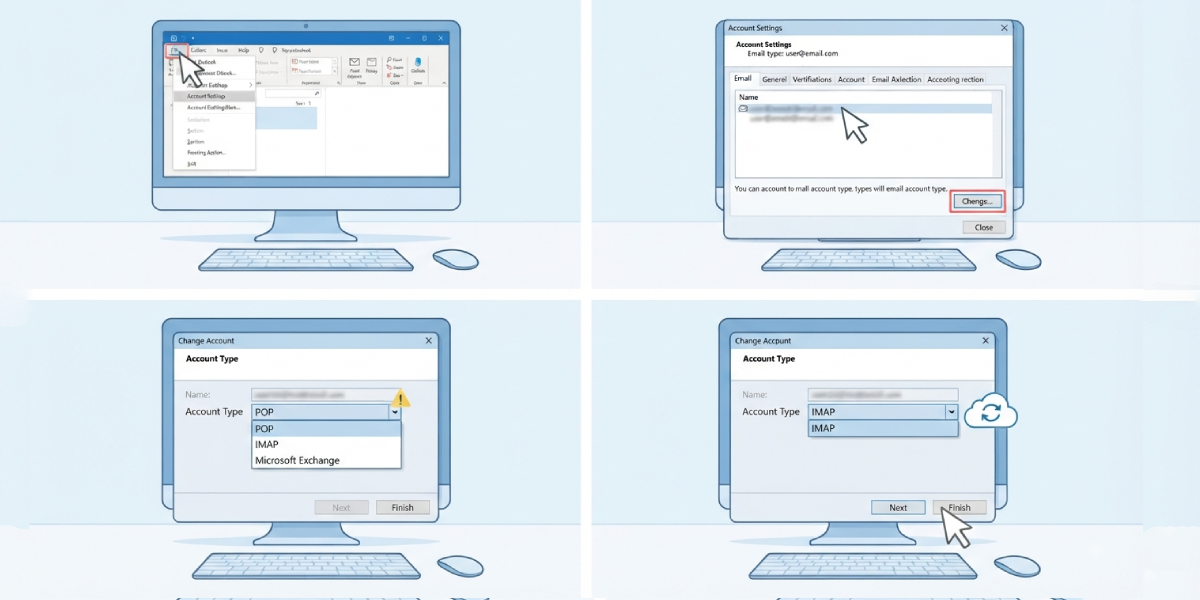
- Step 1: Open Outlook and go to File, then Account Settings, then Account Settings again.
- Step 2: Select the affected email account and click Change.
- Step 3: Look at the account type listed. POP accounts store sent mail locally on one device only, which is the root cause of most syncing complaints. IMAP and Exchange (including Microsoft 365) accounts store sent mail on the server, so it should appear everywhere.
- Step 4: If the account shows as POP, that explains the problem. Switching to IMAP requires removing and re-adding the account, which is covered further down.
Tip: Most personal Gmail, Outlook.com, and Yahoo accounts default to IMAP already, so if syncing suddenly stopped after working fine before, the account type is probably not the culprit and the setting below is worth checking next.
Turn On ‘Save Sent Items’ Syncing
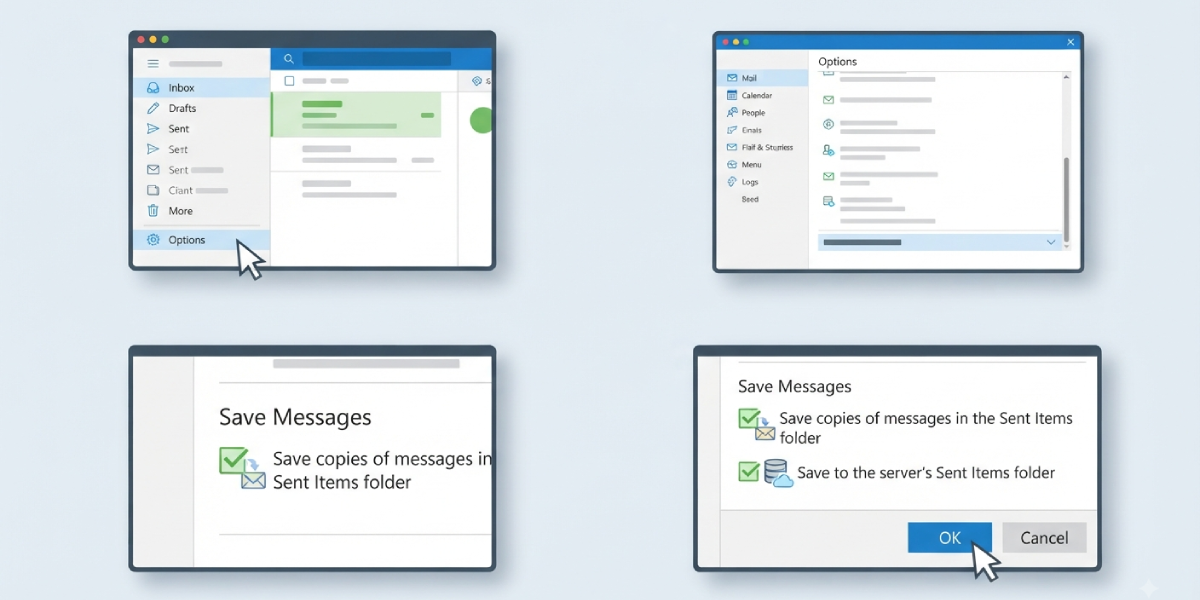
- Step 1: In Outlook desktop, click File, then Options.
- Step 2: Select Mail from the left-hand menu.
- Step 3: Scroll to the Save Messages section.
- Step 4: Confirm the box next to ‘Save copies of messages in the Sent Items folder’ is checked.
- Step 5: For IMAP accounts specifically, check the box for ‘Save to the server’s Sent Items folder’ if it appears. This is the exact setting that lets other devices pick up sent mail.
- Step 6: Click OK to save the changes.
Check the Same Setting on Mobile
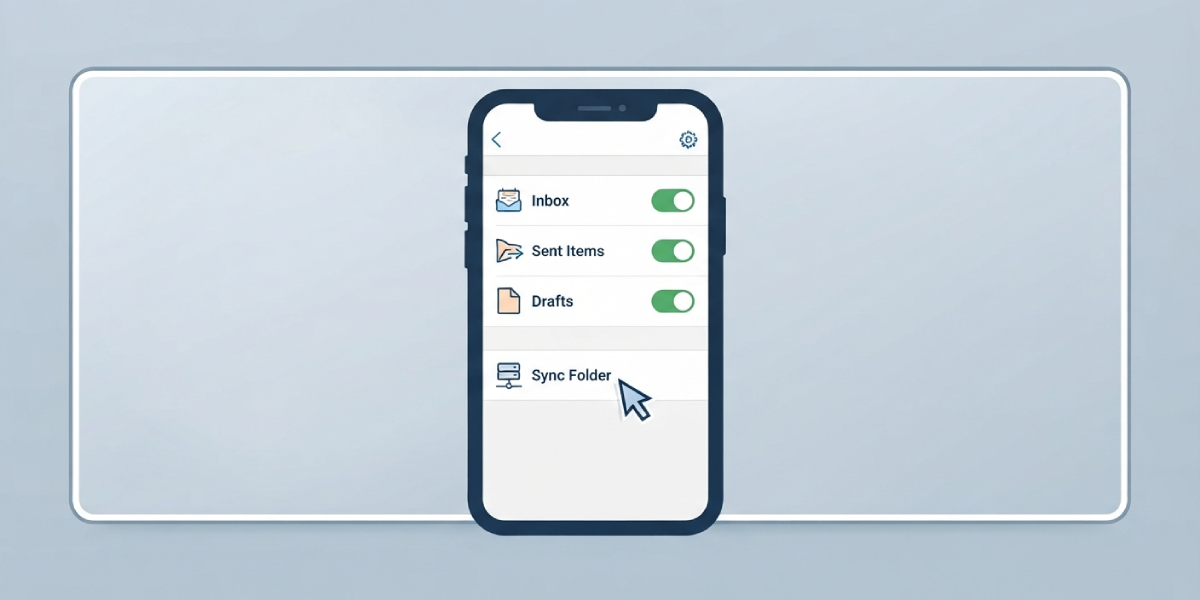
- Step 1: Open the Outlook mobile app and tap the account icon or menu.
- Step 2: Go to Settings, then select the account showing the issue.
- Step 3: Look for a sync setting labeled Mail Sync or Sync Options and confirm it is turned on for Sent Items, not just Inbox.
- Step 4: On iOS, some third-party or work accounts configured as Exchange ActiveSync handle Sent Items differently. If the toggle is missing, the fix usually means removing and re-adding the account with the correct server settings.
Force a Manual Sync
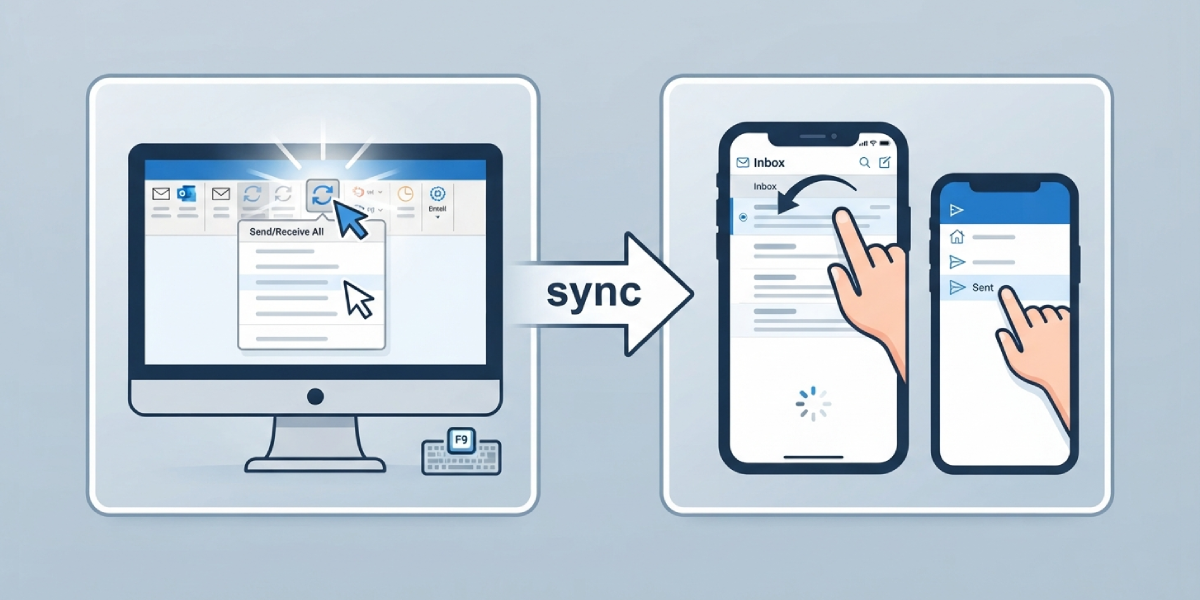
- Step 1: In Outlook desktop, click Send/Receive in the ribbon.
- Step 2: Select Send/Receive All Folders, or press the F9 key.
- Step 3: On mobile, pull down on the inbox list to trigger a refresh, then check the Sent folder specifically.
Tip: A sent email can take a minute or two to appear on other devices even when everything is configured correctly, so give it a short wait before assuming the sync failed.
Remove and Re-Add the Account
- Step 1: Go to File, then Account Settings, then Account Settings.
- Step 2: Select the account and click Remove. This does not delete any mail stored on the server.
- Step 3: Restart Outlook, then go to File, then Add Account.
- Step 4: Enter the email address and follow the prompts to let Outlook auto-detect the correct server type. For Microsoft 365 or Exchange accounts, this should connect automatically. For personal accounts, choose IMAP when prompted rather than POP.
- Step 5: Once added, send a short test email and check that it appears in Sent Items on the other device within a couple of minutes.
Common Problems and Fixes
- Sent items appear on desktop but not mobile: This typically means the mobile app’s sync setting for Sent Items is disabled, or the mobile account is configured differently than the desktop one. Re-check the sync toggle in the mobile app’s account settings.
- Emails sent from a shared mailbox or delegate account don’t sync: Shared mailboxes often need ‘Save Sent Items’ turned on separately from the main account. This is set under the delegate permissions in Outlook admin settings or the account owner’s Sent Items options.
- Sync worked before but stopped recently: An Outlook update or a password change can reset sync settings. Removing and re-adding the account usually resolves this cleanly.
- Duplicate Sent Items folders appear: This happens when an account was added more than once, often after switching from POP to IMAP without fully removing the old profile first. Delete the old, empty Sent Items folder from the account settings.
- Sent Items sync on Outlook.com but not desktop Outlook: This points to a caching issue in the desktop client. Clearing the Outlook cache (File, Account Settings, then repairing the account) forces it to re-download folder data from the server.
Frequently Asked Questions
Why do Sent Items not sync between devices in Outlook?
The most common reason is a POP account setup, which stores sent mail only on the device that sent it. IMAP and Exchange accounts store sent mail on the server so every connected device can see it.
Does switching from POP to IMAP delete old emails?
No, but the old POP account needs to be removed and re-added as IMAP, and previously downloaded messages that only existed locally will need to be manually moved or re-imported since they were never stored on the server.
How long should syncing take after sending an email?
Usually a minute or two. If a sent email still has not appeared elsewhere after five minutes, a manual sync or account restart is worth trying.
Is this setting different on Outlook for Mac?
The location is slightly different but the concept is the same. Outlook for Mac, go to Outlook menu, then Preferences, then Accounts, and confirm the account type is IMAP or Exchange rather than POP.
Why do Sent Items sync on the web but not in the desktop app?
This usually points to a local cache issue in the desktop client. Repairing the account through Account Settings refreshes the local folder data from the server.
Can a work or school account have different sync rules?
Yes, some Exchange administrators configure sync policies at the server level, including how Sent Items behave for shared or delegated mailboxes. Contacting an IT administrator is the fastest route if account-level settings look correct but syncing still fails.
Does this issue affect the Inbox too, or just Sent Items?
It can, but Sent Items are more commonly affected because the ‘save to server’ setting for outgoing mail is separate from the general sync settings that control incoming mail.
Will removing and re-adding the account cause data loss?
No. Removing an account in Outlook only removes the local connection profile. All mail stored on the server, including Sent Items on an IMAP or Exchange account, remains untouched and redownloads once the account is re-added.
Does this fix work the same way on Android and iPhone?
Yes, the Outlook mobile app uses the same sync settings menu on both platforms, though the exact wording of menu items can vary slightly between app versions.
