
When Outlook search indexing stuck at 0 items shows up in Indexing Status, search results stop returning anything useful, even for emails received minutes ago. This is a common Windows indexing glitch, not a sign of corrupted mail data. The fix below walks through resetting the index so Outlook can rebuild it from scratch.
Key Takeaways
- An index stuck at 0 items almost always means the Windows Search index needs to be rebuilt, not that mail is missing.
- Outlook must be set as an indexed location before a rebuild will do anything.
- A full rebuild can take anywhere from a few minutes to several hours depending on mailbox size.
- Restarting the Windows Search service often clears a stalled indexing process without a full rebuild.
- Large mailboxes and slow disks are the most common reasons indexing appears frozen at 0.
Step-by-Step Guide to Fixing Outlook Search Indexing Stuck at 0 Items
Check Indexing Status First
- Step 1: Open Outlook and run a search in any folder using the search bar at the top of the window.
- Step 2: Click the search bar, then look for the ‘Search Tools’ tab that appears in the ribbon.
- Step 3: Select ‘Search Tools’ and choose ‘Indexing Status’ from the dropdown menu. A small window will show either ‘Outlook has finished indexing all items’ or ‘Outlook is currently indexing’ followed by an item count of 0.

Confirm Outlook Data Files Are Included in the Index
- Step 4: Open the Windows Control Panel and select ‘Indexing Options.’
- Step 5: Click ‘Modify’ to view the list of indexed locations.
- Step 6: Scroll down and confirm ‘Microsoft Outlook’ is checked. If it is missing or unchecked, tick the box and click ‘OK.’
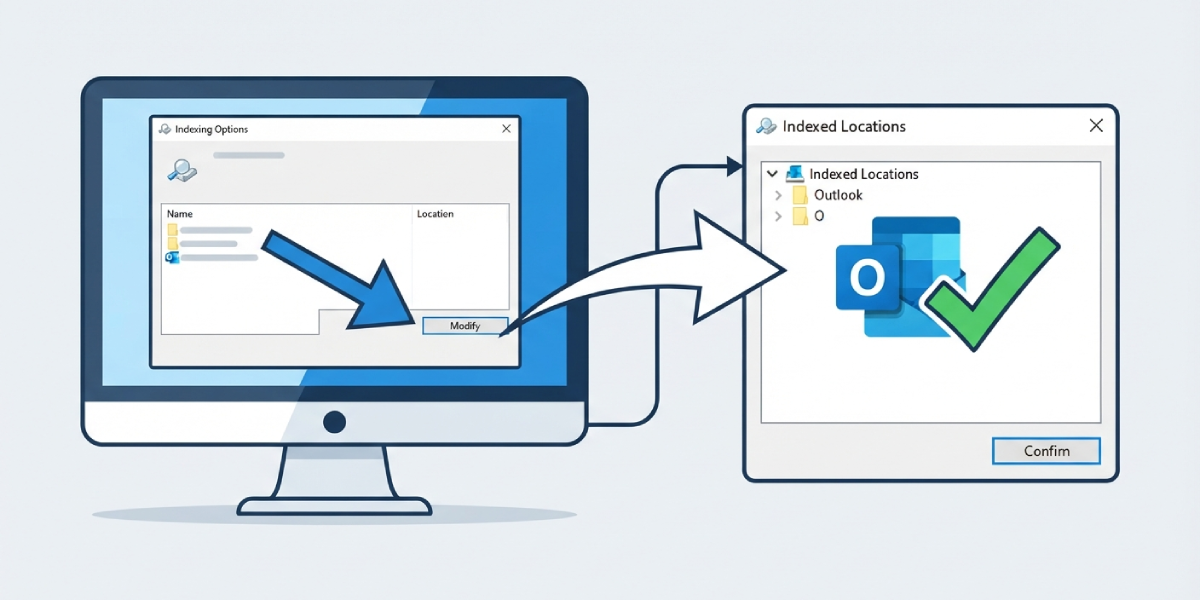
Tip: If Outlook is not listed under indexed locations at all, none of the steps below will fix the count. This checkbox is the single most overlooked cause of an index stuck at 0.
Rebuild the Search Index
- Step 7: Return to ‘Indexing Options’ in Control Panel.
- Step 8: Click ‘Advanced,’ then under the Index Settings tab, select ‘Rebuild.’
- Step 9: Confirm the rebuild when prompted. Windows will clear the existing index and start scanning Outlook items again from zero, which is normal and expected during this stage.
- Step 10: Close Control Panel and leave Outlook open and idle so indexing can run in the background without interruption.
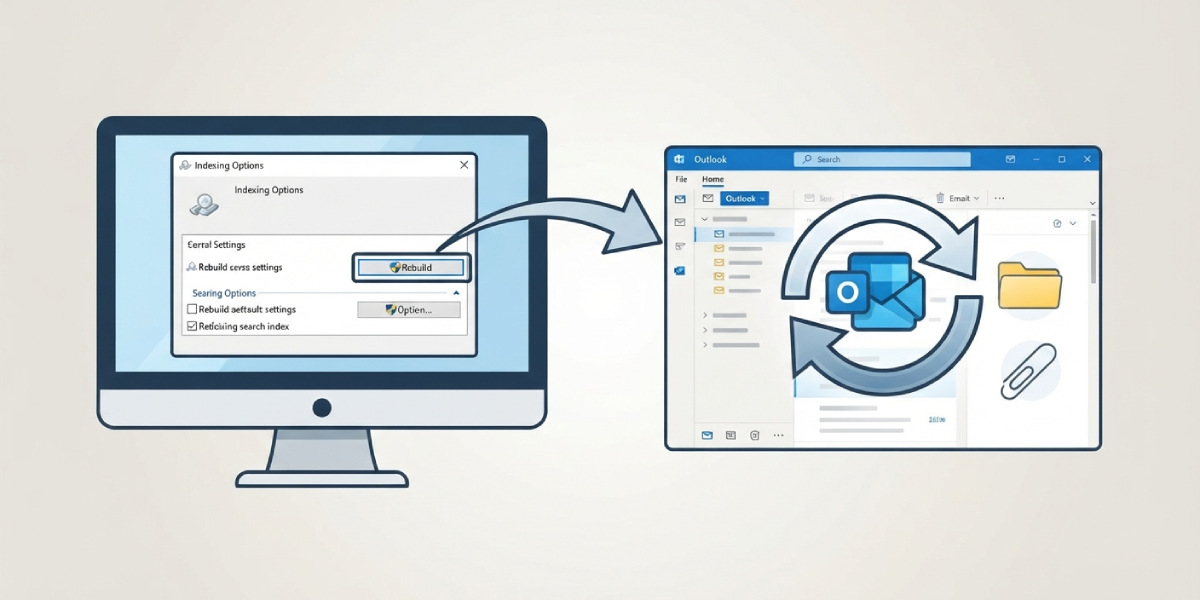
Tip: A large mailbox with several gigabytes of mail can take hours to fully re-index. Checking the item count once every 30 to 60 minutes gives a clearer picture of progress than watching it constantly.
Restart the Windows Search Service
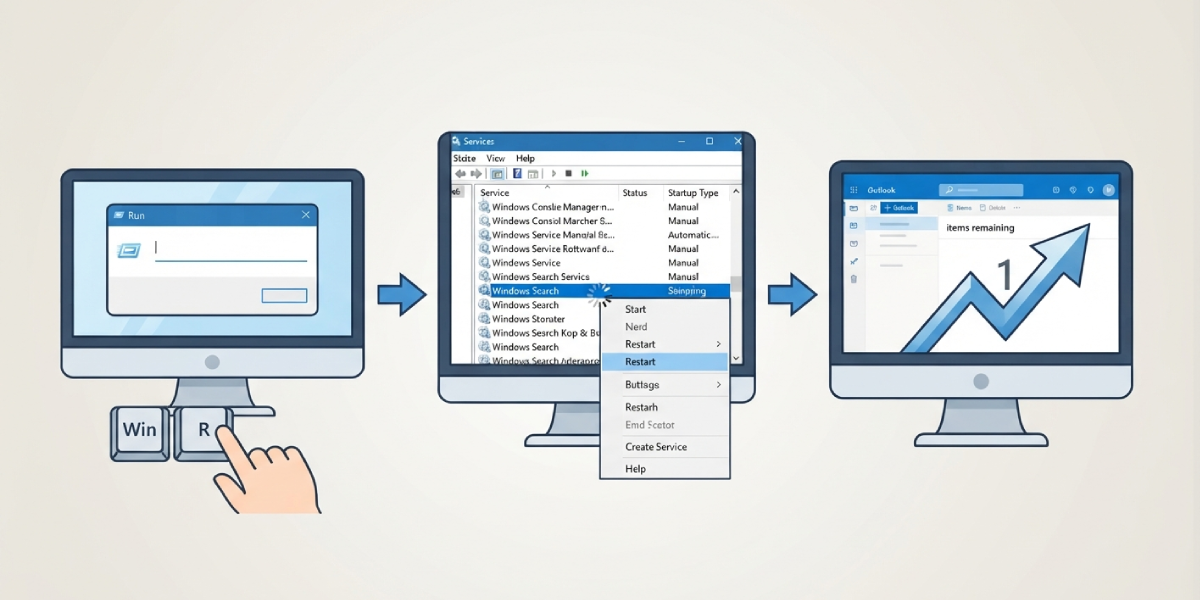
- Step 11: Press the Windows key and R together, type ‘services.msc,’ and press Enter.
- Step 12: Scroll to ‘Windows Search’ in the list, right-click it, and select ‘Restart.’
- Step 13: Reopen Outlook and check Indexing Status again to see whether the item count has started climbing.
Common Problems and Fixes
The Item Count Stays at 0 Even After a Rebuild
This usually points to Outlook not being enabled as an indexed location, or the .ost file being excluded from indexing by a group policy setting. Revisit the Indexing Options list and confirm the checkbox next to Microsoft Outlook is still ticked after the rebuild finishes.
Indexing Starts but Never Finishes
A stalled rebuild is often caused by a low-disk-space warning or an antivirus program scanning the .ost file at the same time as the indexer. Free up disk space and add the Outlook data file folder as an exclusion in the antivirus settings, then restart the Windows Search service.
Search Works in Some Folders but Not Others
This points to a partial index rather than a broken one. Running the rebuild again from Indexing Options usually resolves it, since a partial index can happen if the previous rebuild was interrupted by a shutdown or restart.
Outlook Is Missing From the Indexed Locations List Entirely
This happens most often on machines managed by a workplace IT policy. Adding Outlook back manually through ‘Modify’ in Indexing Options fixes it locally, though it may reset again if a policy overrides it on the next login.
Frequently Asked Questions
Why does Outlook search indexing get stuck at 0 items?
It typically happens when the Windows Search index becomes corrupted, Outlook is excluded from indexed locations, or a rebuild gets interrupted before it can complete.
How long should a full Outlook index rebuild take?
Small mailboxes under 1GB often finish within 15 to 30 minutes. Larger mailboxes with years of mail can take several hours, especially on older or slower hard drives.
Is it safe to rebuild the search index?
Yes. Rebuilding only affects the search index itself, not the actual email, contacts, or calendar data stored in the mailbox.
Will restarting Outlook speed up indexing?
Closing and reopening Outlook can sometimes nudge a stalled index forward, but restarting the Windows Search service is generally more effective for a count stuck at exactly 0.
Does closing Outlook pause the indexing process?
Indexing generally continues in the background as long as Windows Search is running, but progress is often faster and easier to monitor with Outlook left open.
What if the item count goes up but never reaches the full mailbox size?
This can indicate a corrupted item is blocking the indexer. Running the rebuild a second time, or checking for a recent Windows Search update, usually resolves it.
Can antivirus software cause the index to get stuck?
Yes. Real-time scanning of the .ost file can interfere with indexing. Adding an exclusion for the Outlook data folder in the antivirus settings often clears the issue.
Does this fix work for both Outlook desktop and the new Outlook app?
These steps apply to the classic Outlook desktop app, which relies on Windows Search. The new Outlook app uses cloud-based search and does not use this local indexing process.
Should the .ost file be deleted to fix a stuck index?
No. Deleting the .ost file is unnecessary for an indexing issue and can cause Outlook to redownload the entire mailbox from the server, which takes far longer than a standard rebuild.
