
Knowing how to clean a mouse sensor and feet properly can fix erratic cursor movement, skipping, and poor glide without spending a cent on a new mouse. Most tracking problems come down to dust, skin oil, or debris sitting where they should not be. A few minutes with the right tools usually restores smooth, accurate performance.
Key Takeaways
- Erratic cursor movement and choppy tracking are almost always caused by debris on the sensor lens, not a hardware failure.
- Isopropyl alcohol at 90 percent or higher, a dry microfiber cloth, and a soft brush handle nearly every cleaning job.
- Worn or dirty mouse feet cause dragging and uneven glide even when the sensor itself is spotless.
- Compressed air and cotton swabs reach tight spots around the sensor housing that a cloth cannot.
- Replacing badly worn feet often solves glide problems that cleaning alone cannot fix.
Before You Start
This is a low-risk task, but a little preparation avoids unnecessary trouble. Unplug a wired mouse or turn off and remove the battery from a wireless one before opening the shell or flipping it over for cleaning. Static discharge is rarely a concern with a mouse’s simple internals, but touching a bare metal surface first is a good habit if the room is dry or carpeted. Let the device sit at room temperature if it was just used for an extended session, since the plastic underside can hold a bit of warmth.
Tools and Materials Needed
- Isopropyl alcohol, 90 percent concentration or higher
- Lint-free or microfiber cloth
- Cotton swabs
- Soft-bristled brush, such as a clean makeup or electronics brush
- Compressed air canister
- Plastic pry tool or an old credit card, only if the shell needs opening
- Replacement mouse feet, if the originals are worn thin
Tip: Never use water, glass cleaner, or any solvent other than isopropyl alcohol near the sensor lens. Anything that leaves residue behind will only attract more dust.
How to Clean the Mouse Sensor
The sensor is the small lens on the underside of the mouse that reads the surface beneath it. Even a thin film of dust or oil across that lens can cause jittery movement, sudden jumps, or a cursor that stops responding entirely on certain surfaces.
- Step 1: Flip the mouse over and inspect the sensor lens under good lighting. Look for dust clumps, hair, or a greasy film.
- Step 2: Use compressed air in short bursts to blow loose debris out of the sensor housing. Hold the can upright to avoid spraying condensation onto the lens.
- Step 3: Dampen a cotton swab lightly with isopropyl alcohol. It should feel barely moist, not wet enough to drip.
- Step 4: Gently wipe the sensor lens in a single direction rather than scrubbing in circles, which can push debris into the edges instead of lifting it away.
- Step 5: Let the alcohol fully evaporate for a minute or two before using the mouse again. This step matters more than people expect, since any leftover moisture can distort a tracking reading.
- Step 6: Test tracking on a clean mouse pad or desk surface. Smooth, consistent cursor movement means the job is done.
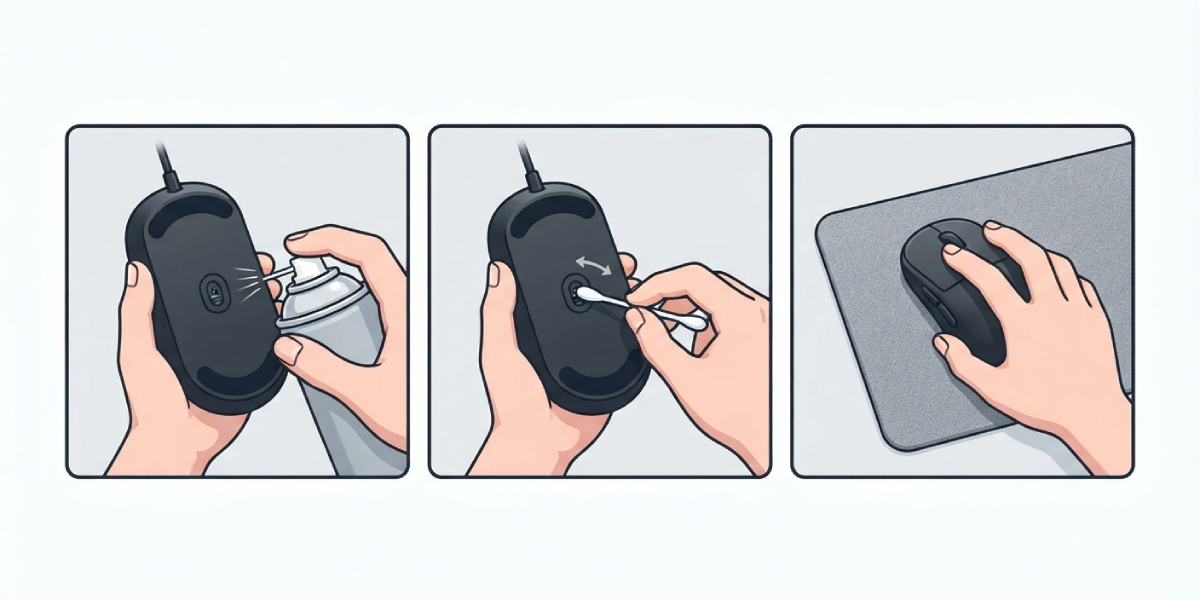
This works best when the mouse is cleaned on a flat, well-lit surface rather than balanced on a lap or a cluttered desk, since dropped debris is easy to lose track of otherwise.
How to Clean Mouse Feet
Mouse feet are the small plastic pads, usually PTFE or a similar low-friction material, mounted on the bottom of the shell. They are what actually glide across the mousepad or desk, and dirty or worn feet are one of the most overlooked causes of a mouse that feels sticky or drags unevenly.
- Step 1: Turn the mouse over and examine the feet for grime buildup, especially around the edges where dust tends to collect.
- Step 2: Wipe each foot with a microfiber cloth lightly dampened with isopropyl alcohol, pressing just enough to lift the grime without soaking the adhesive underneath.
- Step 3: Use a fingernail or a plastic pry tool to gently scrape off any hardened residue at the edges, working carefully to avoid gouging the plastic.
- Step 4: Wipe the desk or mousepad surface as well, since a clean mouse gliding over a dusty pad will pick the grime right back up.
- Step 5: Check the thickness and edges of the feet. Rounded or thin edges are a sign they are worn down and no longer gliding evenly.
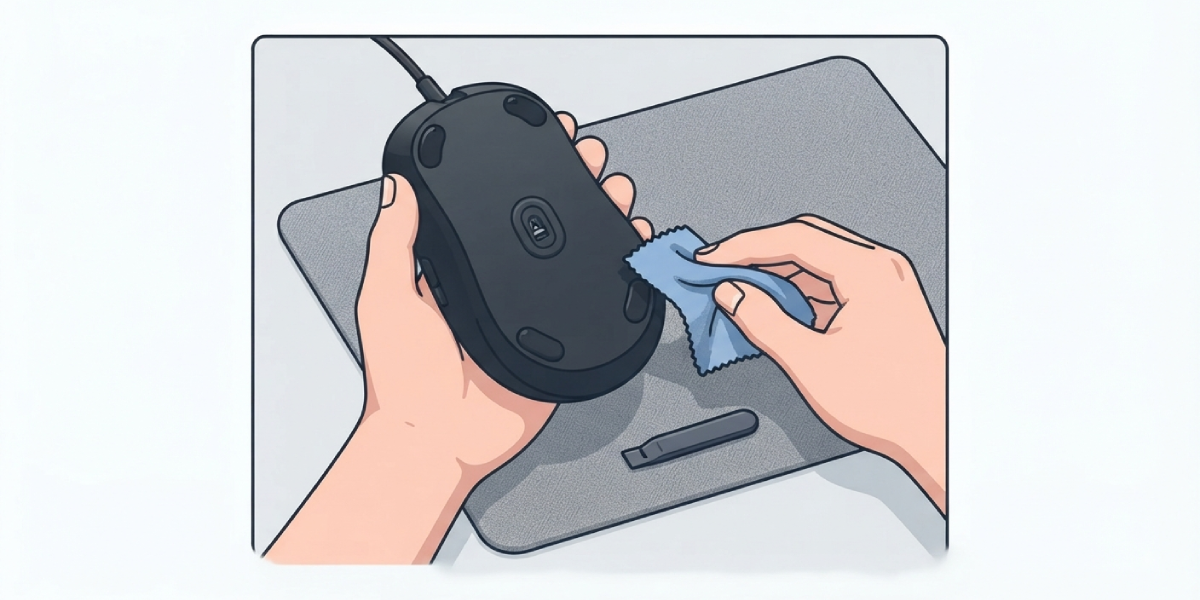
Tip: A mouse that suddenly feels heavier to push or catches slightly at certain angles is almost always telling a story about its feet, not its sensor.
Common Problems and Fixes
- Cursor still jumps after cleaning the sensor: Some residue may remain in the recessed housing around the lens. Use a dry cotton swab to remove any leftover alcohol streaks, and confirm the surface underneath the mouse is not glossy or overly reflective, since some sensors struggle on shiny surfaces regardless of cleanliness.
- Mouse drags or feels sticky even with clean feet: The feet themselves may be worn past the point cleaning can help. Replacement feet are inexpensive and typically peel-and-stick, and swapping them restores glide far better than repeated cleaning of thin, damaged pads.
- Tracking works on some surfaces but not others: This usually points to the mousepad rather than the mouse. Optical and laser sensors read certain textures and colors poorly, so testing on a plain, matte surface helps isolate whether the mouse or the pad is the actual issue.
- Alcohol leaves a faint haze on the sensor lens: This can happen if the alcohol concentration is too low or contains additives. Switching to a higher-purity isopropyl alcohol and wiping again with a dry microfiber cloth usually clears it.
- Feet peel up at the edges after cleaning: Excess alcohol can weaken the adhesive over time. Pressing the edges firmly back down and avoiding oversaturating the feet during future cleanings prevents this from recurring.
Frequently Asked Questions
How often should a mouse sensor and feet be cleaned?
Every one to three months for typical use is reasonable, though a dusty desk environment or heavy daily use may call for more frequent cleaning.
Can rubbing alcohol be used instead of isopropyl alcohol?
Standard rubbing alcohol often contains water and additives that can leave residue. Isopropyl alcohol at 90 percent or higher purity is the safer and more effective choice.
Is it safe to open the mouse shell to clean the sensor?
Most sensors are accessible without opening the shell, since the lens sits in a small housing on the underside. Opening the shell is rarely necessary and adds risk of disconnecting internal ribbon cables, so it is best avoided unless there is a specific reason to go further.
Why does the cursor still skip after a thorough cleaning?
This can point to a worn sensor, a damaged USB cable or wireless receiver, or interference from other wireless devices nearby. If cleaning does not resolve it, testing the mouse on a different computer helps confirm whether the issue is the mouse itself.
What causes mouse feet to wear out?
Regular friction against a mousepad or desk gradually thins the material, especially on rougher cloth pads. Heavy daily use can visibly wear down feet within a year or so.
Can compressed air alone clean the sensor properly?
Compressed air removes loose dust and debris well, but it cannot lift oily residue or fingerprints from the lens. A light alcohol wipe is usually needed for a full clean.
Do wireless mice need any extra care when cleaning?
Removing the battery or turning off the power switch before cleaning is the main extra step, since it prevents accidental input and conserves battery life during the process.
How can worn mouse feet be identified without close inspection?
A mouse that feels heavier to push, catches slightly during fast movements, or glides unevenly across a consistent surface is a strong sign the feet have thinned or rounded at the edges.
Are replacement mouse feet universal?
Replacement feet come in various shapes and thicknesses, so matching the shape to the original feet, or checking sizing options from the mouse manufacturer, gives the best fit and glide.
Can cleaning the sensor damage it?
Using isopropyl alcohol sparingly and wiping gently poses very little risk. Damage typically only occurs from using harsh solvents, excessive moisture, or scrubbing hard enough to scratch the lens.
