
Learning how to add case fans to a desktop PC is one of the simplest upgrades for lowering internal temperatures and quieting a noisy system. With a screwdriver, the right fan size, and about twenty minutes, most builds can go from stuffy to well-ventilated without touching the CPU cooler or graphics card.
Key Takeaways
- Case fans move heat out of the case, working alongside the CPU cooler rather than replacing it.
- Airflow direction matters more than fan count – intake low and front, exhaust high and rear.
- Most fans mount with four screws and connect through a 3-pin or 4-pin header on the motherboard or a fan hub.
- Balancing intake and exhaust prevents pressure imbalances that pull in dust or trap heat.
- A basic two-fan setup (one intake, one exhaust) is often enough for noticeable temperature drops.
Before You Start
Power down the PC completely and unplug it from the wall outlet. Press the power button once after unplugging to release any residual charge in the system. Touch a bare metal part of the case or use an anti-static wrist strap before handling any internal components, since static discharge can damage sensitive hardware. Let the system sit for a few minutes if it was just running, since heatsinks and fans near the CPU can still be warm.
Tools and Materials Needed
- Phillips-head screwdriver (magnetic tip helps in tight spaces)
- New case fan or fans, sized to fit the case’s mounting points (commonly 120mm or 140mm)
- Fan screws (usually included with the fan)
- Zip ties or velcro straps for cable management
- A fan hub or motherboard with enough fan headers, if adding more than one or two fans
Opening a case to add fans typically does not void a PC’s warranty, since it is considered standard maintenance, but it is worth checking the manufacturer’s policy on prebuilt systems before starting. Anyone uncomfortable working around a graphics card or near the motherboard should have a local shop handle the install instead.
How to Add Case Fans to a Desktop PC: Step-by-Step
Method 1: Plan Fan Placement and Airflow Direction
- Step 1: Decide where fans are going before opening anything. Most cases support fans at the front (intake), top (exhaust), rear (exhaust), and sometimes the bottom (intake). A simple front-to-back or front-and-bottom-to-top airflow path works well for most builds.
- Step 2: Check the arrows printed on the side of the fan’s frame. One arrow shows the direction of airflow, the other shows blade rotation. This makes it easy to confirm intake versus exhaust orientation before mounting.
- Step 3: Open the side panel of the case by removing the thumbscrews or sliding latch, depending on the case design.
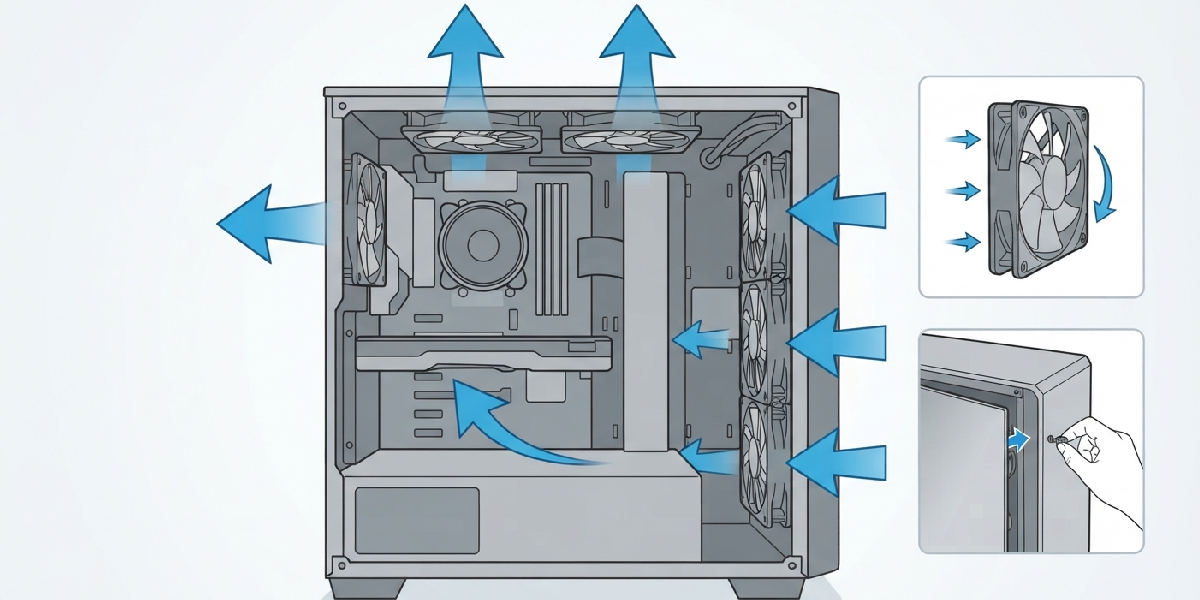
Tip: Aim for slightly positive air pressure by having a bit more intake than exhaust. This helps the case pull in air through filtered openings rather than unfiltered gaps, which cuts down on dust buildup over time.
Method 2: Mount the Fan
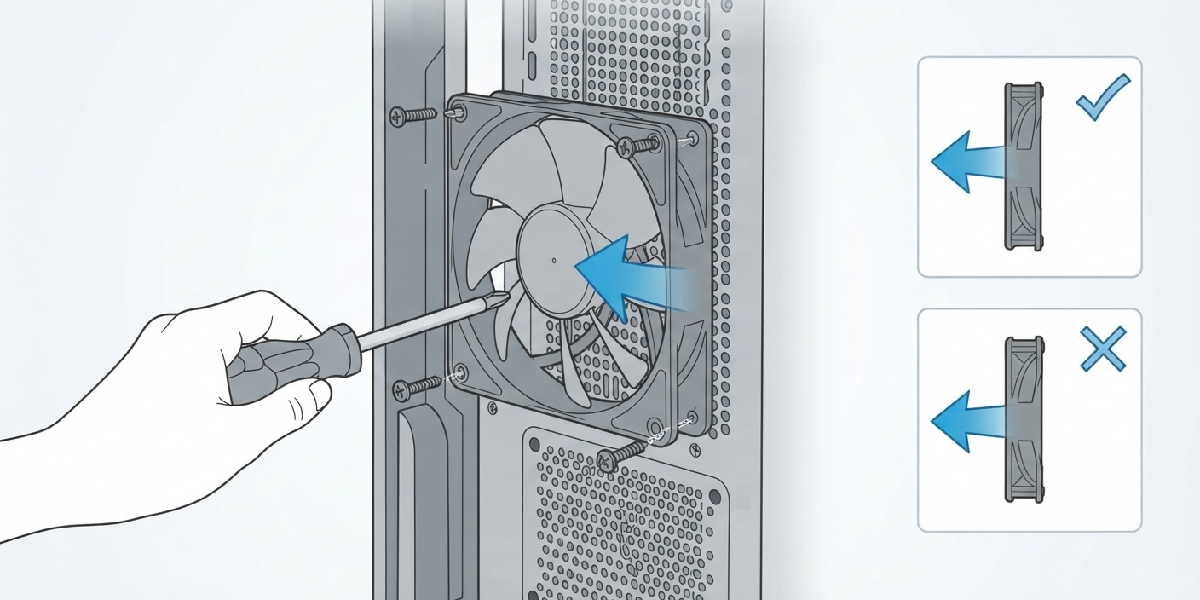
- Step 4: Line up the fan with the mounting holes on the case, making sure the airflow direction faces the correct way (blowing into the case for intake, out of the case for exhaust).
- Step 5: Insert the screws through the case frame into the fan’s corner holes and tighten them evenly, alternating corners so the fan sits flush without warping.
- Step 6: Avoid overtightening. The screws only need to be snug enough to stop vibration, not fully torqued down.
Method 3: Connect the Fan Cable
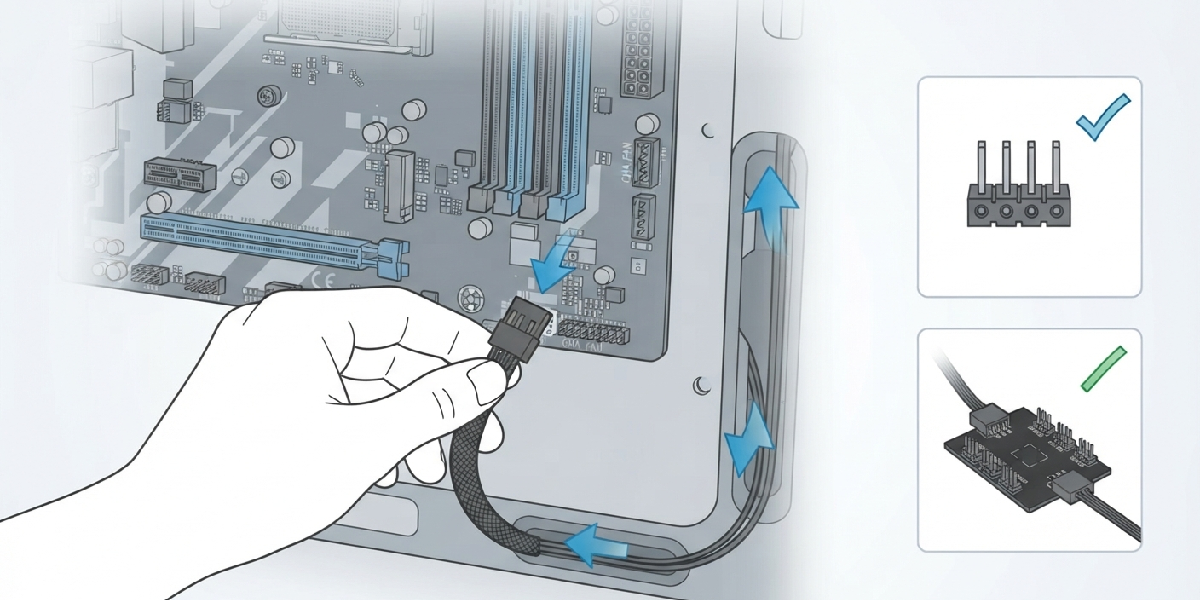
- Step 7: Locate an open fan header on the motherboard, usually labeled ‘SYS_FAN’ or ‘CHA_FAN’. If every header is already in use, connect the new fan to a fan hub or a splitter cable instead.
- Step 8: Plug the fan’s connector into the header, matching the notch on the connector to the pin layout so it seats in the correct orientation.
- Step 9: Route the cable along the back of the case or through a cable management channel, keeping it clear of any spinning fan blades.
Method 4: Secure Cables and Close the Case
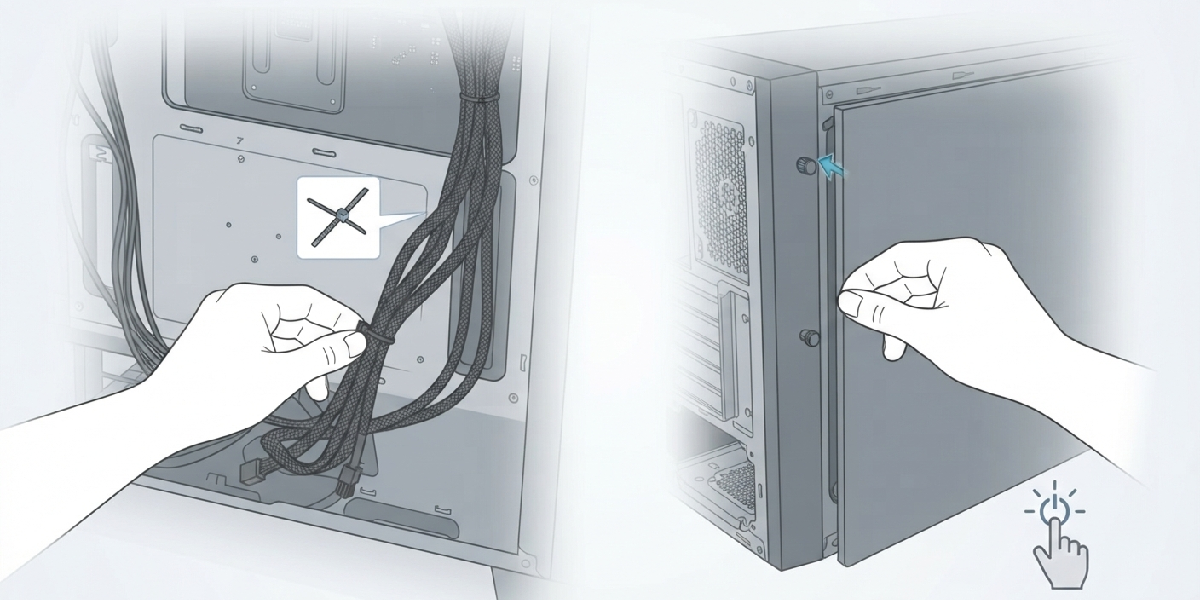
- Step 10: Use zip ties or velcro straps to bundle loose cables, keeping them away from moving parts and out of the main airflow path.
- Step 11: Reattach the side panel and power the system back on.
Method 5: Confirm the Fan Is Working Correctly
- Step 12: Watch the fan through the side panel or a case window during the first boot to confirm it spins and pushes air in the intended direction.
- Step 13: Open the motherboard’s BIOS or UEFI fan control screen, or a monitoring tool in the operating system, to verify the fan shows up and reports an RPM reading.
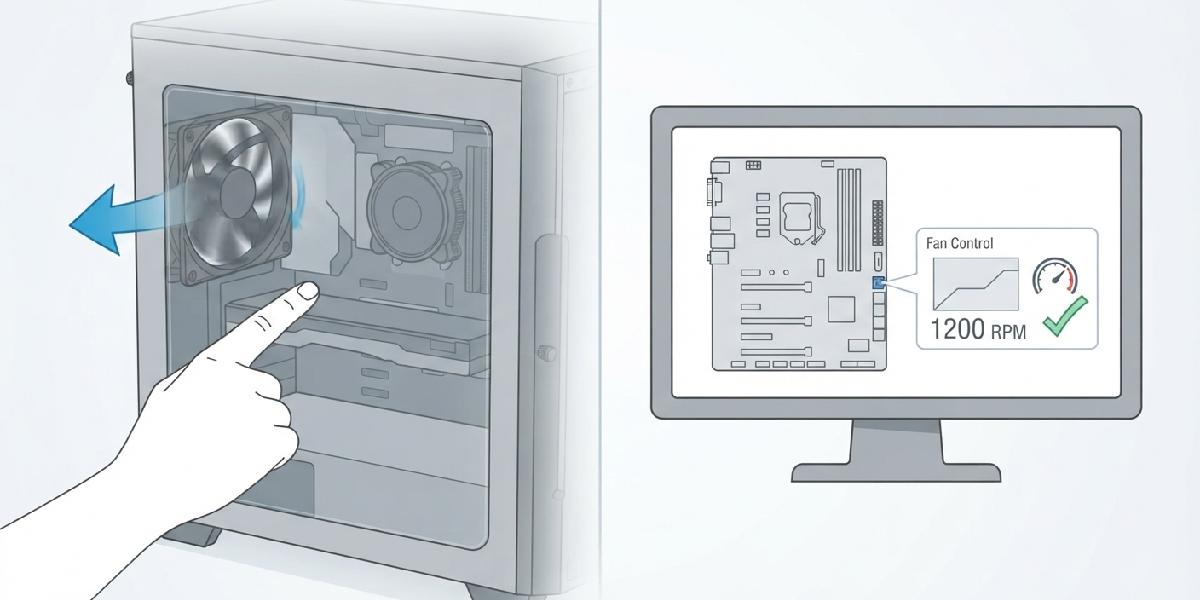
Tip: Run the system under a normal workload for a day or two after installing new fans, then check temperatures again. This gives a realistic before-and-after comparison instead of judging results from idle readings alone.
Common Problems and Fixes
- Fan does not spin at all: Recheck the cable connection at both the fan and the header. A loose or backward connector is the most common cause, and reseating it usually solves the issue.
- Fan spins but is not detected in BIOS: Confirm it is plugged into a fan header rather than a direct power connector such as a SATA or Molex adapter, since those do not report RPM to the motherboard.
- New fan is louder than expected: Check that no cables are touching the blades and that all mounting screws are snug. A slightly crooked mount can cause a faint rattling or buzzing sound.
- Temperatures did not improve: Recheck airflow direction on every fan in the case. Two fans facing the same way instead of forming an intake-to-exhaust path can cancel out much of the benefit.
- Not enough fan headers on the motherboard: Add a fan hub or splitter cable rather than daisy-chaining too many fans off one header, which can draw more current than the header is rated for.
Frequently Asked Questions
How many case fans does a typical PC need?
Two fans, one intake and one exhaust, are enough for most builds to see a real improvement in airflow and temperatures. Larger cases or systems with higher-wattage components often benefit from three or four fans total.
What size case fan should be used?
Case fan size depends on the mounting points built into the case, most commonly 120mm or 140mm. Checking the case manual or measuring the existing mounting holes confirms which size fits.
Can case fans be added without a spare motherboard fan header?
Yes. A fan hub or a fan splitter cable allows multiple fans to run from a single motherboard header, as long as the combined power draw stays within that header’s rated limit.
Does it matter which way the fan faces?
Yes, direction matters a great deal. A fan facing the wrong way can work against the rest of the case’s airflow, pushing warm air back in instead of helping move it out.
Should fans be set to intake or exhaust?
Front and bottom positions typically work best as intake, pulling cooler air in, while top and rear positions typically work best as exhaust, letting warm air escape upward and out the back.
Do more case fans always mean better cooling?
Not necessarily. Beyond a certain point, additional fans add noise without meaningfully lowering temperatures. Proper airflow direction and balanced pressure matter more than raw fan count.
Can PWM and DC fans be mixed in the same case?
Yes, PWM and DC (voltage-controlled) fans can be mixed, though PWM fans generally allow finer speed control through the motherboard or BIOS. Fan hubs often support both types, but it is worth checking a hub’s specifications first.
Why is the new fan spinning slower than expected?
Many motherboards ship with conservative default fan curves. Checking the BIOS or UEFI fan control section allows manual adjustment of the speed curve tied to that specific header.
Is thermal paste needed when installing a case fan?
No. Thermal paste is only relevant for components that sit directly against the CPU or GPU, such as a cooler’s baseplate. Case fans mount to the chassis and do not touch heat-generating components directly.
How often should case fans be cleaned once installed?
Wiping down fan blades and dusting intake filters every few months helps maintain steady airflow, especially in dusty environments or homes with pets.
