
An Outlook search box greyed out can stop work cold, especially when a client email needs to be found in seconds. This guide walks through the exact fixes that restore search function, starting with the simplest checks and moving to deeper repairs.
Key Takeaways
- The Outlook search box greyed out issue is usually caused by indexing problems, a stuck add-in, or a corrupted profile.
- Rebuilding the Windows Search index resolves the majority of cases.
- Repairing the Office installation fixes deeper software conflicts.
- Disabling faulty add-ins often restores the search bar instantly.
- Creating a new Outlook profile is the last resort but works when nothing else does.
How to Fix the Outlook Search Box Greyed Out Issue
Work through these steps in order. Most people find the problem clears up in the first two or three steps, so there is no need to jump straight to reinstalling anything.
Step-by-Step Guide
- Step 1: Close Outlook completely, including any background processes. Open Task Manager, check the Processes tab, and end any task labeled Outlook if it is still running.
- Step 2: Restart the computer. This clears temporary glitches that sometimes lock the search bar without any obvious cause.
- Step 3: Reopen Outlook and click into the search box at the top of the window. If it is still greyed out, move to the next step rather than clicking repeatedly.
- Step 4: Open Windows Search settings by typing ‘Indexing Options’ into the Windows search bar and selecting the result.
- Step 5: In the Indexing Options window, click ‘Modify’ and confirm that Microsoft Outlook is checked under the list of included locations. If it is missing, add it back and click OK.
- Step 6: Click ‘Advanced,’ then select ‘Rebuild’ under the Troubleshooting section. This forces Windows to rebuild the entire search index from scratch.
- Step 7: Wait for the rebuild to finish. Depending on mailbox size, this can take anywhere from a few minutes to a few hours running in the background.
- Step 8: Reopen Outlook once the rebuild completes and test the search box again.
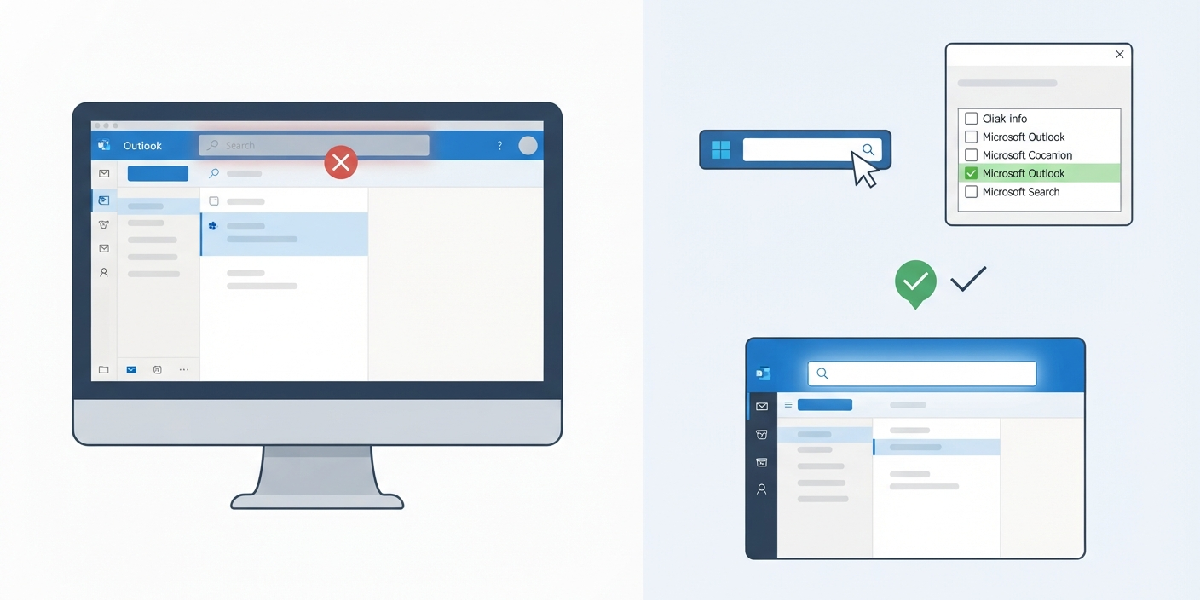
Tip: Indexing status can be checked anytime by going to File, then Options, then Search, and clicking ‘Indexing Options’ from inside Outlook itself. This shows exactly how many items are left to index.
If the Search Box Is Still Greyed Out
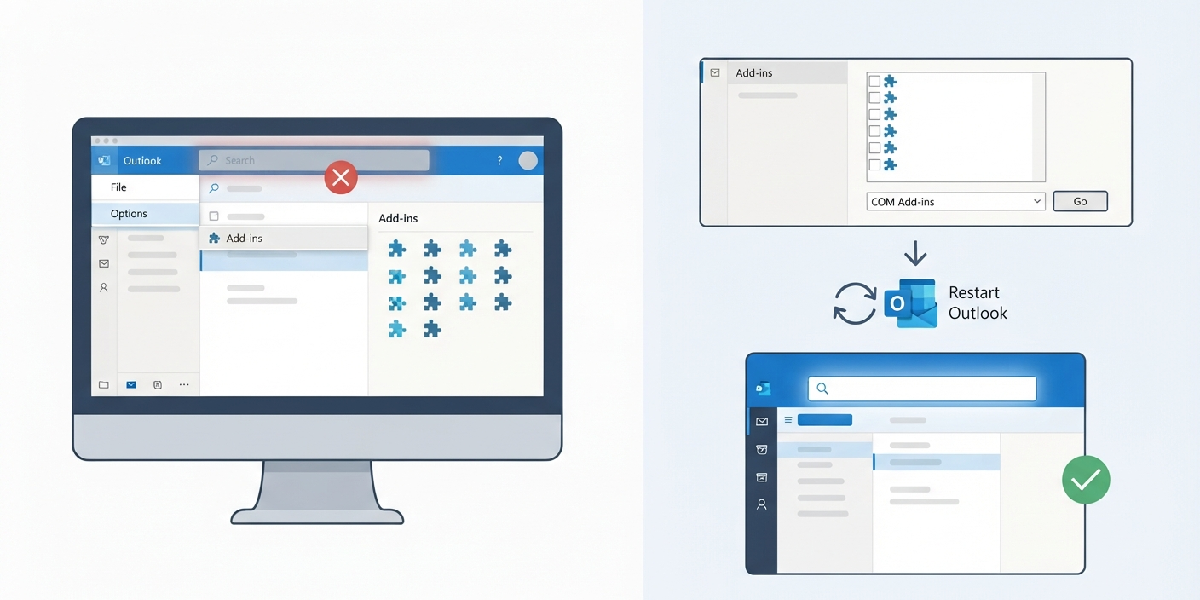
- Step 9: Go to File, then Options, then Add-ins inside Outlook.
- Step 10: At the bottom of the window, next to ‘Manage,’ select ‘COM Add-ins’ and click ‘Go.’
- Step 11: Uncheck all listed add-ins and click OK. Restart Outlook and check the search box.
- Step 12: If search works with add-ins disabled, re-enable them one at a time, restarting Outlook after each, to identify which add-in is the culprit.
Repairing the Office Installation
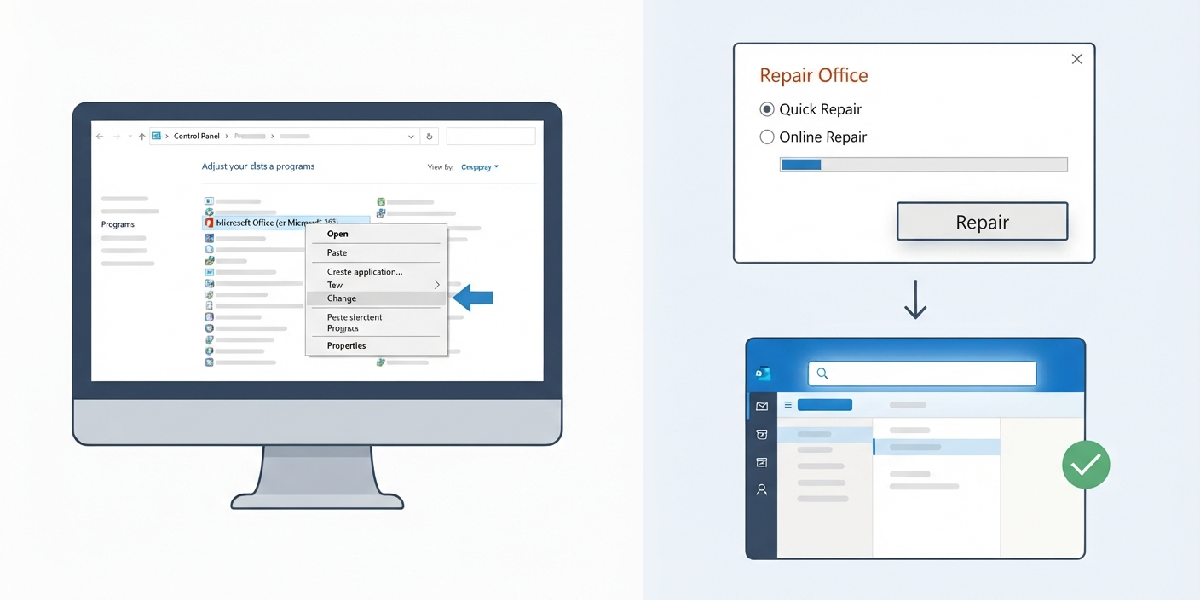
- Step 13: Close Outlook, open Control Panel, and select ‘Programs and Features.’
- Step 14: Find Microsoft Office (or Microsoft 365) in the list, right-click it, and choose ‘Change.’
- Step 15: Select ‘Quick Repair’ first and click ‘Repair.’ This is faster and fixes most corruption issues without removing settings.
- Step 16: If the search box is still greyed out afterward, repeat the process and choose ‘Online Repair’ instead, which reinstalls Office components more thoroughly.
Tip: A Quick Repair rarely requires reentering login credentials, but an Online Repair sometimes does, so have the Microsoft account password ready before starting.
Creating a New Outlook Profile
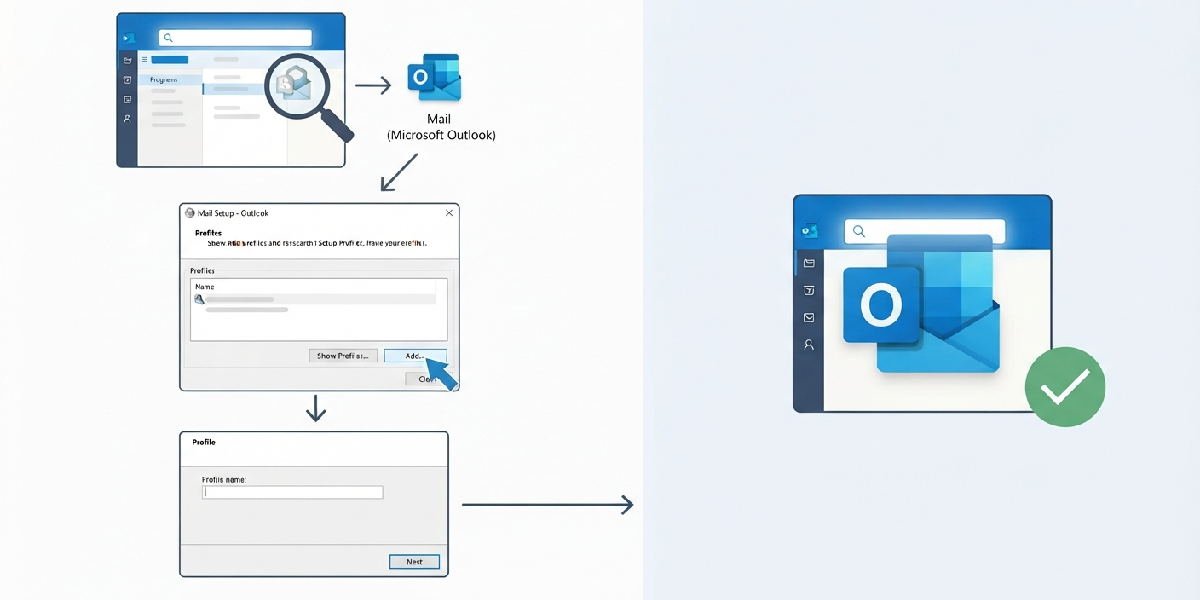
- Step 17: Close Outlook, then open Control Panel and search for ‘Mail (Microsoft Outlook).’
- Step 18: Click ‘Show Profiles,’ then ‘Add’ to create a new profile and follow the prompts to reconnect the email account.
- Step 19: Under ‘When starting Microsoft Outlook, use this profile,’ select the new profile and click OK.
- Step 20: Open Outlook with the new profile and confirm the search box is active again.
Common Problems and Fixes
- Search box appears but typing does nothing: This usually points to an incomplete index rebuild. Let the rebuild finish fully before testing again.
- Search box greys out only in certain folders: Shared mailboxes and PST files sometimes fall outside the default index scope. Add them manually in Indexing Options.
- Search box works after restart but locks up again later: A background add-in is likely reactivating. Recheck the Add-ins list and disable the add-in permanently rather than just for one session.
- Rebuild option is missing or greyed out in Indexing Options: Administrator rights are required. Right-click Outlook or Control Panel and choose ‘Run as administrator.’
- Search box still greyed out after Online Repair: A corrupted profile is the likely cause at this point, so move directly to creating a new Outlook profile.
Frequently Asked Questions
Why does the Outlook search box turn grey in the first place?
It typically happens when Windows Search indexing stalls, an add-in conflicts with the search function, or the Outlook profile has become corrupted.
Is it safe to rebuild the Windows Search index?
Yes. Rebuilding only recreates the index used for search results; it does not delete or alter any emails, folders, or files.
How long does an index rebuild take?
It depends on mailbox size. Smaller mailboxes finish in minutes, while large mailboxes with years of email can take a few hours running in the background.
Can this issue happen on both Outlook desktop and Outlook for Microsoft 365?
Yes, the same greyed-out search box issue and the same fixes apply to both versions since they share the same underlying search and indexing engine.
Will a Quick Repair delete any emails or settings?
No. Quick Repair only fixes corrupted Office files and does not remove emails, accounts, or custom settings.
What if Outlook search still does not work after all these steps?
Creating a new Outlook profile resolves nearly every remaining case, since it rules out a corrupted profile as the cause.
Does closing background Outlook processes really make a difference?
Yes. A lingering background process can hold the search bar in a locked, greyed-out state even after the main window is closed.
How can add-ins be identified as the cause of the problem?
Disable all add-ins at once, confirm search works, then re-enable them one at a time with a restart in between to spot the exact one causing the conflict.
Is administrator access needed to fix this issue?
Administrator rights are needed for rebuilding the search index and for running Office repair, so it helps to have that access ready before starting.
