
A CPU fan not spinning is one of the fastest ways to send a computer into overheating shutdowns, and it needs attention right away. This guide walks through the real causes, in the order most likely to apply, and the exact fixes for each one.
Key Takeaways
- A stuck or unplugged fan connector is the most common reason a CPU fan stops spinning, and it takes seconds to check.
- Dust buildup and dried-out bearing lubricant cause a large share of fan failures over time.
- BIOS fan control settings or a faulty fan header can stop a perfectly healthy fan from spinning.
- A fan that will not spin even when tested on another header or with power applied directly usually needs replacing.
- Running a system for more than a minute or two with a dead CPU fan risks permanent damage to the processor.
Before You Start
Power the computer down completely and unplug it from the wall outlet before touching anything inside the case. On a laptop, shut down, unplug the charger, and remove the battery if it is user-removable. Let the system sit for a few minutes if it was just running so the heatsink and fan have time to cool. Touch a bare metal part of the case, or use an anti-static wrist strap, to discharge static before handling any internal components.
Tools and materials that help with this job include a small Phillips screwdriver, compressed air, a soft-bristle brush, a pair of tweezers, and fresh thermal paste in case the heatsink needs to come off. Opening a desktop case is usually low risk, but opening a laptop chassis can affect its warranty, so check the warranty terms first if the machine is still covered.
Common Causes of a CPU Fan Not Spinning
Most of the time, a CPU fan not spinning comes down to one of a handful of familiar culprits. A cable can work loose during shipping or a previous upgrade. Dust and pet hair can pack into the fan hub until the blades physically cannot turn. The bearing inside the fan motor can dry out or wear down after years of use, especially in a system that runs hot often. The motherboard’s fan header can fail, or a BIOS setting can be telling a perfectly good fan to stay off until temperatures climb. Rarely, the fan’s control circuitry itself simply dies.
Step-by-Step Fixes
Check the Physical Connection First
- Step 1: Open the case or laptop access panel and locate the CPU fan cable where it plugs into the motherboard, usually labeled ‘CPU_FAN’ near the processor socket.
- Step 2: Unplug the connector, inspect the pins for bent or corroded contacts, and plug it back in firmly until it clicks or seats flush.
- Step 3: Spin the fan blades gently by hand with the system off to confirm nothing is physically jamming them, such as a stray cable or a zip tie.
- Step 4: Power the system on and watch the fan closely for the first few seconds after boot.
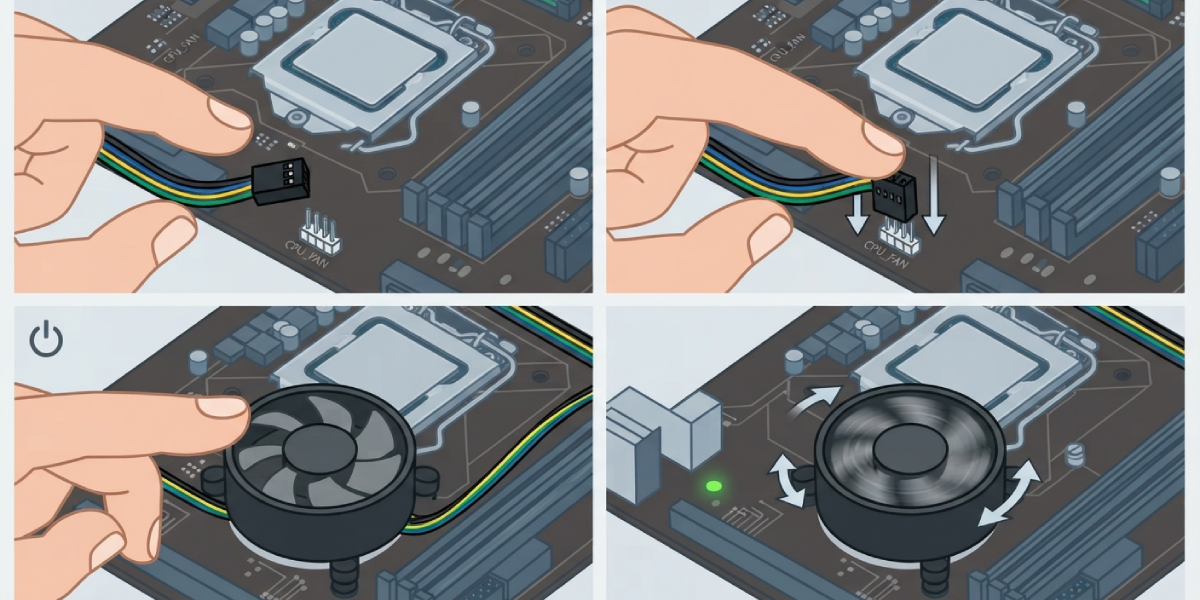
Tip: If the fan spins briefly at startup and then stops, that points toward a BIOS or software fan curve issue rather than a hardware fault.
Clean Out Dust and Debris
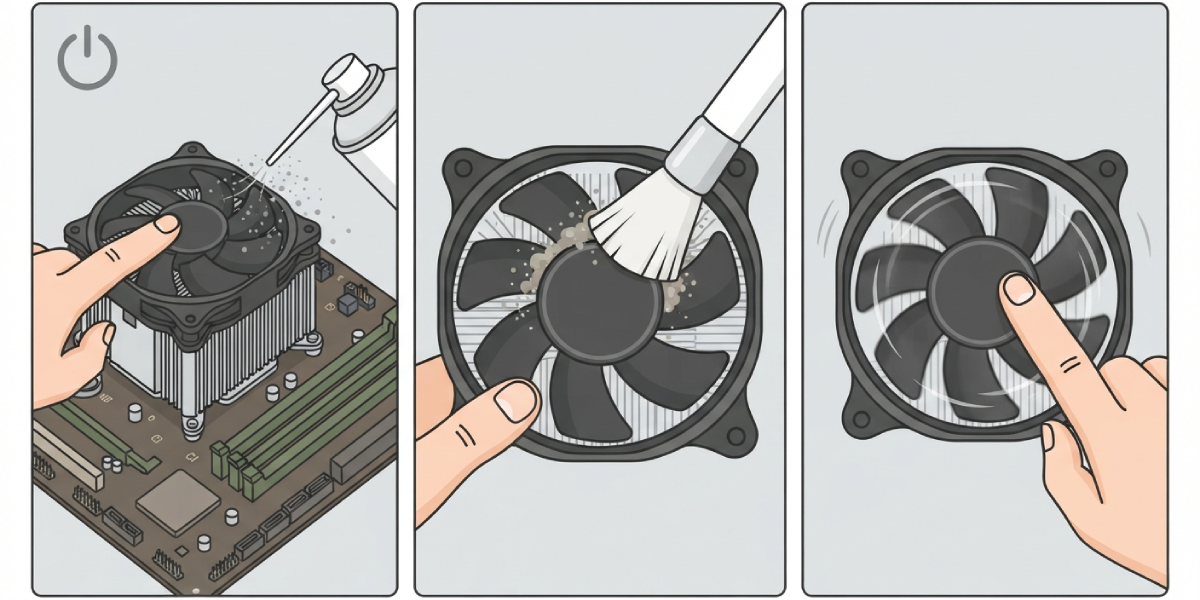
- Step 1: With the system powered off and unplugged, use compressed air in short bursts to blow dust out of the fan and heatsink fins, holding the fan blades still with a finger to prevent them spinning too fast and generating unwanted voltage.
- Step 2: Use a soft brush to loosen packed-in dust around the fan hub and blade edges that the air alone does not clear.
- Step 3: Check whether the fan spins freely by hand once the debris is gone.
Test the Fan on a Different Header
- Step 1: Locate another compatible fan header on the motherboard, such as a system or chassis fan header.
- Step 2: Move the CPU fan’s connector to that header temporarily.
- Step 3: Boot the system and watch whether the fan spins now.
- Step 4: If it spins on the new header, the original CPU fan header on the motherboard is the likely fault, not the fan itself.
Check BIOS Fan Settings
- Step 1: Restart the computer and enter the BIOS or UEFI setup, usually by pressing Delete or F2 during startup.
- Step 2: Find the hardware monitor or fan control section and locate the CPU fan settings.
- Step 3: Set the fan mode to a standard or full-speed profile temporarily to rule out an overly aggressive silent or low-speed curve.
- Step 4: Save changes, exit, and observe whether the fan now spins normally.
Tip: A fan curve set too conservatively can leave the fan at zero RPM until the processor reaches a set temperature, which some boards call a ‘fan-stop’ or ‘zero RPM’ mode. That is normal at idle but should never apply once the system is under load.
Replace the Fan if Needed
- Step 1: If the fan still will not spin after a clean connection, a clean housing, and a working header, treat it as a failed unit.
- Step 2: Note the CPU cooler’s socket type and fan size, typically 92mm or 120mm for tower coolers, or check the stock cooler’s mounting pattern for the processor’s socket.
- Step 3: Order a replacement fan or a full replacement cooler that matches the socket type, then power down and unplug the system again before installing it.
- Step 4: Remove the old fan’s mounting clips or screws, disconnect the cable, and fit the new fan in the same orientation, with airflow direction matching the original.
If none of these steps get the fan spinning and the system still will not maintain safe temperatures, that is a reasonable point to hand the job to a professional repair technician rather than keep running the machine.
Common Problems and Fixes
Fan spins at full speed constantly and never ramps down: this usually means the BIOS lost its fan curve settings, often after a BIOS update or a battery-backed CMOS reset. Reapplying the fan curve in BIOS typically resolves it.
Fan spins but makes grinding or clicking noise: this points to a worn bearing rather than an electrical fault. Replacing the fan is more reliable long-term than trying to lubricate a sealed bearing.
System still overheats after the fan is confirmed spinning: check that the heatsink is making full contact with the CPU and that the thermal paste has not dried out, since old or unevenly applied paste can leave temperatures high even with good airflow.
Fan spins during POST but stops once the operating system loads: this points to a driver or motherboard utility overriding the fan curve, so checking any fan control software installed on the system is worth doing.
New replacement fan does not spin at all: double check the connector orientation and that it is seated on the correct header, since a fan plugged in backward or on a non-powered header will not spin even when brand new.
Frequently Asked Questions
Is it safe to run a computer for a few minutes with the CPU fan not spinning?
It is not recommended. Modern processors can throttle or shut themselves down to protect against overheating, but pushing a system under load with no active cooling risks thermal damage and should be avoided entirely.
Why does the CPU fan spin for a second at startup then stop?
That brief spin is usually a normal power-on self-test done by the motherboard. If it does not resume spinning once the operating system loads, that points toward a BIOS fan curve or fan-stop setting rather than a broken fan.
Can a bad power supply cause the CPU fan not to spin?
It is possible, though less common than a loose connector or dead fan. If other components also show signs of insufficient power, testing with a different, known-good power supply can help isolate the cause.
Does a CPU fan need to be replaced with the exact same model?
Not necessarily. A replacement needs to match the mounting pattern and connector type for the cooler and motherboard, but the fan brand or exact model does not need to match as long as size and airflow specifications are compatible.
Why does the fan spin when touched by hand but not on its own?
This is a classic sign of a worn-out bearing that needs a small push to overcome static friction. It typically means the fan is on its way out and should be replaced soon.
Can dust alone stop a CPU fan from spinning completely?
Yes, in more severe cases. Heavy dust and debris packed around the fan hub can physically prevent the blades from turning, especially in systems that have not been cleaned in a long time.
Is a laptop CPU fan not spinning more serious than a desktop fan issue?
It can escalate faster, since laptops have less airflow margin and less physical space for heat to dissipate. A laptop with a dead CPU fan should be shut down and checked promptly rather than left running.
Will the computer shut off automatically if the CPU fan stops working?
Most modern systems include thermal protection that throttles performance or forces a shutdown once the processor reaches an unsafe temperature, but relying on that as a safety net is not a good long-term habit.
How often should a CPU fan be cleaned to prevent this issue?
A general guideline is every three to six months for a typical home environment, though dustier environments or homes with pets may need more frequent cleaning.
Can a fan controller app cause the CPU fan not to spin?
Yes. Third-party fan control software can sometimes conflict with motherboard settings or apply an overly aggressive curve, so uninstalling or resetting that software is worth trying if the issue started after installing one.
