
Whether you should keep your laptop plugged in all the time depends mostly on the battery chemistry inside it and how the manufacturer’s power management handles a full charge. For most modern laptops, leaving the charger connected during regular desk use is fine, but a few habits make a real difference in how long that battery lasts.
Key Takeaways
- Modern lithium-ion and lithium-polymer batteries are not damaged by being plugged in once they reach 100 percent, thanks to built-in charge controllers.
- The real long-term stress comes from heat, not from the charger itself, so airflow and ambient temperature matter more than plug-in habits.
- Many laptops offer a battery charge limiter or ‘battery health mode’ that caps charging around 80 percent, which is worth using for desk-bound machines.
- Batteries degrade fastest when kept constantly at 100 percent and warm at the same time, not simply from being connected to power.
- Unplugging occasionally and letting the battery cycle keeps the fuel gauge accurate and the cells exercised.
The Short Answer: Is It Safe to Keep a Laptop Plugged In All the Time
Yes, for the vast majority of laptops sold in the last several years, keeping the machine plugged in is safe. Once a lithium-based battery hits full charge, the laptop’s power circuitry stops pulling current into the cells and instead runs directly off the adapter. The battery just sits there at that charge level rather than being overcharged.
This is different from older battery chemistries like nickel-cadmium, which genuinely suffered from being left on a charger indefinitely. That myth carried over into the lithium-ion era even though the underlying risk mostly went away.
What actually shortens battery lifespan is a combination of heat and time spent at a high state of charge. A laptop that sits plugged in on a desk, running warm inside a clamshell for eight hours a day, is under more stress than one that gets unplugged and used on battery for part of the day. This is why the practical advice has shifted away from ‘never leave it plugged in’ and toward ‘manage the charge level and keep it cool.’
Why the Old Advice Does Not Fully Apply Anymore
Years ago, people were told to fully drain a laptop battery before recharging it. That guidance made sense for nickel-based batteries, which had a noticeable memory effect. Lithium-ion batteries work differently. They actually prefer partial charge cycles between roughly 20 and 80 percent rather than deep discharges to zero. Draining a modern battery all the way down repeatedly adds more wear than topping it off from 40 percent to 90 percent ever will.
How to Manage a Laptop That Stays Plugged In Most of the Time
Most people find that a few adjustments make constant charging essentially worry-free. The goal is to avoid the specific combination of high heat and a battery parked at full charge for long stretches.
- Step 1: Check the laptop’s power or battery settings for a charge limit feature. Many brands call this something like ‘battery health mode,’ ‘battery care,’ or ‘conservation mode,’ and it typically caps charging around 80 percent when the laptop stays plugged in.
- Step 2: Turn that setting on if the laptop mostly lives on a desk connected to power. This single change does more for long-term battery health than any other habit on this list.
- Step 3: Improve airflow around the laptop. Elevate it slightly with a stand or a couple of books so the intake vents on the bottom are not sealed against a desk surface, and avoid soft surfaces like beds or couch cushions that trap heat underneath.
- Step 4: Close resource-heavy background tasks when the laptop is not actively being used for demanding work, since a hotter running system also heats the battery sitting nearby.
- Step 5: Unplug the laptop periodically, even just once every week or two, and let it run down to somewhere between 20 and 40 percent before plugging back in. This keeps the battery gauge calibrated and exercises the cells instead of leaving them static.
- Step 6: If the laptop will be stored unused for an extended period, such as a backup machine going into a drawer, charge it to around 50 percent first rather than storing it at 100 percent or fully drained.
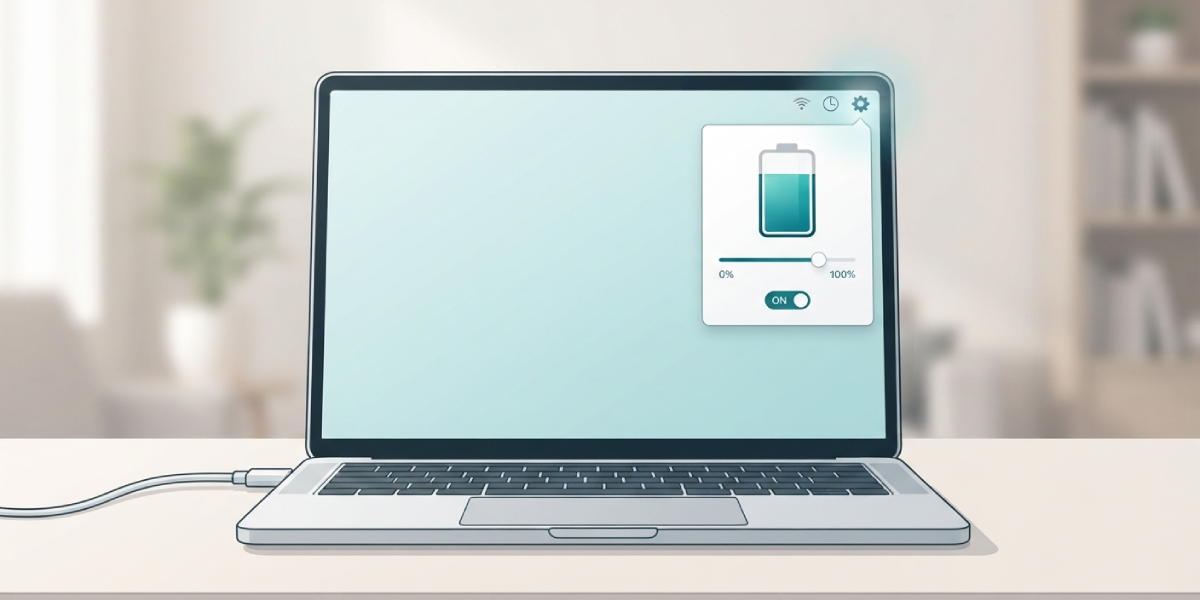
Tip: If a laptop’s battery health setting offers more than one mode, such as ‘full charge’ versus ‘balanced’ versus ‘maximum lifespan,’ pick the balanced option for a machine used both at a desk and occasionally on the go. Reserve the full 100 percent mode for days travel is planned.
When Unplugging Actually Matters More
Laptops that travel frequently or get used away from an outlet benefit from a different mindset than desk-bound machines. If a laptop spends real time running on battery, keeping it plugged in constantly at home defeats some of the point, since the battery still needs to be exercised through real charge cycles to stay healthy and accurately track its remaining runtime.
A machine that never drops below 90 percent for months at a time can develop a gauge that misreports how much charge is actually left.
Common Problems and Fixes
These are the issues that tend to show up specifically from long-term plugged-in use, along with the practical fix for each.
- Battery percentage stuck at 100 percent for weeks: This is usually the charge controller doing its job correctly, not a fault. If it becomes a concern, unplug and let the laptop run down to 20 or 30 percent occasionally to confirm the battery still discharges and recharges normally.
- Laptop feels noticeably hot even when idle on the charger: Check for dust buildup in the intake vents and exhaust, and make sure the laptop is not sitting on a soft or enclosed surface. A laptop running warm at rest while plugged in is a bigger long-term concern than the charging itself.
- Battery health percentage dropping faster than expected: Look at whether the laptop has been living at 100 percent charge in a warm environment, such as near a sunny window or on top of another warm device. Enabling a charge limit and improving airflow slows this decline going forward, though it will not reverse wear that has already happened.
- Runtime on battery seems shorter than it used to be after months of staying plugged in: This is often a calibration issue rather than true capacity loss. Run the battery down to near empty once, then charge it back to full without interruption, to help the system re-learn the actual charge curve.
- No battery health or charge limit option appears in settings: Not every laptop model offers this feature natively. Check the manufacturer’s own power management utility, since it is sometimes tucked into a separate app rather than the operating system’s built-in battery settings.
Frequently Asked Questions
Does leaving a laptop plugged in overnight damage the battery?
Not on its own. The charge controller stops charging once the battery reaches full, so an overnight charge is not meaningfully different from a shorter one. The bigger factor is whether the laptop stays warm while sitting at full charge for those hours.
Is it better to run a laptop on battery power sometimes even if it usually stays at a desk?
Yes, occasional battery cycles help keep the charge gauge accurate and exercise the cells. Once every week or two is enough for a desk-bound machine.
Should the battery be removed if a laptop is always plugged in at a desk?
On the small number of laptops with a user-removable battery, this used to be common advice, but modern lithium batteries do not need it. Using the built-in charge limiter is a simpler and safer approach on nearly all current laptops, since most now have batteries that are not meant to be removed by the user at all.
What charge percentage is best for long-term battery health?
Keeping the battery roughly between 20 and 80 percent for daily use is the generally accepted sweet spot. This is exactly what a charge limiter feature is designed to maintain automatically.
Does using a laptop for gaming or heavy tasks while plugged in hurt the battery?
The heavy load itself is fine for the battery since the system is drawing power from the adapter. The concern is heat, since demanding tasks raise internal temperature, and sustained heat next to a battery sitting at a high charge is what accelerates wear.
Why does a laptop feel hot when it is plugged in and idle?
This usually points to blocked vents, dust buildup, or background processes keeping the processor from fully resting. It is worth checking airflow and running a quick check of what is using CPU resources in the background.
Is it safe to use a laptop while it charges?
Yes, this is normal and how most people use a laptop day to day. The adapter powers the system directly while topping off the battery, and there is no added risk from using the device during this process.
Do all laptops have a battery charge limit feature?
No, availability varies by manufacturer and model. It is usually found in the power settings, a dedicated battery app, or the system BIOS or UEFI menu, and some older or budget models may not include it at all.
How much does a charge limiter actually extend battery lifespan?
The exact amount varies by battery chemistry and usage pattern, but keeping a battery away from constant 100 percent charge generally slows the rate of capacity loss over the years compared to leaving it topped off at full charge continuously.
Should a brand-new laptop be run through a full charge cycle before regular use?
It is not strictly necessary with modern batteries, which ship with a partial charge and are calibrated at the factory. Normal use from the first day, including plugging in and unplugging as needed, is perfectly fine.
