
A laptop with no sound usually points to a driver conflict, a muted or misrouted audio output, or a hardware fault, and most cases can be fixed without opening the machine. This guide walks through the common causes first, then moves through fixes in the order most likely to solve the problem fastest.
Key Takeaways
- Most sound issues come from outdated or corrupted audio drivers, not failed hardware.
- Windows sometimes selects the wrong playback device after an update or a reboot.
- A quick check of volume mixer settings and default device selection solves a large share of cases.
- Physical speaker or jack damage is possible but far less common than a software conflict.
- Working through fixes in order, from simplest to most technical, saves time and avoids unnecessary driver reinstalls.
Common Causes of No Sound on a Laptop
Sound problems tend to fall into a handful of familiar patterns. Recognizing which one applies makes it much faster to land on the right fix instead of guessing.
- Audio output muted or volume set too low, sometimes by an accidental keyboard shortcut.
- Windows playing sound through the wrong output device, such as a monitor or disconnected Bluetooth speaker.
- Outdated, corrupted, or missing audio drivers after a Windows update.
- A third-party app or Windows setting has disabled the audio service.
- Loose, damaged, or dusty headphone jack causing the laptop to think headphones are still connected.
- Rare hardware failure in the internal speakers or audio chip.
Fix 1: Check the Basics First
Before touching any settings or drivers, rule out the simple stuff. This step alone resolves a surprising number of no sound complaints.
- Step 1: Check the volume level in the taskbar and make sure it is not set to zero or muted.
- Step 2: Press the dedicated mute key on the keyboard, since it is easy to hit by accident and give no visible warning.
- Step 3: Unplug any headphones or external speakers and test the built-in speakers on their own.
- Step 4: Restart the laptop, since a simple reboot clears out many temporary audio glitches.
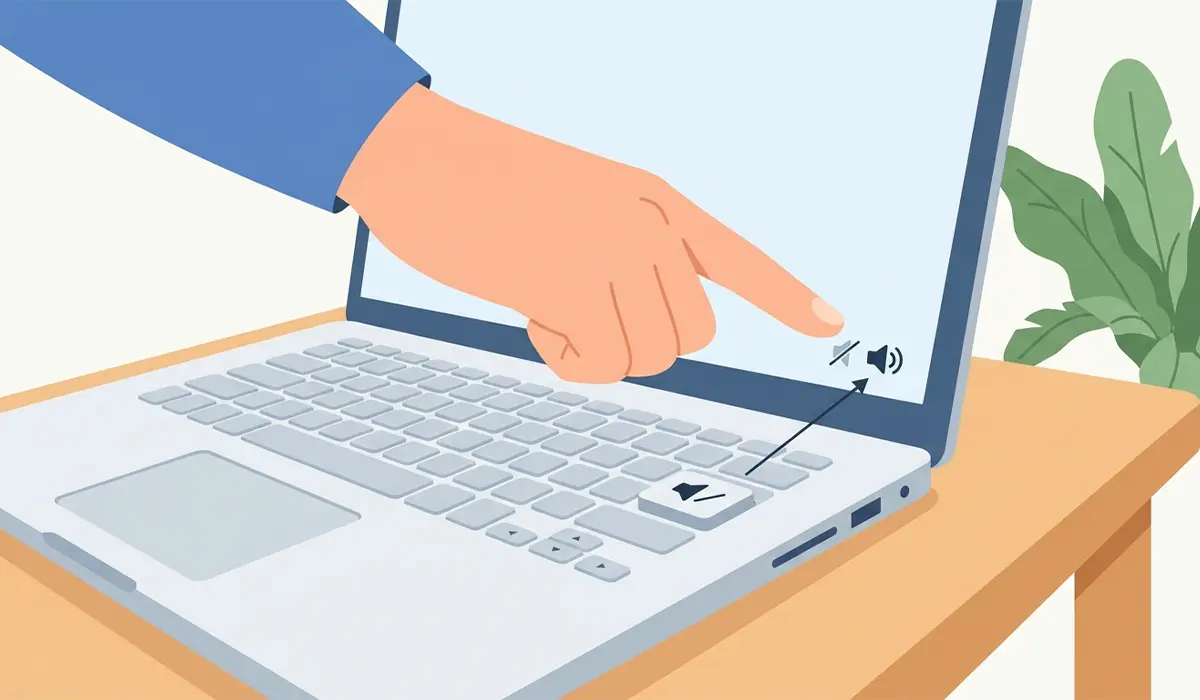
Tip: If sound works with headphones plugged in but not through the built-in speakers, that points toward a stuck sensor in the headphone jack rather than a driver problem.
Fix 2: Set the Correct Playback Device
Windows can quietly switch the default playback device after a reboot, a driver update, or when a Bluetooth device connects and disconnects. This makes it seem like sound has vanished when it is simply going somewhere else.
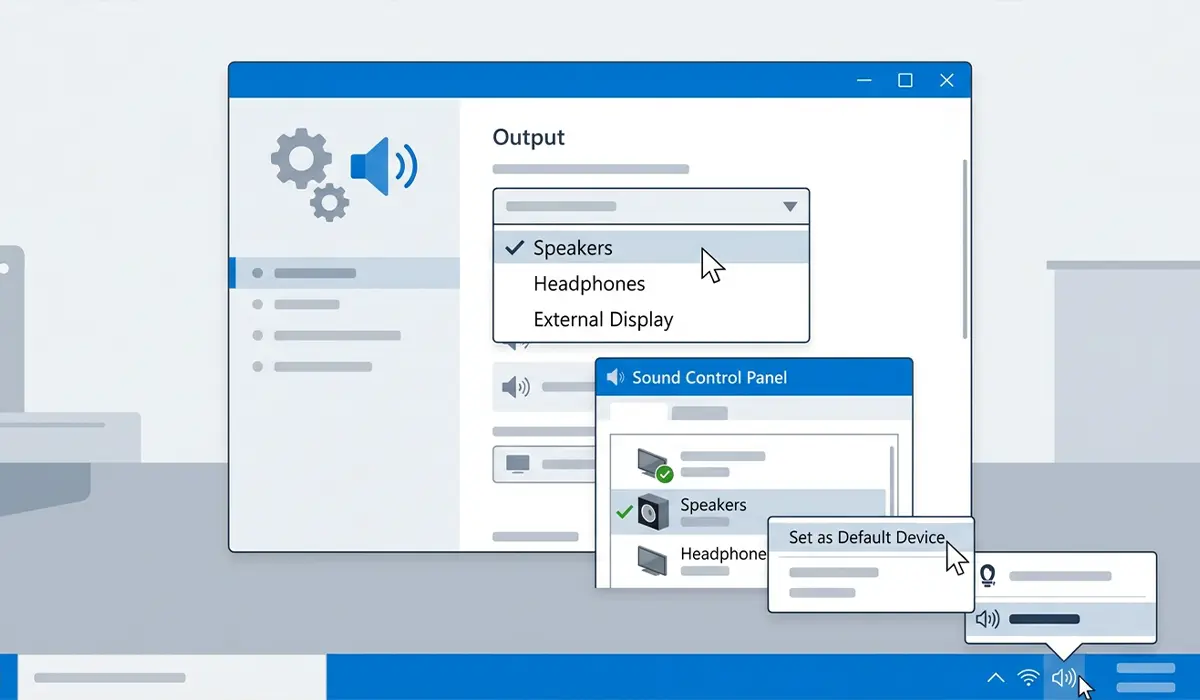
- Step 1: Right-click the speaker icon in the taskbar and select ‘Sound settings’ or ‘Open Sound settings’.
- Step 2: Under the output section, confirm the laptop speakers are selected as the default device rather than a monitor, dock, or paired Bluetooth speaker.
- Step 3: Click ‘Sound Control Panel’ on the right side, then check the Playback tab for a full list of devices.
- Step 4: Right-click the correct speaker device and choose ‘Set as Default Device’, then test audio again.
Fix 3: Run the Windows Audio Troubleshooter
Windows includes a built-in troubleshooter that checks for common playback issues automatically, and it catches problems that are easy to overlook manually.
- Step 1: Open Settings and go to ‘System’, then ‘Troubleshoot’, then ‘Other troubleshooters’.
- Step 2: Find ‘Playing Audio’ and click ‘Run’.
- Step 3: Follow the prompts and apply any fixes it suggests.
- Step 4: Restart the laptop once the troubleshooter finishes and test sound again.
Fix 4: Update or Reinstall the Audio Driver
Driver issues are the single most common reason a laptop suddenly loses sound, especially right after a Windows update. Updating or reinstalling the driver clears out corruption that basic troubleshooting cannot fix.
- Step 1: Right-click the Start button and open ‘Device Manager’.
- Step 2: Expand ‘Sound, video and game controllers’ and locate the audio device, usually listed by the chipset brand.
- Step 3: Right-click the device and select ‘Update driver’, then choose ‘Search automatically for drivers’.
- Step 4: If an update does not help, right-click again and select ‘Uninstall device’, then restart the laptop so Windows reinstalls a fresh copy automatically.
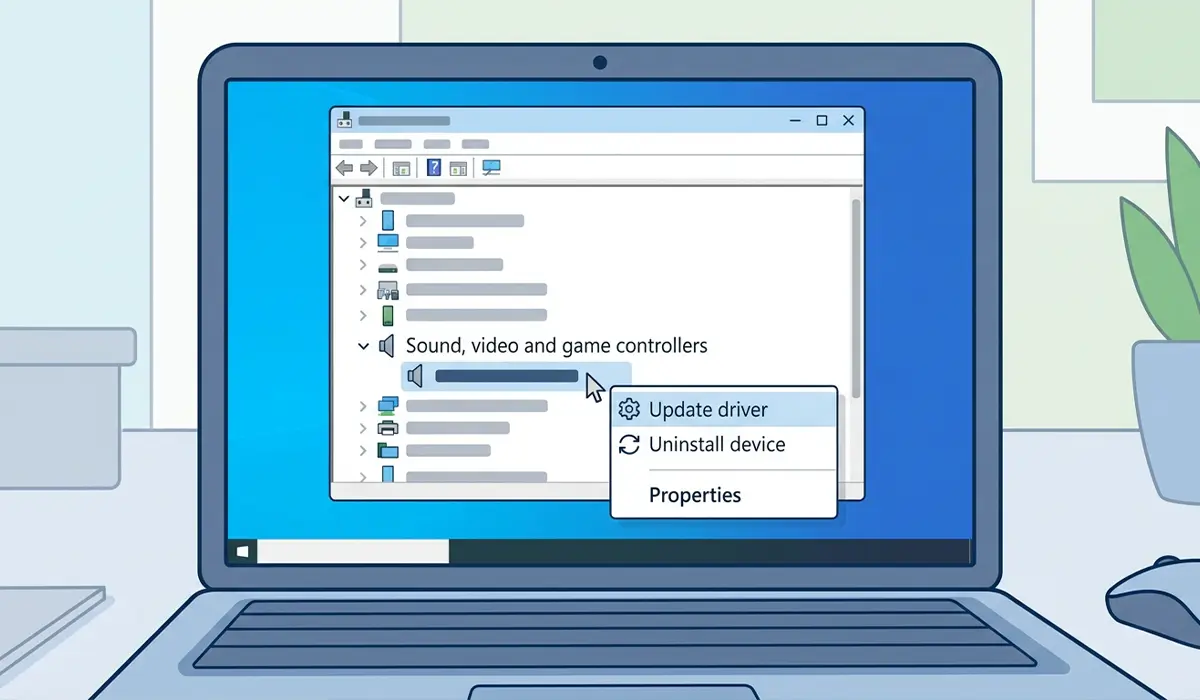
Tip: If Device Manager shows a yellow warning icon next to the audio device, that almost always confirms a driver conflict rather than a hardware fault.
Fix 5: Check the Windows Audio Service
Sound depends on a background Windows service running correctly. If that service has stopped or is set to manual, no audio will play even with a healthy driver.
- Step 1: Press the Windows key and R together, then type ‘services.msc’ and press Enter.
- Step 2: Scroll down to ‘Windows Audio’ and double-click it.
- Step 3: Set ‘Startup type’ to ‘Automatic’ and click ‘Start’ if the service is not already running.
- Step 4: Repeat the same check for ‘Windows Audio Endpoint Builder’, since both services need to be running together.
Fix 6: Inspect the Headphone Jack for a Stuck Connection
A worn or dusty headphone jack can trick the laptop into thinking headphones are still plugged in, which silently redirects all audio away from the internal speakers.
- Step 1: Power off the laptop and unplug it from any charger.
- Step 2: Inspect the headphone jack visually for lint, dust, or debris using a flashlight.
- Step 3: Use a can of compressed air with a short burst to clear out the jack, holding the laptop at an angle so debris falls out rather than in.
- Step 4: Plug in and unplug a headphone connector a few times to help reset the internal contact, then power the laptop back on and test the speakers.
If sound still fails to return to the internal speakers after this, the jack’s internal switch may be physically stuck, and that typically calls for a professional repair rather than further home troubleshooting.
Common Problems and Fixes
- Sound works with headphones but not speakers: This points to a stuck headphone jack sensor. Try Fix 6 above, and if the issue continues, professional cleaning or jack replacement is the next step.
- Audio driver reinstalls but the problem returns after every restart: This usually means a corrupted driver package. Download the driver directly from the laptop manufacturer’s support page instead of relying on Windows Update.
- Sound icon shows a red X even after troubleshooting: This typically means the audio service stopped again. Check that ‘Windows Audio’ is set to start automatically rather than manually.
- One speaker is quieter or silent compared to the other: This points toward a loose internal speaker connection or dust buildup rather than a driver issue, and usually needs a technician to open the chassis and check the connector.
- Sound cuts out randomly during use: This can point to an outdated Bluetooth driver interfering with the audio stack, even when using wired speakers. Updating both the audio and Bluetooth drivers together often resolves it.
Frequently Asked Questions
Why did my laptop suddenly lose all sound?
The most common trigger is a Windows update that overwrites or resets the audio driver. A recent app installation or a change in default playback device can cause the same symptom.
Do I need to buy new speakers if my laptop has no sound?
Rarely. Most no sound issues trace back to software settings or drivers rather than failed hardware, so replacing speakers should only be considered after driver and settings fixes have been ruled out.
Why does my laptop show sound is playing but nothing comes out?
This usually means the audio is routing to the wrong output device, such as a monitor connected through HDMI or a Bluetooth device that has since disconnected. Checking the default playback device in Sound settings usually resolves it.
Can dust cause a laptop to lose sound?
Yes. Dust or debris inside the headphone jack can trigger the internal sensor that mutes the built-in speakers whenever it detects something plugged in.
Is it safe to uninstall the audio driver to fix sound problems?
Yes, uninstalling the driver through Device Manager and letting Windows reinstall it automatically on restart is a standard and safe troubleshooting step.
Why does sound work in some apps but not others?
This points to an app-specific volume setting. Checking the Volume Mixer in Windows Sound settings shows individual app volume levels, and one of them may be muted or turned down separately from the system volume.
How long does it take to fix a driver-related sound issue?
Updating or reinstalling an audio driver typically takes a few minutes, including a restart. Most users see sound restored immediately after the laptop reboots.
Should Bluetooth be turned off to test laptop speakers?
Yes, temporarily. A previously paired Bluetooth speaker or headset can silently claim the default audio output even when it is turned off or out of range, so disabling Bluetooth during testing helps isolate the cause.
When should a laptop be taken to a repair technician for no sound?
If every software fix has been tried and sound still fails to work, particularly with a visibly damaged headphone jack or a rattling internal speaker, that points to a hardware fault best handled by a professional.
