
Laptop screen flickering usually points to one of three things: a display setting, a loose cable, or a failing panel. It is fixable without a repair shop in most cases. The key is working through the causes in the right order instead of guessing.
Key Takeaways
- Software conflicts, especially refresh rate mismatches and outdated graphics drivers, cause the majority of flickering cases.
- A loose display cable or a bent hinge connector is the most common hardware culprit. This is especially true on laptops that get opened and closed often.
- Testing with an external monitor takes about two minutes. It instantly tells whether the panel or the graphics system is at fault.
- Reseating the display cable solves flickering that only happens at certain lid angles.
- Persistent flickering after a driver reset and a cable check usually means the panel or its connector needs replacing.
Common Causes of Laptop Screen Flickering
Understanding what is happening on the display side helps before touching any hardware. Flickering shows up for a handful of predictable reasons. Narrowing down the cause first saves a lot of wasted effort later.
Outdated or Corrupted Graphics Drivers
Windows updates and app installs sometimes leave a graphics driver in a half-updated state. The screen can flicker briefly during rendering-heavy tasks or randomly at idle when this happens.
Mismatched Refresh Rate
Some laptops default to a refresh rate the panel does not fully support. This tends to happen after connecting an external display or waking from sleep. The mismatch shows up as a subtle strobing effect rather than a full blackout.
Loose or Damaged Display Cable
The ribbon cable carries the video signal from the motherboard through the hinge to the screen. Years of opening and closing the lid put a lot of mechanical stress on that connection. A partially seated connector or a cracked cable often causes flicker that changes with screen angle.
Failing Backlight or Panel
Panels have a limited lifespan. A failing backlight inverter or LED driver can cause flickering that gets worse over time, especially at low brightness levels.
Software or Malware Interference
Third-party apps that hook into the display can also cause visible flicker, and in rare cases so can malware. It is less common, but worth ruling out if everything else checks out clean.
Before You Start
Some of the fixes below only involve settings, but others require briefly opening the laptop. Keep the following in mind before starting any hardware step.
- Power off the laptop completely and unplug the charger before opening the case.
- Remove the battery if it is user-removable. Otherwise disconnect the internal battery connector once the bottom panel is off.
- Discharge static by touching a bare metal part of the chassis before handling internal components.
- Work on a flat, well-lit surface. Keep screws organized by tray or magnetic mat, since they often vary in length by location.
Tip: Opening the laptop may affect the manufacturer warranty on some models. If the laptop is still under warranty, contact the manufacturer before removing the back panel.
How to Fix Laptop Screen Flickering
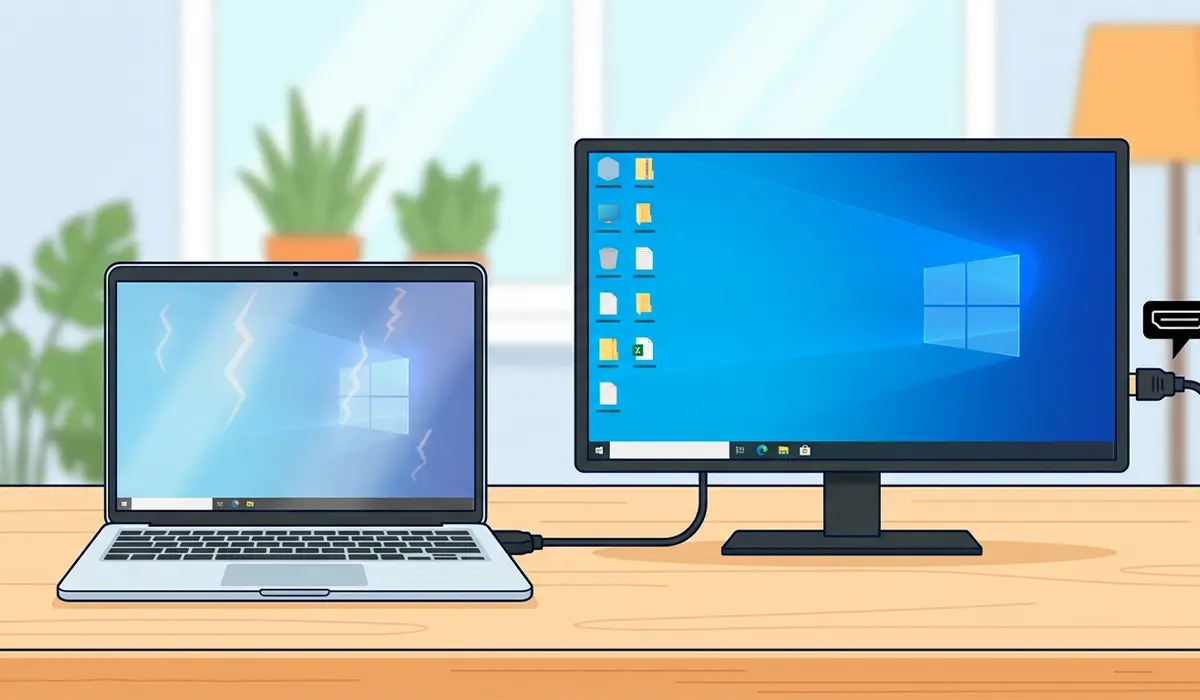
Step 1: Test With an External Monitor
- Step 1: Connect the laptop to an external monitor using an HDMI or USB-C cable.
- Step 2: Extend the display and watch the external screen for a few minutes while the built-in laptop screen continues to flicker.
- Step 3: A stable external monitor points to the panel or its cable rather than the graphics card. Flicker on both screens instead points to a driver or system setting.
Step 2: Update or Reinstall the Graphics Driver
- Step 1: Open Device Manager and expand the Display adapters section.
- Step 2: Right-click the graphics card entry and select Update driver, then choose to search automatically.
- Step 3: Restart the laptop after any update installs and check whether the flickering stops.
- Step 4: Uninstall the driver instead if it was already current. Check the box to remove the driver software, then restart so Windows reinstalls a clean version.
Step 3: Match the Refresh Rate to the Panel
- Step 1: Right-click the desktop and open Display settings.
- Step 2: Scroll down to Advanced display settings and select the built-in display.
- Step 3: Check the refresh rate listed. Set it to the panel’s native refresh rate if a different value is currently selected.
Step 4: Rule Out Problem Apps
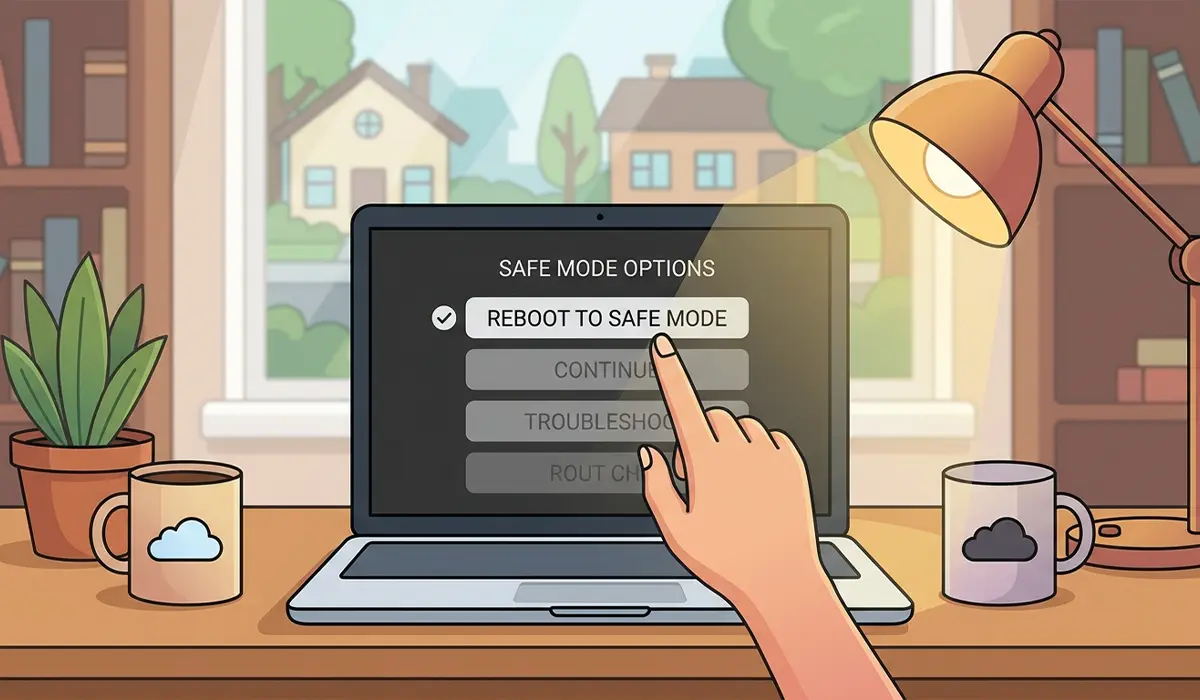
- Step 1: Restart the laptop into Safe Mode and watch whether the flickering still happens.
- Step 2: Boot back into normal mode if it stops in Safe Mode. Close startup apps one at a time, especially overlay tools for games, streaming, or screen recording.
- Step 3: Run a full scan with Windows Security or a trusted antivirus tool to rule out malware interference.
Step 5: Reseat the Display Cable
- Step 1: Power off the laptop, unplug it, and disconnect the battery. Remove the bottom panel using the correct screwdriver for the case screws.
- Step 2: Gently lift the bezel or hinge covers around the screen, following the specific model’s disassembly points. This exposes the display cable connector.
- Step 3: Disconnect the display cable from its connector on the motherboard or panel, taking a photo first for reference.
- Step 4: Check the cable and connector for dust, bent pins, or visible damage. Reseat the cable firmly until it clicks or sits flush.
- Step 5: Reassemble the laptop and reconnect the battery. Power it on and slowly open and close the lid to check whether the flicker is gone at every angle.
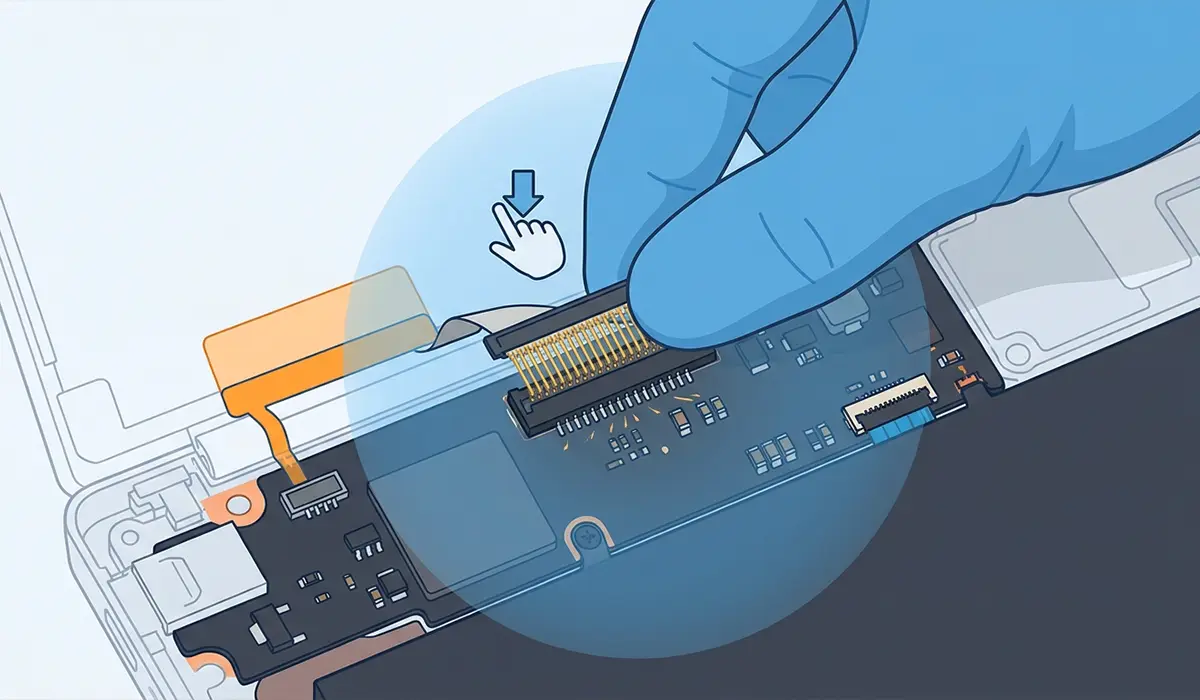
Tip: Flex the screen gently at different angles while it is powered on, before reassembly. This helps confirm the cable connection as the source of the flicker.
Common Problems and Fixes
Flicker Only Happens at a Certain Screen Angle
This points almost directly to the display cable. Reseating it as described in Step 5 usually resolves the issue. A full cable replacement is the next move if reseating does not help.
Flicker Persists on Both the Laptop and an External Monitor
A flicker on both screens rules out the panel and cable. Focus instead on the graphics driver, refresh rate settings, and background software rather than opening the case again.
Screen Flickers Only at Low Brightness
Backlight-related flicker often shows up specifically at lower brightness levels because of how the backlight is being dimmed. A failing backlight driver or panel is the likely cause here. This typically needs a panel or backlight replacement rather than a software fix.
Flicker Returns a Few Weeks After a Cable Reseat
A cable that keeps loosening after being reseated is often cracked internally or has worn connector pins. Replacing the cable itself, rather than just reseating it, is the more permanent fix.
Frequently Asked Questions
Why does the laptop screen flicker when the lid is moved?
This almost always points to the display cable that runs through the hinge. Movement puts stress on a loose or damaged connection, causing the signal to briefly drop and produce flicker.
Can a graphics driver update actually stop screen flickering?
Yes, a driver update or clean reinstall resolves a large share of flickering cases. This is especially true when the flicker started after a Windows update or a new app installation.
Is laptop screen flickering dangerous to keep using?
It is not dangerous to the user, but ignoring it lets a cable or panel issue worsen over time. That can eventually lead to a screen that stops working entirely.
Does screen flickering mean the laptop needs a new screen?
Not necessarily. Many cases trace back to drivers, refresh rate settings, or a loose cable rather than the panel itself. A full screen replacement is only needed when the panel or backlight has actually failed.
Why does the screen flicker only in certain apps or games?
A refresh rate mismatch or an overlay feature within that specific app usually explains it. Frame rate limiters and in-game overlays are common causes of this kind of conflict.
How can someone tell if it is the screen or the graphics card causing the flicker?
Connecting an external monitor is the fastest test. A stable external display while the laptop screen flickers points to the panel or its cable rather than the graphics card.
Can a BIOS or firmware update fix screen flickering?
In some cases, yes. Manufacturers occasionally release firmware updates that address display timing issues. Checking the laptop manufacturer’s support page for a BIOS update is worth doing if software fixes do not help.
Why does the laptop screen flicker right after waking from sleep?
This is often tied to how the graphics driver reinitializes the display after sleep. Updating the driver and adjusting power plan settings for the graphics card typically resolves it.
Is it safe to open a laptop just to reseat the display cable?
It is safe for most modern laptops as long as the device is powered off, unplugged, and the battery is disconnected first. Anyone uncomfortable with disassembly, or working on a laptop still under warranty, should let a professional handle it instead.
How much does it cost to fix a flickering laptop screen professionally?
Cost varies widely by laptop model and local labor rates. A cable replacement runs cheaper than a full panel swap, so it is best to get a direct quote from a repair shop or the manufacturer’s service center.
