
Outlook error 0x80040900 usually shows up when Outlook tries to send, receive, or sync mail and something in the data file or profile is blocking the request. It can appear as a one-time glitch or keep popping up every time Outlook opens. This guide walks through the exact steps that clear it, without wasting time on theory that does not fix anything.
Key Takeaways
- Error 0x80040900 is almost always tied to a damaged Outlook data file (PST or OST) or a corrupted profile.
- The Inbox Repair Tool (scanpst.exe) resolves most cases in a single pass.
- Rebuilding the Outlook profile fixes the error when the data file itself checks out fine.
- Conflicting add-ins and outdated Office installations can trigger the same error code.
- A quick Office repair often solves cases the other steps do not touch.
How to Fix Outlook Error 0x80040900
The fastest path to a permanent fix follows a specific order: check the data file first, then the profile, then the add-ins. Skipping ahead usually means circling back later.
Method 1: Close Outlook Completely
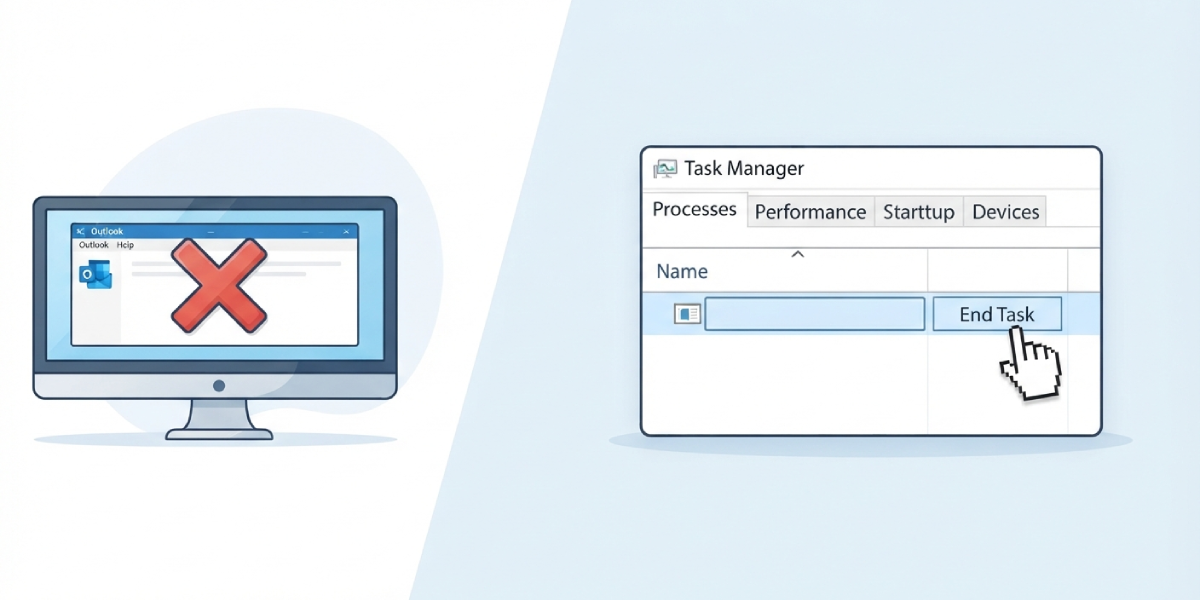
- Step 1: Close Outlook fully, including any background processes. Open Task Manager, check the Processes tab, and end any ‘Outlook.exe’ task still running before moving forward.
Method 2: Run the Inbox Repair Tool (scanpst.exe)
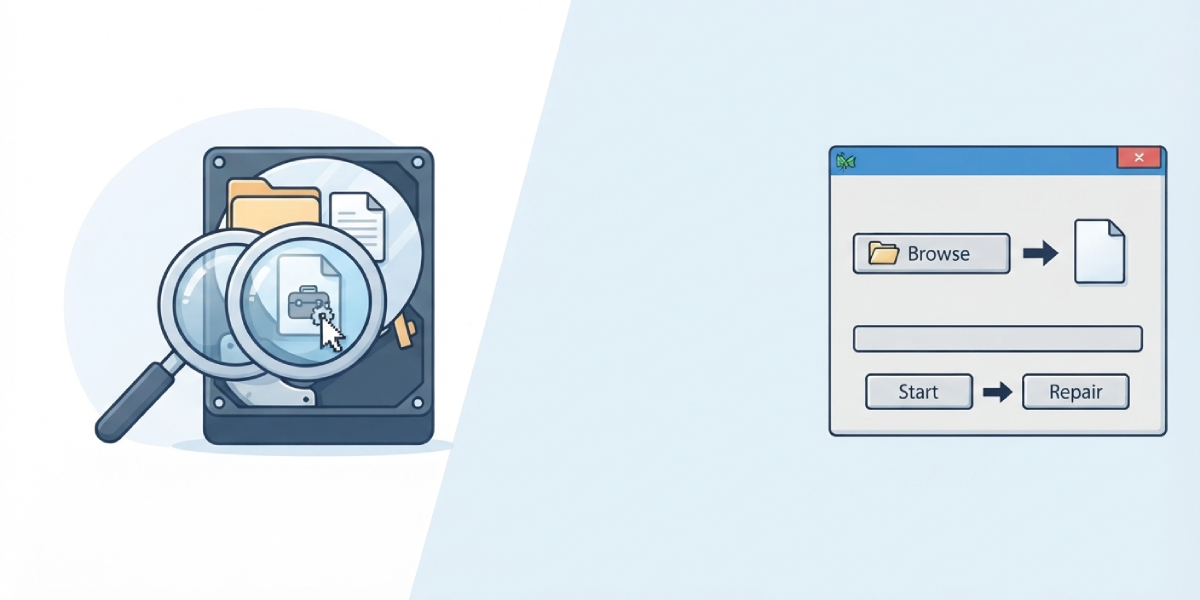
- Step 2: Locate scanpst.exe. On most Windows installations it sits in a path similar to C:\Program Files\Microsoft Office\root\OfficeXX\, where XX matches the installed Office version.
- Step 3: Double-click scanpst.exe, then click ‘Browse’ and select the PST or OST file tied to the affected account. The file location can be confirmed under File > Account Settings > Data Files inside Outlook.
- Step 4: Click ‘Start’ to scan the file. If the tool reports errors, click ‘Repair’ and let it finish before reopening Outlook.
Tip: Back up the data file before repairing it. Copy the PST or OST file to another folder first, since scanpst.exe modifies the original file directly.
Method 3: Create a New Outlook Profile
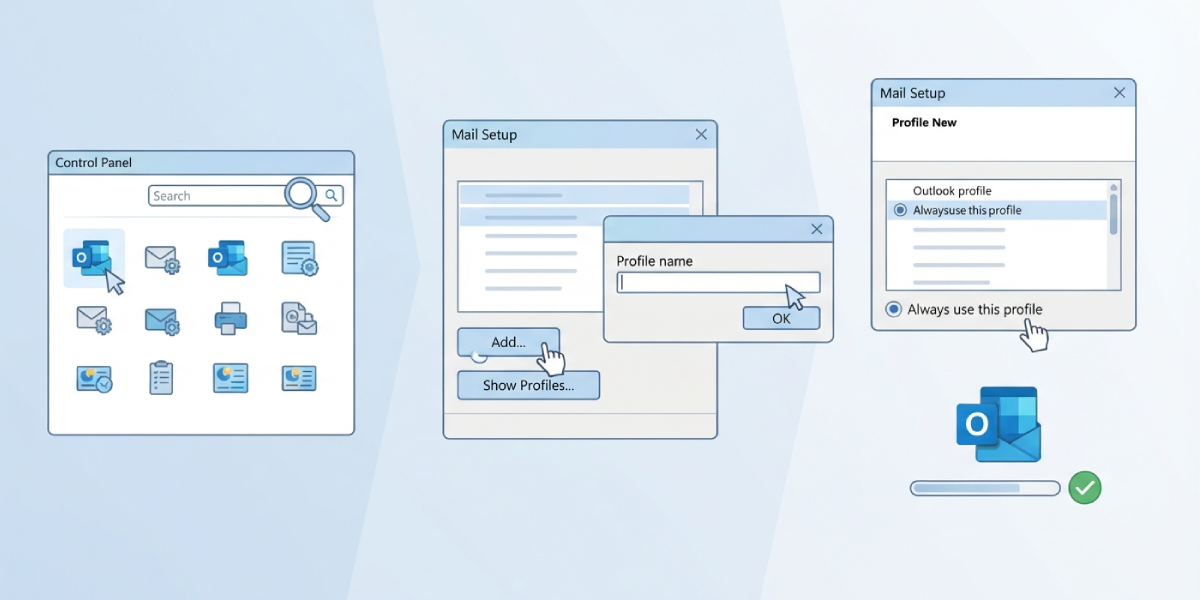
- Step 5: Open Control Panel and search for ‘Mail (Microsoft Outlook)’.
- Step 6: Click ‘Show Profiles’, then ‘Add’ to create a new profile. Give it a distinct name and follow the prompts to add the email account again.
- Step 7: Set the new profile to load automatically by selecting ‘Always use this profile’ before closing the window.
- Step 8: Open Outlook and confirm the account syncs without triggering error 0x80040900.
Method 4: Disable Conflicting Add-ins
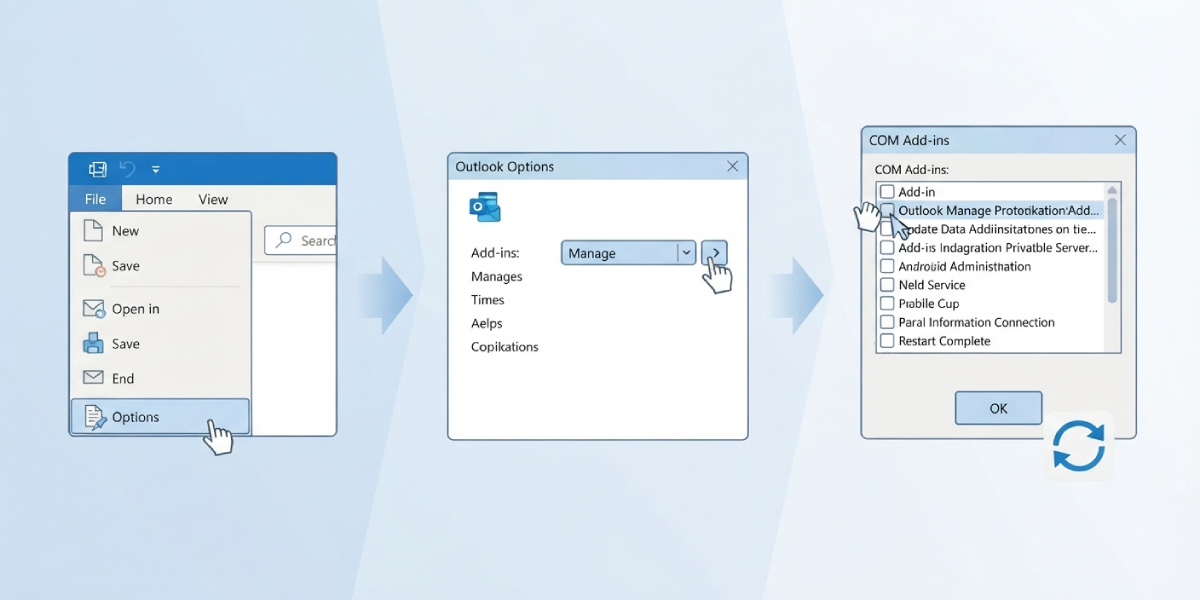
- Step 9: In Outlook, go to File > Options > Add-ins.
- Step 10: Next to ‘Manage’, select ‘COM Add-ins’ and click ‘Go’.
- Step 11: Uncheck all add-ins, click ‘OK’, then restart Outlook to see if the error is gone. Re-enable add-ins one at a time to spot the culprit if needed.
Method 5: Repair the Office Installation
- Step 12: Open Control Panel > Programs > Programs and Features.
- Step 13: Find Microsoft Office in the list, right-click it, and choose ‘Change’.
- Step 14: Select ‘Quick Repair’ first and let it run. If the error persists after restarting the computer, repeat the process using ‘Online Repair’ instead.
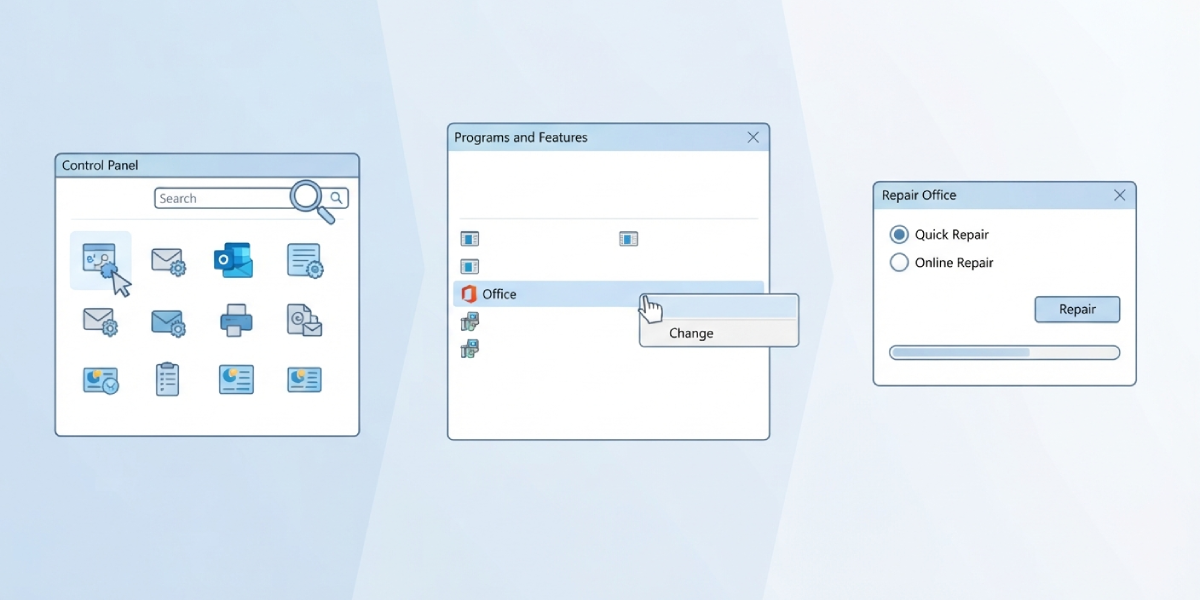
Tip: Run these steps in order rather than jumping straight to an Office repair. Most cases of 0x80040900 trace back to the data file, so starting there saves time.
Common Problems and Fixes
- scanpst.exe cannot find the PST or OST file: Confirm the exact file path under File > Account Settings > Data Files, since the default location varies between Windows versions and account types.
- The repair tool finishes but the error returns: Run scanpst.exe a second time. Deep corruption sometimes needs two passes before every error clears.
- A new profile does not remove the error: This usually points to the data file itself. Repeat Step 2 on the file linked to the new profile before trying anything else.
- Outlook still crashes after disabling add-ins: An outdated Office build is often the cause. Run Windows Update or check File > Office Account > Update Options > Update Now for pending updates.
- The error only happens with one specific email account: Remove that account from the profile and re-add it, which forces Outlook to rebuild its connection settings from scratch.
Frequently Asked Questions
What causes Outlook error 0x80040900?
It is most commonly caused by a corrupted PST or OST data file, a damaged Outlook profile, or a conflicting add-in interfering with mail sync.
Is scanpst.exe safe to run on a live PST file?
Yes, though it is worth copying the file to a separate location first as a backup, since the repair process edits the original file directly.
Where is scanpst.exe located?
It is typically found in C:\Program Files\Microsoft Office\root\OfficeXX\, with XX representing the installed Office version number.
Will creating a new Outlook profile delete existing emails?
No, as long as the same data file or account is reattached to the new profile, existing emails and folders remain intact.
How long does the Inbox Repair Tool take to run?
Runtime depends on the size of the data file. Smaller files finish in a few minutes, while large PST or OST files can take significantly longer.
Can antivirus software cause error 0x80040900?
Yes, some antivirus programs scan or lock Outlook data files mid-sync, which can trigger this error. Temporarily disabling real-time scanning helps confirm this as the cause.
Does repairing Office remove installed add-ins?
A Quick Repair typically leaves add-ins in place, but an Online Repair may require reinstalling some third-party add-ins afterward.
What if none of these steps fix the error?
Removing and re-adding the email account entirely, after confirming the data file passes scanpst.exe with no errors, resolves nearly all remaining cases.
Does this error affect Outlook on Mac as well?
Error 0x80040900 is specific to the Windows version of Outlook, since it relates to PST and OST file structures used only on that platform.
