
Adding an iCloud email account in Outlook on the Web lets Apple Mail messages show up right alongside a Microsoft inbox, without switching between apps all day. The process takes just a few minutes once an app-specific password is ready. This guide walks through every screen needed to get iCloud mail syncing into Outlook on the Web.
Key Takeaways
- Outlook on the Web connects to iCloud using the ‘Sync email’ feature found in Mail settings.
- An Apple app-specific password is required; the regular Apple ID password will not work.
- Two-factor authentication must be turned on for the Apple ID before generating that password.
- Once connected, iCloud messages arrive in a separate folder inside the Outlook inbox.
- Syncing may take several minutes to pull in older mail the first time.
How to Add an iCloud Email Account in Outlook on the Web
Method 1: Generate an App-Specific Password from Apple
- Step 1: Sign in at appleid.apple.com using the Apple ID linked to the iCloud email address.
- Step 2: Under the Sign-In and Security section, select App-Specific Passwords.
- Step 3: Choose Generate an App-Specific Password, give it a label such as ‘Outlook Web’, and click Create.
- Step 4: Copy the generated password immediately, since Apple will not show it again after closing the window.
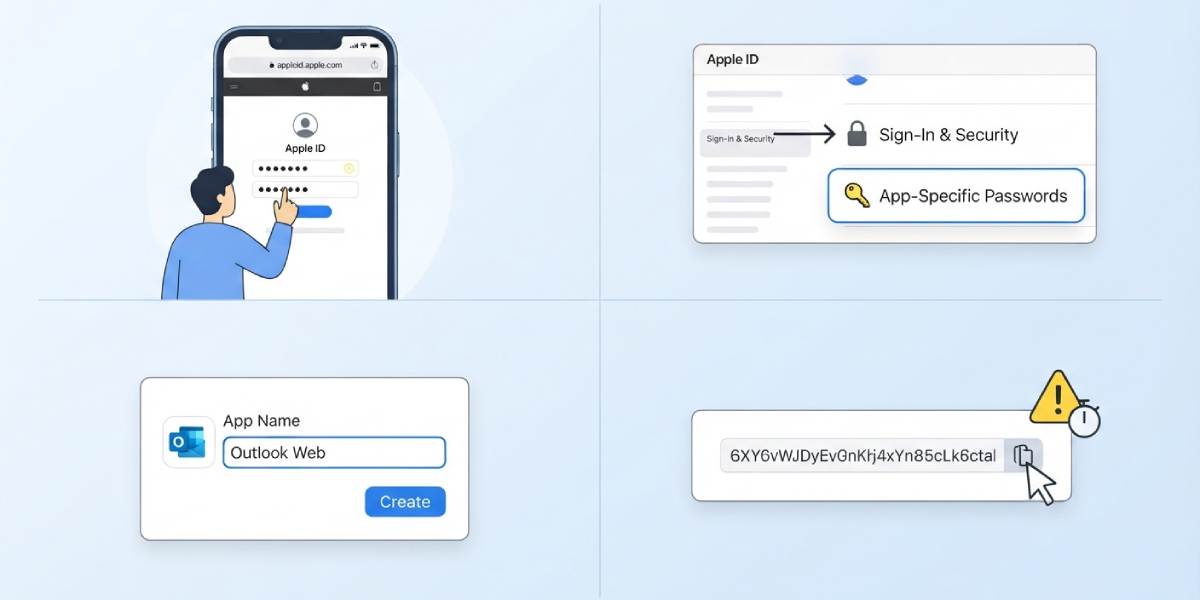
Tip: Paste that app-specific password into a notes app temporarily so it is easy to retrieve during the Outlook setup step that follows.
Method 2: Open Sync Email Settings in Outlook on the Web
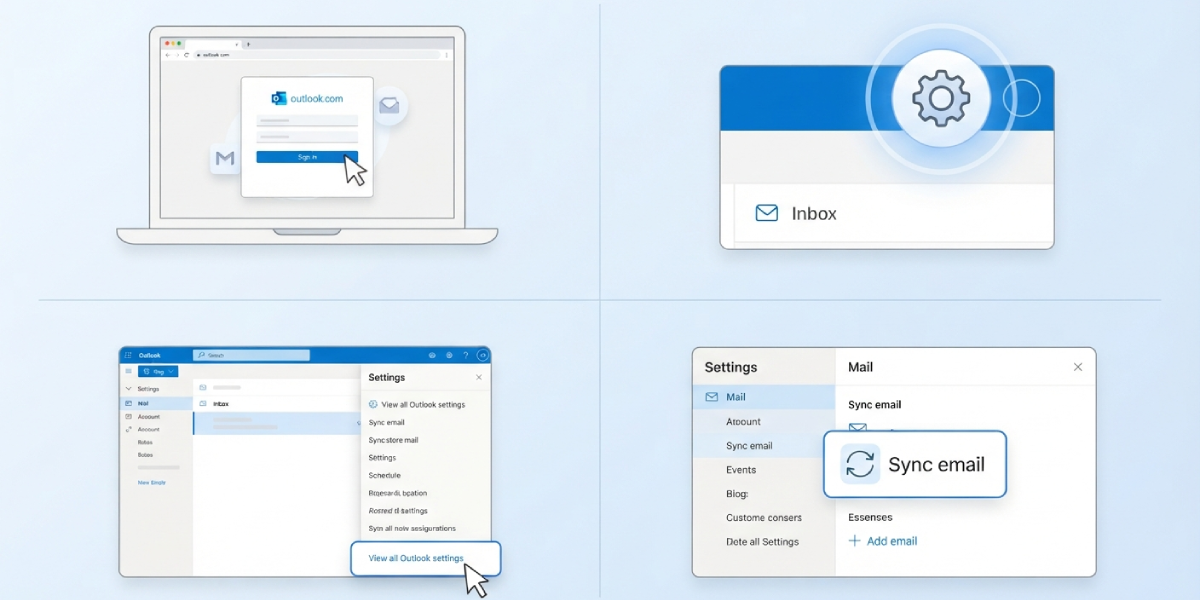
- Step 5: Sign in to Outlook on the Web at outlook.com or office.com and open the mailbox.
- Step 6: Select the gear icon in the top right corner, then choose View all Outlook settings at the bottom of the panel.
- Step 7: In the Settings window, go to Mail, then select Sync email.
Method 3: Connect the iCloud Account
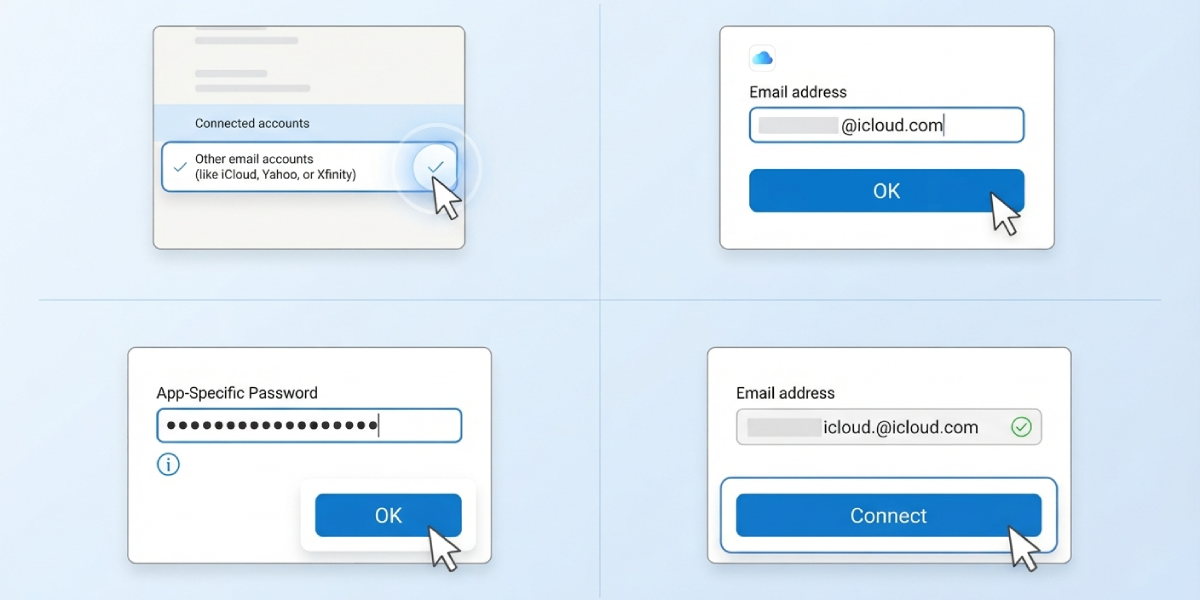
- Step 8: Under Connected accounts, select Other email accounts (like iCloud, Yahoo, or Xfinity).
- Step 9: Enter the full iCloud email address in the box provided, then click OK.
- Step 10: When prompted for a password, paste in the app-specific password generated earlier, not the regular Apple ID password.
- Step 11: Confirm the username field shows the complete iCloud email address, then select OK to start the connection.
Tip: If Outlook does not detect the iCloud server settings automatically, enter imap.mail.me.com for incoming mail and smtp.mail.me.com for outgoing mail, both using SSL, so the connection can complete manually.
Method 4: Confirm the Sync
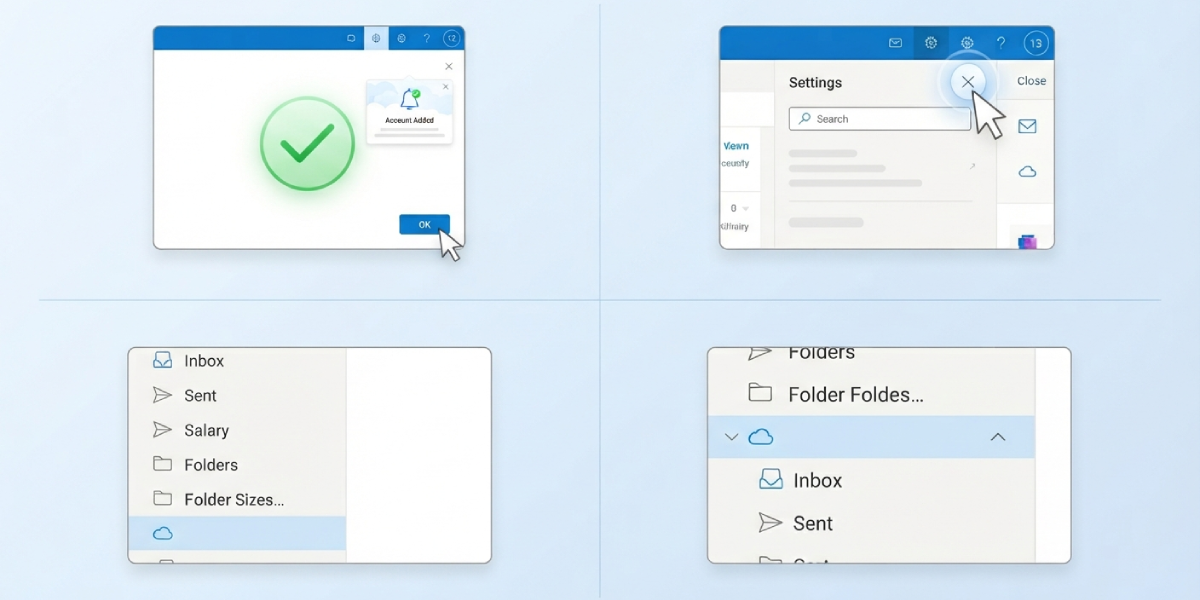
- Step 12: Watch for a confirmation message stating the account was added successfully.
- Step 13: Close the settings panel and check the folder list on the left side of Outlook on the Web.
- Step 14: Look for a new folder group carrying the iCloud address, where incoming Apple Mail messages will land.
Common Problems and Fixes
- Password rejected repeatedly: This almost always means the regular Apple ID password was entered instead of the app-specific one. Generate a fresh app-specific password and try again.
- Two-factor authentication not available on the Apple ID: App-specific passwords cannot be created until two-factor authentication is enabled on the account. Turn it on from Apple ID security settings first.
- No new mail appearing after setup: Initial syncing can take a while, especially with a large iCloud mailbox. Give it fifteen to twenty minutes before troubleshooting further.
- Other email accounts option missing: Some Microsoft 365 work or school accounts have this feature disabled by an administrator. A personal outlook.com account typically has it enabled by default.
- Duplicate folder created after a second attempt: Remove the extra connection from Sync email settings, then reconnect using the correct app-specific password in a single attempt.
Frequently Asked Questions
Can Outlook on the Web send mail from the iCloud address too?
Yes, once the account syncs, Outlook on the Web can send messages using the connected iCloud address as the sender.
Is the regular Apple ID password ever needed during this setup?
No, Outlook on the Web only accepts an app-specific password when connecting an iCloud account for security reasons.
How long does the first sync usually take?
Most accounts finish an initial sync within a few minutes, though mailboxes with years of stored mail can take longer.
Does this method work on the Outlook desktop app as well?
This guide covers Outlook on the Web specifically; the desktop app uses a different account setup screen.
What happens if the app-specific password is lost after generating it?
Apple does not display it again, so a new app-specific password needs to be generated from appleid.apple.com and used instead.
Can more than one iCloud account be added to the same Outlook mailbox?
Yes, the Sync email settings allow multiple other email accounts to be connected, each appearing in its own folder group.
Why does Outlook ask for IMAP and SMTP server details?
This happens occasionally when automatic detection fails; entering imap.mail.me.com and smtp.mail.me.com manually resolves it.
Will removing the iCloud account from Outlook delete the original iCloud mail?
No, disconnecting the account in Outlook only stops the syncing; the mail remains untouched in iCloud itself.
Can this connection be used to sync iCloud calendar or contacts as well?
The Sync email feature in Outlook on the Web handles mail only, not calendar or contact syncing from iCloud.
