
Adding a Gmail account in the Outlook mobile app the right way means using Google’s secure sign-in flow instead of typing a password directly into Outlook. This keeps the connection stable and avoids the login loops that trip up so many first-time attempts. The steps below work the same on iPhone and Android.
Key Takeaways
- Always use the ‘Sign in with Google’ option inside Outlook rather than manually entering a Gmail password.
- A quick update of the Outlook and Gmail apps before starting prevents most connection errors.
- Two-factor verification on the Google account is required, so keep a phone or authenticator app nearby.
- Once added, Gmail messages, contacts, and calendar events sync automatically into Outlook.
- Multiple Gmail accounts can be added the same way, one after another, without removing existing accounts.
Step-by-Step Guide to Add a Gmail Account in the Outlook Mobile App
This is the core process, and it takes just a few minutes from start to finish.
- Step 1: Open the Outlook app on the phone. If no account has been added yet, the welcome screen appears with a ‘Get Started’ button. Tap it.
- Step 2: If an account already exists in Outlook, tap the profile icon or account picture in the top-left corner, then tap the gear icon for Settings, and select ‘Add Account’ followed by ‘Add Email Account’.
- Step 3: Enter the full Gmail address in the email field and tap ‘Continue’ or ‘Add Account’.
- Step 4: Outlook automatically detects that the address belongs to Google and redirects to Google’s own sign-in page. This is the moment that confirms the secure flow is working correctly.
- Step 5: Enter the Gmail password on Google’s page, not inside Outlook itself. This distinction matters, since Google’s own login screen is what keeps the connection encrypted end to end.
- Step 6: Complete two-factor verification if prompted. This usually means approving a notification on another device or entering a code sent by text or an authenticator app.
- Step 7: Google shows a permissions screen asking to let Outlook access mail, contacts, and calendar. Tap ‘Allow’ or ‘Continue’ to grant access.
- Step 8: Outlook returns to the app and begins syncing the inbox. A short progress screen appears while messages download for the first time.
- Step 9: Tap ‘Skip’ or ‘Maybe Later’ on any prompt to add another account, unless there’s a second Gmail inbox to connect right away.
- Step 10: Once the sync finishes, the new Gmail inbox appears in the Outlook folder list, ready to use alongside any existing accounts.
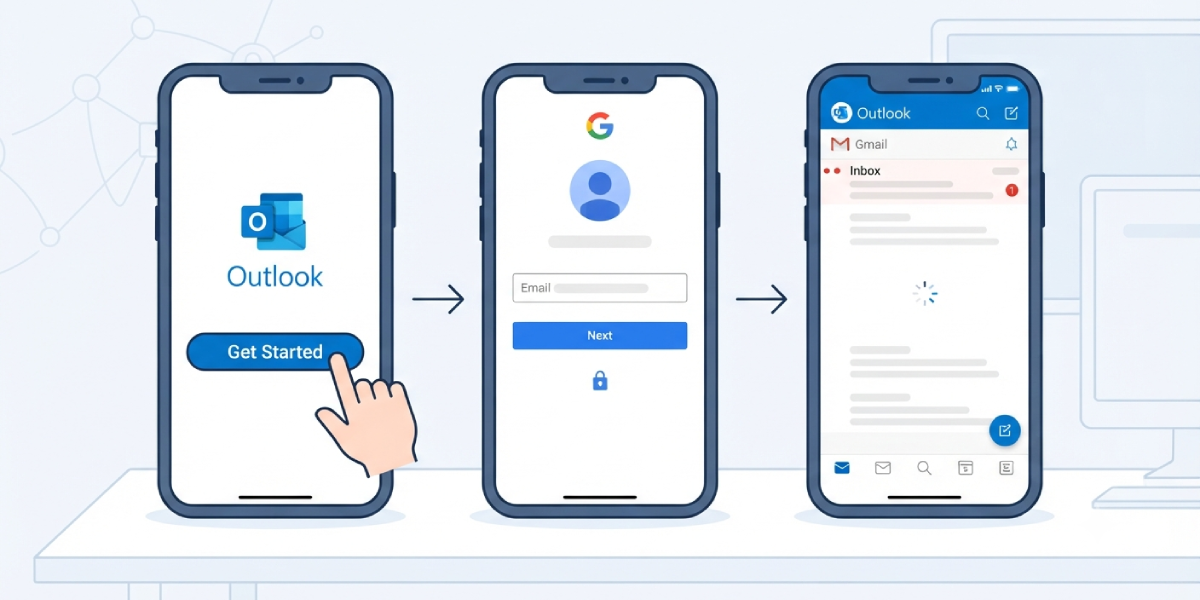
Tip: If Outlook does not automatically redirect to Google’s sign-in page after Step 3, double-check that the email address was typed correctly. A typo is the most common reason Outlook tries to treat a Gmail address like a generic IMAP account.
Adjusting Sync Settings After Setup
Once the account is connected, Outlook lets the sync window and folder behavior be fine-tuned to match how the inbox actually gets used.
- Step 1: Tap the profile icon, then the gear icon for Settings.
- Step 2: Select the newly added Gmail account from the account list.
- Step 3: Review options such as ‘Sync Options’, ‘Notifications’, and ‘Mail Days to Sync’, and adjust them as needed.

Tip: Setting ‘Mail Days to Sync’ to ‘All’ pulls in the complete Gmail history, which is useful for anyone who searches old emails often but can slow the initial sync on a large inbox.
Common Problems and Fixes
- Outlook won’t detect the account as Gmail: This usually happens after a mistyped email address. Remove the partial entry from the account setup screen and re-enter the address carefully.
- Stuck on ‘Signing In’ after entering the Google password: Close the Outlook app fully, reopen it, and start the setup again. A weak or dropped connection during the redirect step is the usual cause.
- Google blocks the sign-in with a security warning: This generally means two-factor verification is not yet set up on the Google account. Turn it on in the Google account’s security settings, then retry adding the account in Outlook.
- Emails from Gmail don’t appear after setup: Give the initial sync a few extra minutes, especially on a large inbox. If nothing appears after 15 minutes, pull down on the inbox screen to force a manual refresh.
- Permissions screen never appears: This can happen if a previous, incomplete setup attempt is still cached. Remove any partially added account from Outlook’s account list before trying again.
Frequently Asked Questions
Does adding a Gmail account in Outlook require a Google app password?
No. The recommended method uses Google’s own sign-in screen with two-factor verification, so a separate app password is not needed.
Can more than one Gmail account be added to the Outlook mobile app?
Yes. Repeat the same setup steps from the account settings menu for each additional Gmail address.
Will Gmail contacts and calendar events transfer into Outlook automatically?
Yes, once permissions are granted during setup, Outlook syncs mail, contacts, and calendar events from the Gmail account.
Is it safe to enter a Gmail password directly on the Outlook screen?
No. The correct flow redirects to Google’s own login page for entering the password, keeping the credentials out of the Outlook app itself.
What should happen if Outlook doesn’t redirect to Google’s sign-in page?
Double-check the email address for typos and try again. A correctly typed Gmail address should trigger the redirect automatically.
Does two-factor authentication need to be enabled beforehand?
Two-factor verification is typically required by Google during this process, so having it set up in advance makes the setup smoother.
How long does the first sync take after adding the account?
Most inboxes sync within a few minutes, though accounts with years of email history and a ‘Sync All’ setting can take longer.
Can the Gmail account be removed later without affecting the actual Gmail inbox?
Yes. Removing the account from Outlook only disconnects the app; the Gmail inbox and its contents remain untouched on Google’s side.
Why does Outlook ask for permission to access mail, contacts, and calendar?
This permission screen comes from Google and confirms what data Outlook is allowed to sync, giving the user direct control before anything connects.
