
Adding a GoDaddy email account in New Outlook for Windows takes just a few minutes once the right settings are in hand. Most people run into trouble only when the automatic setup doesn’t cooperate, and that’s usually a sign the manual server details are needed instead. This guide walks through both paths so the inbox is up and running without guesswork.
Key Takeaways
- New Outlook can often add a GoDaddy account automatically using just the email address and password.
- If automatic setup fails, manual IMAP and SMTP settings solve the problem in most cases.
- GoDaddy’s incoming server is typically imap.secureserver.net, though some accounts have migrated to Microsoft 365 servers.
- Checking the GoDaddy account dashboard beforehand confirms which server settings apply.
- Two-step verification, if enabled on the GoDaddy account, requires an app password instead of the regular login password.
How to Add a GoDaddy Email Account in New Outlook for Windows
The steps below cover the process from opening New Outlook to sending a test email that confirms everything works.
Step-by-Step Setup
- Step 1: Open New Outlook for Windows and select the gear icon in the lower-left corner, or click ‘Add account’ from the account list in the top-left corner.
- Step 2: Choose ‘Add account’ and type in the full GoDaddy email address, then select ‘Continue’.
- Step 3: Enter the GoDaddy account password when prompted. New Outlook will attempt to detect the correct server settings on its own.
- Step 4: If the account connects without issue, select ‘Done’ and the inbox will start syncing right away.
- Step 5: If automatic detection fails or asks for advanced settings, select ‘Advanced options’ and toggle on ‘Let me set up my account manually’.
- Step 6: Choose IMAP as the account type. This keeps mail synced across devices, which is what most GoDaddy users expect from a hosted inbox.
- Step 7: For the incoming mail server, enter imap.secureserver.net with port 993 and SSL/TLS encryption enabled.
- Step 8: For the outgoing mail server, enter smtpout.secureserver.net with port 465 (or 587 if 465 doesn’t connect) and SSL/TLS encryption enabled.
- Step 9: Enter the full email address as the username and the account password, then select ‘Connect’.
- Step 10: Wait for New Outlook to finish syncing folders, then send a quick test email to confirm sending and receiving both work.

Tip: Some GoDaddy accounts have been migrated to Microsoft 365 in the background, which changes the server addresses to outlook.office365.com for incoming mail and smtp.office365.com for outgoing mail. Checking the GoDaddy dashboard under ‘My Products > Email & Microsoft 365’ before starting saves a round of trial and error.
Setting Up with an App Password
Accounts with two-step verification turned on won’t accept the normal login password inside Outlook. A separate app password needs to be generated from the GoDaddy account security settings first, then used in place of the regular password during Step 3 or Step 9 above.
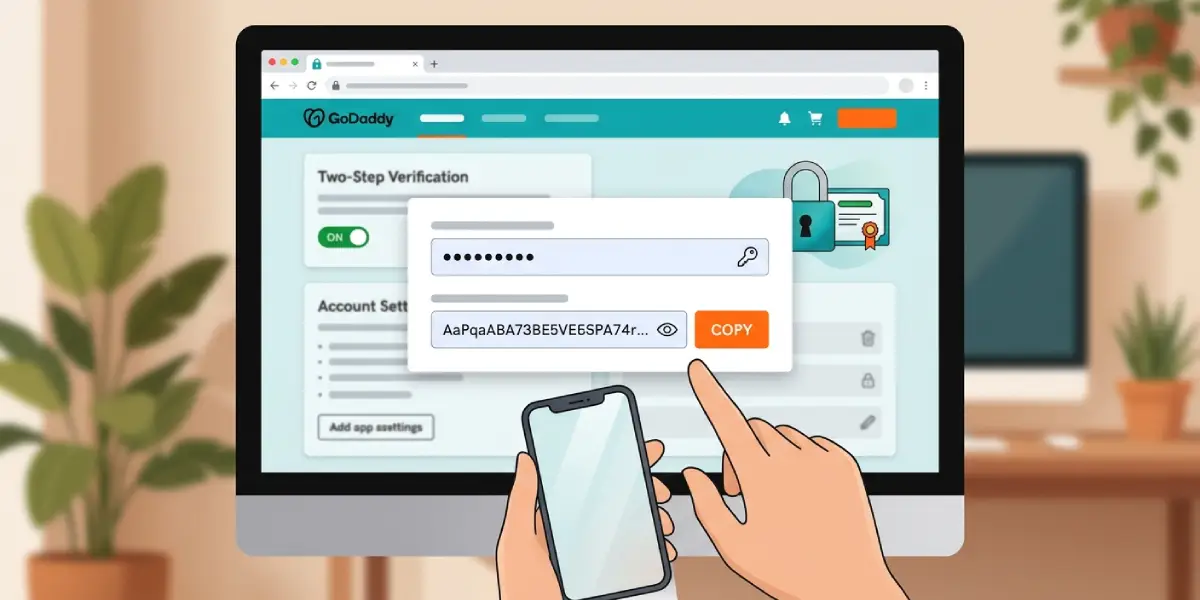
Tip: Save the app password somewhere secure right after creating it. GoDaddy only displays it once, and losing it means generating a fresh one and re-entering it in Outlook.
Common Problems and Fixes
- Outlook keeps asking for the password repeatedly: This usually points to an incorrect password or an account that needs an app password due to two-step verification. Generating a new app password and re-entering it typically resolves this.
- Automatic setup can’t find the account: Switch to manual setup and enter the IMAP and SMTP details directly, since GoDaddy’s servers sometimes aren’t detected automatically by New Outlook.
- Emails receive but won’t send: This is often an SMTP port issue. Try switching from port 465 to 587, since some networks block one port but allow the other.
- Connection times out during setup: Double-check that SSL/TLS is selected for both incoming and outgoing servers, since GoDaddy requires encrypted connections on all its mail ports.
- Old emails are missing after setup: IMAP normally syncs full mail history, but very large mailboxes can take a while to fully download. Give it time before assuming something’s wrong.
Frequently Asked Questions
Does New Outlook support GoDaddy email accounts?
Yes. New Outlook for Windows supports GoDaddy email through standard IMAP and SMTP protocols, either through automatic setup or manual configuration.
What is the GoDaddy IMAP server address?
For accounts still on GoDaddy’s own mail servers, the IMAP server is imap.secureserver.net on port 993 with SSL/TLS. Accounts migrated to Microsoft 365 use outlook.office365.com instead.
What is the GoDaddy SMTP server address?
The standard outgoing server is smtpout.secureserver.net on port 465 or 587 with SSL/TLS. Migrated Microsoft 365 accounts use smtp.office365.com on port 587.
Why does New Outlook ask for an app password?
An app password is required when two-step verification is turned on for the GoDaddy account. It replaces the regular password for third-party mail apps like Outlook.
Should IMAP or POP3 be used when adding a GoDaddy account?
IMAP is the better choice for most users since it keeps mail synced across every device signed into the account. POP3 downloads messages to a single device instead.
How can it be confirmed whether a GoDaddy account has migrated to Microsoft 365?
Log into the GoDaddy account dashboard and check under ‘My Products > Email & Microsoft 365’ to see which platform the mailbox is currently running on.
Why does New Outlook say the account already exists?
This happens when the same GoDaddy email address was previously added and not fully removed. Deleting the old account entry from Outlook’s account settings before re-adding it usually fixes this.
Is a GoDaddy hosting plan required to add the email account?
No. A GoDaddy hosting plan is not required. Any active GoDaddy email or Microsoft 365 subscription through GoDaddy works with this setup.
Can multiple GoDaddy accounts be added to the same New Outlook profile?
Yes. New Outlook allows multiple accounts, including several GoDaddy addresses, to be added and managed from the same account list.
